
Keel
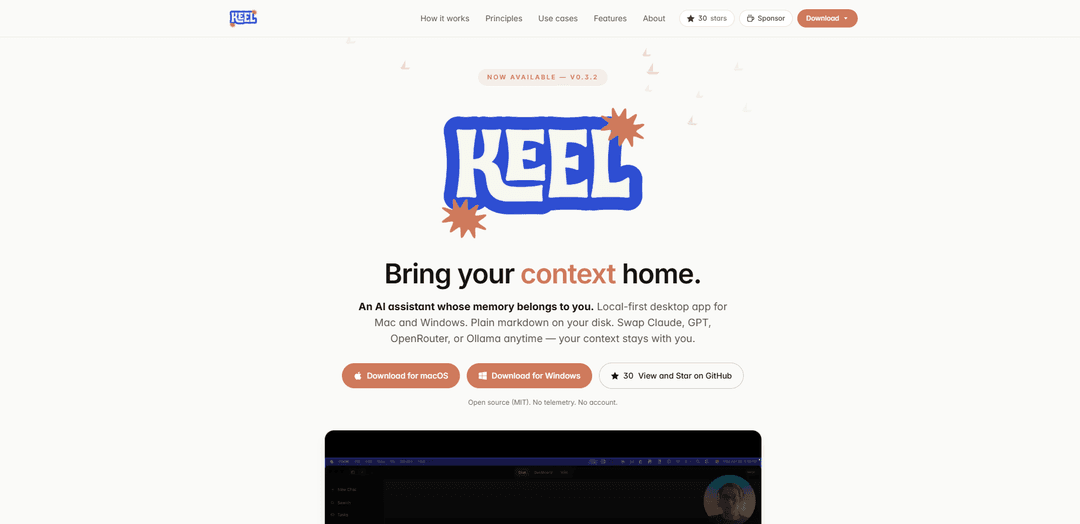
Keel is a local-first desktop AI assistant that stores your memory in plain markdown on your computer, auto-surfaces tasks and briefs, and lets you swap LLM providers (Claude, GPT, OpenRouter, or Ollama) without losing context.
https://keel-labs.github.io/?ref=producthunt
Product Information
Updated:May 15, 2026
What is Keel
Keel is an open-source (MIT) desktop app for macOS and Windows designed to be a “personal chief of staff” whose memory belongs to you. Instead of locking your history into a proprietary cloud, Keel uses a folder on your disk (typically ~/Keel) filled with plain markdown for daily logs, project notes, tasks, and knowledge bases—editable in any text editor and backed up however you like. It runs without accounts or telemetry, emphasizing privacy and user ownership of data while supporting multiple model providers so you can change LLMs at any time.
Key Features of Keel
Keel is a local-first desktop AI assistant for macOS and Windows that keeps your “memory” in a plain-markdown workspace on your own disk. It indexes your notes, logs, tasks, and project knowledge to assemble relevant context for chats, then writes decisions, captures, and action items back into your files. You can swap LLM providers (Claude, GPT, OpenRouter, or local models via Ollama) without losing context, and it emphasizes privacy with no account, no telemetry, and no server by default.
Local markdown workspace: Stores projects, daily logs, notes, and tasks as plain markdown in a folder you control (e.g., ~/Keel), editable in any editor and easy to back up.
Context engine with write-back memory: Indexes your workspace to pull relevant context into conversations and automatically saves useful outputs (decisions, facts, tasks) back into your markdown files.
Model-agnostic LLM support: Works with Claude, GPT, OpenRouter (300+ models), or local/offline models via Ollama—switch providers anytime while keeping the same on-disk context.
Per-project knowledge bases (LLM-Wiki style): Creates and refreshes queryable wiki bases from project folders using commands like /create-kb and /refresh-kb, ingesting markdown and PDFs and keeping them in sync.
Meeting transcription to structured notes: Records or imports audio, transcribes locally with Whisper, and writes structured meeting notes (attendees, decisions, action items) into the relevant project.
Dashboard, tasks, reminders, and scheduled jobs: Surfaces open tasks and daily briefs on launch, supports markdown-backed to-dos with due dates and desktop reminders, and can run recurring workflows (daily/weekly digests) captured back to disk.
Use Cases of Keel
Personal productivity (daily brief → EOD wrap): Generates a morning brief from your workspace, highlights open tasks and loose ends, and writes an end-of-day summary into your daily log for consistent self-management.
Software/product teams (project wiki + decisions log): Turns a repo or project folder into a queryable knowledge base, helping teams retain design decisions, specs, and meeting outcomes as structured markdown documentation.
Consulting/client work (meeting capture and action tracking): Transcribes client calls, extracts decisions and action items, and files them into client/project folders to reduce follow-up overhead and missed commitments.
Research and academia (paper/notes knowledge base): Ingests markdown notes and PDFs into a structured base for faster retrieval of prior reading, hypotheses, and experiment context while keeping data local.
Operations/administration (recurring check-ins and digests): Runs scheduled prompts for weekly reviews, status digests, or reminders and writes results back to logs, supporting lightweight operational rhythms without a separate system.
Pros
Local-first privacy posture (no account, no telemetry, no server by default; data stays in your files).
No vendor lock-in on models—swap providers (or go offline with Ollama) while keeping the same on-disk context.
Plain-markdown storage is portable, searchable, and easy to edit/back up with existing tools.
Strong workflow automation for knowledge capture: briefs, tasks, meeting notes, and scheduled digests write back into your workspace.
Cons
Best experience depends on maintaining an organized markdown workspace; messy files can reduce context quality.
Some capabilities still rely on external providers (e.g., OpenAI/Anthropic/OpenRouter) unless you use local models, which may require more setup and may be lower quality.
Desktop-only focus (macOS/Windows) may not fit users who want mobile-first or fully cloud-synced collaboration by default.
How to Use Keel
1) Install Keel: Download and install the desktop app: macOS DMG or Windows x64 installer from the Keel releases page (v0.2.0 is referenced). Keel is local-first (no account, no telemetry).
2) Create/choose your Keel workspace folder: On first run, Keel uses a plain-markdown folder on your disk (typically ~/Keel). This folder is your source of truth for projects, daily logs, tasks, and notes. You can edit these files in any editor and back them up yourself.
3) Understand the core workflow (local markdown → context engine → your model): Keel indexes your workspace, assembles relevant context for each conversation, and writes outputs (captures, decisions, tasks) back into markdown. The LLM provider is interchangeable; your context stays in your files.
4) Pick your LLM provider in settings: Configure which model to use (Claude, GPT, OpenRouter, or a local model via Ollama). You can swap providers anytime; Keel can fall back automatically if one provider is unavailable.
5) Start your day with the Dashboard + Morning Brief: Open Keel to land somewhere useful: it surfaces open tasks, reminders, recent activity, and generates a morning brief from your workspace (including yesterday’s loose ends).
6) Use Daily Logs (morning → end-of-day wrap): Work through the day using your markdown-based daily log. At the end of the day, have Keel write a structured end-of-day summary back into that daily log.
7) Capture decisions and tasks from chat back to disk: When a conversation produces something worth keeping (a decision, a fact, a new task), Keel can auto-capture it and save it into the appropriate markdown files in your workspace.
8) Create a per-project knowledge base (LLM-Wiki style): In a project folder, run /create-kb to compile your markdown and PDFs into a structured, queryable knowledge base for that project.
9) Keep a project knowledge base in sync: As project files change, run /refresh-kb to re-ingest updated markdown/PDFs and keep the compiled knowledge base current.
10) Turn meetings into structured notes (record or import audio): Record a meeting (or import an audio file). Keel transcribes locally using Whisper, then writes a structured summary—decisions, action items, attendees—back into the relevant project’s markdown.
11) Use voice input (optional): If you prefer speaking, enable voice input. Keel can use local Whisper or OpenAI’s API for speech-to-text.
12) Manage tasks and reminders in markdown: Use Keel’s first-class to-dos backed by markdown, including due dates and project association. Time-based reminders can fire as desktop notifications.
13) Schedule recurring workflows (optional): Set up scheduled jobs to run prompts/workflows on a cadence (daily digests, weekly reviews, custom check-ins). Keel captures the results back into your workspace files.
14) Connect integrations if you want more context (optional): Optionally sync Google Calendar events into context, read/export Google Docs, sync X bookmarks into a wiki, or publish posts from chat (as supported by Keel’s integrations).
15) Maintain privacy and ownership: Keep your workspace local and under your control. Keel does not run a server, does not track you, and does not sell your data; your workspace only leaves your machine if you explicitly choose to export/share it.
Keel FAQs
Keel is a local-first desktop AI assistant for macOS and Windows whose “memory” lives in files you own—plain markdown in a folder on your computer. It’s open source (MIT), requires no account, and has no telemetry.
Popular Articles

Atoms: A Multi-Agent AI Platform That Transforms Ideas into Launch-Ready Products
May 22, 2026

Nano Banana SBTI: What It Is, How It Works, and How to Use It in 2026
Apr 15, 2026

Atoms Review — The AI Product Builder Redefining Digital Creation in 2026
Apr 10, 2026

Kilo Claw: How to Deploy and Use a True "Do‑It‑For‑You" AI Agent(2026 Update)
Apr 3, 2026
Latest AI Tools Similar to Keel

Parcae
Parcae is a mind mapping mobile application that helps users organize thoughts and ideas into structured visual maps with intuitive gesture-based controls and automatic saving features.
想读 (WantRead)
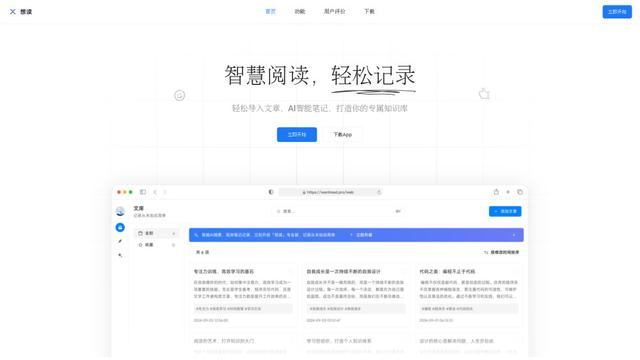
想读(WantRead) is an AI-powered reading and note-taking platform that helps users easily import, read, annotate and build their personal knowledge base.

Hiring Studio by Metaview
Hiring Studio by Metaview is a free AI-powered tool that helps recruiting teams generate customized interview questions with follow-up suggestions and detailed answer rubrics.

AI Journaler
AI Journaler is a free Windows PC app that combines traditional journaling with AI-powered analysis and conversation capabilities to enhance emotional well-being and self-reflection.
Popular AI Tools Like Keel
Lore
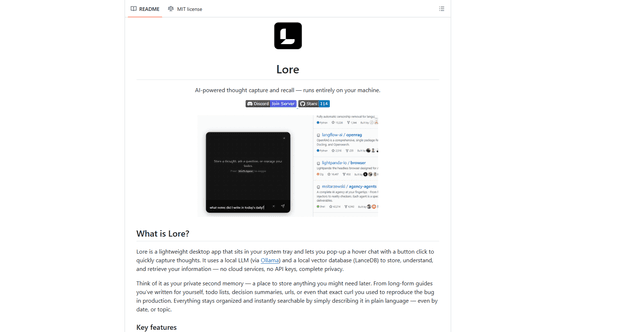
Lore is an AI-powered desktop application that enables quick thought capture and intelligent recall through a local LLM system, allowing users to store and retrieve information privately without cloud services.
Second Brain for AI
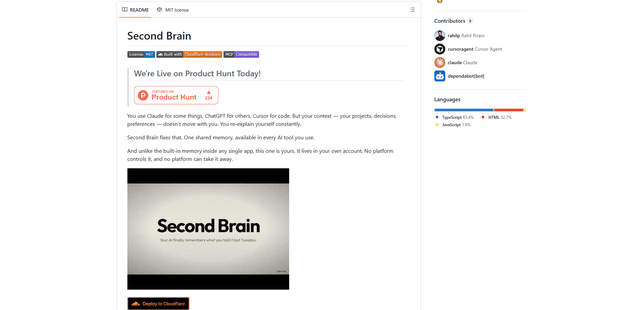
Second Brain for AI is a self-hosted, MCP-compatible persistent memory layer on Cloudflare that lets Claude, ChatGPT, Cursor, and other AI clients store and semantically recall shared context across sessions.
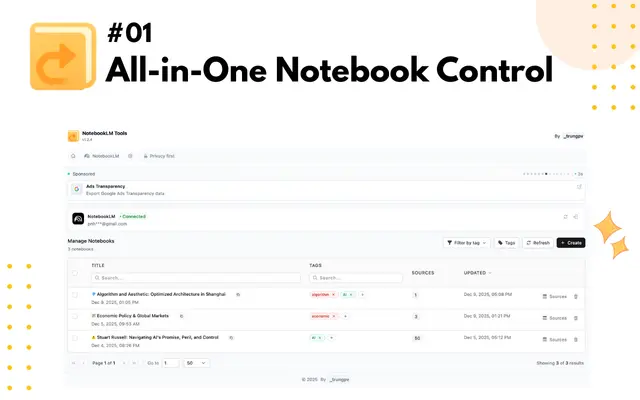
NotebookLM Tools Chrome Extension
NotebookLM Tools is a comprehensive Chrome extension that enhances Google's NotebookLM with advanced notebook management, multi-language support, bulk operations, and seamless source importing capabilities.
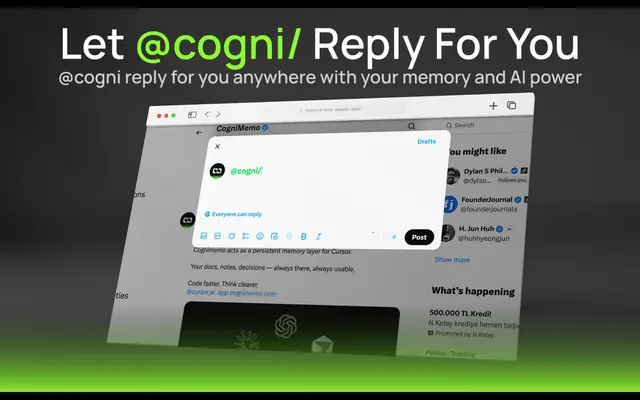
CogniMemo Extension
CogniMemo is a browser extension that adds long-term memory capabilities to AI tools like ChatGPT, Claude, Gemini, and DeepSeek by enabling context-aware conversations and knowledge management through saved notes and past chats.