OpenClaw—the open‑source agent fans nicknamed "the Lobster"—is having a moment. And it’s not just another chatbot: once you grant it carefully scoped permissions, it can keep working in the background 24/7—triaging your inbox, sending emails, managing calendars, and more. AIPURE (an AI tools hub) put together this "Raise Your Own Lobster" guide to help you get it running the safe way—so you can self-host it with confidence.
If you want an open‑source AI assistant that runs on your own machine or server—and can actually take actions with guardrails—this OpenClaw deployment guide is for you. We’ll walk power users and no‑code builders through two fast paths (local and cloud), safe‑by‑default settings, practical verification, and a few non‑destructive automations to try first. The hero idea throughout: deployment flexibility. You can start locally, then move to a cloud host like DigitalOcean or a managed PaaS with minimal rework.
For authoritative docs, keep the official resources handy: the OpenClaw GitHub repository and the OpenClaw install documentation. When deploying to a simple cloud VM, the DigitalOcean tutorial on running OpenClaw is also useful. For security context on agentic apps, see OWASP’s Agentic Top 10 (2026).
What You’ll Need (Read This First)
Before you begin, line up a few basics so your first run is smooth:
- A computer or VPS with at least 2 vCPUs and 4 GB RAM; Linux is most common, but macOS works well for local tests. For cloud, a small VM with SSD storage is ideal. DigitalOcean’s sizes from the community guide are a good baseline.
- A terminal and SSH access (for cloud). You should be comfortable pasting commands and reading basic logs.
- Docker and Docker Compose for the containerized path, or Node.js (LTS or newer) if you prefer the local installer/build route.
- API keys for your chosen model provider (OpenAI‑compatible or local models via an API), saved securely. Start with read‑only scopes wherever possible.
- A dedicated user account or namespace for OpenClaw state and workspace directories so you can back them up and restore them independently.
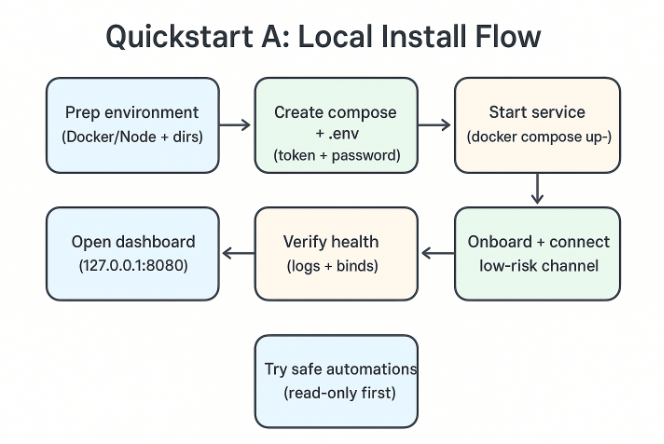
Quickstart A: Local Install in 10–15 Minutes
This path gets you a working OpenClaw instance on your laptop or a dev box. It’s perfect for kicking the tires with safe defaults.
1. Prepare your environment
- Ensure Docker and Docker Compose are installed; or install a recent Node.js if you prefer to run from source. If you need exact steps or alternatives, the official install guide covers the supported methods.
- Create two directories for persistent data:
mkdir -p ~/.openclaw/state
mkdir -p ~/.openclaw/workspace
2. Run with Docker Compose (recommended for isolation)
Create a minimal docker‑compose.yml in an empty folder. Confirm the correct image tag in the official docs/releases before deploying:
services:
  openclaw:
    image: openclaw/openclaw:latest
    restart: unless-stopped
    environment:
      - NODE_ENV=production
      - OPENCLAW_STATE_DIR=/home/node/.openclaw
      - OPENCLAW_WORKSPACE_DIR=/home/node/.openclaw/workspace
      - OPENCLAW_GATEWAY_BIND=127.0.0.1
      - OPENCLAW_GATEWAY_PORT=18789
      - OPENCLAW_GATEWAY_TOKEN=${OPENCLAW_GATEWAY_TOKEN}
      - SETUP_PASSWORD=${SETUP_PASSWORD}
    user: "1000:1000"  # run as a non-root user when possible
    volumes:
      - ~/.openclaw/state:/home/node/.openclaw
      - ~/.openclaw/workspace:/home/node/.openclaw/workspace
    ports:
      - "127.0.0.1:8080:8080"  # UI/dashboard
      - "127.0.0.1:18789:18789"  # gateway API
Create a .env file alongside it and set strong credentials:
OPENCLAW_GATEWAY_TOKEN="change-this-to-a-long-random-string"
SETUP_PASSWORD="also-change-this-to-a-strong-password"
Bring it up:
docker compose up -d
3. Onboarding and verification
- Open the dashboard at http://127.0.0.1:8080 and complete the setup wizard with your SETUP_PASSWORD. The quickstart and wizard flow are described in Getting Started.
- Add a single low‑risk channel (for example, Slack or Discord) and keep file writes and shell commands disabled initially.
- Run a quick smoke check from the container logs:
docker compose logs --tail=100 openclaw
You should see confirmation that the runtime is running, the gateway is bound to 127.0.0.1:18789, and the UI is listening on 8080.
4. Alternative: From source (Node.js)
If you prefer working from source for local development:
git clone https://github.com/openclaw/openclaw.git
cd openclaw
pnpm install
pnpm dev
This brings up a local development server. Use the CLI wizard if available to initialize state and set credentials, then proceed to the dashboard to finish onboarding.
Why start local? You keep everything on your machine, latency is low, and you can confirm the basics before moving to a multi‑user cloud setup. It’s the simplest way to learn the ropes of this open‑source AI automation agent without risking production data.
Quickstart B: Cloud in 10–20 Minutes on DigitalOcean
When you’re ready to share access with a teammate or keep the assistant online 24/7, a low‑cost cloud VM is handy. A common path is a marketplace 1‑Click image or a small Droplet where you run Docker Compose. For step‑by‑step DO guidance, refer to the DigitalOcean community tutorial for OpenClaw.
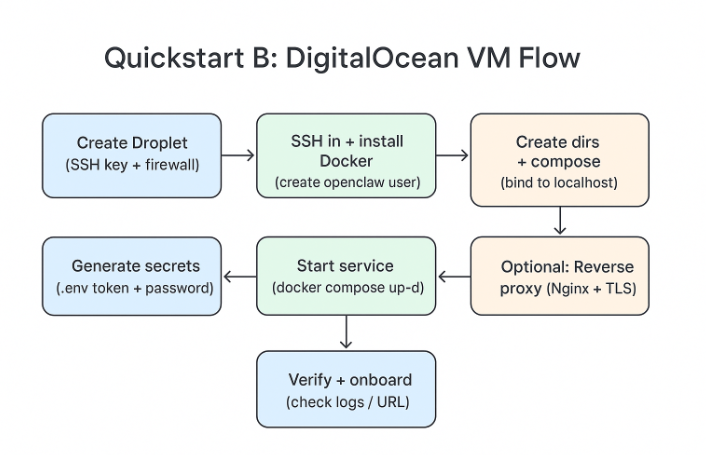
1. Create a Droplet
- Choose a size with 2 vCPUs and 4 GB RAM (or larger if multiple channels/users will connect).
- Add your SSH key and restrict inbound ports to 22 (SSH), 80/443 (if you’ll put the dashboard behind a reverse proxy), and your chosen UI port (8080) if testing direct access temporarily.
2. SSH in and set up Docker
ssh root@your-server-ip
apt update && apt install -y docker.io docker-compose git && systemctl enable docker
adduser openclaw && usermod -aG docker openclaw
su - openclaw
3. Prepare state and Compose
mkdir -p ~/.openclaw/state ~/.openclaw/workspace
mkdir ~/svc && cd ~/svc
Create docker‑compose.yml (similar to the local one) but bind the dashboard behind localhost first, then later put Nginx or Caddy in front for TLS:
services:
  openclaw:
    image: openclaw/openclaw:latest
    restart: unless-stopped
    environment:
      - NODE_ENV=production
      - OPENCLAW_STATE_DIR=/home/openclaw/.openclaw
      - OPENCLAW_WORKSPACE_DIR=/home/openclaw/.openclaw/workspace
      - OPENCLAW_GATEWAY_BIND=127.0.0.1
      - OPENCLAW_GATEWAY_PORT=18789
      - OPENCLAW_GATEWAY_TOKEN=${OPENCLAW_GATEWAY_TOKEN}
      - SETUP_PASSWORD=${SETUP_PASSWORD}
    user: "1000:1000"
    volumes:
      - /home/openclaw/.openclaw:/home/openclaw/.openclaw
      - /home/openclaw/.openclaw/workspace:/home/openclaw/.openclaw/workspace
    ports:
      - "127.0.0.1:8080:8080"
      - "127.0.0.1:18789:18789"
Create .env and bring it up:
cat > .env << 'EOF'
OPENCLAW_GATEWAY_TOKEN=$(openssl rand -hex 32)
SETUP_PASSWORD=$(openssl rand -base64 24)
EOF

docker compose up -d
4. Add a reverse proxy (optional but recommended)
Expose only HTTPS to the internet and keep the gateway on localhost:
sudo apt install -y nginx certbot python3-certbot-nginx
sudo nano /etc/nginx/sites-available/openclaw
Add a simple proxy server block (replace domain):
server {
  server_name assistant.example.com;
  location / {
    proxy_pass http://127.0.0.1:8080;
    proxy_set_header Host $host;
    proxy_set_header X-Real-IP $remote_addr;
    proxy_set_header X-Forwarded-For $proxy_add_x_forwarded_for;
    proxy_set_header X-Forwarded-Proto $scheme;
  }
  listen 80;
}
Then enable and secure it:
sudo ln -s /etc/nginx/sites-available/openclaw /etc/nginx/sites-enabled/
sudo nginx -t && sudo systemctl reload nginx
sudo certbot --nginx -d assistant.example.com --redirect
5. Verify health
- Visit https://assistant.example.com and complete the onboarding.
- Check containers and logs:
docker compose ps
docker compose logs --tail=100
If you see the runtime running and no port conflicts, you’re good to go.
Why DigitalOcean? It strikes a balance between cost, control, and simplicity. You keep root access, but you also get a clean, predictable VM where OpenClaw can run continuously. If you prefer a PaaS blueprint, the OpenClaw docs include a Render deployment example with a persistent disk and required environment variables.
OpenClaw Deployment Guide: Which Option Should You Pick?
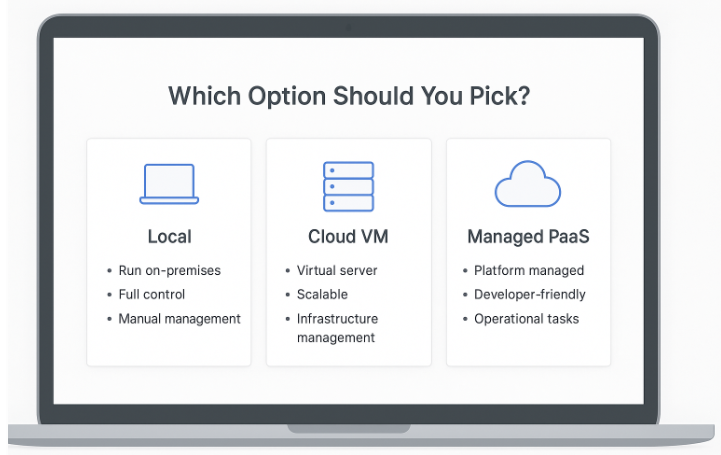
- Local first if you’re learning or you care about privacy and ultra‑low latency.
- A small cloud VM if you want always‑on access for yourself and a colleague.
- A managed PaaS if you value auto‑restarts, health checks, and painless disk management. Render‑style blueprints often include a persistent disk mount and a few required environment variables. If you go this route, make sure the gateway stays on an internal bind and that you provision a setup password and token at deploy time.
Step‑by‑Step: The Docker/VPS Pattern You’ll Reuse Everywhere
Use this sequence whenever you install OpenClaw on any VPS provider:
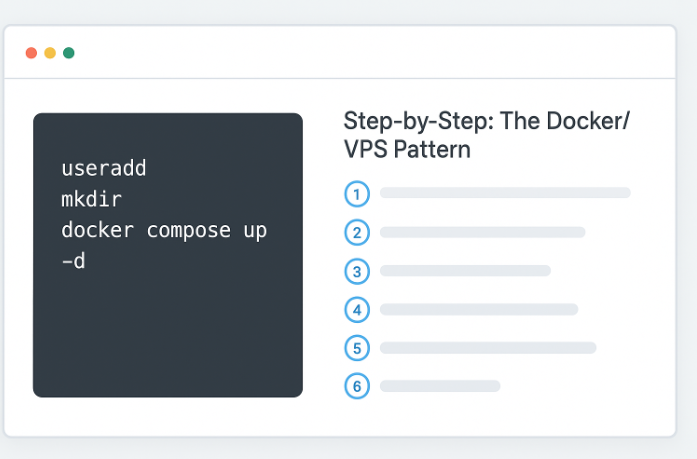
- Create a non‑root user and install Docker + Compose.
- Create persistent state/workspace directories in that user’s home.
- Bind the dashboard and gateway to localhost initially.
- Generate a strong setup password and gateway token and store them in a .env file with restricted permissions.
- Bring up the service and complete onboarding.
- Only after testing, add a reverse proxy and open ports to the public internet.
A small quality‑of‑life script that wraps steps 2–5 can make repeatable deployments trivial. Keep it in your private repo with the domain, ports, and volume paths parameterized.
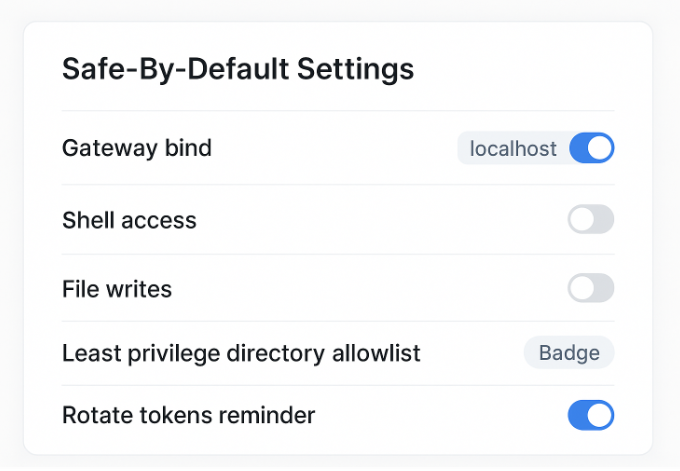
Safe‑By‑Default Settings You Should Keep
- Least privilege: Start the agent with read‑only access to a single test directory. Don’t let it write or execute shell commands until you’ve validated its behavior.
- Credentials: Use a long, random SETUP_PASSWORD and OPENCLAW_GATEWAY_TOKEN. Rotate them if they may have leaked or when a teammate leaves.
- Localhost binds: Keep the gateway bound to 127.0.0.1. If a remote tool needs access, front it with a reverse proxy or a private network solution rather than exposing the raw port.
- Separate environments: Maintain a dev instance for experimentation and a separate one for any important documents or workflows.
- Logging and review: Tail logs during early use, and review what actions the agent attempted before unlocking more powerful skills.
For deeper, vendor‑neutral security context while you scale up, consult OWASP’s Agentic Top 10 (2026) and related solution guides.
Troubleshooting and Recovery (Fast Fixes)
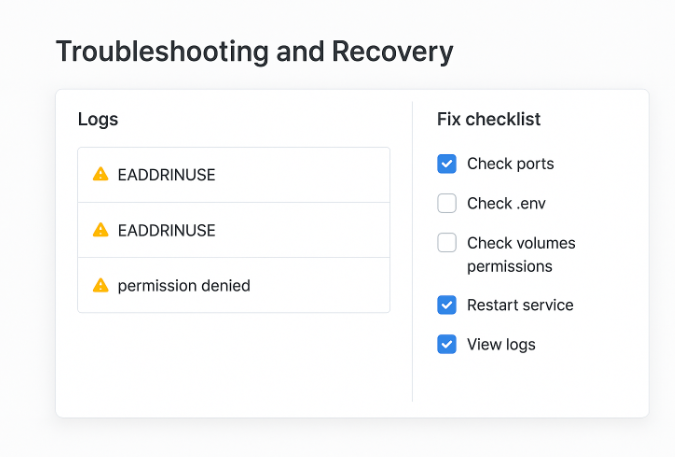
- Port already in use: If 8080 or 18789 is busy, change the host‑side port mapping in docker‑compose.yml and restart.
- Bad or missing credentials: If you can’t authenticate to the dashboard, reset SETUP_PASSWORD in your .env, then restart the container. For the gateway, rotate OPENCLAW_GATEWAY_TOKEN and redeploy.
- Container flapping or crashing: Inspect recent logs and check volume permissions for the mapped state/workspace directories. Ensure the service isn’t running as root if the image expects a non‑root user.
- Gateway not reachable: Confirm it’s still bound to 127.0.0.1 and that your reverse proxy is pointing to the correct upstream. Avoid exposing the gateway directly.
- Nothing happens when you ask it to do something: Confirm the relevant channel is connected and any required integration tokens are present. Try a simple, read‑only task first (for example, “summarize this text file in the workspace”).
Helpful commands you’ll use often:
# Status
docker compose ps

# Logs (follow)
docker compose logs -f --tail=200

# Restart after a config change
docker compose up -d --force-recreate

# Inspect port bindings
docker ps --format ' -> '
If you ever suspect state corruption or a bad upgrade, stop the service, back up the state/workspace directories, and try a clean start with a fresh image tag. You can re‑import selectively from the backup once the service is healthy again.
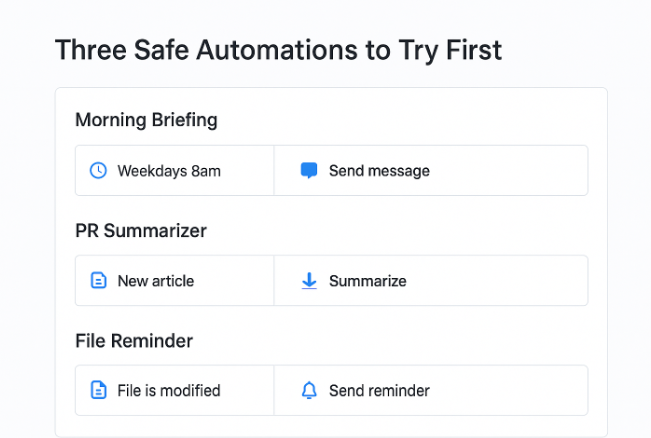
Three Safe Automations to Try First
1. Morning briefing to yourself
Connect a chat channel you already use. Point OpenClaw at a test calendar file in the workspace and ask it to send a single morning summary to you on weekdays. Keep it read‑only at first so it can’t change events—this builds trust in the assistant’s judgment and formatting.
2. GitHub pull request summarizer
Enable the GitHub integration and scope it to a sandbox repository. Ask OpenClaw to read the latest pull request and post a short summary as a comment. This uses real automation (reading remote data and posting back) without touching your local filesystem or running shell commands.
3. File presence check and reminder
Have OpenClaw check whether a specific file exists in the workspace by 6 PM, then send you a reminder in chat if it’s missing. It’s a minimal, practical test of scheduling and notifications that doesn’t require write access or a shell.
These examples exercise channels, memory, and basic tools while staying non‑destructive. As you iterate, you can expand into safe file writes, then carefully enable shell commands for narrow, well‑tested tasks.
Upgrade, Backup, and Migration Tips
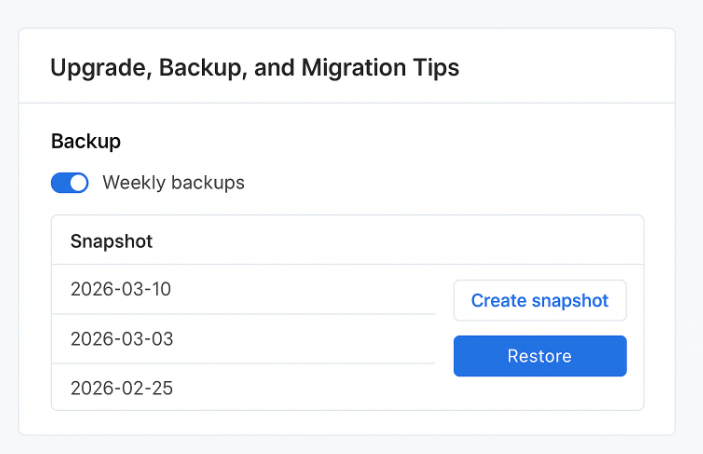
- Version pinning: In Docker, use a tagged image rather than latest for stability, then upgrade intentionally.
- Pre‑upgrade backup: Stop the container and archive the state/workspace directories with a timestamp. Keep at least two snapshots.
- Rollback: If an upgrade misbehaves, stop the container, switch back to the previous image tag, and restore the prior snapshot of state/workspace.
- Migration: To move hosts, copy the snapshots to the new machine, recreate the same directory structure and user IDs, then start the service with the same environment variables.
Backups take minutes and can save hours of debugging. Here’s the deal: set a quick weekly cron that compresses your state and workspace into a dated tarball and rotates old archives.
Security Caveats You Should Never Ignore
OpenClaw is powerful because it acts as a gateway to your system and apps. That’s also why you must be deliberate with permissions and scopes. Think about:
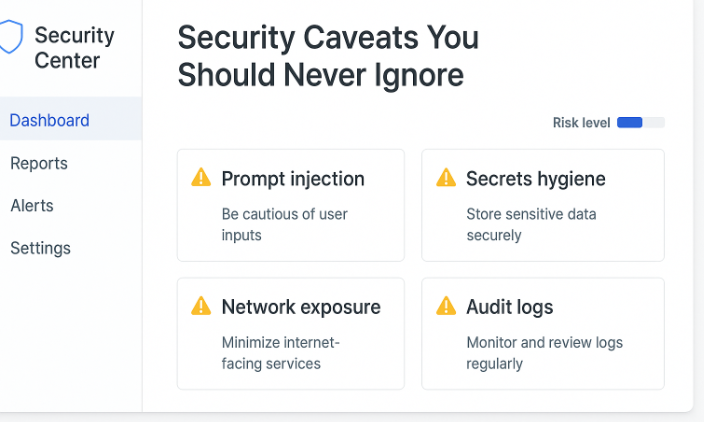
- Prompt injection and tool abuse: Be skeptical of content from untrusted sources. Keep risky tools disabled in workflows that process unknown inputs.
- Secrets hygiene: Never hard‑code API keys in Compose files. Use environment variables and restrict access to your .env. Rotate keys regularly.
- Network exposure: Favor private networks or reverse proxies with TLS and authentication. Do not expose the raw gateway to the public internet.
- Auditability: Keep logs long enough to reconstruct what happened if something goes wrong. Review agent actions before granting more power.
These aren’t theoretical risks—they’re the same categories of issues any automation service can face. Least privilege, separation of duties, and routine audits go a long way.
Alternatives and When to Consider Them
Depending on your goals, you might also explore other open‑source agent projects that emphasize different trade‑offs, such as IDE‑centric code agents or research‑heavy assistants. If your primary need is collaborative coding inside a browser IDE, you may prefer an agent tailored for that domain. If you need headless browser automation at scale, a framework focused on that slice might be a better fit. The point isn’t to pick a “winner,” but to choose the tool that aligns with your workflows and risk tolerance.
Where This Is Heading (And Your Next Step)
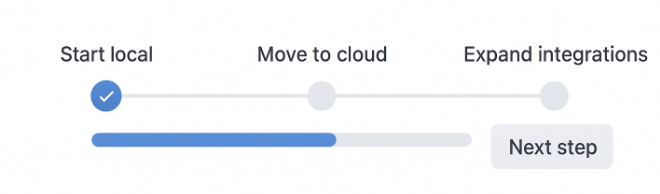
OpenClaw’s design—model‑agnostic, channel‑rich, and gateway‑driven—makes it easy to adopt newer models over time without changing your deployment fundamentals. Start local with safe defaults, learn how the agent behaves, then promote to a small cloud VM with HTTPS and strict credentials. From there, expand integrations and permission scopes only as your confidence grows.
If you want to keep up with practical deployment tips and adjacent tutorials, AIPURE regularly covers hands‑on guides and roundups of new AI tools and patterns. Use it as a neutral way to stay current, then come back and refine your setup.

FAQ
How is this different from a typical chatbot?
OpenClaw isn’t just Q&A. It connects to your files, services, and channels and can take real actions through a sandboxed gateway with guardrails.
Can I use local models to improve privacy or reduce cost?
Yes. OpenClaw is model‑agnostic. You can plug in API‑based LLMs or point it at a local model served over an API. Start small, measure latency and quality, and tune from there.
What’s the simplest "production"‑ish setup?
A small cloud VM with Docker Compose, the gateway bound to localhost, the dashboard behind an HTTPS reverse proxy, and a weekly backup of state/workspace directories. Keep shell and write permissions off until you need them.
How do I uninstall everything cleanly?
Stop and remove your containers, delete the service directory with Compose files, and archive or delete the state/workspace directories in the dedicated user’s home. If you added a reverse proxy, remove that server block and revoke TLS certificates.
Ready to run your own local AI agent with memory and safe guardrails? Start with the local quickstart in this OpenClaw deployment guide, verify the basics, then graduate to a small cloud VM when you’re comfortable. You’ll have an open‑source AI automation agent that actually gets work done—on your terms.



