
Wave
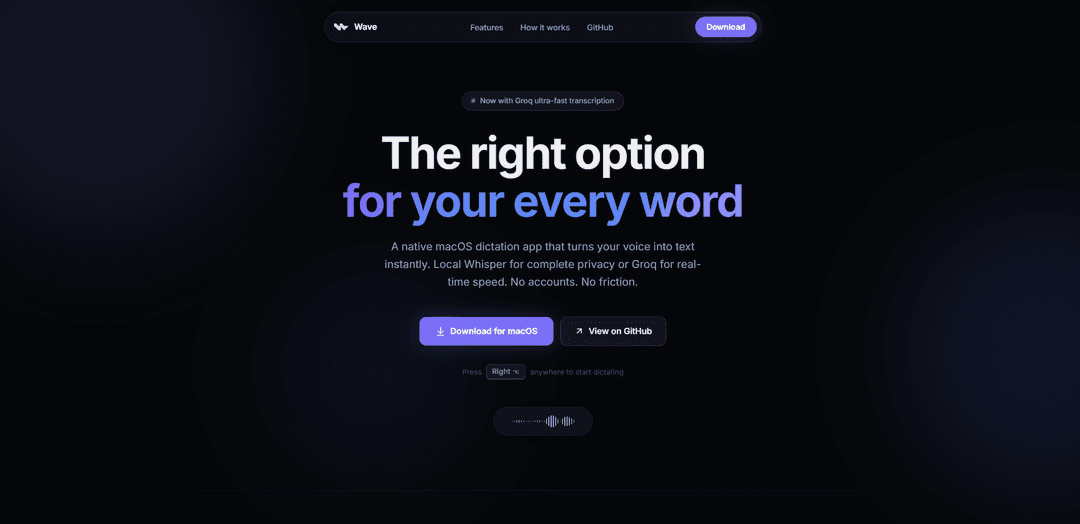
Wave is a free, open-source macOS dictation app that inserts speech-to-text directly at your cursor with one-key activation, offering private on-device Whisper, optional ultra-fast Groq transcription, and AI rewriting from intent.
https://wave.mxv.sh/?ref=producthunt
Product Information
Updated:Jun 8, 2026
What is Wave
Wave is a native macOS (14+) dictation tool designed to turn your voice into clean, ready-to-send text anywhere you can type—Mail, Slack, Notion, and more—without opening a launcher or switching apps. It focuses on speed and minimal friction: you hold a single key, speak, and release to insert text at the cursor. Wave emphasizes privacy by supporting fully on-device transcription via Whisper, while also offering an optional hosted mode using Groq for lower-latency, real-time transcription when speed matters. The app is free and open source, requires no account, and is built to run quietly in the background until you need it.
Key Features of Wave
Wave is a native macOS dictation app that inserts speech-to-text directly at your cursor in any app with a single-key hold-to-talk workflow (Right Option). It can run fully offline using on-device Whisper for privacy, or optionally use Groq for ultra-fast hosted transcription and AI rewrite when low latency matters. Wave also supports “AI Mode” to turn spoken intent into polished text and “Selection Mode” to rewrite highlighted text in place, with no account required, no telemetry, and an open-source, free-to-use core experience on macOS 14+.
One-key hold-to-dictate: Hold Right Option, speak, and release to insert text—no launcher, no window switching, and minimal interaction overhead.
Cursor-first text insertion: Streams transcription directly into the active text field at your cursor, so you don’t need to copy/paste from a separate app.
Local Whisper for privacy + offline use: Runs Whisper on-device so audio stays on your Mac; works without Wi‑Fi for local dictation.
Groq option for low-latency transcription: Switch to Groq’s API for near-instant speed when you want minimal latency (you bring your own Groq API key).
AI Mode: speak intent, get polished text: Describe what you want to say (not a perfect draft) and Wave outputs clean, ready-to-send writing.
Selection Mode: rewrite in place: Highlight existing text, hold the shortcut, and speak an instruction; Wave replaces the selection with the rewritten version.
Use Cases of Wave
Faster business communication: Draft emails, Slack/Teams messages, and status updates hands-free, inserting directly where you type to reduce context switching.
Customer support & sales responses: Quickly produce consistent, polished replies by speaking intent and letting AI Mode generate clear customer-facing text.
Editing and rewriting workflows: Use Selection Mode to rephrase paragraphs, tighten copy, or change tone without manual rewriting in documents or notes.
Productivity for makers and knowledge workers: Capture ideas into Notion/Notes/Linear/Figma fields immediately while thinking aloud, keeping flow state intact.
Privacy-sensitive dictation: Use local Whisper for teams or individuals who prefer on-device processing for confidential content and offline environments.
Pros
Free and open source, with no account required for the app itself
Privacy-first: local Whisper processing and no telemetry/trackers
Very low-friction workflow (one-key activation) that works in any text field
Optional Groq mode provides very fast transcription when latency matters
Cons
Groq-hosted transcription/AI rewrite requires your own Groq API key and incurs API costs
macOS-only (macOS 14+), limiting availability for Windows/Linux/mobile users
Best experience may depend on hardware and local model performance when using on-device Whisper
How to Use Wave
1. Install Wave: Download and install Wave on a Mac running macOS 14+ (Sonoma or later). Launch it once so it can run in the background.
2. Choose your transcription mode (Local Whisper vs Groq): Use Local Whisper for fully on-device dictation (works offline and keeps audio local). Optionally switch to Groq for near-instant transcription when you want minimal latency (requires internet and your own Groq API key).
3. Start dictating anywhere: Click into any text field in any app (Mail, Messages, Slack, Notion, Notes, Linear, Figma, Arc, etc.) so your cursor is active where you want text inserted.
4. Hold the activation key: Hold the Right Option key to begin dictation. There’s no launcher to open and no mode to switch—Wave stays ready in the background.
5. Speak your text out loud: Speak in full sentences or rough thoughts. Wave transcribes while you talk.
6. Release to insert at the cursor: Let go of the Right Option key to finish. Wave inserts the transcribed text directly at your cursor (no copy/paste step).
7. Use AI Mode to write from intent: Instead of dictating a perfect draft, describe what you want (e.g., “Write a polite email asking to take tomorrow off for a doctor appointment and say I’ll wrap up urgent items today”). Wave turns your intent into polished text at the cursor.
8. Use Selection Mode to rewrite existing text: Highlight any text you want to change, hold the shortcut (Right Option), and speak your instruction (e.g., “Make this shorter and more professional”). Wave rewrites the selected text in place.
9. Work offline when needed: If you want dictation without Wi‑Fi, keep Wave set to Local Whisper. Internet is only needed when using Groq-hosted transcription or AI rewrite features.
10. Use without an account (optional Groq key only): Wave itself requires no account and collects no user data. If you choose Groq features, provide your own Groq API key.
Wave FAQs
Wave is a native macOS dictation app that turns your voice into text instantly and inserts it directly at your cursor in any text field.
Popular Articles

Vosko AI: Localize and Dub Videos for Global Audiences
Oct 15, 2026

Atoms: A Multi-Agent AI Platform That Transforms Ideas into Launch-Ready Products
Oct 13, 2026

Nano Banana SBTI: What It Is, How It Works, and How to Use It in 2026
Apr 15, 2026

Atoms Review — The AI Product Builder Redefining Digital Creation in 2026
Apr 10, 2026
Latest AI Tools Similar to Wave
Ticknotes
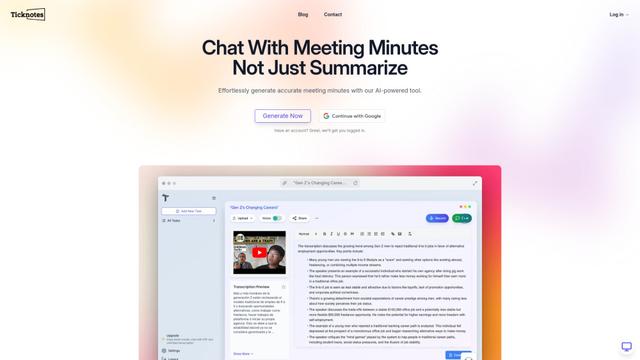
Ticknotes is an AI-powered meeting assistant that automatically records, transcribes, and generates personalized meeting summaries, action items, and key insights from audio, video, and text content.

Feta
Feta is an AI-powered meeting tool that helps product and engineering teams run efficient meetings by capturing discussions, automating tasks, and providing actionable insights through smart summaries and integrations.
TranscriptionPlus
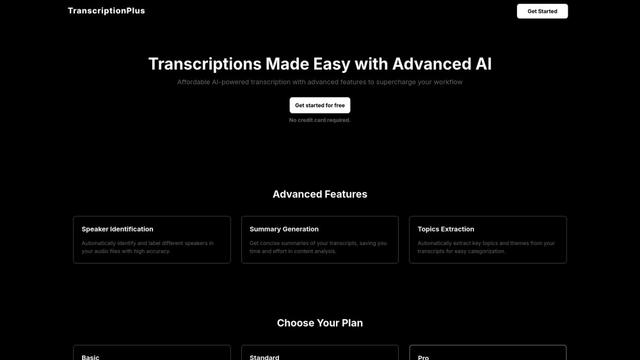
TranscriptionPlus is an AI-powered transcription service that offers accurate speech-to-text conversion with advanced features like speaker identification, summary generation, and multi-language support at affordable pricing tiers.
AudioScribe.io
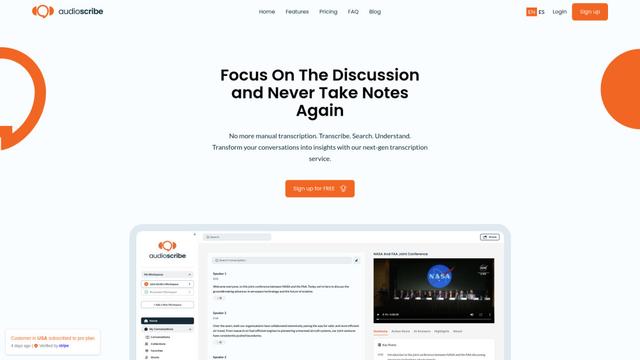
AudioScribe.io is a revolutionary AI-powered transcription service that converts audio and video content into accurate text while offering advanced features like automated meeting recording, full-text search, and multi-language support.
Popular AI Tools Like Wave
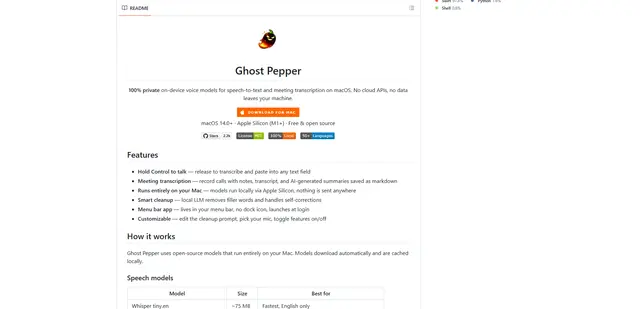
Ghost Pepper 🌶️
Ghost Pepper is a 100% local, privacy-focused speech-to-text and meeting transcription app for macOS that runs entirely on your Mac using open-source AI models, featuring hold-to-talk recording, intelligent text cleanup, and multi-language support without sending any data to the cloud.
Whisper AI
Whisper is an open-source automatic speech recognition system from OpenAI that approaches human-level accuracy and robustness for transcribing and translating speech in multiple languages.

Youtube to transcript
Youtube to Transcript is a Chrome extension that allows users to easily convert YouTube videos into text transcripts with features like multi-language support, AI-powered summarization, and downloadable formats.
inFin
inFin is a lightweight, user-friendly AI-powered voice notes app that offers unlimited recording, real-time transcription, and translation between Chinese and English, with offline capabilities and local storage for enhanced privacy.