
Supamodel
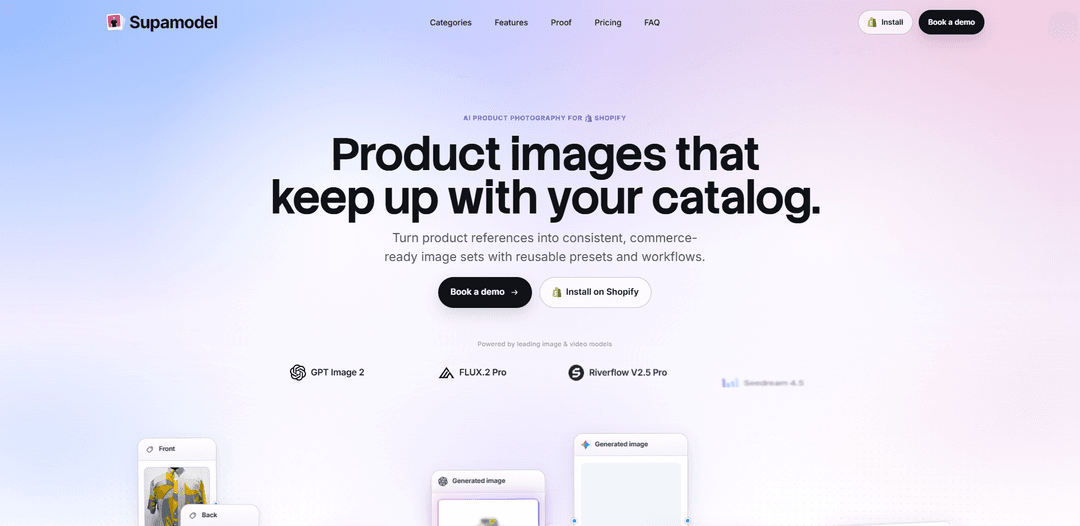
Supamodel is a Shopify app that automates AI product photography by turning product references into consistent, commerce-ready image sets using reusable workflows, presets, and multiple leading image/video models.
https://supamodel.app/?ref=producthunt
Product Information
Updated:Aug 15, 2026
What is Supamodel
Supamodel is an AI product photography platform built as a Shopify app to help merchants and teams generate high-quality product images that can keep up with fast-moving catalogs. It focuses on producing consistent, accurate, and review-ready image sets by combining product inputs (like existing Shopify images, reference photos, or even 3D/CAD assets) with structured workflows, reusable presets, and model/talent selection. Designed for scale across categories (e.g., fashion, furniture, footwear, jewelry, and components), Supamodel streamlines the creation of standardized catalog imagery without rebuilding a photoshoot process for every SKU.
Key Features of Supamodel
Supamodel is a Shopify app for generating consistent, commerce-ready product image sets at scale. It turns existing product references (Shopify images, reference photos, or 3D assets) plus selected details (e.g., fabric, fit, collar/buttons), talent, prompts, and chosen AI image/video models into reusable workflows and presets. Teams can standardize multi-angle and lifestyle outputs across SKUs, review results, and push approved images directly back into a product’s Shopify media gallery—helping catalogs stay accurate, consistent, and faster to produce.
Reusable workflows & presets: Build category-specific (or category-agnostic) image workflows once—combining prompts, visual logic, and output requirements—then reuse them across new and existing SKUs to keep catalog imagery consistent.
Product-detail preservation controls: Carries defining product attributes through generation (e.g., collar shape, buttons, sleeve length, fabric/print, fit) so outputs remain accurate and shoppable rather than “creative but wrong.”
Multi-model generation (image + video): Supports multiple leading image and (beta) video models, letting teams switch models per task to balance realism, speed, and cost.
Talent library + consistent cast creation: Choose from a ready-to-use talent library or save your own talent; define and reuse the same person across product launches to create a consistent brand look.
3D asset to photoshoot pipeline: Generate accurate multi-angle shots from 3D assets (e.g., GLB, STL, OBJ) via 3D scene/environment tooling inside the workflow editor.
Shopify-native handoff: Start from products already in Shopify, generate and review results, then push selected shots directly to the product media gallery without manual downloading/uploading.
Use Cases of Supamodel
Apparel catalog scaling: Create standardized front/back/angle and on-model images for shirts, outerwear, etc., reusing the same workflow to maintain consistent presentation across a growing SKU count.
Furniture lifestyle imagery: Produce room-scene lifestyle shots and detail close-ups for furniture lines (e.g., chairs/sofas), keeping lighting and styling consistent while iterating quickly.
Footwear and accessories launches: Generate repeatable pose/angle sets for shoes, bags, and accessories, ensuring each drop matches the same visual system and requirements for ecommerce listings.
Jewelry product detail sets: Create consistent, high-clarity product images and detail shots where accuracy (materials, shapes, settings) is critical for buyer trust.
3D/CAD-driven product visualization: For brands with 3D assets, generate photoreal multi-angle imagery before physical samples are ready, supporting faster go-to-market content creation.
High-volume seasonal refreshes: Use credits-based production to batch-generate updated imagery for seasonal campaigns or remerchandising, topping up credits when launch volume spikes.
Pros
Designed for scale: reusable workflows/presets help standardize imagery across large catalogs.
Shopify integration streamlines operations by pushing approved shots directly to product media.
Flexibility: supports multiple AI models and inputs (existing photos and 3D assets) for different quality/cost needs.
Cons
Credit-based pricing means costs can vary depending on the selected generation model and volume.
Workflow setup may require initial time and process design to map inputs, decisions, and review steps.
Video features are labeled beta, which may imply limitations or evolving reliability.
How to Use Supamodel
1) Install Supamodel in Shopify: Open the Supamodel site and click “Install on Shopify” (or go directly via the Shopify App Store listing). Approve the installation for the store you want to generate product photos for.
2) Choose a plan and confirm credits: Pick a monthly plan (Starter/Plus/Elite/Max). Your plan adds credits every 30 days; each image/video generation consumes credits depending on the model you choose. Optionally plan for add-on credit packs if you expect launch spikes.
3) Start a new shoot from a Shopify product (recommended): Inside Supamodel, select a product that already exists in Shopify as your input. Use one of its existing images as the reference so you don’t need to download/re-upload assets.
4) Provide product references (front/back or key angles): Upload or select the product reference images you want the workflow to preserve (e.g., front and back images for apparel). These references anchor the generated outputs to the real product details.
5) (Optional) Use 3D assets instead of photos: If you have 3D/CAD files, start from a 3D asset source (GLB, STL, or standalone OBJ) to generate accurate multi-angle shots as inputs to your workflow.
6) Select or create “Talent” for consistent models: Choose a person from your saved talent library or Supamodel’s ready-to-use talent library. If you need a new consistent face, generate multiple candidates, pick one, and save it for reuse across products and launches.
7) Choose environment and styling inputs: Add an environment/background and any styling constraints your catalog needs. The goal is repeatable, commerce-ready consistency across SKUs.
8) Define product attributes that must remain accurate: Specify key details shoppers rely on (examples shown: fabric type, fit, collar buttons). These constraints help keep outputs true to the product.
9) Pick poses / shot list for the catalog set: Select the poses or angles you want in the output set (e.g., multiple lifestyle and detail shots). This becomes your repeatable shot recipe for the category.
10) Build a reusable workflow in the workflow editor: Create a workflow tailored to the category, combining inputs (product images/3D, talent, environment), text prompts, and logic. Use nodes such as Product Image, Custom Image, Talent, Environment, Switch, Text Prompt, Chain Prompts, Vision LLM/Any LLM, and model nodes.
11) Add prompt chaining for consistency: Use “Chain Prompts” to structure instructions (e.g., preserve collar shape/buttons, fit, fabric/print, sleeve length). This helps ensure each generation follows the same rules.
12) Choose the generation model(s) for image (and optionally video): Select from supported image models (e.g., Gemini variants, GPT Image variants, FLUX variants, Seedream, Riverflow) and, if needed, video models (beta). Model choice affects both style/capability and credit usage.
13) Run the workflow to generate a catalog set: Execute the workflow to produce a set of outputs. Review the generated images, and use “Regenerate” on any shot that needs improvement while keeping the same workflow rules.
14) Review and select approved results: Mark the successful outputs you want to keep. If needed, iterate by adjusting prompts, inputs, or model choice, then re-run until the set meets your catalog standards.
15) Push approved shots back into Shopify: Use the Shopify handoff inside Supamodel to push selected images to the destination product’s media gallery. You can push individual shots or “Push All Shots,” closing the loop without leaving the app.
16) Save and reuse the workflow for the whole category: Once the workflow produces the right results for representative SKUs, reuse it across the rest of the catalog so every new SKU follows the same production system without rebuilding the shoot from scratch.
17) Scale production with credits and add-ons: As you run larger batches, monitor credit consumption (varies by model). If you need more capacity for a launch, top up with add-on credit packs or move to a higher monthly plan.
18) (Optional) Book a demo for workflow mapping: If you want guided setup, book a demo. Bring a few representative SKUs and map inputs, decisions, review steps, and the Shopify handoff into your first reusable workflow.
Supamodel FAQs
Supamodel is a Shopify app for producing consistent product images at scale. It turns product references, selected details, talent, prompts, and AI models into reusable workflows that teams can run across new and existing SKUs.
Popular Articles

Vosko AI: Localize and Dub Videos for Global Audiences
Oct 15, 2026

Atoms: A Multi-Agent AI Platform That Transforms Ideas into Launch-Ready Products
Oct 13, 2026

Nano Banana SBTI: What It Is, How It Works, and How to Use It in 2026
Apr 15, 2026

Atoms Review — The AI Product Builder Redefining Digital Creation in 2026
Apr 10, 2026
Latest AI Tools Similar to Supamodel

AiSource
AiSource is a unified platform that allows users to generate and compare images using multiple leading AI text-to-image generators in one place without requiring separate subscriptions.

SampleFaces
SampleFaces is a free web service that provides AI-generated profile pictures for developers and designers to use as placeholders in their projects.
ImageKit.io
ImageKit.io is a comprehensive media management and delivery platform that provides real-time image and video optimization, processing APIs, and Digital Asset Management (DAM) solutions for delivering high-quality visual experiences on websites and apps.

FASHN
FASHN is a self-funded, AI-first company that develops cutting-edge virtual try-on technology and image-based generative models tailored specifically for the fashion industry.
Popular AI Tools Like Supamodel

ChatGPT Images(GPT Image 1.5)
FreemiumAI Photo & Image Generator
ChatGPT Images, powered by GPT Image 1.5, is OpenAI's flagship image generation model that offers 4x faster processing, stronger instruction following, precise editing capabilities, and enhanced detail preservation for creating and editing high-quality AI-generated images.

Nano Banana 2 (Gemini 3.1 Flash Image) - Official
FreemiumAI Photo & Image Generator
Nano Banana 2 (Gemini 3.1 Flash Image) is Google's latest state-of-the-art image generation model that combines Pro-level quality with Flash-speed performance, offering enhanced visual fidelity, real-world knowledge integration, and advanced editing capabilities.

Adobe Photoshop App
Adobe Photoshop App is a free, powerful mobile photo editor that allows users to combine and edit photos, graphics, and Adobe Stock images with professional-grade tools and AI features optimized for touch devices.
Cooraft: Ultimate AI Camera
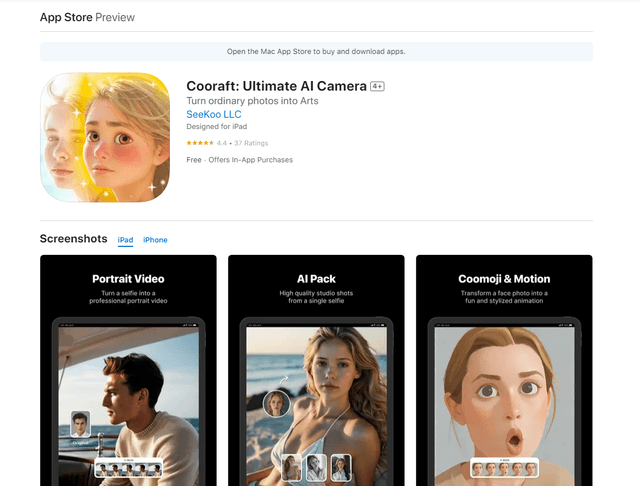
Cooraft is an AI-powered camera app that transforms selfies and photos into stunning studio-quality videos, animations, and artistic renderings with just one tap.