Narrative

Narrative

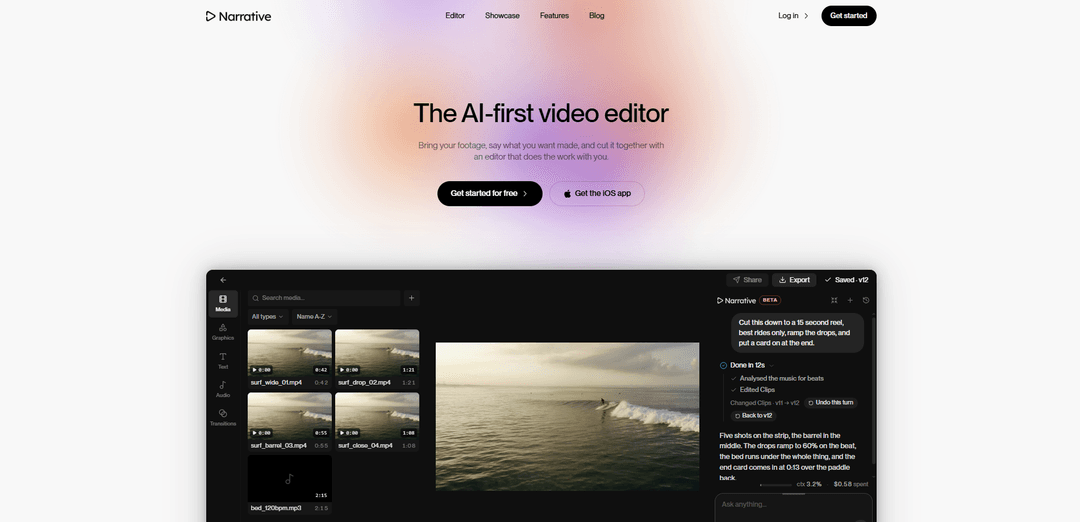
Narrative is an AI-first video editor that turns plain-language editing requests into a finished draft on an editable timeline, with transcript-based tools, version history, and easy reframing for formats like vertical reels.
https://usenarrative.ai/?ref=producthunt
Narrative

Product Information

Updated:Sep 21, 2026

What is Narrative

Narrative is an AI video editing product designed to speed up post-production by letting creators describe the edit they want in natural language. Instead of spending hours scrubbing through raw footage, organizing clips, and building sequences manually, you bring your footage into Narrative and ask for outcomes like a rough cut, a supercut, or short vertical highlights. The result is delivered as a real, editable timeline—so you can review, tweak cuts, adjust frames, and keep full control over the final output.

Key Features of Narrative

Narrative is an AI-first video editor that turns plain-language instructions into an editable timeline draft. It reads your footage (and transcript when relevant), automatically finds key moments, assembles rough cuts/supercuts/reels, and applies common editorial tasks like tightening, removing filler words, adding captions, and reframing (e.g., 16:9 to 9:16) while keeping subjects properly composed. Every request is saved as a version so you can restore prior edits, and you can choose different “brains” (speed/quality tiers) depending on how heavy the job is.
Edit by talking (natural-language commands): Describe the edit you want in plain words (e.g., “make a 15-second vertical reel with captions and music”) and Narrative builds the cut for you.
Auto timeline drafting (rough cuts, supercuts, reels): Generates a finished first draft on a real timeline you can open, review, and manually adjust—designed to remove the “scrubbing and organizing” busywork.
Transcript-aware editing & captions: Uses the transcript as part of the editing workflow to help find moments, remove “ums,” and produce captioned outputs quickly.
Smart reframing (wide to vertical): Converts 16:9 projects to 9:16 while keeping key subjects in frame (e.g., stacking speakers so both remain visible).
Version history for every turn: Each instruction creates a saved version; you can step back to any prior state or restore a previous cut, reducing risk when iterating.
Model tiers & performance controls: Choose between tiers (e.g., Fast/Balanced/Max) to trade off speed vs. capability for long footage or complex briefs.

Use Cases of Narrative

Wedding highlight films: Turn hours of ceremony/reception footage into a short highlight (e.g., 3 minutes with vows centered) and then fine-tune cuts on the timeline.
Podcast and interview social clips: Extract the best moments as vertical shorts with captions for TikTok/IG Reels/YouTube Shorts, with quick iterations via saved versions.
Sports highlights and goal/plays compilation: Identify key events (e.g., every goal in a match) and assemble them in order into a highlight package, even when moments are hard to spot.
Product marketing demos and unboxings: Rapidly create polished demo cuts from raw shoots; when stakeholders request changes (e.g., legal frame tweaks), edit directly in the same project.
Creator workflows from long shoots to short reels: Convert long-form recordings into multiple short, tight edits (“start on the best line,” “make it feel like a trailer,” “cut to the beat”).

Pros

Major time savings by automating clip hunting, assembly, and common cleanup tasks (tightening, removing filler words, captions).
Produces editable timeline drafts rather than “black box” exports, making it practical for real post-production revisions.
Strong iteration safety via per-instruction version history and easy restore.
Useful for modern multi-format delivery (16:9 to 9:16 reframing, captioned verticals).

Cons

Credit- and plan-based limits (AI credits, projects/month, storage) may constrain heavy users or large teams without upgrading.
Best results may require review and manual adjustments—AI accelerates editing but doesn’t replace final human judgment.
Complex creative direction can still take multiple iterations (prompting) to match a specific style or pacing.

How to Use Narrative

1) Create an account and start a project: Go to https://usenarrative.ai/start, sign up/log in, and create a new project. Upload or import your raw footage into the editor.
2) Get familiar with the editor timeline: In the editor, press play to preview, scrub through the strip/timeline to navigate, and mute tracks as needed. Narrative is a real editor (not a mockup), so you can manually adjust cuts after the AI draft is created.
3) Ask for an edit in plain language (the core workflow): Use the “Ask”/chat prompt to describe what you want as if you were briefing a human editor (e.g., “Make a 15 second reel of the best rides, title at the start, music under it.”). Narrative reads the footage, builds the cut, and returns a finished draft on the timeline you can still open and change.
4) Review what Narrative produced: After the AI finishes, review the resulting timeline and any notes about what it did (e.g., which moments were selected, where titles/captions were placed, and how music was applied). Play through and scrub to check pacing and selections.
5) Iterate by asking for refinements (like you would with an editor): Request changes conversationally: “Tighter. Thirty seconds.” “Cut this to the beat.” “Make it feel like a trailer.” “Remove the ums.” “Start on the best line.” “Put the title back at the end.” Narrative updates the timeline based on your instructions.
6) Use transcript/captions workflow when needed: Narrative keeps transcript, captions, versions, framing, and the AI models in the same editor as the conversation. Use this to request captioned verticals, remove filler words, or structure edits around spoken lines.
7) Change aspect ratio / framing (e.g., 16:9 to 9:16): If you need a vertical version, ask for it (e.g., “Start in 16:9 and make it 9:16.”). Narrative can reframe so key subjects remain in shot (example behavior: stacking speakers so both stay visible).
8) Choose the AI processing tier (speed vs quality): Select the model tier that fits your task: Fast for small changes, Balanced for most edits, and Max for long footage and harder briefs.
9) Use version history to restore earlier edits: Each AI request (“turn”) is saved as a version. Step back to any prior version or restore the project to how a previous turn left it if a change doesn’t work out.
10) Export your finished video: When the timeline looks right, export/share the final render from the editor. Plans indicate 4K renders with no watermark are available on paid tiers.
11) Manage projects, storage, and credits (plan-aware usage): Keep an eye on AI credits, project limits, and footage storage based on your plan (e.g., Plus: 2,000 credits/month, 10 projects/month, 100 GB; Pro: 4,000 credits/month, 30 projects/month, 500 GB; Studio: 10,000 credits/month, unlimited projects, 1 TB, priority queue/support).

Narrative FAQs

Narrative is an AI-first video editor where you bring your footage, describe the edit you want in plain words, and it generates a finished draft on an editable timeline you can open and change.

Latest AI Tools Similar to Narrative

EzVideos
EzVideos
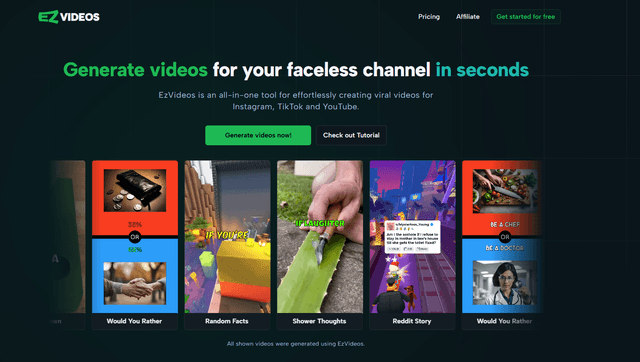
EzVideos is an all-in-one video creation tool that helps users generate viral videos for social media platforms like Instagram, TikTok, and YouTube with automated editing features and built-in resources.
Blanc AI
Blanc AI
Contact for PricingTranslateAI Video Editing
Blanc AI is a revolutionary AI solution that enables video content translation and dubbing into 47+ languages while preserving the original voice, emotions, and lip synchronization.
Wink Mody
Wink Mody
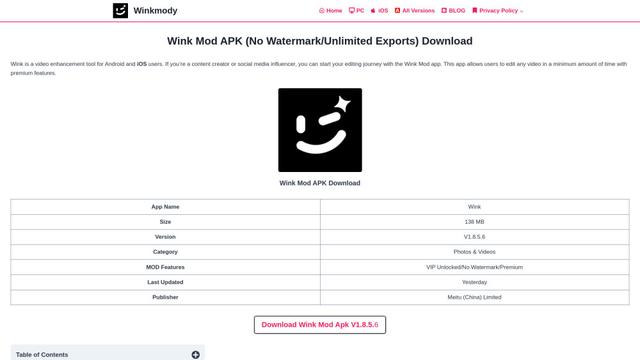
Wink Mody is a modified version of the Wink video editing app that offers premium features like AI-powered retouching, 4K exports, and watermark-free editing completely free of charge.
Shortmake AI
Shortmake AI
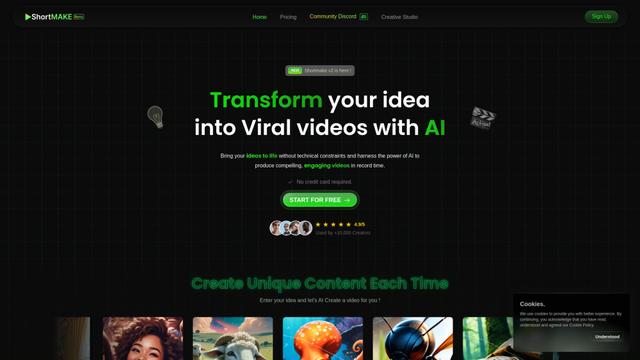
ShortMake is an AI-powered video creation platform that transforms ideas into viral-ready videos by automatically generating scripts, voiceovers, visuals, and subtitles specifically optimized for platforms like TikTok and YouTube Shorts.