
MediaSeg
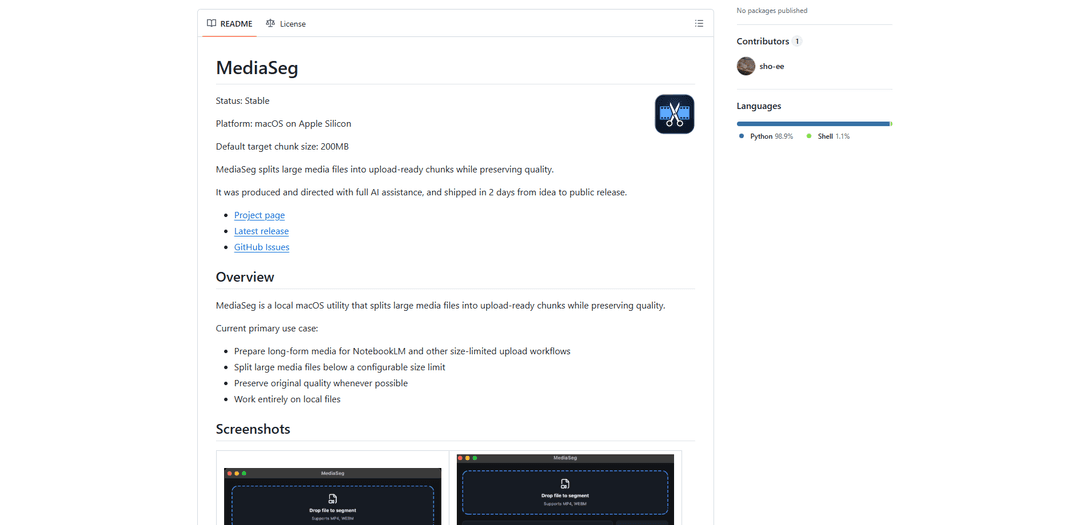
MediaSeg is a stable, local-first macOS utility that splits large MP4/WEBM media files into upload-ready chunks under a configurable size limit while preserving quality using ffmpeg/ffprobe and an AI-assisted, target-based sizing strategy.
https://github.com/exaedge/MediaSeg?ref=producthunt
Product Information
Updated:Jul 8, 2026
What is MediaSeg
MediaSeg is a lightweight macOS tool (Apple Silicon) designed to help you break up long-form media into smaller files that fit common upload limits for tools like NotebookLM and other size-capped workflows. It runs entirely on local files and focuses on reliability and quality preservation, producing sequentially named chunks inside an automatically created output folder. MediaSeg offers both a CLI for quick automation and a PySide6 GUI with drag-and-drop, output folder selection, and a session log, and it relies on locally installed ffmpeg/ffprobe for probing and splitting.
Key Features of MediaSeg
MediaSeg is a local-first macOS utility (Apple Silicon) that splits large media files into upload-ready chunks while preserving quality whenever possible. It uses ffmpeg/ffprobe for probing and splitting, aims to keep each chunk under a configurable size limit (default 200MB) with target-range optimization (typically 90%–98% of the limit), and generates neatly organized output folders with sequentially named files. It offers both a CLI and a PySide6 GUI with drag-and-drop, logs, and dependency checks, and is designed for workflows like preparing long-form videos for size-limited tools such as NotebookLM.
Local-first media splitting: Processes files entirely on-device (no cloud), splitting large videos into smaller chunks suitable for upload limits while attempting to preserve original quality.
Quality-preserving split strategy (stream copy when possible): Prefers ffmpeg stream-copy mode (-c copy) to avoid re-encoding and maintain original quality, falling back to best-valid chunk sizing when exact targets aren’t achievable.
Configurable chunk size with optimization: Lets you set a maximum chunk size (default 200MB) and optimizes chunk sizes toward a target range (about 90%–98% of the limit) while enforcing a hard upper bound.
GUI + CLI workflows: Includes a CLI for scripting and automation, plus a PySide6 desktop GUI with drag & drop, output folder selection, activity states, and a collapsible session log.
Format support with WEBM conversion path: Supports MP4 and WEBM inputs; WEBM is converted before splitting (with macOS VideoToolbox support noted for conversion), acknowledging potentially higher CPU/time costs.
Organized outputs and predictable naming: Automatically creates timestamped output folders and sequential filenames (e.g., TrainingVideo_001.mp4, _002.mp4) for easy tracking and upload.
Use Cases of MediaSeg
AI-tool upload preparation (NotebookLM and similar): Splits long recordings into size-compliant chunks to fit strict upload limits for AI analysis, summarization, or knowledge workflows.
Enterprise training & enablement distribution: Breaks large training sessions into manageable parts for internal portals, LMS uploads, or email/DM distribution where file-size caps apply.
Education lecture publishing: Segments lengthy lecture captures into smaller files for school platforms or student sharing, keeping quality intact and organization consistent.
Podcast/video production handoff: Creates upload-ready parts for collaborators, reviewers, or clients when platforms or transfer tools impose per-file limits.
Compliance/archival packaging: Prepares large recordings (meetings, audits, incident reviews) into standardized chunk sizes for storage systems that limit individual object size.
Pros
Local processing preserves privacy and avoids cloud dependency.
Designed to preserve quality by avoiding re-encoding when possible (ffmpeg stream copy).
Flexible UX: both CLI (automation) and GUI (drag & drop) with helpful logging and dependency checks.
Predictable output organization (timestamped folders, sequential naming) simplifies upload and tracking.
Cons
Platform-limited: macOS (Apple Silicon) with macOS 15+ and Python 3.13+ requirements.
Relies on external dependencies (ffmpeg/ffprobe must be installed and available in PATH).
Input format support is currently limited (MP4/WEBM; MOV/MKV/audio-only are planned).
WEBM workflows may be slower and more CPU-intensive due to conversion before splitting.
How to Use MediaSeg
1) Get MediaSeg: Download the latest release from https://github.com/exaedge/MediaSeg/releases/latest (or clone the repo from https://github.com/exaedge/MediaSeg).
2) Confirm your system meets requirements: Use an Apple Silicon Mac running macOS 15 Sequoia or later, with Python 3.13+ available.
3) Create and activate a virtual environment (recommended): In the MediaSeg folder run: `python3 -m venv .venv` then `source .venv/bin/activate`.
4) Install GUI dependency (PySide6): Run: `pip install PySide6`.
5) Install FFmpeg (includes ffprobe): Install via Homebrew: `brew install ffmpeg`. MediaSeg relies on `ffmpeg` and `ffprobe` being available in your PATH.
6) Verify FFmpeg tools are available: In Terminal, confirm both commands work: `ffmpeg -version` and `ffprobe -version`.
7) Split a video using the CLI (default 200MB chunks): Run: `python3 mediaseg.py "/path/to/video.mp4"`. MediaSeg will create an output folder and sequential chunk files.
8) Split a video using the CLI with a custom max size: Run: `python3 mediaseg.py "video.mp4" --max-size 130` to target chunks under 130MB.
9) Understand supported inputs and WEBM behavior: Supported inputs: MP4 and WEBM. WEBM files are converted before splitting (conversion can take longer and use more CPU).
10) Run the GUI: Start the desktop app UI with: `python3 mediaseg_gui.py`.
11) Use the GUI to split media: Drag & drop a file into the window, set the chunk-size limit, choose an output folder if desired, then click Start Splitting.
12) If splitting is disabled in the GUI, fix dependencies: If `ffmpeg`/`ffprobe` is missing, MediaSeg shows a warning and disables Start Splitting. Use the GUI menu `Help > Setup ffmpeg` and ensure the tools are installed and on PATH.
13) Find your output files: MediaSeg generates a timestamped output folder like `TrainingVideo_20260614-101523/` containing sequential files such as `TrainingVideo_001.mp4`, `TrainingVideo_002.mp4`, etc.
14) (Optional) Build the macOS app from source: For a distributable app, run `./build_public.sh` (outputs `dist/MediaSeg.app`) or `./build_private.sh` (outputs `dist/MediaSeg.app` and `dist/MediaSeg.dmg`). Note: builds do not bundle ffmpeg; the target Mac must have `ffmpeg`/`ffprobe` in PATH.
15) Troubleshoot and provide feedback: If you hit issues, check the GUI Help menu (e.g., Common Issues) and open a GitHub Issue at https://github.com/exaedge/MediaSeg/issues with app version, macOS version, repro steps, and the Session Log if available.
MediaSeg FAQs
MediaSeg is a local macOS utility that splits large media files into upload-ready chunks while preserving quality whenever possible.
Popular Articles

Vosko AI: Localize and Dub Videos for Global Audiences
Oct 15, 2026

Atoms: A Multi-Agent AI Platform That Transforms Ideas into Launch-Ready Products
Oct 13, 2026

Nano Banana SBTI: What It Is, How It Works, and How to Use It in 2026
Apr 15, 2026

Atoms Review — The AI Product Builder Redefining Digital Creation in 2026
Apr 10, 2026
Latest AI Tools Similar to MediaSeg
EzVideos
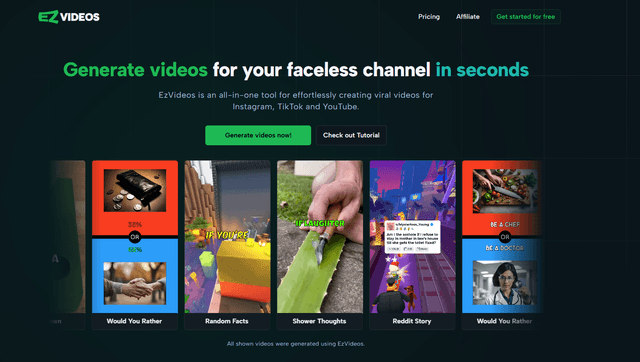
EzVideos is an all-in-one video creation tool that helps users generate viral videos for social media platforms like Instagram, TikTok, and YouTube with automated editing features and built-in resources.

Blanc AI
Blanc AI is a revolutionary AI solution that enables video content translation and dubbing into 47+ languages while preserving the original voice, emotions, and lip synchronization.
Wink Mody
Wink Mody is a modified version of the Wink video editing app that offers premium features like AI-powered retouching, 4K exports, and watermark-free editing completely free of charge.
Shortmake AI
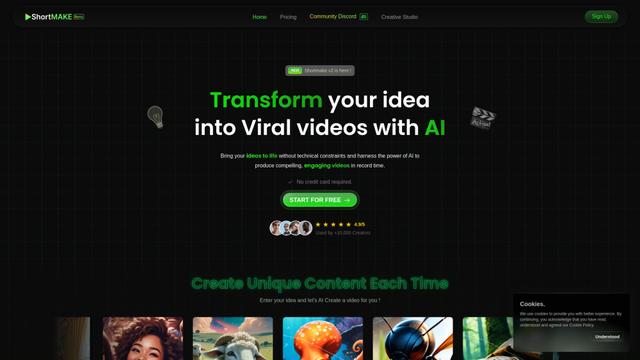
ShortMake is an AI-powered video creation platform that transforms ideas into viral-ready videos by automatically generating scripts, voiceovers, visuals, and subtitles specifically optimized for platforms like TikTok and YouTube Shorts.
Popular AI Tools Like MediaSeg
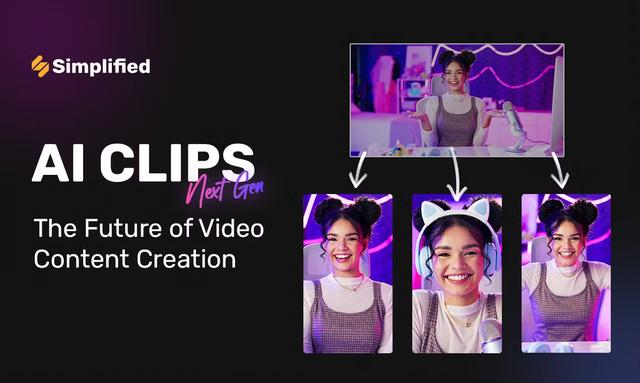
AI Clips - New Gen
AI Clips - New Gen is an AI-powered video clipping tool that automatically generates engaging short-form content from long videos for multiple social media platforms like YouTube Shorts, TikTok, Instagram Reels and more.
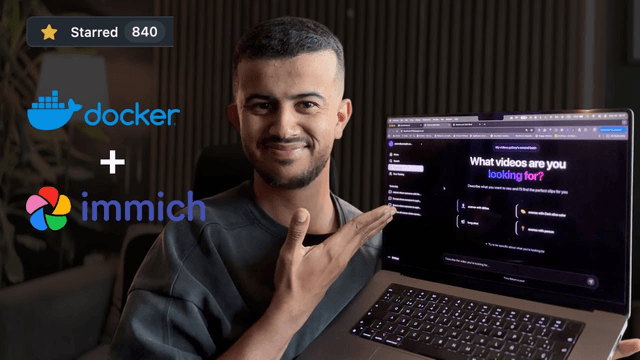
Edit Mind
Edit Mind is an open-source, AI-powered video indexing and semantic search platform that enables users to analyze and search through video content using natural language queries, with features including transcription, frame analysis, face recognition, and object detection.
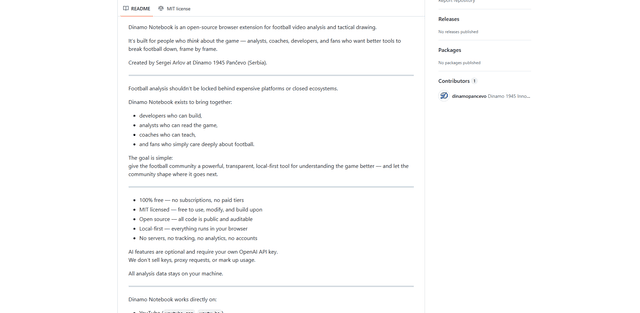
Dinamo Notebook
FreeAI Video Editing
Dinamo Notebook is a free, MIT-licensed, local-first browser extension for football video analysis that lets you draw tactical annotations on YouTube/Dailymotion/Twitch footage and optionally use AI (with your own OpenAI API key) for tactical insights.
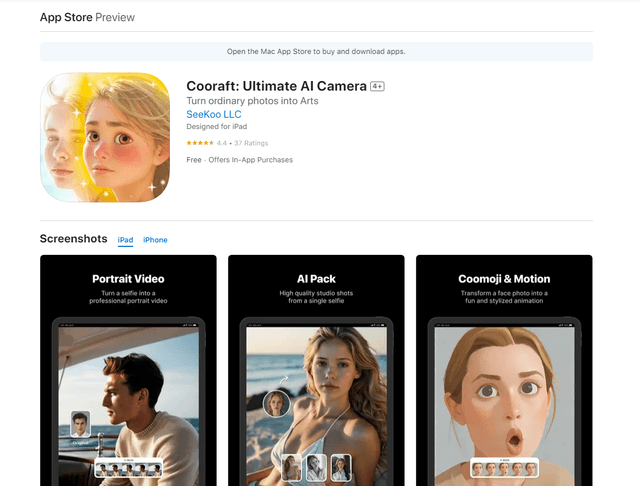
Cooraft: Ultimate AI Camera
Cooraft is an AI-powered camera app that transforms selfies and photos into stunning studio-quality videos, animations, and artistic renderings with just one tap.