
TypeUI
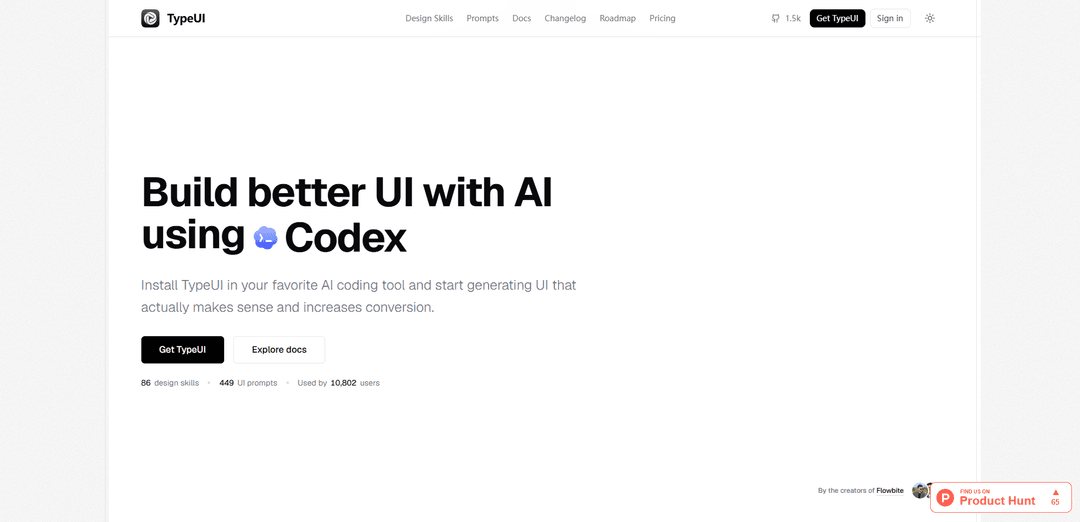
TypeUI is a design-context platform and open-source CLI that provides reusable “design skills” (SKILL.md), UI prompts, and MCP integrations so AI coding tools can generate consistent, on-brand user interfaces.
https://www.typeui.sh/?ref=producthunt
Product Information
Updated:Jul 9, 2026
What is TypeUI
TypeUI helps teams and developers give AI coding assistants the design direction they’re usually missing when generating UI. Instead of letting tools like Cursor, Claude Code, Copilot, Codex, or Gemini CLI invent spacing, colors, typography, and component styles on the fly, TypeUI packages those constraints into portable markdown “design skills” (often named SKILL.md) and related prompt resources. It supports starting from a TypeUI theme, pulling curated skills from a public registry, generating new skill files with an NPX CLI, and importing design systems from sources like Figma to turn design tokens (typography, radii, shadows, fills, strokes, components, and variants) into editable markdown files that can be used directly in your workflow.
Key Features of TypeUI
TypeUI (typeui.sh) is an open-source CLI plus platform that gives AI coding tools a consistent “design layer” by generating and managing design-system skill markdown files (tokens, rules, components, and layout guidance). It helps agents like Cursor, Claude Code, Codex, and Gemini produce UI that stays on-spec (spacing, typography, colors, states, layouts) across multiple prompts, and it supports workflows like pulling curated design skills from a registry, updating existing skills, running variation/cleanup loops, and integrating via MCP and Figma imports for existing products and teams.
Skill.md design-system generation: Generates structured markdown “skill files” that encode design tokens and UI rules (spacing, type scale, colors, component behavior) so AI tools stop inventing arbitrary styles and remain consistent across screens.
Curated design-skill registry + pull command: Browse and download ready-made, handcrafted design systems from a registry (e.g., via `npx typeui.sh list` and `npx typeui.sh pull <name>`), giving projects an instant, coherent visual direction.
Update and iterate on existing skills: Supports editing and updating skill files (e.g., `npx typeui.sh update`) so teams can refine tokens/rules over time without losing consistency across previously generated UI.
Variation and cleanup workflows (Pro/trial): Pro/trial workflows emphasize more variations, better coverage, and “cleanup loops” to iterate on real screens—useful when polishing AI-generated UI into shippable product interfaces.
AI-tool integrations (Cursor/Claude/Codex/Gemini) and MCP: Designed to plug into popular agentic coding environments; TypeUI MCP exposes design systems, UI prompts, and layout variations directly to connected tools for in-editor generation.
Figma import as a design-system source: Imports styles and component details from Figma (typography, radii, shadows, fills, strokes, variants, layout patterns) into editable markdown sources, bridging existing design systems into AI workflows.
Use Cases of TypeUI
Shipping consistent product UI in existing apps: Teams maintaining a live SaaS/product can keep multiple design systems active and ensure AI-generated components match established tokens and patterns while iterating on real screens.
Rapid MVPs and new projects with a coherent style: Solo developers and startups can start with a curated skill (or generate one) to get consistent landing pages, dashboards, and flows without a designer defining every detail upfront.
Design-system enforcement for engineering teams: Frontend teams can use skill files as guardrails so AI assistants generate code that adheres to spacing grids, type scales, and component states, reducing review churn and UI drift.
Figma-to-code acceleration for design-led orgs: Organizations with mature Figma libraries can import tokens/components and let AI generate new screens aligned with the source system, speeding up implementation while preserving brand rules.
Agency/freelance multi-client workflows: Agencies can maintain separate skill files per client/brand and switch contexts quickly, producing on-brand UI variations and exports without re-teaching the AI each time.
UI experimentation and layout exploration: Product teams can use layout variations and prompt libraries to explore alternatives (e.g., pricing tables, auth states, dashboards) while keeping the same design constraints.
Pros
Improves consistency: reduces token/spacing/typography hallucinations across multiple AI prompts and screens.
Flexible adoption: works with major AI coding tools and can be used for both new builds and existing products.
Fast start: curated registry skills can be pulled instantly; CLI is open-source (MIT) and easy to run via npx.
Cons
Some advanced workflows are paid: Pro/trial unlocks more variations, multiple active design systems, and cleanup/bulk features; subscriptions are generally non-refundable.
Requires process discipline: teams must maintain and update skill files/tokens, otherwise the “source of truth” can drift from the actual codebase.
Dependent on integrations and environment: effectiveness varies by AI tool setup (e.g., Cursor skill directories, MCP connectivity) and may require configuration effort.
How to Use TypeUI
1) Install prerequisites: Ensure you have Node.js 18+ installed. TypeUI can be run via NPX, so you typically don’t need a global install.
2) Open a terminal in your project: Navigate to the repository where you want an AI coding tool (Cursor, Claude Code, Codex, Copilot, etc.) to build or refactor UI using consistent design rules.
3) Generate a new design skill (SKILL.md) for your project: Run: npx typeui.sh generate. Follow the interactive prompts (colors, fonts, spacing, components, etc.). This writes a SKILL.md file into your project that your AI tools can read and follow.
4) (Optional) Preview generation without writing files: Run: npx typeui.sh generate --providers cursor,claude-code --dry-run to see what would be generated for specific providers without modifying your repo.
5) Pull a ready-made design skill from the public registry: If you want a curated style instead of generating from scratch, download one by slug: npx typeui.sh pull <slug>. This pulls the skill into your project.
6) (Optional) Pull a design-formatted variant: If you need the design format output, run: npx typeui.sh pull <slug> --format design.
7) Browse available skills (find a slug): Run: npx typeui.sh list to browse skills in the terminal and choose a slug to pull.
8) Update an existing skill file as your design evolves: Run: npx typeui.sh update. Select which fields to change; TypeUI updates only those parts while keeping the rest intact.
9) Connect TypeUI MCP to your AI coding tool (general idea): TypeUI can be used via an MCP server at https://mcp.typeui.sh. Add it to your tool’s MCP configuration so the agent can use your published design systems, UI prompts, and layout variations.
10) Connect in VS Code (GitHub Copilot) via MCP: Run: code --add-mcp '{"name":"typeui","type":"http","url":"https://mcp.typeui.sh"}' or create .vscode/mcp.json with the same server details. Then authorize/sign in if prompted.
11) Connect in Hermes via MCP: Add a server entry in ~/.hermes/config.yaml: mcp_servers: typeui: url: "https://mcp.typeui.sh" auth: oauth. Start Hermes and authorize if prompted.
12) Connect in OpenCode via MCP: Add to your OpenCode config.json: {"$schema":"https://opencode.ai/config.json","mcp":{"typeui":{"type":"remote","url":"https://mcp.typeui.sh","enabled":true}}}. Authenticate with TypeUI if prompted.
13) Connect in Antigravity via MCP: Add to your MCP config: {"mcpServers":{"typeui":{"serverUrl":"https://mcp.typeui.sh"}}}. Antigravity uses serverUrl for remote MCP servers; authorize if prompted.
14) Use TypeUI in your workflow while building UI: After SKILL.md exists (and/or MCP is connected), tell your AI tool what to build. TypeUI’s design rules help constrain tokens, spacing, typography, and component behavior so the UI stays consistent across iterations.
15) Iterate with variations and cleanup loops: Ask your agent for targeted improvements (e.g., “give me more variations for this pricing section”). TypeUI helps produce multiple layout variations so you can compare and choose, then refine.
16) Edit and refine the markdown rules when needed: If the AI drifts or you need more product-specific guidance, adjust the generated markdown (e.g., SKILL.md and related files). Stronger, clearer rules typically yield more consistent UI output.
17) Publish your design system to your TypeUI workspace (for MCP usage): When you’re ready, publish from TypeUI so your MCP-connected AI tool uses your saved edits and the latest design system instructions while generating/refactoring UI.
18) Get help and discover commands: Run: npx typeui.sh help to see available commands and usage details.
TypeUI FAQs
TypeUI provides design skills, UI prompts, and resources for AI tools that generate user interfaces.
Popular Articles

Proferex: A Cloud-Based Ad Tracking and Campaign Optimization Platform
Nov 4, 2026

How to Create Viral Talking Baby Podcast Videos with AI: Step-by-Step Guide
Nov 2, 2026

Vosko AI: Localize and Dub Videos for Global Audiences
Oct 15, 2026

Atoms: A Multi-Agent AI Platform That Transforms Ideas into Launch-Ready Products
Oct 13, 2026
Latest AI Tools Similar to TypeUI
Gait
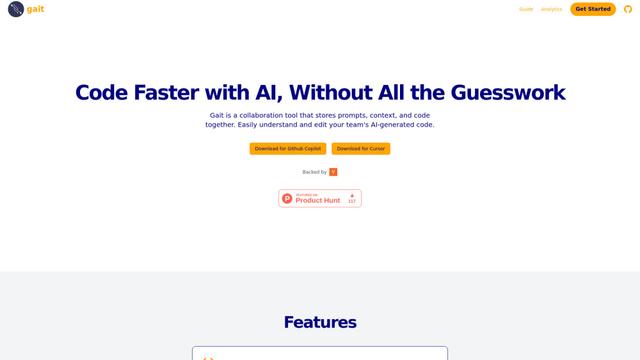
Gait is a collaboration tool that integrates AI-assisted code generation with version control, enabling teams to track, understand, and share AI-generated code context efficiently.
invoices.dev
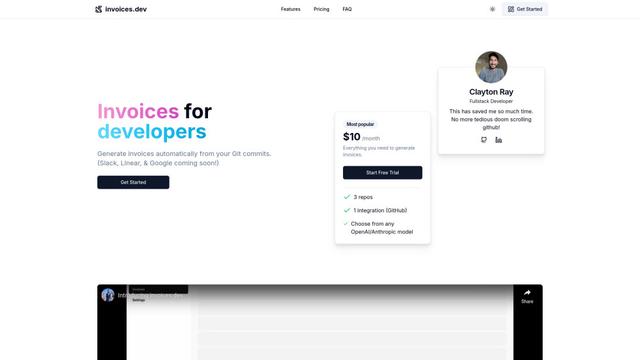
invoices.dev is an automated invoicing platform that generates invoices directly from developers' Git commits, with integration capabilities for GitHub, Slack, Linear, and Google services.
EasyRFP
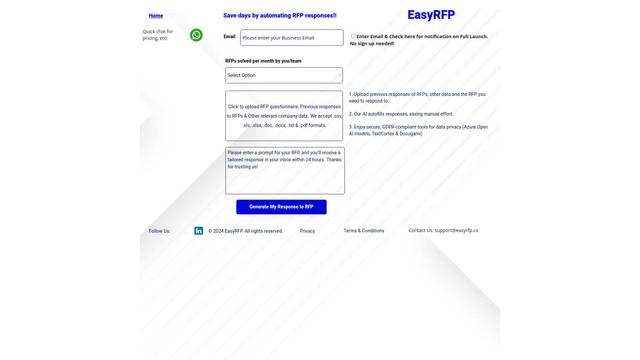
EasyRFP is an AI-powered edge computing toolkit that streamlines RFP (Request for Proposal) responses and enables real-time field phenotyping through deep learning technology.

Cart.ai
Cart.ai is an AI-powered service platform that provides comprehensive business automation solutions including coding, customer relations management, video editing, e-commerce setup, and custom AI development with 24/7 support.
Popular AI Tools Like TypeUI

GitHub Copilot Chat
GitHub Copilot Chat is an AI-powered coding assistant that provides natural language interactions, real-time code suggestions, and contextual support directly within supported IDEs and GitHub.com.
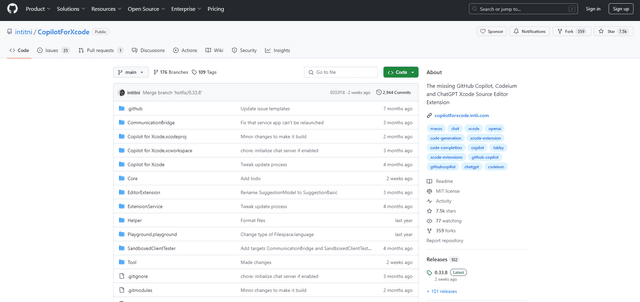
CopilotForXcode
CopilotForXcode is an Xcode Source Editor Extension that integrates GitHub Copilot, Codeium, and ChatGPT to provide AI-powered code suggestions, chat assistance, and prompt-to-code functionality within Xcode.
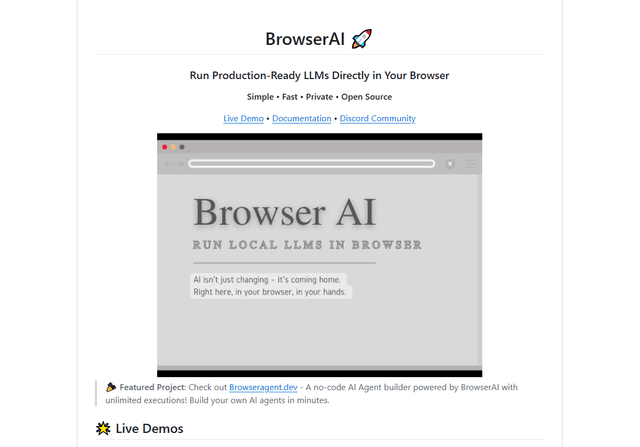
BrowserAI
BrowserAI is an open-source library that enables running local Large Language Models (LLMs) directly in web browsers with WebGPU acceleration, offering privacy-focused AI capabilities without requiring server infrastructure.
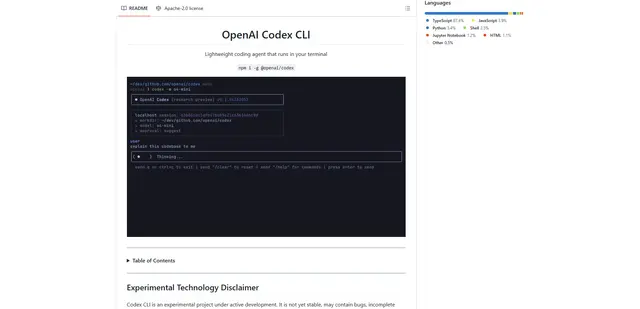
OpenAI Codex CLI
OpenAI Codex CLI is a lightweight, open-source coding agent that runs in your terminal, enabling developers to translate natural language into code execution while providing ChatGPT-level reasoning with the ability to run code, manipulate files, and iterate under version control.