
Selectable: OCR & Text Capture
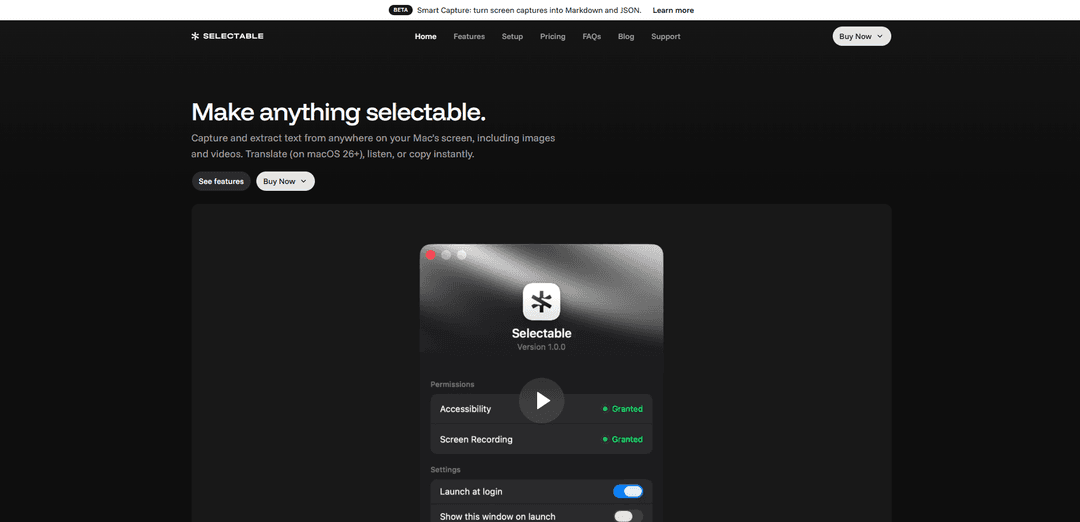
Selectable is a Mac app that lets you capture and extract text from anywhere on your screen (including images and videos) with a global shortcut, then instantly copy, translate (macOS 26+), listen via text-to-speech, and optionally mask sensitive data—all on-device.
https://selectable.so/?ref=producthunt
Product Information
Updated:Jun 8, 2026
What is Selectable: OCR & Text Capture
Selectable: OCR & Text Capture is a lightweight screen-to-text utility for macOS designed to make “unselectable” text usable. Instead of retyping text embedded in screenshots, PDFs, images, or even video frames, you trigger a capture and drag over the text you need; Selectable recognizes it and puts the result on your clipboard so you can paste it into any app. It emphasizes speed and privacy by running recognition on-device, and it includes practical output controls like preserving line breaks, removing empty lines, and redacting sensitive items such as phone numbers or email addresses. It’s sold as a one-time purchase (with options for single Mac, up to three Macs, or an App Store version for broader device use).
Key Features of Selectable: OCR & Text Capture
Selectable: OCR & Text Capture is a macOS menu-bar utility that lets you drag-select any region of your screen (including images and videos) and instantly OCR the text to your clipboard. It runs on-device for privacy, supports global keyboard shortcuts, and adds productivity options like text-to-speech, output cleanup (preserve line breaks/remove empty lines), masking sensitive data, and auto-translation on macOS 26+ for immediate copy-and-translate workflows.
Screen-region OCR (any app, image, or video): Drag over any on-screen text—even if it’s not selectable (e.g., screenshots, PDFs-as-images, video frames)—and the recognized text is copied instantly.
Global keyboard shortcut capture: Trigger capture from anywhere with a system-wide hotkey (e.g., ⌘⇧2), making text extraction as fast as a screenshot.
On-device processing & privacy: Designed to avoid uploads and interruptions by performing recognition locally on your Mac, keeping captured content private.
Auto-translate on copy (macOS 26+): Optionally translates captured text into your preferred language the moment you copy it (requires macOS 26 or later).
Text-to-speech for captured text: Read captured text aloud with natural voices, supporting multiple languages for accessibility and language learning.
Customizable output formatting & redaction: Preserve line breaks, remove empty lines, and mask sensitive data (e.g., emails/phone numbers) before pasting into other apps.
Use Cases of Selectable: OCR & Text Capture
Customer support & IT troubleshooting: Extract error dialogs, logs, or stack traces from non-copyable UI elements and paste them into tickets, chats, or search for faster resolution.
Research, writing, and note-taking: Copy quotes, figures, and snippets from videos, webinars, scanned PDFs, or images directly into notes, documents, or knowledge bases without retyping.
Localization and multilingual operations: Capture foreign-language text from apps or media and auto-translate it on copy (macOS 26+) for quick understanding and downstream editing.
Accessibility & reading assistance: Use text-to-speech to listen to captured on-screen text, supporting users who prefer auditory playback or need help reading dense content.
Compliance-aware sharing: Mask sensitive data in captured text before pasting into emails, docs, or bug reports—useful for regulated environments handling PII.
Pros
Fast workflow: one shortcut + drag-select to copy text instantly
On-device OCR: privacy-friendly and avoids uploading screen content
Extra productivity features: auto-translate (macOS 26+), text-to-speech, formatting cleanup, and sensitive-data masking
Simple licensing: one-time purchase options and an App Store version with iCloud sync
Cons
Auto-translate is only available on macOS 26 or later
OCR accuracy can vary based on screen/image quality and font rendering
macOS-only (not applicable for Windows/Linux workflows)
How to Use Selectable: OCR & Text Capture
1. Install Selectable: Download and install Selectable (either from the developer website or from the Mac App Store).
2. Grant required macOS permissions: Open Selectable and follow its prompts to allow the permissions it needs to capture and recognize text from your screen (so it can work in any app).
3. Start a capture: Trigger Selectable’s capture mode by pressing the global shortcut ⌘⇧2, or open the Selectable menu bar item and choose “Capture”.
4. Select the on-screen text area: Click and drag to draw a rectangle over the text you want to extract (this can be from images, PDFs, or videos).
5. Get the recognized text in your clipboard: Release to finish the selection. The text is recognized instantly and copied to your clipboard.
6. Paste the extracted text anywhere: Paste into any app (e.g., Notes, a document editor, chat, or a browser form) using ⌘V.
7. (Optional) Enable Auto Translate: From the Selectable menu bar options, enable Auto Translate to translate captured text into your language as you copy it (available on macOS 26+).
8. (Optional) Use Text-to-Speech: Use the Text-to-Speech option to listen to the captured text read aloud with natural voices.
9. (Optional) Customize the output formatting: In Selectable settings/options, adjust output preferences such as preserving line breaks, removing empty lines, and masking sensitive data before you paste.
Selectable: OCR & Text Capture FAQs
Selectable lets you capture and extract text from anywhere on your Mac’s screen (including images and videos) and copy it instantly. It can also translate captured text (on macOS 26+), read it aloud (text-to-speech), and apply output formatting options.
Selectable: OCR & Text Capture Video
Popular Articles

Atoms: A Multi-Agent AI Platform That Transforms Ideas into Launch-Ready Products
May 22, 2026

Nano Banana SBTI: What It Is, How It Works, and How to Use It in 2026
Apr 15, 2026

Atoms Review — The AI Product Builder Redefining Digital Creation in 2026
Apr 10, 2026

Kilo Claw: How to Deploy and Use a True "Do‑It‑For‑You" AI Agent(2026 Update)
Apr 3, 2026
Latest AI Tools Similar to Selectable: OCR & Text Capture
MicVoice.Ai
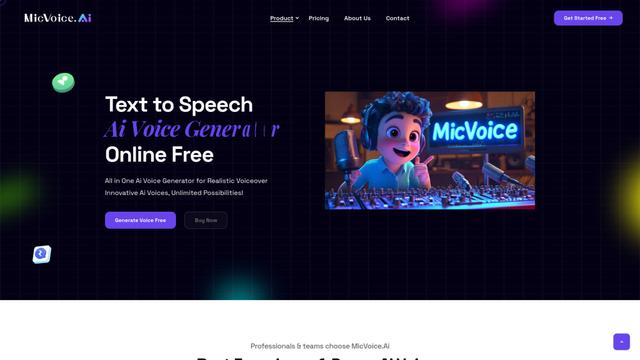
MicVoice.Ai is an all-in-one AI voice generator platform that transforms written text into high-quality, natural-sounding speech with over 5000 realistic AI voices supporting 17+ languages.
Narrai
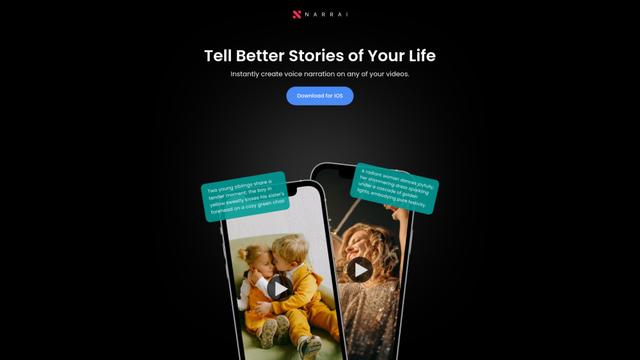
Narrai is an AI-powered mobile app that instantly creates voice narration and background music for short videos by automatically generating relevant scripts and offering multiple narrator personas.
Vagent
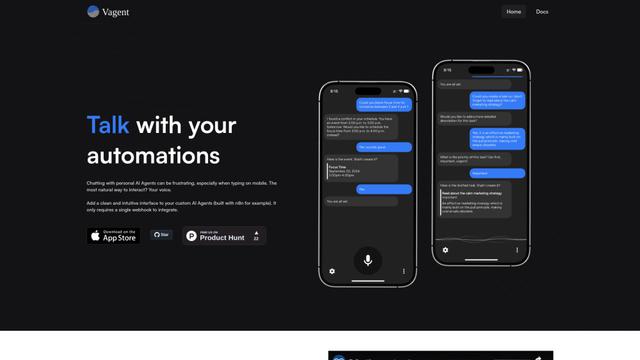
Vagent is a lightweight voice interface that enables users to interact with custom AI agents through voice commands, providing a natural and intuitive way to control automations with support for 60+ languages.
F5 TTS
F5-TTS is a state-of-the-art, non-autoregressive text-to-speech system that uses Flow Matching and Diffusion Transformer techniques to generate highly natural and expressive speech with zero-shot voice cloning capabilities.
Popular AI Tools Like Selectable: OCR & Text Capture
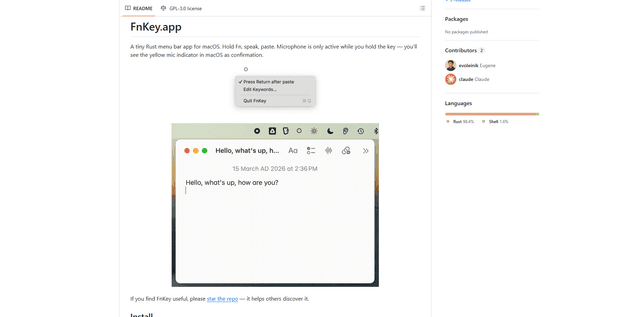
FnKey
FnKey is a lightweight macOS menu bar application that enables quick voice-to-text transcription by holding the Fn key to speak and automatically pastes the transcribed text when released.
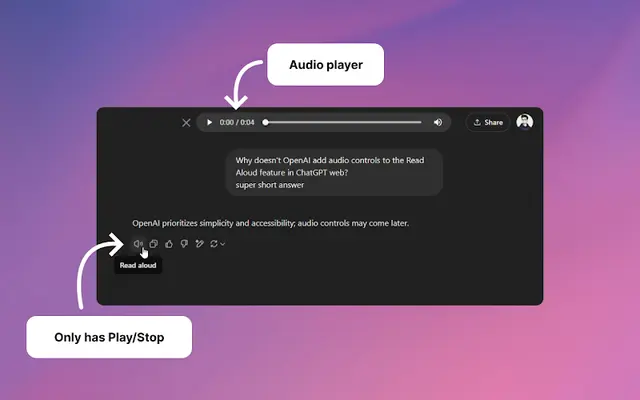
Audio player for ChatGPT
A Chrome extension that enhances ChatGPT's Read Aloud feature by adding a user-friendly audio player with basic controls like play/pause, seek bar, and duration display.
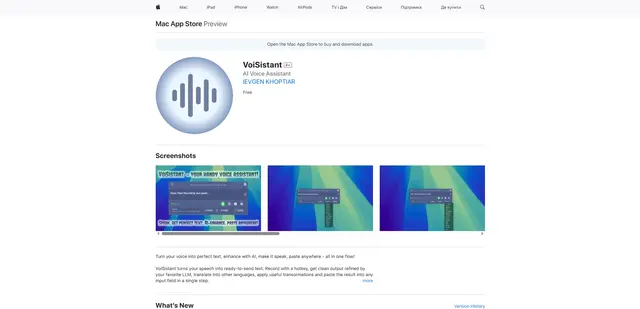
VoiSistant
VoiSistant is a comprehensive voice-to-text application that combines speech recognition, AI enhancement, translation, and text-to-speech capabilities in one seamless workflow.
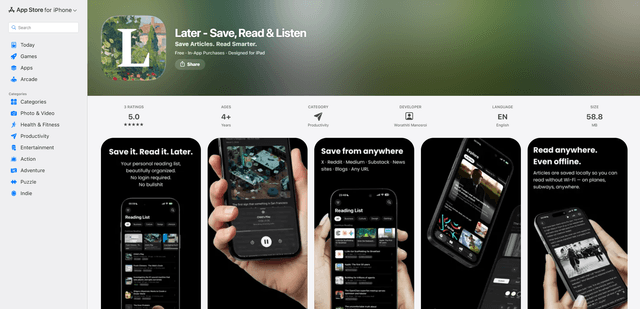
LaterAI
Later is an AI-powered read-it-later app that lets you save articles, read them in a distraction-free environment, and listen to them with natural-sounding AI voices - all while maintaining complete privacy with on-device processing.