
PaceBar
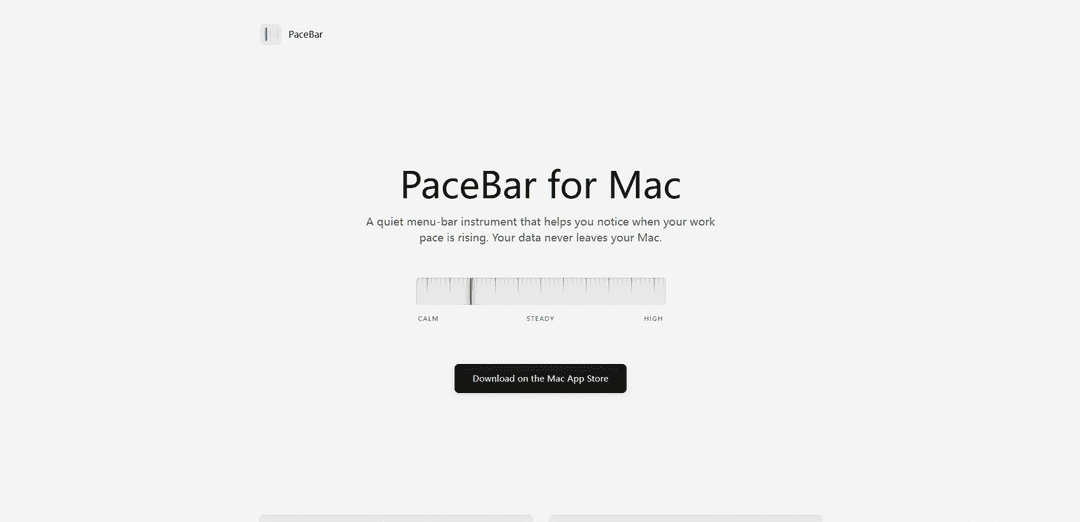
PaceBar is a private Mac menu-bar app that turns on-device interaction patterns into a simple 0–100 session-load gauge with focus/app-switching readouts, an adaptive baseline, and gentle nudges when your work pace gets heavy.
https://pacebar.app/?ref=producthunt
Product Information
Updated:May 19, 2026
What is PaceBar
PaceBar is a quiet “pace instrument” for macOS that helps you notice when your work intensity and workflow fragmentation are rising. It lives in the menu bar and provides an at-a-glance view of your current session load, recent trend, and focus-related metrics so you can self-correct before you feel overwhelmed. It’s designed around privacy: no account, no telemetry, no cloud processing, and it does not record what you type, see, or open—your data stays on your Mac.
Key Features of PaceBar
PaceBar is a private, menu-bar app for Mac that estimates your current “session load” from on-device interaction patterns (like activity timing, idle time, focus time, and app switching) and presents it as a simple 0–100 gauge with Calm/Steady/High bands. It learns your normal working rhythm over time with an adaptive baseline, offers lightweight check-ins to personalize estimates locally, and can provide gentle nudges or prompts when your pace rises—without recording what you type, see, or work on, and without any accounts, telemetry, or cloud processing.
0–100 session-load gauge (Calm/Steady/High): A quick, at-a-glance menu-bar readout that translates interaction intensity into a simple score and banded status.
On-device interaction sensing (low-impact): Uses timing and frequency of interaction events to estimate load without capturing typed text, messages, documents, window titles, or screen contents.
Adaptive baseline modeling: Learns your personal working rhythm over time so alerts and the gauge reflect your normal pace rather than generic thresholds.
Focus time and app-change readouts: Shows focus-time indicators and app-switching/app-change counts to highlight workflow fragmentation and context switching.
Gentle nudges and practical prompts: Optional visual or sound nudges when a session gets heavy, plus prompts like taking a short reset or protecting a low-load focus block.
Privacy-first controls and local management: No account, no telemetry, no cloud processing; includes configurable monitoring/alerts, launch-at-login options, and the ability to clear local history.
Use Cases of PaceBar
Deep-work protection for knowledge workers: Writers, engineers, analysts, and researchers can notice rising pace early and reduce app switching to preserve longer focus blocks.
AI-assisted multitasking awareness: People using multiple AI tools and running parallel threads can see when that parallelism increases session load and triggers a reset.
Burnout-prevention micro-breaks for remote teams: Remote employees can use nudges as a personal boundary to take short breaks when sessions become heavy, improving sustainability.
Context-switch reduction for support and ops roles: Support agents or operations staff can monitor high app-change periods as a signal of fragmentation and adjust workflows or batching.
Privacy-sensitive environments (legal/finance/health): Teams handling sensitive material can use pace/load awareness without risking content capture, since PaceBar doesn’t record screen or text and keeps data local.
Pros
Strong privacy posture: no account, no telemetry, no cloud processing, and no content capture (no typing/screen/window titles/files).
Easy, glanceable UI: simple 0–100 gauge with trend plus focus/app-change readouts for quick self-checks.
Personalized over time: adaptive baseline learns your normal rhythm rather than relying on one-size-fits-all thresholds.
Action-oriented: optional gentle nudges and prompts encourage short resets and better focus when load rises.
Cons
Not a medical device: the load estimate is informational and not intended for diagnosis or treatment.
Mac-only (menu-bar app): limited to macOS workflows and doesn’t cover non-Mac devices.
Indirect measurement: relies on interaction signals, so it may not perfectly reflect cognitive load in all tasks or styles of work.
How to Use PaceBar
1) Download and install PaceBar: Open the PaceBar website and click “Download on the Mac App Store”, or search “PaceBar” in the Mac App Store, then install it.
2) Launch PaceBar from Applications: Open PaceBar. It runs as a menu-bar app, so look for its indicator in the macOS menu bar.
3) Review the consent screen and privacy notes: Before monitoring starts, read the consent screen. PaceBar estimates session load from interaction timing/frequency and does not record what you type or see.
4) Allow monitoring to begin: Confirm consent so PaceBar can start reading on-device interaction patterns (e.g., activity timing, idle time, focus time, and app changes) to estimate session load.
5) Learn the menu-bar load gauge: Use the 0–100 session-load readout as your at-a-glance indicator. Watch which band you’re in (e.g., Calm / Steady / High) to understand how intense the current session is.
6) Check the supporting readouts: Open the PaceBar menu to view details like recent trend, focus-time readout, and “App changes” (app-switching) to see what’s driving your pace.
7) Let the baseline adapt to you: Keep PaceBar running during normal work. It learns your working rhythm over time and adjusts the gauge to your personal baseline rather than a generic threshold.
8) Use “headroom” prompts to protect focus blocks: When load is low and focus is stable, follow PaceBar’s prompt to protect the next block for the work that matters (e.g., reduce interruptions and avoid unnecessary switching).
9) Respond to “heavy session” nudges: When the session gets heavy, take the suggested short reset (step away for a few minutes), then return and focus on one task to bring pace back down.
10) Watch for parallel-work overload (including AI-assisted multitasking): If you’re running multiple threads (chat, code, docs, research, AI tools), use the load gauge and app-change count to notice when parallelism is pushing your pace too high.
11) Use built-in controls when needed: From the app’s menu, use the Privacy, Clear history, and Quit controls as needed (e.g., clear stored history or exit the app).
PaceBar FAQs
PaceBar is a quiet menu-bar app for Mac that helps you notice when your work pace is rising by turning local interaction patterns into a simple session-load readout.
PaceBar Video
Popular Articles

Atoms: A Multi-Agent AI Platform That Transforms Ideas into Launch-Ready Products
May 22, 2026

Nano Banana SBTI: What It Is, How It Works, and How to Use It in 2026
Apr 15, 2026

Atoms Review — The AI Product Builder Redefining Digital Creation in 2026
Apr 10, 2026

Kilo Claw: How to Deploy and Use a True "Do‑It‑For‑You" AI Agent(2026 Update)
Apr 3, 2026
Latest AI Tools Similar to PaceBar

MultipleWords
MultipleWords is a comprehensive AI platform offering 16 powerful tools for content creation and manipulation across audio, video, and image editing with cross-platform accessibility.
Athena AI
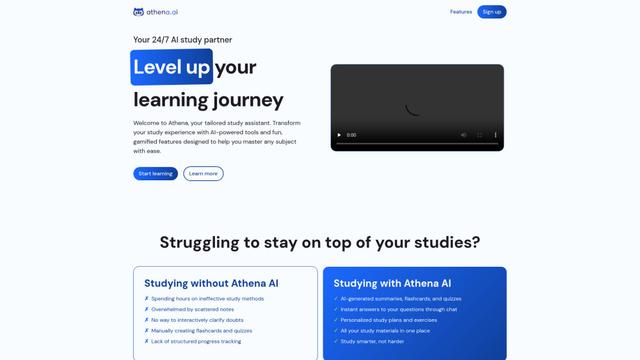
Athena AI is a versatile AI-powered platform offering personalized study assistance, business solutions, and life coaching through features like document analysis, quiz generation, flashcards, and interactive chat capabilities.

Taidai.io
Taidai.io is an AI-powered tool that automatically converts notes, emails, and text content into actionable todo lists.
Repliio
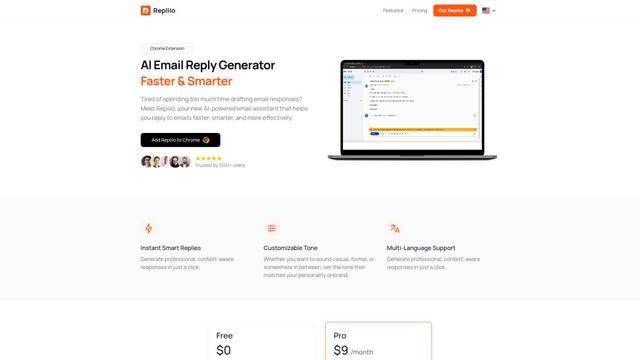
Repliio is an AI-powered email assistant Chrome extension that helps users generate professional, context-aware email responses quickly with customizable tones and multi-language support.
Popular AI Tools Like PaceBar
Microsoft Excel: Spreadsheets
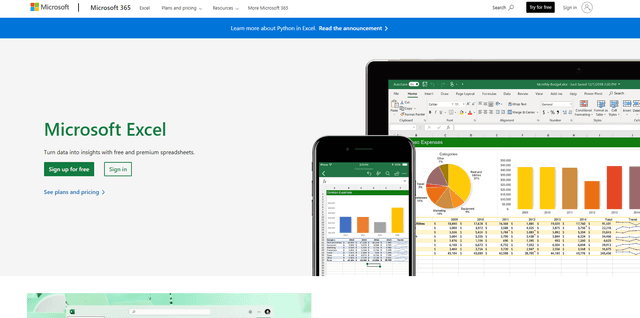
Microsoft Excel is the industry-leading spreadsheet software that allows users to organize, analyze, and visualize data through powerful features like formulas, charts, and AI-powered insights.
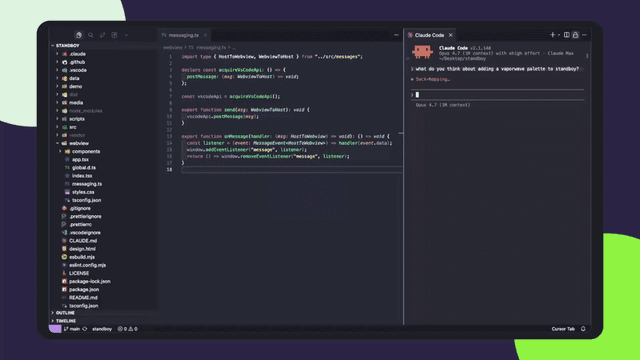
Standboy
Standboy is a VS Code/Cursor extension that auto-expands a Game Boy (GB/GBC/GBA) emulator in the sidebar during AI agent activity, then auto-hides and pauses—resuming mid-frame next time—while keeping a persistent ROM library, saves, and cover art.
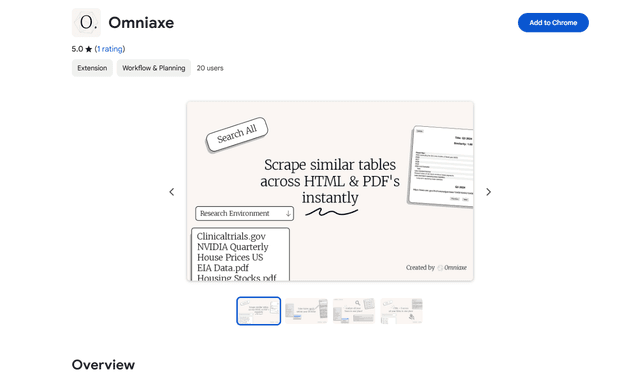
Omniaxe
Omniaxe is an all-in-one Chrome extension research tool that combines seamless data extraction, AI-powered analysis, and centralized note-taking capabilities designed specifically for analysts, researchers and students.
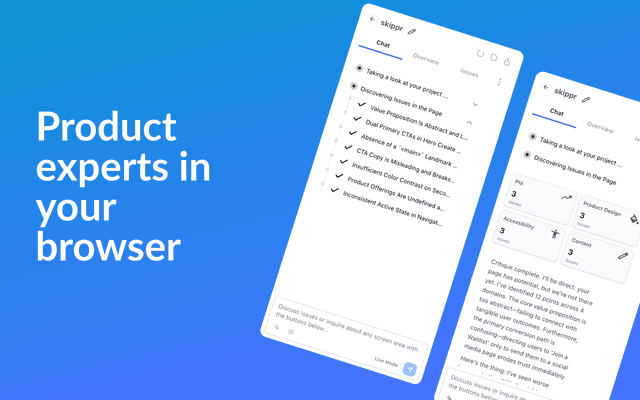
Finesse by Skippr AI
Finesse by Skippr AI is a browser extension that provides instant, expert-level product feedback and critiques across design, content strategy, accessibility, and product direction through specialized AI reviewers.