
Standboy
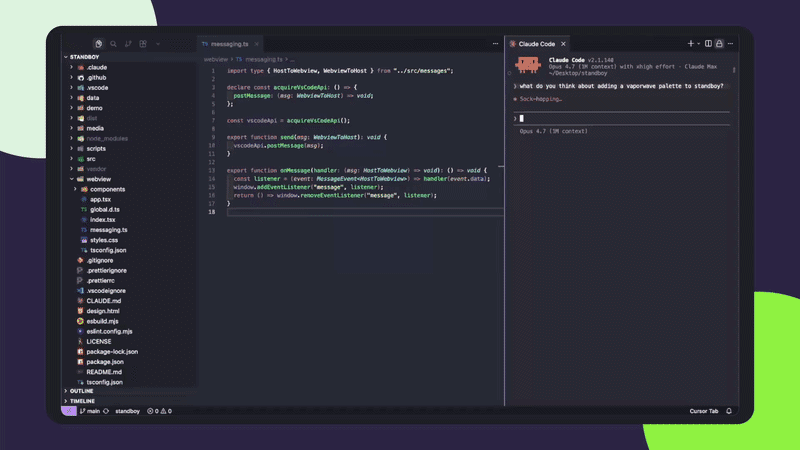
Standboy is a VS Code/Cursor extension that auto-expands a Game Boy (GB/GBC/GBA) emulator in the sidebar during AI agent activity, then auto-hides and pauses—resuming mid-frame next time—while keeping a persistent ROM library, saves, and cover art.
https://github.com/mfbz/standboy?ref=producthunt
Product Information
Updated:May 18, 2026
What is Standboy
Standboy is a lightweight IDE companion that turns AI “waiting time” into a contained, pauseable micro-break: a Game Boy emulator that lives in your editor’s sidebar. When your coding agent starts working, Standboy can automatically open; when the agent finishes, it tucks away and pauses so you don’t drift into other apps. It supports user-supplied `.gb`, `.gbc`, and `.gba` ROMs (no games are bundled), offers rebindable keyboard controls and palette options for the UI chrome, and maintains a managed on-disk library with persistent saves and cached box art. It’s available via the VS Code Marketplace and Open VSX, and it emphasizes privacy with no telemetry and only optional one-time cover fetches.
Key Features of Standboy
Standboy is a VS Code/Cursor sidebar Game Boy emulator that automatically pops open when your AI coding agent starts working and collapses when it stops, giving you a “micro-distraction” that keeps you in the IDE instead of tab-switching. It supports user-supplied GB/GBC/GBA ROMs, resumes gameplay mid-frame when hidden, maintains a persistent ROM library with disk-mirrored saves, auto-identifies titles and cover art via No-Intro hashing and libretro thumbnails, offers rebindable keyboard controls and palettes, and emphasizes privacy with no telemetry and minimal one-time network fetches for cover art.
Auto-show on agent activity: Hooks into Cursor’s native agent and Claude Code via official lifecycle APIs (with a fallback heuristic), then auto-expands after a short debounce while the agent works and auto-hides after idle—reducing context-switching without constant panel “strobing.”
Mid-frame resume with webview retention: When the panel hides, the emulator pauses in place and resumes exactly where it left off the next time it opens, so short agent runs don’t interrupt gameplay flow.
Persistent ROM library + save management: Copies ROMs into a managed on-disk library indexed by content hash, mirrors in-game battery saves to disk on key lifecycle events, and supports export/import of save files.
Automatic ROM identification and cover art: Matches ROMs by SHA-1 against a bundled No-Intro database to display canonical titles, and fetches/caches box art from libretro thumbnails (with local caching and “no cover” markers).
Multi-platform ROM support (GB/GBC/GBA): Loads .gb, .gbc, and .gba files with platform auto-detection, enabling a broad range of retro titles in one extension.
Customizable experience with privacy focus: Offers rebindable keyboard controls, multiple palettes plus custom palettes, configurable library directory, and no telemetry (only one-time cover fetches handled by the extension host).
Use Cases of Standboy
Staying engaged during AI coding waits: Developers using Cursor or Claude Code can play short bursts while an agent runs, then seamlessly return to work when the agent finishes—reducing the temptation to switch to social apps.
Pair-programming and live demos: During workshops or team sessions, Standboy can fill “dead air” while tools run (builds, refactors, agent generation), keeping the audience’s attention inside the editor.
Remote work focus management: In distributed teams, it provides a bounded, pausable break activity during inevitable waiting periods, helping maintain a consistent workflow without drifting into unrelated browsing.
Developer productivity rituals: Teams or individuals can use it as a lightweight reward loop—e.g., a quick game segment only while the agent works—turning idle time into a controlled, time-boxed reset.
Education and learning environments: Students learning programming with AI assistants can use Standboy as a structured “waiting activity” that ends automatically, minimizing distraction spillover during study sessions.
Pros
Reduces unbounded distraction by keeping breaks inside the IDE with a hard pause boundary (auto-hide/pause).
Strong persistence model for ROMs and saves (managed library, disk-mirrored saves, export/import).
Privacy-conscious design (no telemetry; limited, cached cover-art fetches).
Smooth UX details (debounced auto-show/hide, mid-frame resume, rebindable controls, palettes).
Cons
Requires manual cleanup: users should toggle Detection off before uninstalling to remove installed agent hooks.
Auto-show depends on supported agent integrations (best with Cursor/Claude Code); other agents may rely on less-precise heuristics.
Does not include games and requires users to provide legally obtained ROM files.
Mid-frame emulator state does not persist across editor restarts (only in-game saves persist).
How to Use Standboy
1) Install Standboy: In VS Code, open Extensions and search for “Standboy”, or run: `code --install-extension mfbzme.standboy`. In Cursor/other VS Code forks, install from the Extensions panel (often via Open VSX). You can also install a pre-release `.vsix` with: `code --install-extension standboy-x.y.z.vsix`.
2) Open Standboy the first time: On first activation, Standboy auto-opens its panel (no modal). You’ll see the header (STANDBOY + activity dot + menu `⋯`), a screen that says “no cartridge”, and an empty library grid with a “+ Add ROM” tile.
3) (Optional) Connect auto-show to your AI agent: In the Standboy panel, open the `⋯` menu → find the “Detection” section → toggle On the agent you want (Claude Code or Cursor). Connections are mutually exclusive (turning one On turns the other Off). This wires Standboy to the agent lifecycle so the panel auto-expands while the agent works and hides after it stops.
4) Load your first ROM: Click “+ Add ROM” (or `⋯` → “Load ROM…”) and choose a `.gb`, `.gbc`, or `.gba` file from disk. Standboy copies it into its managed library, identifies it (when possible), and starts the game.
5) Start playing (default controls): Click inside the Standboy panel so it captures keyboard input. Defaults: Arrow keys = D-pad, `Z` = A, `X` = B, `Enter` = Start, `Shift` = Select.
6) Rebind controls: Open `⋯` → “Controls”. Click a chip (`A`, `B`, `Start`, `Sel`) and press the new key. Press `Esc` to cancel. Bindings persist in the library’s `config.json`.
7) Toggle sound: Open `⋯` → “Audio” → toggle Sound On/Off. If audio still doesn’t play, click directly on the game screen once (browser autoplay policy requires a user gesture).
8) Switch games from the library grid: Click any cover/tile in the library grid to load that ROM. The currently playing ROM is highlighted. If a game is running, switching may prompt for confirmation; saves are flushed so canceling is non-destructive.
9) Understand auto-show timing (if enabled): When connected to an agent, Standboy uses a 5-second show delay (won’t pop up for tiny turns) and a 5-second hide delay after the agent stops. A thin progress bar appears while the hide countdown runs.
10) Manage saves (export/import): Open `⋯` → “Export save” to write the current game’s `.sav` to a location you choose. Use `⋯` → “Import save” to load a `.sav` into the current ROM (the game reloads with it).
11) Open or move your library folder: Open `⋯` → “Open library folder” to view ROMs, saves, covers, and indexes on disk. To store the library somewhere else (e.g., a synced folder), set `standboy.libraryDirectory` in settings; new loads/saves use the new location (existing files are not moved automatically).
12) Customize the look (palettes): In settings, set `standboy.palette` to one of: `kirokaze`, `dmg`, `pocket`, `bgb`, `mist`. Or set `standboy.customPalette` to an array of 4 hex colors (dark → light) to override the built-in palette.
13) Disable auto-show (manual-only mode): If you don’t want focus/panel changes during agent work, set `standboy.autoShow` to `false` (or toggle Auto-show off in the UI if available). Standboy still works as a manual emulator.
14) Troubleshoot using logs: Open `⋯` → “Show logs” to view Standboy’s output channel. For auto-show issues, look for lines indicating whether the agent sentinel file is present/absent and confirm Detection is toggled On for your agent.
15) Before uninstalling: disconnect Detection: Open `⋯` → “Detection” and toggle your agent Off before uninstalling. This removes the lifecycle hook entries Standboy added (VS Code doesn’t provide a reliable uninstall hook). If you already uninstalled and hooks remain, remove entries referencing `~/.standboy/marker.cjs` from `~/.claude/settings.json` and/or `~/.cursor/hooks/hooks.json`, and optionally delete `~/.standboy/`.
Standboy FAQs
Standboy is a VS Code extension that shows a Game Boy-style emulator in a sidebar panel. It auto-expands when your AI coding agent is working and auto-hides (pausing the emulator) when the agent is idle.
Popular Articles

Atoms: A Multi-Agent AI Platform That Transforms Ideas into Launch-Ready Products
May 22, 2026

Nano Banana SBTI: What It Is, How It Works, and How to Use It in 2026
Apr 15, 2026

Atoms Review — The AI Product Builder Redefining Digital Creation in 2026
Apr 10, 2026

Kilo Claw: How to Deploy and Use a True "Do‑It‑For‑You" AI Agent(2026 Update)
Apr 3, 2026
Latest AI Tools Similar to Standboy

Foundry
Foundry is a versatile platform that exists in multiple forms - as a smart contract development toolchain, a virtual tabletop gaming software, and a traditional metal casting facility - each offering specialized features for their respective domains.
JustAHuman
JustAHuman is a gaming platform that rewards players for completing challenges while helping game creators process 3D assets through AI.

RoleGuides
RoleGuides is an AI-powered Game Master assistant tool that helps tabletop RPG game masters generate NPC dialogue, random encounters, and dynamic story elements to enhance their campaigns.

QuazaAI
QuazaAI is an innovative fitness platform that combines artificial intelligence, motion tracking technology, and gaming elements to transform traditional workouts into engaging, interactive adventures.
Popular AI Tools Like Standboy

HEROZ
HEROZ is a Japanese AI technology company that develops and applies cutting-edge artificial intelligence solutions across various industries, leveraging expertise gained from creating game AIs like shogi (Japanese chess).

Rosebud AI
FreeGame Tools
Rosebud AI is an AI-powered platform that enables users to create, share, and play games by converting text descriptions into fully functional games with assets and code.

YOUR.GG
YOUR.GG is an AI-powered analytics platform that provides in-depth data and insights to help gamers improve their performance in competitive video games like League of Legends.
Oasis Decart AI
Oasis is the first playable, real-time, open-world AI model that generates interactive Minecraft-like gameplay frame-by-frame using transformer models without a traditional game engine.