
Draft
Draft is a markdown-based writing app with a Chrome extension that lets you clip useful AI chats and web research into your notes, then format and export them easily without locking in your data.
https://draft.innosage.co/?ref=producthunt
Product Information
Updated:Jun 8, 2026
What is Draft
Draft is a designed-for-digital note editor focused on turning scattered research and AI conversations into organized, usable writing. It pairs a fast markdown editor with an accompanying Draft Extension for capturing content from popular AI tools and the web, so you can save what matters directly into the notes where you already think and write. Draft also emphasizes ownership and portability of your information, giving you control over where your pages live and how you share or export them.
Key Features of Draft
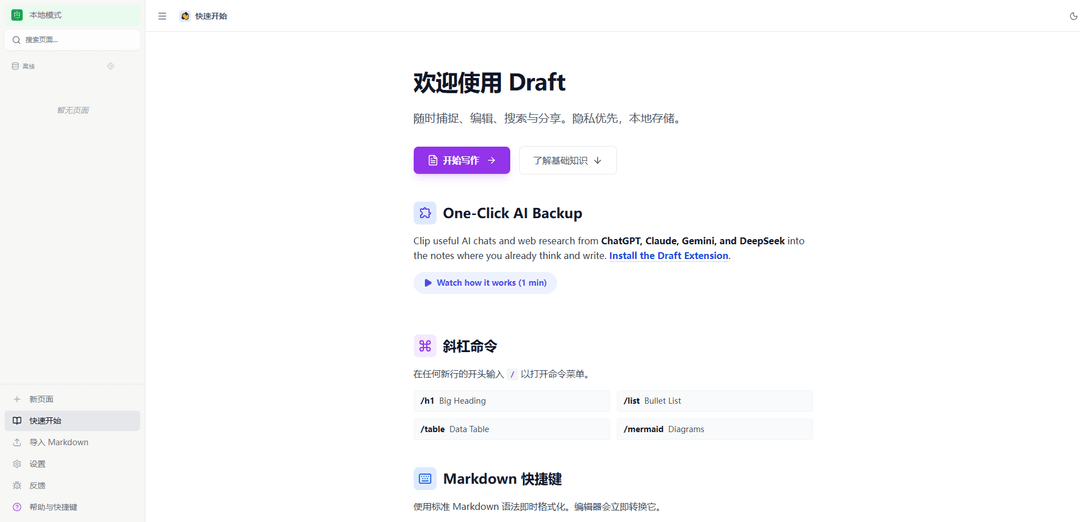
Draft is a lightweight, markdown-first notes editor from InnoSage that helps you capture and organize useful AI chats and web research directly into the place you write. It includes a Chrome extension for clipping content from popular AI tools (e.g., ChatGPT, Claude, Gemini, DeepSeek) into Draft, a slash-command menu for fast formatting (headings, lists, tables, mermaid diagrams), and flexible storage options that avoid lock-in—ranging from private local/offline pages to folder-backed workspaces and backup snapshots. Draft also supports sharing and exporting your work as read-only links or as PDF, Word, and Markdown files.
AI chat & research clipping (Chrome extension): Clip useful outputs from tools like ChatGPT, Claude, Gemini, and DeepSeek into Draft notes so you can keep sources and insights alongside your writing.
Slash-command formatting: Type “/” at the start of a line to quickly insert structures like headings, bullet lists, tables, and mermaid diagrams without breaking writing flow.
Markdown-first live formatting: Write in standard Markdown (e.g., **bold**, lists, blockquotes) and have the editor convert it instantly for a clean reading/writing experience.
No data lock-in storage choices: Keep pages private in-browser for offline work, use a folder-backed local workspace for file ownership and organization, and maintain backup snapshots for restore/migration.
Sharing and exporting: Generate read-only public links for easy distribution, or export documents to PDF, Word, or Markdown when you need to send or publish work.
Use Cases of Draft
Content & marketing research synthesis: Clip AI-assisted outlines, competitor notes, and web research into a single Draft page, then format into briefs, drafts, and shareable docs.
Product and UX documentation: Collect AI conversations about requirements, edge cases, and user stories, then structure them with tables and headings for internal docs.
Engineering knowledge base and design notes: Capture AI debugging suggestions, architecture tradeoffs, and references; use mermaid diagrams to document system flows and decisions.
Academic and student study notes: Clip explanations and summaries from AI tools into organized notes, then export to Word/PDF for submission or offline review.
Consulting and client deliverables: Centralize AI-assisted research and meeting follow-ups, keep data locally when needed, and share read-only links or exports with clients.
Pros
Fast capture workflow via Chrome extension for AI chats and research
Markdown + slash commands enable quick, structured note-taking (including tables and mermaid diagrams)
Flexible storage options reduce vendor lock-in (offline/local, folder-backed workspace, backups)
Multiple sharing/export paths (public link, PDF/Word/Markdown)
Cons
Extension-centric capture may limit usefulness for users who don’t work primarily in Chrome-supported workflows
Local/offline-by-default storage can be a drawback for teams needing built-in real-time multi-user collaboration
Feature set appears focused on note capture and formatting rather than advanced project management or publishing workflows
How to Use Draft
1) Open Draft: Go to https://draft.innosage.co/ (or open it from the Product Hunt link).
2) Install the Draft Extension (optional but recommended): Click “Install the Draft Extension” and add it from the Chrome Web Store. This is used to clip useful AI chats and web research into Draft.
3) Create and edit a page: Start writing in the editor. Draft supports standard Markdown and converts formatting instantly as you type (e.g., headings, bold, lists, blockquotes, dividers).
4) Use the command menu for structured blocks: Type “/” at the start of a new line to open the command menu, then insert blocks like: /h1 (big heading), /list (bullet list), /table (data table), /mermaid (diagrams).
5) Format with Markdown as you type: Use Markdown shortcuts directly: “# Heading 1”, “**bold**”, “-” for bullet lists, “1.” for numbered lists, “>” for quotes, and “---” for a divider.
6) Choose where your pages are stored (avoid lock-in): Open the Settings menu in the sidebar and choose a storage mode: Local/Offline (private, stored in the browser), Local Workspace (folder-backed files you manage), or Data Sync Backup (backup snapshots for restore/migration).
7) Use Local / Offline mode for private, fast writing: In Settings, select Local/Offline to keep pages in the current browser for offline access and privacy-by-default.
8) Use a Local Workspace to manage files yourself: In Settings, open a folder-backed Local Workspace when you want Draft pages saved as files you can organize outside the app.
9) Enable Data Sync Backup for safety and migration: In Settings, use Data Sync Backup to keep backup snapshots available for restoring or migrating later without changing your primary writing location.
10) Clip AI chats and web research into Draft (with extension): After installing the Draft Extension, use it while viewing ChatGPT, Claude, Gemini, or DeepSeek to clip useful content into your Draft notes.
11) Share a page with a public read-only link: Click the Share button in the top-right to generate a read-only public link you can send to others.
12) Export your work: Click the menu (near the top-right controls) and export your page as PDF, Word, or Markdown when you need to send or archive content.
Draft FAQs
It admits controlled “makeup” room air into the flue so the draft (suction) doesn’t become excessive, helping keep burner combustion stable instead of pulling too much air across the flame/heat exchanger.
Draft Video
Popular Articles

Vosko AI: Localize and Dub Videos for Global Audiences
Oct 15, 2026

Atoms: A Multi-Agent AI Platform That Transforms Ideas into Launch-Ready Products
Oct 13, 2026

Nano Banana SBTI: What It Is, How It Works, and How to Use It in 2026
Apr 15, 2026

Atoms Review — The AI Product Builder Redefining Digital Creation in 2026
Apr 10, 2026
Latest AI Tools Similar to Draft

Parcae
Parcae is a mind mapping mobile application that helps users organize thoughts and ideas into structured visual maps with intuitive gesture-based controls and automatic saving features.
想读 (WantRead)
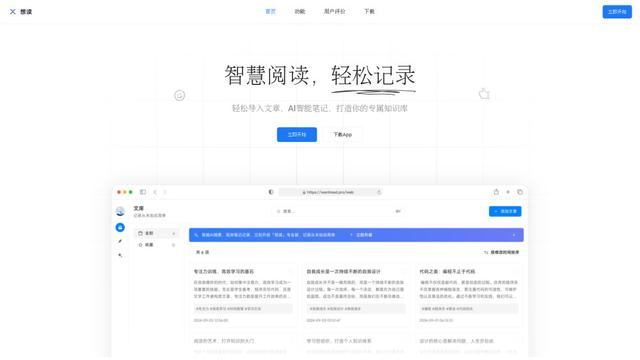
想读(WantRead) is an AI-powered reading and note-taking platform that helps users easily import, read, annotate and build their personal knowledge base.

Hiring Studio by Metaview
Hiring Studio by Metaview is a free AI-powered tool that helps recruiting teams generate customized interview questions with follow-up suggestions and detailed answer rubrics.

AI Journaler
AI Journaler is a free Windows PC app that combines traditional journaling with AI-powered analysis and conversation capabilities to enhance emotional well-being and self-reflection.
Popular AI Tools Like Draft
Lore
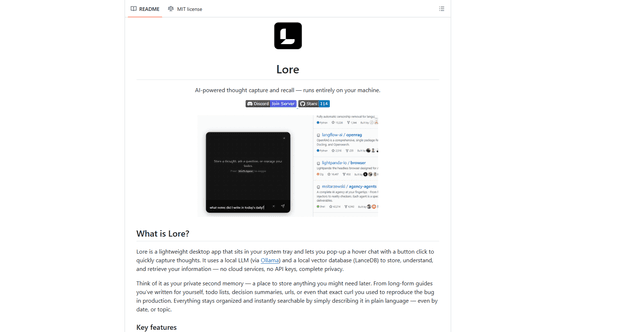
Lore is an AI-powered desktop application that enables quick thought capture and intelligent recall through a local LLM system, allowing users to store and retrieve information privately without cloud services.
Second Brain for AI
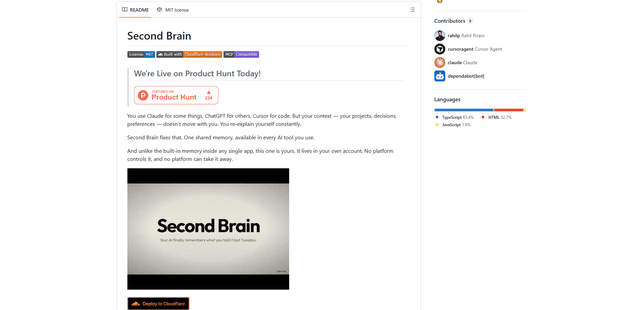
Second Brain for AI is a self-hosted, MCP-compatible persistent memory layer on Cloudflare that lets Claude, ChatGPT, Cursor, and other AI clients store and semantically recall shared context across sessions.
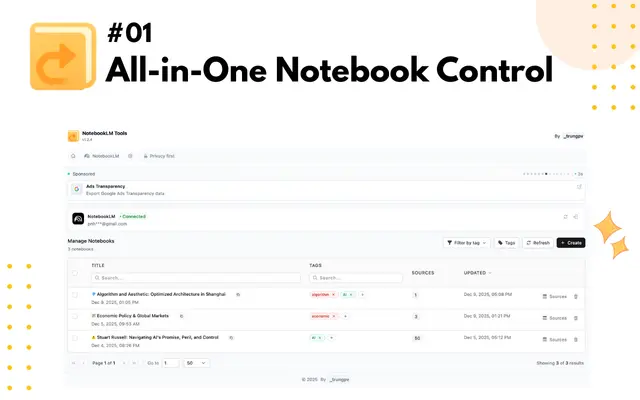
NotebookLM Tools Chrome Extension
NotebookLM Tools is a comprehensive Chrome extension that enhances Google's NotebookLM with advanced notebook management, multi-language support, bulk operations, and seamless source importing capabilities.
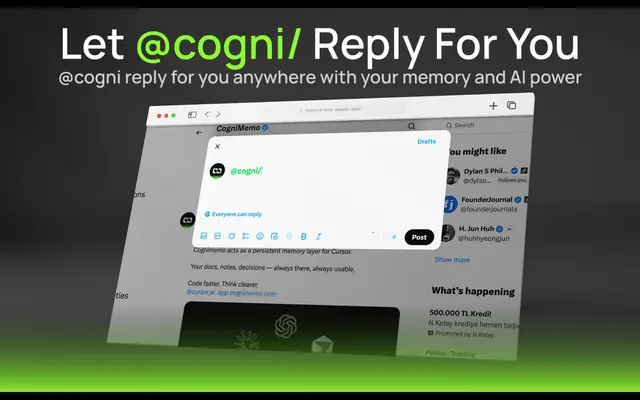
CogniMemo Extension
CogniMemo is a browser extension that adds long-term memory capabilities to AI tools like ChatGPT, Claude, Gemini, and DeepSeek by enabling context-aware conversations and knowledge management through saved notes and past chats.