
Glint
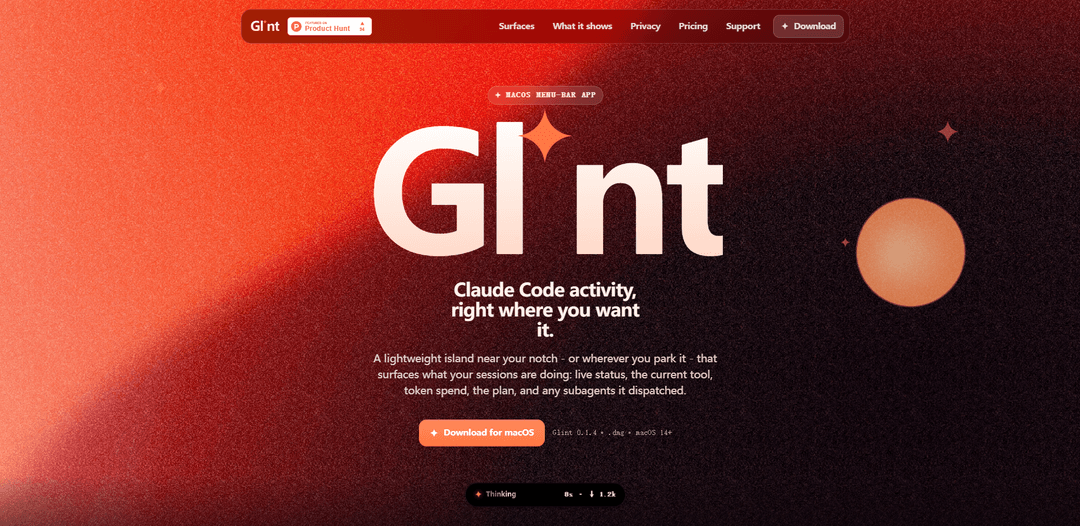
Glint is a lightweight macOS menu-bar app that shows live Claude Code session activity—status, current tool, token/cost metrics, plan, subagents, usage meters, and context window—in a glanceable island near the notch (or as a floating pill or dock-side bar).
https://glint.binarybeam.net/?ref=producthunt
Product Information
Updated:Jul 8, 2026
What is Glint
Glint is a macOS (14+ Sonoma) companion for Claude Code that brings your session status out of the terminal and into a small, always-available UI. Designed as a menu-bar app with Dynamic-Island-style presentation, it helps you monitor what Claude Code is doing—whether it’s thinking, waiting on your input, or running tools—without constantly alt-tabbing back to the CLI. It supports multiple concurrent sessions, offers optional notification sounds, and is sold as a one-time license (covering two Macs).
Key Features of Glint
Glint is a lightweight macOS menu-bar app that mirrors live Claude Code session activity in a glanceable “island” (near the notch or elsewhere). It reads only local Claude Code session logs to show real-time status, current tool, per-turn token/cost/time metrics, plan (TodoWrite checklist), subagent activity, usage meters, and a context-window gauge—helping you monitor multiple sessions without constantly switching back to the terminal. Privacy is on-device by design, with the only network call being optional license validation.
Three always-available surfaces: Choose a Dynamic-Island-style notch overlay, a draggable always-on-top floating pill (even over full-screen apps), or a Dock-side bar; each can be toggled independently.
Live session status + current tool: Shows whether Claude Code is Idle/Thinking/Awaiting (needs you), including the active tool verb (e.g., editing a file) and usage-limit lockouts with reset times.
Per-turn metrics at a glance: Displays output tokens, cost, and elapsed time per prompt/turn, matching Claude Code’s own status line and resetting each time you send a prompt.
Plan and subagent visibility: Surfaces the current TodoWrite checklist as items complete and shows when subagents are dispatched, including how many are running and what they’re working on.
Context window + usage meters: Includes a context ring aligned with Claude Code’s auto-compact gauge (turns red past ~90%) and built-in session/weekly/Sonnet usage meters with reset times.
Local-first privacy + simple licensing: Reads only local logs under ~/.claude (no accounts/telemetry); the only network call is license key validation. One-time $7 license covers up to two Macs.
Use Cases of Glint
Software development multitasking: Track multiple Claude Code sessions while coding, reviewing PRs, or running tests—without alt-tabbing—so you can respond quickly when a session is awaiting input.
AI-assisted ops/incident response: Keep a visible indicator of ongoing Claude Code troubleshooting or automation tasks during incidents, including progress (plan) and when the agent needs operator decisions.
Cost and token-budget monitoring: Use per-turn cost/token readouts and weekly usage meters to stay within team or personal budgets, especially when running long or parallel sessions.
Documentation and content workflows: Monitor drafting/editing sessions and delegated subagent work while continuing other tasks, using the plan checklist to confirm progress without opening the CLI.
Pairing, demos, and teaching: During live demos or mentoring, display a clean, glanceable status of what Claude Code is doing (tools, time, tokens, context) to explain agent behavior in real time.
Pros
Glanceable, always-on-top visibility into Claude Code (status, tool, plan, tokens, context) across multiple sessions
Strong privacy posture: reads local logs only; no telemetry; only network call is license validation
Flexible UI placement (notch, floating pill, Dock side) and quick access even if the menu bar icon is hidden
Simple pricing: one-time license covers two Macs and includes future updates
Cons
macOS-only and requires macOS 14+ (Sonoma or later)
Depends on Claude Code runtime and its local session logs (only useful while Claude Code is running)
Ad-hoc signed builds (no notarization yet) may require manual Gatekeeper/quarantine override on first launch
How to Use Glint
1. Check requirements: Make sure you’re on macOS Sonoma 14+ and you use Claude Code (Glint reads Claude Code session logs under ~/.claude and only shows activity while Claude Code is running).
2. Download Glint: Go to the official site and download the macOS disk image (DMG) from “Download for macOS”.
3. Install Glint: Open the DMG and drag Glint.app into /Applications.
4. Launch Glint (first run): Because builds are ad-hoc signed (not notarized yet), macOS Gatekeeper may block the first launch. You can either use System Settings → Privacy & Security → Open Anyway after attempting to open it once, or clear the quarantine flag via Terminal.
5. (Optional) Clear Gatekeeper quarantine via Terminal: Run: xattr -dr com.apple.quarantine /Applications/Glint.app ثم launch with: open -a Glint
6. Start (or keep running) Claude Code: Open Claude Code and begin a session; Glint mirrors what Claude Code is doing by reading local logs, so you’ll only see live activity while Claude Code is running.
7. Choose where Glint appears (three surfaces): In Glint settings, toggle any of the three display surfaces independently: Notch (Dynamic-Island-style overlay), Floating Pill (draggable always-on-top pill), and Dock Side (bar beside the Dock that expands upward).
8. Use the Notch surface: Enable the notch overlay to see a compact pill/dot (or fully hidden when idle) that expands on click. While working, it avoids covering your menu bar icons so they remain clickable.
9. Use the Floating Pill surface: Enable the floating pill, then drag it once to place it anywhere (even over full-screen apps). Glint remembers the position.
10. Use the Dock Side surface (Accessibility needed): Enable Dock Side to fill the empty space beside the Dock. Grant Accessibility permission if prompted so Glint can measure the Dock.
11. Open the expanded session view: Click any Glint surface (notch/pill/dock side) to expand the panel and view the full session card.
12. Read live status and current tool: In the session card, watch live state (Idle/Thinking/Awaiting) and the active tool verb (e.g., “Editing …”). Usage-limit lockouts and reset times also surface here.
13. Track per-turn metrics: Use the per-turn readout for output tokens, cost, and elapsed time; it matches Claude Code’s status line and resets each prompt.
14. Follow the plan (TodoWrite checklist): View the current TodoWrite checklist and watch items tick off as work lands.
15. Monitor subagents: When a session delegates work, Glint shows how many subagents are active and what they’re doing.
16. Watch context window usage: Use the context ring to see how full the context window is; it matches Claude Code’s auto-compact gauge and turns red past 90% (works for 200k or 1M context sessions).
17. Manage multiple sessions: If you have multiple Claude Code sessions, Glint surfaces the busiest/most attention-needing one first and lists the rest in the expanded view (including model and reasoning effort).
18. Access Glint even if the menu bar icon is hidden: Right-click any Glint surface to open a quick menu (Open Glint, Settings, Quit). The panel anchors below the surface so you’re not dependent on the menu bar icon.
19. Configure optional notification sounds: In Sounds settings, optionally enable macOS sounds for: work finishes, session needs you, and work starts. Sounds are off until you pick one; selecting a sound previews it.
20. View usage meters: Open the usage section to see session/weekly/Sonnet usage percentages and reset times, read directly from Claude Code (not estimated), plus your account/plan/CLI version.
21. (Optional) Buy and activate a license key: Purchase the one-time license (covers up to 2 Macs). After purchase, you receive a key by email; in Glint choose “I have a key” and paste it to activate. License validation with Polar is the only network call Glint makes.
22. Understand privacy behavior: Glint reads local Claude Code session logs (e.g., under ~/.claude/projects/**) and renders everything on-device; it does not send session data off your Mac.
Glint FAQs
Glint is a lightweight macOS menu-bar app that surfaces Claude Code activity at a glance (live status, current tool, token spend/cost, plan/TodoWrite checklist, subagents, and context window), without needing to alt-tab.
Popular Articles

Vosko AI: Localize and Dub Videos for Global Audiences
Oct 15, 2026

Atoms: A Multi-Agent AI Platform That Transforms Ideas into Launch-Ready Products
Oct 13, 2026

Nano Banana SBTI: What It Is, How It Works, and How to Use It in 2026
Apr 15, 2026

Atoms Review — The AI Product Builder Redefining Digital Creation in 2026
Apr 10, 2026
Latest AI Tools Similar to Glint

Gait
Gait is a collaboration tool that integrates AI-assisted code generation with version control, enabling teams to track, understand, and share AI-generated code context efficiently.
invoices.dev
invoices.dev is an automated invoicing platform that generates invoices directly from developers' Git commits, with integration capabilities for GitHub, Slack, Linear, and Google services.
EasyRFP
EasyRFP is an AI-powered edge computing toolkit that streamlines RFP (Request for Proposal) responses and enables real-time field phenotyping through deep learning technology.

Cart.ai
Cart.ai is an AI-powered service platform that provides comprehensive business automation solutions including coding, customer relations management, video editing, e-commerce setup, and custom AI development with 24/7 support.
Popular AI Tools Like Glint

GitHub Copilot Chat
GitHub Copilot Chat is an AI-powered coding assistant that provides natural language interactions, real-time code suggestions, and contextual support directly within supported IDEs and GitHub.com.
CopilotForXcode
CopilotForXcode is an Xcode Source Editor Extension that integrates GitHub Copilot, Codeium, and ChatGPT to provide AI-powered code suggestions, chat assistance, and prompt-to-code functionality within Xcode.

BrowserAI
BrowserAI is an open-source library that enables running local Large Language Models (LLMs) directly in web browsers with WebGPU acceleration, offering privacy-focused AI capabilities without requiring server infrastructure.
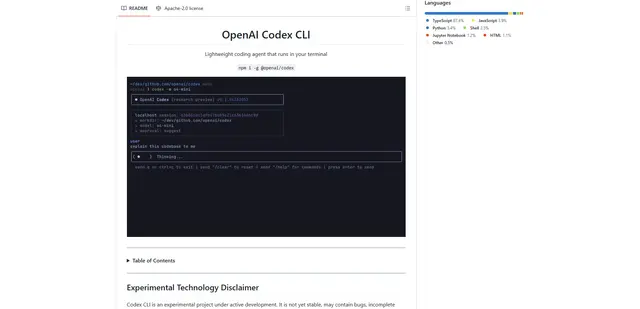
OpenAI Codex CLI
OpenAI Codex CLI is a lightweight, open-source coding agent that runs in your terminal, enabling developers to translate natural language into code execution while providing ChatGPT-level reasoning with the ability to run code, manipulate files, and iterate under version control.