Framer
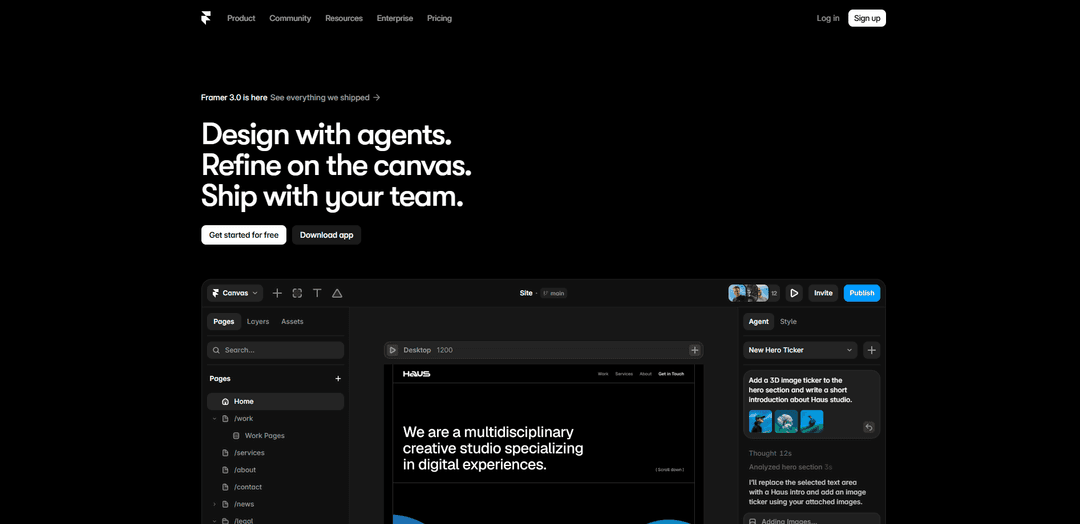
Framer is a no-code visual website builder that lets teams design, generate with AI agents, manage content with a built-in CMS, and publish fast, responsive, SEO-ready sites with real-time collaboration.
http://www.framer.com/?ref=producthunt
Product Information
Updated:Jul 8, 2026
Framer Monthly Traffic Trends
Framer received 4.4m visits last month, demonstrating a Slight Growth of 1.3%. Based on our analysis, this trend aligns with typical market dynamics in the AI tools sector.
View history trafficWhat is Framer
Framer is a visual web design and publishing platform for creating production websites without writing code. You build directly on a live canvas—assembling pages, sections, and components—then publish to a hosted site with performance and SEO features built in. It’s used by designers, startups, and teams to ship everything from portfolios and landing pages to multi-page marketing sites, with tools for responsive layout, animation, content management, and collaboration.
Key Features of Framer
Framer is a design-first, no-code website builder that lets teams design, build, and publish production websites from a visual canvas. It combines responsive layout tools, animations/interactions, built-in hosting and SEO/performance features, and a native CMS for dynamic content. Newer AI “Agents” can generate and refine layouts, manage CMS structure/content, and even create code components directly on the canvas, while collaboration features like real-time editing, comments, branching, and community resources help teams iterate and ship faster.
Visual canvas → production site: Design directly on a Figma-like canvas where what you build is a live website, not just a prototype, with one-click publishing.
AI Agents on the canvas: Agents help generate sections/layouts, refine styling in place, manage CMS updates, and create custom code components for advanced interactions.
Built-in CMS for dynamic content: Native CMS with collections/fields, dynamic pages, filtering/conditionals, rich content management, and support for connecting content to designs (including newer relational capabilities).
Responsive layout & breakpoints: Tools for mobile/tablet/desktop responsiveness with breakpoint-specific editing to ensure designs adapt across devices.
SEO, performance, and analytics-ready publishing: Includes essentials like sitemaps, robots.txt, custom metadata, optimized assets/caching, and performance focus aligned with Core Web Vitals.
Collaboration, branching, and community ecosystem: Real-time collaboration and feedback workflows plus branching for safer iteration, supported by a marketplace/community of templates, components, and plugins.
Use Cases of Framer
Startup marketing sites & product launches: Rapidly create high-performance landing pages with strong SEO, responsive design, and fast iteration using AI-assisted layout/copy generation.
Content-driven blogs and publications: Run editorial workflows with the built-in CMS (collections, dynamic pages) and migrate content via importers/integrations when moving from platforms like WordPress.
Design agencies shipping client websites: Replace designer–developer handoffs by building directly in Framer, using components/animations, branching, and collaboration to deliver faster.
Portfolio and personal brand sites: Designers and creators can build custom, visually rich portfolios with advanced interactions and templates/components from the community.
Teams needing frequent website updates: Use on-page editing and CMS workflows so non-designers can update content quickly while keeping design and content in sync.
Interactive prototypes that feel real: Create highly interactive, animated prototypes that closely mimic final behavior, then evolve them into published pages when ready.
Pros
Design-first workflow that produces real, publishable websites without code
Strong built-in CMS plus AI Agents that speed up design, content, and custom component creation
Good SEO/performance foundations (metadata, sitemaps/robots, optimization) and responsive tooling
Active community/marketplace with reusable templates, components, and plugins
Cons
Advanced interactions and complex features can have a learning curve and require solid design understanding
Some advanced capabilities may be gated behind higher-tier plans
May not fit teams needing very specific enterprise features beyond Framer’s current scope
How to Use Framer
1) Create a new Framer project: Open Framer and start a new project. Choose either a blank canvas (best for learning fundamentals) or a template from the template library/Marketplace (fastest path to a working site you can customize).
2) Learn the editor layout (where everything lives): Get comfortable with the three main areas: the Canvas (center) where you design, the Layers panel (left) showing page structure, and the Properties panel (right) for styling, layout, and settings. This is where most work happens.
3) Set up your pages and basic site structure: Use the Pages panel to create and organize pages (e.g., Home, Work, About, Contact). Open page settings (gear icon) to manage page-level details like title/description and other settings.
4) Build layout foundations with Frames and Stacks: Insert a Frame and start structuring sections (hero, features, testimonials, footer). Use Stack-based layouts (vertical/horizontal) to auto-arrange elements and keep layouts resilient. Layout is the foundation that makes responsiveness, CMS, and animation easier.
5) Use the Properties panel to control spacing and sizing: Adjust colors, typography, spacing, and alignment from the right panel. Prefer responsive sizing patterns (e.g., width set to Fill/100% and height set to Auto where appropriate) to reduce breakpoint rework.
6) Add responsive breakpoints (desktop-first workflow): Select the desktop page and add Tablet and Phone breakpoints (often via a plus icon). Changes cascade from Desktop to smaller breakpoints; apply overrides only where needed. Use the device icons to preview and refine each breakpoint.
7) Create reusable Components for repeated UI: Turn repeated elements (navbars, buttons, cards) into Components so updates propagate across the site. Organize components in folders using naming like "Buttons/Primary CTA" to keep the Assets panel clean as your library grows.
8) Add Variables to make component instances customizable: Inside a component, select a layer (e.g., button text), open its Content property, and create a Variable so each instance can override only what you intend (label, visibility, colors, padding, radius, etc.) while keeping shared structure consistent.
9) Add content with Framer CMS (Collections + Fields): Create CMS Collections (e.g., Blog, Careers, Events) and define Fields (title, image, category, status, etc.). Connect CMS items to your design so content and layout stay in sync and updates happen in one place.
10) Use Agents to speed up design, CMS, and code tasks (optional): Use Framer Agents to generate layout variations, refine sections directly on the canvas, set up or reorganize CMS, and create custom code components/interactions. Every change remains visible and editable in the project.
11) Add motion and interactions intentionally: Apply hover effects, transitions, and scroll-based motion to guide attention and improve UX. Keep animations subtle and purposeful; build on solid layout first so motion behaves well across breakpoints.
12) Optimize SEO and sharing metadata: For each page, open page settings and set a clear Title and meta description (keep descriptions under ~160 characters). Upload a Social Preview image (commonly 1200×630). Framer can auto-generate sitemap and robots.txt.
13) Collaborate with teammates: Click Invite/Members (top-right in many layouts), enter an email, choose a role (Editor or Viewer), and send the invite. Collaborators gain access after accepting.
14) Preview, test, and publish: Preview on desktop/tablet/phone and verify layout, interactions, and CMS pages. When ready, click Publish to push the site live. After publishing, use built-in analytics (if available on your plan) to monitor visitors and performance.
Framer FAQs
No. If you’ve used tools like Figma or Canva, Framer will feel familiar. The visual editor is drag-and-drop with frames, components, and layers, and many beginners can build and publish a basic site in a few hours.
Framer Video
Popular Articles

Vosko AI: Localize and Dub Videos for Global Audiences
Oct 15, 2026

Atoms: A Multi-Agent AI Platform That Transforms Ideas into Launch-Ready Products
Oct 13, 2026

Nano Banana SBTI: What It Is, How It Works, and How to Use It in 2026
Apr 15, 2026

Atoms Review — The AI Product Builder Redefining Digital Creation in 2026
Apr 10, 2026
Analytics of Framer Website
Framer Traffic & Rankings
4.4M
Monthly Visits
#7600
Global Rank
#227
Category Rank
Traffic Trends: Jul 2024-Jun 2025
Framer User Insights
00:10:16
Avg. Visit Duration
11.36
Pages Per Visit
33.11%
User Bounce Rate
Top Regions of Framer
US: 20.07%
IN: 14.98%
GB: 4.42%
CA: 4.17%
FR: 3.8%
Others: 52.56%
Latest AI Tools Similar to Framer
GPT Easy Web
GPT Easy Web is a user-friendly AI-powered platform that enables users to easily build, customize and manage websites through natural language interactions and automated tools without requiring coding knowledge.
AI Website Tool
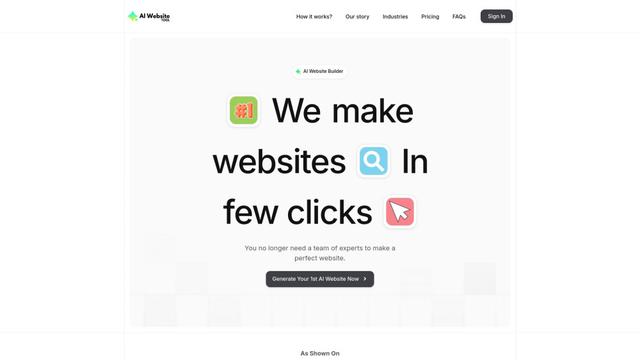
AI Website Tool is an AI-powered website builder that creates professional websites in minutes by automatically generating business-focused copy, custom visuals, and responsive designs with just a few clicks.
Softgen
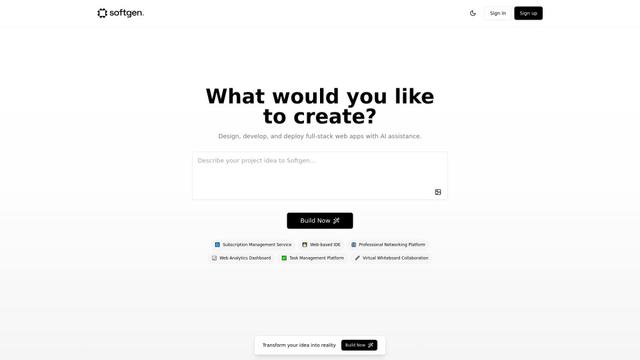
Softgen.ai is an AI-powered full-stack project generator platform that enables users to transform their ideas into functional web applications without coding requirements.
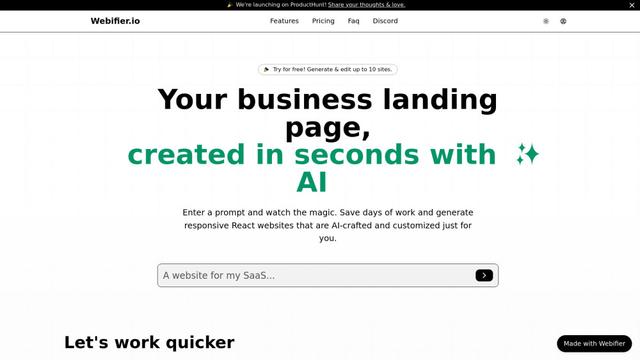
Webifier
Webifier is an AI-powered tool that transforms text prompts into fully functional React landing pages with clean, exportable code using NextJS14, TailwindCSS, and Shadcn components.
Popular AI Tools Like Framer
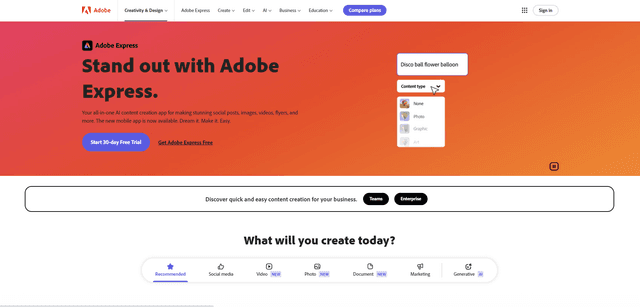
Adobe Express
Adobe Express is an all-in-one AI-powered content creation app for easily making stunning social posts, images, videos, flyers, and more with professionally designed templates and assets.
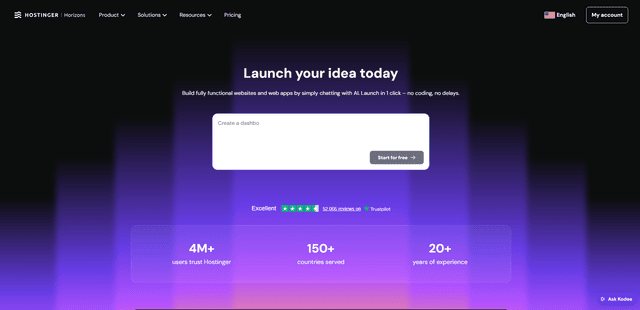
Hostinger
Hostinger is a web hosting and domain service provider offering AI-powered tools like Horizons that enables anyone to build, edit, and publish custom web apps and websites without coding through a simple chat interface.
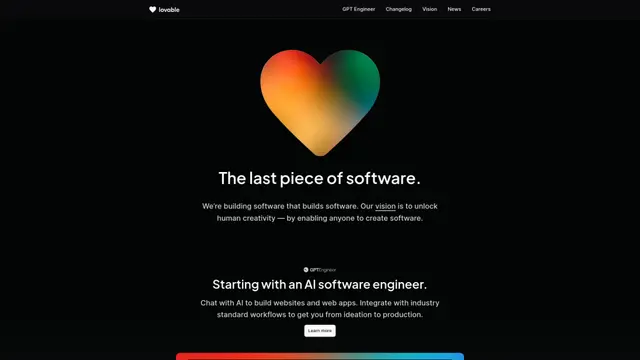
GPT Engineer
GPT Engineer is an AI-powered software development tool that enables anyone to build web applications by chatting with an AI engineer.
Manus Shopify Connector
Manus Shopify Connector lets you build a Shopify-backed storefront, manage your catalog, and generate data-driven campaigns from a single chat—using Shopify APIs with OAuth-scoped access and Shopify checkout.