
Cotypist
Cotypist is an on-device, system-wide AI autocomplete for Apple Silicon Macs that predicts your next words inline in almost any app, works offline with no cloud logging, and lets you accept suggestions with Tab word-by-word or all at once.
https://cotypist.app/?ref=producthunt

Product Information
Updated:Jul 8, 2026
What is Cotypist
Cotypist is a smart autocomplete utility for macOS that brings “predictive typing” to virtually every place you write—email, Slack, Notes, docs, chat apps, and more—without making you switch to a separate editor or chatbot. Instead of generating full drafts, it focuses on finishing the sentence you were already writing, so the output stays in your voice while reducing keystrokes and typos. It’s free to download for Apple Silicon Macs, includes a 30-day Pro trial, and then offers a free plan (with paid tiers for heavier use and advanced controls).
Key Features of Cotypist
Cotypist is a system-wide AI autocomplete app for Apple Silicon Macs that shows inline “ghost text” suggestions in nearly any app you type in (Mail, Slack, docs, browsers, prompt boxes, etc.). It runs fully on-device (works offline, no cloud/API calls, no logging), updates suggestions in real time as you keep typing, and lets you accept completions with Tab either word-by-word or as a whole suggestion. Over time it adapts to your vocabulary and phrasing, supports multiple languages, includes emoji shortcuts and inline autocorrect, and offers advanced controls like per-app instructions plus experimental “Labs” features (e.g., mid-line completion) on higher tiers.
Autocomplete in every Mac app: Provides inline suggestions across most text fields system-wide—email, chat, docs, browsers, and even AI tool prompt boxes—without needing per-app plugins.
On-device LLM + offline privacy: All processing happens locally on Apple Silicon Macs (no cloud calls, no prompt leakage); works offline and is designed to avoid logging your text.
Real-time, inline suggestions (Tab to accept): Suggestions appear as you type and update within a letter or two; press Tab to accept the next word or the full completion, or just keep typing to ignore.
Learns your voice over time: Adapts to your vocabulary, names, and phrasing so completions increasingly match how you naturally write, reducing robotic output.
Writing helpers: inline autocorrect + emoji shortcuts: Offers inline typo fixes (e.g., “recieve→receive”) and fast emoji insertion by typing a colon and filtering with shortcodes.
Advanced controls & early features (Pro/Labs): Adds per-app instructions (different tone for Slack vs. email), access to a broader model catalog, and experimental features like mid-line completion.
Use Cases of Cotypist
Customer support & help desks: Speeds up repetitive ticket replies and troubleshooting steps while keeping tone consistent; on-device processing helps with sensitive customer data.
Sales, account management, and client email: Drafts thoughtful outreach and follow-ups faster directly in Mail or CRM text boxes, reducing typing time and typos.
Marketing & social publishing: Helps produce posts, captions, and campaign copy in your existing voice without switching to a chatbot—useful for high-volume content workflows.
Product/engineering documentation: Accelerates writing repetitive docs, specs, and release notes in editors like Notion/Obsidian/Pages, while keeping terminology consistent.
Prompting AI tools and agents: Improves and speeds up prompts for ChatGPT/Claude/coding agents; can activate in terminal apps when it detects you’re typing an AI prompt.
Accessibility & multilingual writing: Reduces keystrokes for dyslexic writers, one-handed typists, or people with hand strain; supports multilingual input and code-switching.
Pros
Privacy-first: runs entirely on-device with offline support (no cloud/API calls).
Works nearly everywhere you type on macOS, keeping you in-flow (no copy/paste to a separate AI tool).
Fast, low-friction UX: real-time inline suggestions with word-by-word acceptance and inline autocorrect.
Cons
Mac-only and requires Apple Silicon (not available for Windows/Linux).
Best results improve with usage; early suggestions may be less personalized.
Some advanced features (per-app instructions, Labs/mid-line completion, broader model access) are gated behind paid tiers after the trial.
How to Use Cotypist
1) Check compatibility and requirements: Use an Apple Silicon Mac (M1/M2 or newer) running macOS 14 or later. Intel Macs are not supported. For best performance, an M1 Pro/M2 (or higher) with 16 GB memory is recommended.
2) Download Cotypist: Go to https://cotypist.app and download Cotypist (free to download; includes a 30-day Pro trial, then a free plan).
3) Install the app: Open the downloaded file and drag Cotypist into your Applications folder.
4) Launch Cotypist (no account required): Open Cotypist from Applications. Setup is designed to take only a few minutes and does not require creating an account.
5) Grant macOS permissions if prompted: Allow the requested macOS Accessibility-related permissions so Cotypist can read text fields and show inline suggestions across apps.
6) Wait for the on-device model to download: Cotypist can’t suggest anything until its AI model is in place. Watch the menu bar icon for download progress and wait until it completes.
7) Start typing in any app: Open any Mac app where you type (Mail, Slack, Notes, Notion, browsers, docs, etc.). Begin writing normally; Cotypist will show inline predictions in the same font near your cursor.
8) Accept suggestions word-by-word: Press Tab (⇥) to accept the next suggested word. Keep pressing Tab to accept more words as needed.
9) Accept a longer/full suggestion: Use the full-completion shortcut (commonly the key above Tab, shown as ~ in some guides) to accept the whole line/longer completion, depending on your configured shortcuts.
10) Ignore suggestions when they’re wrong: If you don’t like a suggestion, just keep typing. Cotypist updates in real time and often snaps to the word you intended within a letter or two.
11) Dismiss and suppress suggestions in the current field: Press Esc to dismiss the current suggestion and suppress further completions in that same field—useful when you want to finish a thought without interruptions.
12) Use Tab normally in forms when needed: If Tab is being used to accept suggestions but you need to move to the next form field, press Option+Tab to send a normal Tab through even when a suggestion is showing. Alternatively, press Esc then Tab.
13) Temporarily disable Cotypist in one app: Use the temporary per-app toggle shortcut (default: Ctrl+Option+Cmd+`) to turn completions off for a few minutes in the current app without changing global settings—handy for focus bursts or screen shares.
14) Toggle Cotypist off everywhere (global pause): Assign and use a global toggle shortcut (unassigned by default) to turn Cotypist off system-wide until you press it again—useful for calls, presentations, or deep work.
15) Configure which apps get completions (especially editors): Code editors are disabled by default. To enable completions in an editor’s sidebar AI chat panels (where natural-language prompts live), add that editor in Cotypist Settings or via the Cotypist menu bar/icon controls.
16) Use Cotypist in terminals (AI prompts vs commands): In Terminal.app and iTerm, Cotypist activates automatically when it detects you’re typing in an AI agent prompt (e.g., Claude Code, Codex, Cursor Agent). For regular shell commands, completions are off by default to avoid interfering with shell autocomplete; use the force-activate completions shortcut to temporarily enable suggestions.
17) Add global and per-app writing instructions: In Settings, set global instructions (e.g., your role, preferred tone, terminology). For app- or website-specific guidance, open App Settings, select/add an app or domain, and fill in Custom Instructions; Cotypist appends these after the global instructions whenever you type there.
18) Manage privacy and data collection per app/domain: Choose whether Cotypist stores inputs only when you accept a completion (default) or stores all monitored inputs (optional toggle). You can also toggle input collection for the current app/domain from the Cotypist icon/menu bar without changing other apps.
19) Review and clear collected data if desired: In App Settings, view how many recorded inputs exist per app/domain. Deleting your data also clears the derived personalization profile (e.g., word-choice adjustments), returning suggestions to default behavior until new data accumulates.
20) Troubleshoot when suggestions don’t appear: Confirm the model finished downloading, and that Cotypist is enabled for the app. If completions stopped after an update, restart your Mac. If an app behaves differently in full-screen, try windowed mode or use the force-activate shortcut. If issues persist, contact support via the website.
Cotypist FAQs
Cotypist is a smart autocomplete app for macOS that predicts your next words inline in whatever app you’re typing in. You press Tab to accept the next word (or keep accepting to take more).
Cotypist Video
Popular Articles

Vosko AI: Localize and Dub Videos for Global Audiences
Oct 15, 2026

Atoms: A Multi-Agent AI Platform That Transforms Ideas into Launch-Ready Products
Oct 13, 2026

Nano Banana SBTI: What It Is, How It Works, and How to Use It in 2026
Apr 15, 2026

Atoms Review — The AI Product Builder Redefining Digital Creation in 2026
Apr 10, 2026
Latest AI Tools Similar to Cotypist

Callaia
Callaia is an AI-powered script analysis tool that provides comprehensive script coverage, including logline, synopsis, character summaries, and actionable recommendations in under a minute for $79 per script.

Scribly AI
Scribly AI is an AI-powered content creation platform that helps users generate high-quality articles, blogs, emails, and various types of content in minutes while maintaining SEO optimization and brand voice consistency.

VocalScribe
VocalScribe is an AI-powered platform that transforms voice recordings into polished blog posts and other content formats with smart transcription and enhancement capabilities.

Writers-Copilot
Writers-Copilot is a free AI-powered writing assistant that provides intelligent editing suggestions, real-time feedback, and content improvement capabilities to enhance writing quality and efficiency.
Popular AI Tools Like Cotypist
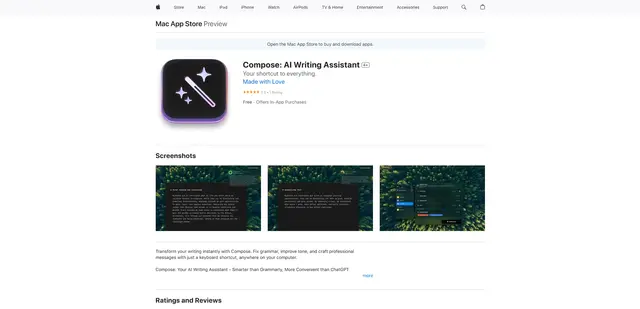
Compose for macOS
Compose for macOS is an AI-powered writing assistant that works system-wide, allowing users to transform and enhance their writing with just a keyboard shortcut across any application.

QuillBot
QuillBot is an AI-powered writing assistant that offers paraphrasing, grammar checking, and other tools to help users improve their writing quality and efficiency.

Doubao 1.6
Doubao 1.6 is an advanced multimodal AI model from ByteDance featuring enhanced reasoning capabilities, tool calling support, and adaptive thinking that balances performance with reasoning ability.

Grok by SpaceXAI for Word
Grok by SpaceXAI for Word is a free Microsoft 365 add-in that docks an AI side panel inside Word to draft, restructure, and apply undoable in-document edits while helping keep long documents stylistically consistent.