
Claude Code Rendering
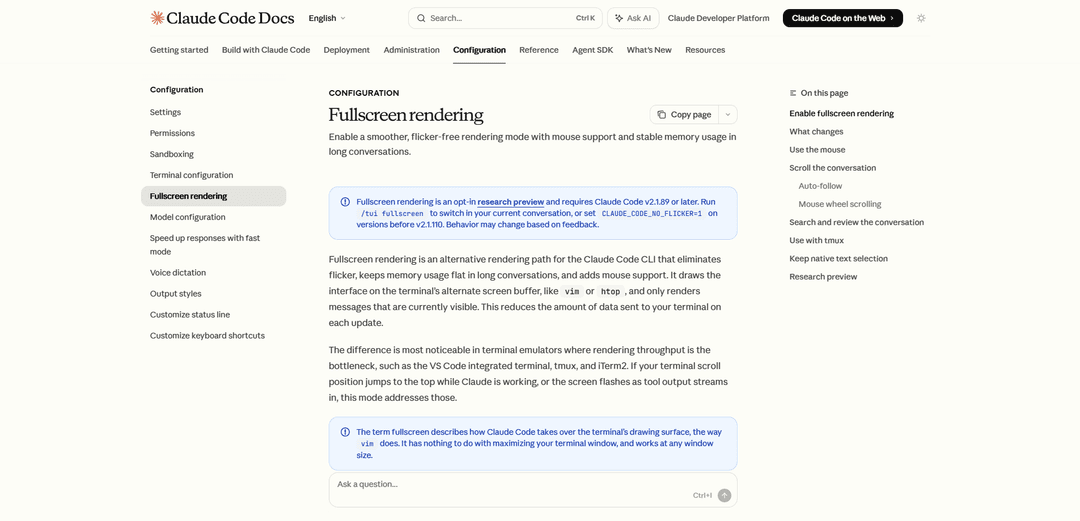
Claude Code Rendering is an advanced terminal interface rendering system that offers two modes—default and fullscreen—with the fullscreen mode providing flicker-free output, mouse support, and stable memory usage during long AI coding sessions.
https://code.claude.com/docs/en/fullscreen?ref=producthunt
Product Information
Updated:May 8, 2026
What is Claude Code Rendering
Claude Code Rendering refers to the display and interface system used by Claude Code CLI (Command Line Interface), Anthropic's agentic AI coding assistant that runs directly in the terminal. The system offers two distinct rendering paths: a default mode and an experimental fullscreen rendering mode (also called NO_FLICKER mode). The fullscreen rendering mode, activated via the /tui fullscreen command or CLAUDE_CODE_NO_FLICKER=1 environment variable, represents a significant architectural improvement that addresses visual lag, memory bloat, and user experience issues encountered during extended coding sessions. This mode utilizes the terminal's alternate screen buffer—similar to applications like vim or htop—to create a more stable and responsive interface, particularly beneficial in terminal emulators like VS Code integrated terminal, tmux, and iTerm2 where rendering throughput can be a bottleneck.
Key Features of Claude Code Rendering
Claude Code Fullscreen Rendering is an experimental rendering mode for the Claude Code CLI that eliminates visual flicker, maintains stable memory usage during long conversations, and adds comprehensive mouse support. By utilizing the terminal's alternate screen buffer (similar to vim or htop), it only renders visible messages rather than dumping endless text into terminal scrollback, significantly improving performance in terminal emulators like VS Code integrated terminal, tmux, and iTerm2. Users can enable it via the /tui fullscreen command or CLAUDE_CODE_NO_FLICKER=1 environment variable, transforming the interface with a fixed input box at the bottom and smooth, flicker-free output streaming.
Flicker-Free Rendering with Alternate Screen Buffer: Uses the terminal's alternate screen buffer to eliminate screen flickering, jumping scroll positions, and visual lag during output streaming, providing a smooth viewing experience similar to vim or htop.
Constant Memory Usage in Long Sessions: Only keeps visible messages in the render tree, maintaining flat memory consumption regardless of conversation length, preventing memory bloat during extended agentic coding sessions.
Comprehensive Mouse Support: Enables click-to-position cursor in input, click-to-expand tool outputs, URL clicking, mouse wheel scrolling, and click-and-drag text selection with automatic clipboard copying on release.
Advanced Search and Transcript Mode: Provides Ctrl+o transcript mode with less-style navigation, in-app search with '/' key, and ability to write conversation to native scrollback or external editor for review.
Fixed Input Box Interface: Keeps the input box anchored at the bottom of the screen while output streams above, preventing the interface from jumping and providing a stable coding environment.
Customizable Auto-Follow and Scroll Behavior: Offers configurable auto-scroll with keyboard shortcuts (PgUp/PgDn, Ctrl+Home/End) and adjustable mouse wheel scroll speed via CLAUDE_CODE_SCROLL_SPEED environment variable.
Use Cases of Claude Code Rendering
Long Agentic Development Sessions: Ideal for developers running extended coding sessions where Claude performs multiple tool executions and file edits, preventing memory bloat and maintaining smooth performance throughout hours-long interactions.
Terminal-Based Development Workflows: Perfect for developers working in VS Code integrated terminal, tmux, or iTerm2 who experience rendering bottlenecks, providing flicker-free output streaming and stable visual feedback during complex coding tasks.
Remote SSH Development: Beneficial for developers working over SSH connections where terminal rendering performance is critical, offering reduced data transmission to the terminal and smoother remote coding experiences.
Multi-Session Project Management: Supports developers managing multiple Claude sessions side-by-side for different features or contexts, with stable rendering preventing visual confusion when switching between sessions.
Code Review and Conversation Analysis: Enables developers to efficiently search through long coding conversations using transcript mode, review tool outputs with click-to-expand functionality, and export conversations for documentation or team sharing.
UI Development with Visual Feedback: Assists developers building user interfaces who need to provide screenshots to Claude for iteration, with stable rendering ensuring smooth back-and-forth visual feedback loops.
Pros
Eliminates screen flickering and scroll position jumping, providing a significantly smoother visual experience during output streaming
Maintains constant memory usage regardless of conversation length, preventing performance degradation in long sessions
Adds comprehensive mouse support including click-to-expand, URL clicking, and text selection with automatic clipboard copying
Seamlessly switchable mid-session via /tui fullscreen command without losing conversation context
Cons
Incompatible with native terminal search (Cmd+f) and tmux copy mode without entering transcript mode first, requiring workflow adjustments
Mouse capture interferes with terminal-native text selection and copy workflows, though can be disabled with CLAUDE_CODE_DISABLE_MOUSE=1
Incompatible with iTerm2's tmux integration mode (tmux -CC), limiting usage in certain terminal configurations
Research preview status means potential rendering issues on less common terminal emulators or unusual configurations
How to Use Claude Code Rendering
1: Install Claude Code CLI (version 2.1.89 or later for fullscreen rendering support)
2: Enable fullscreen rendering using one of two methods: Run '/tui fullscreen' inside any Claude Code conversation (saves setting and relaunches with conversation intact), OR set the environment variable before starting: 'CLAUDE_CODE_NO_FLICKER=1 claude'
3: Verify fullscreen rendering is active by checking if the input box stays fixed at the bottom of the screen while output streams in, or run '/tui' with no argument to print which renderer is active
4: Use mouse interactions: Click in the prompt input to position cursor, click collapsed tool results to expand/collapse, click URLs or file paths to open them, click and drag to select text (copies automatically on release), and scroll with mouse wheel
5: Navigate using keyboard shortcuts: PgUp/PgDn to scroll by half screen, Ctrl+Home to jump to start, Ctrl+End to jump to latest message and re-enable auto-follow, or use mouse wheel to scroll
6: Search and review conversation by pressing Ctrl+o to toggle transcript mode, then use '/' to search, 'n'/'N' to jump between matches, 'j'/'k' or arrow keys to scroll, and 'g'/'G' to jump to top/bottom
7: Export conversation to terminal scrollback by pressing '[' in transcript mode (writes full conversation to native scrollback), or press 'v' to open in your text editor
8: Configure optional settings: Toggle 'Copy on select' in '/config', set 'CLAUDE_CODE_SCROLL_SPEED=3' to adjust mouse wheel speed (1-20), or set 'Auto-scroll' to off in '/config' to disable auto-follow
9: For tmux users: Enable mouse mode by adding 'set -g mouse on' to ~/.tmux.conf and reload config. Avoid using with iTerm2's tmux integration mode (tmux -CC)
10: If you prefer native terminal text selection: Set 'CLAUDE_CODE_DISABLE_MOUSE=1' to disable mouse capture while keeping flicker-free rendering: 'CLAUDE_CODE_NO_FLICKER=1 CLAUDE_CODE_DISABLE_MOUSE=1 claude'
11: To disable fullscreen rendering: Run '/tui default' inside Claude Code, or unset the CLAUDE_CODE_NO_FLICKER environment variable
12: Report issues using '/feedback' command inside Claude Code or open an issue on the claude-code GitHub repo, including your terminal emulator name and version
Claude Code Rendering FAQs
Fullscreen rendering is an alternative rendering mode for Claude Code CLI that eliminates flicker, keeps memory usage flat in long conversations, and adds mouse support. You can enable it by running '/tui fullscreen' inside any Claude Code conversation, or by setting the environment variable 'CLAUDE_CODE_NO_FLICKER=1' before starting Claude Code with the command 'CLAUDE_CODE_NO_FLICKER=1 claude'.
Popular Articles

Vosko AI: Localize and Dub Videos for Global Audiences
Oct 15, 2026

Atoms: A Multi-Agent AI Platform That Transforms Ideas into Launch-Ready Products
Oct 13, 2026

Nano Banana SBTI: What It Is, How It Works, and How to Use It in 2026
Apr 15, 2026

Atoms Review — The AI Product Builder Redefining Digital Creation in 2026
Apr 10, 2026
Latest AI Tools Similar to Claude Code Rendering

Gait
Gait is a collaboration tool that integrates AI-assisted code generation with version control, enabling teams to track, understand, and share AI-generated code context efficiently.
invoices.dev
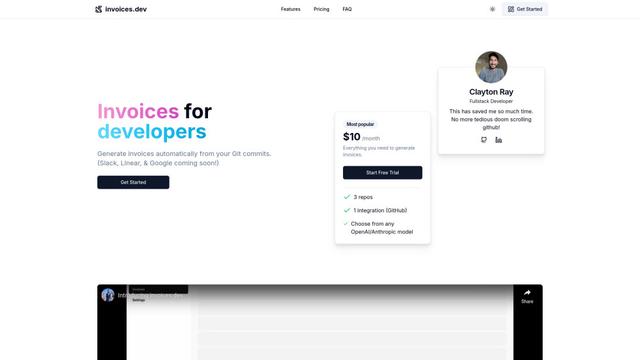
invoices.dev is an automated invoicing platform that generates invoices directly from developers' Git commits, with integration capabilities for GitHub, Slack, Linear, and Google services.
EasyRFP
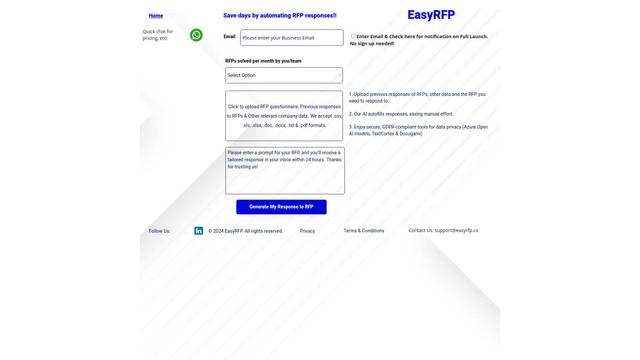
EasyRFP is an AI-powered edge computing toolkit that streamlines RFP (Request for Proposal) responses and enables real-time field phenotyping through deep learning technology.

Cart.ai
Cart.ai is an AI-powered service platform that provides comprehensive business automation solutions including coding, customer relations management, video editing, e-commerce setup, and custom AI development with 24/7 support.
Popular AI Tools Like Claude Code Rendering

GitHub Copilot Chat
GitHub Copilot Chat is an AI-powered coding assistant that provides natural language interactions, real-time code suggestions, and contextual support directly within supported IDEs and GitHub.com.
CopilotForXcode
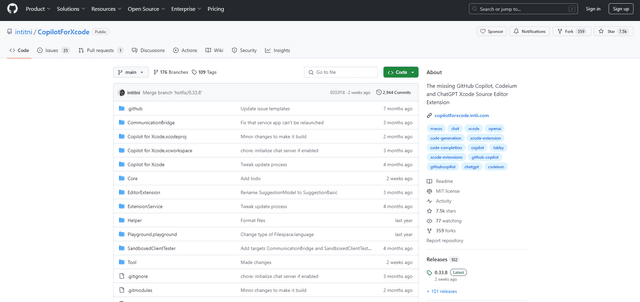
CopilotForXcode is an Xcode Source Editor Extension that integrates GitHub Copilot, Codeium, and ChatGPT to provide AI-powered code suggestions, chat assistance, and prompt-to-code functionality within Xcode.

BrowserAI
BrowserAI is an open-source library that enables running local Large Language Models (LLMs) directly in web browsers with WebGPU acceleration, offering privacy-focused AI capabilities without requiring server infrastructure.
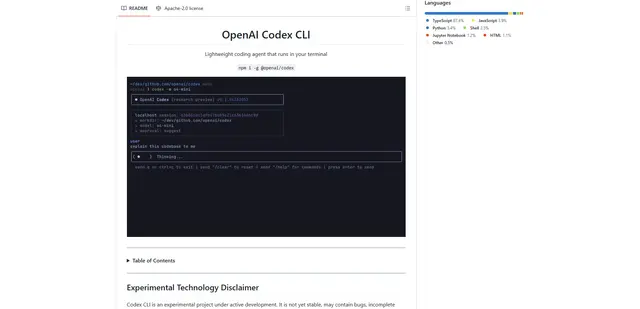
OpenAI Codex CLI
OpenAI Codex CLI is a lightweight, open-source coding agent that runs in your terminal, enabling developers to translate natural language into code execution while providing ChatGPT-level reasoning with the ability to run code, manipulate files, and iterate under version control.