
WordPress 7.0
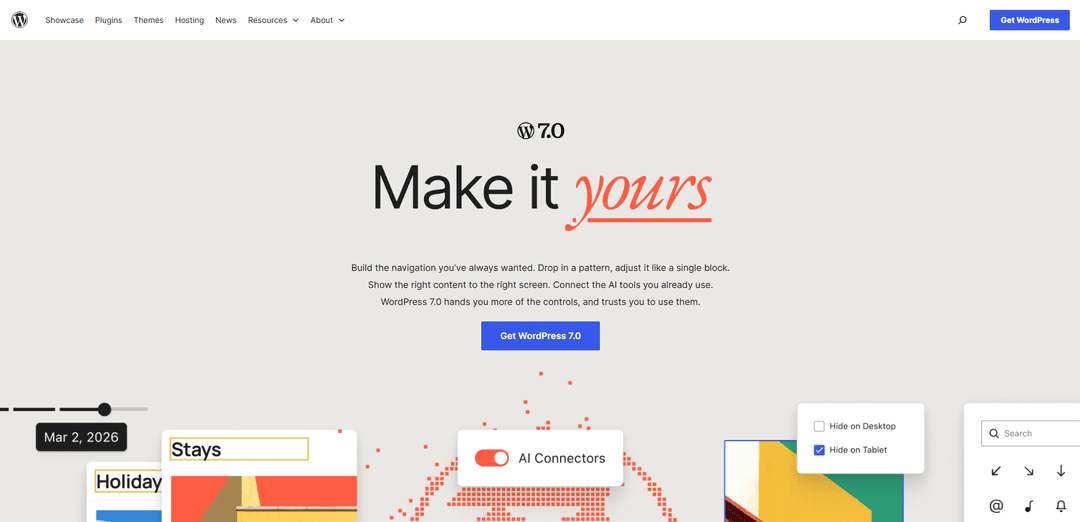
WordPress 7.0 “Armstrong” modernizes WordPress with a redesigned navigation overlay builder, centralized AI connections via the new Connectors hub, visual revision browsing, pattern editing as single blocks, plus performance and accessibility upgrades.
https://wordpress.org/download/releases/7.0?ref=producthunt
Product Information
Updated:Jun 8, 2026
What is WordPress 7.0
WordPress 7.0 is a major release of the WordPress open-source content management system, published on May 20, 2026. It focuses on giving site creators more control in the block and site editing experience—especially for navigation, patterns, and revisions—while also introducing a standardized foundation for connecting external services (including AI providers) through a dedicated Connectors screen. Alongside these workflow improvements, 7.0 includes platform-wide refinements to admin UI styling, performance behavior, and accessibility support.
Key Features of WordPress 7.0
WordPress 7.0 ("Armstrong," released May 20, 2026) focuses on giving site builders more control in the block editor while modernizing admin workflows and laying standardized “AI foundations.” It introduces a dedicated navigation overlay editing canvas, a centralized Connectors screen for managing external integrations (including AI providers), visual revisions with a timeline-based review experience, and patterns that behave like single blocks for faster page building. It also improves performance (notably image loading prioritization and more reliable on-demand block styles in classic themes) and accessibility (voice control usability, media management, and improved color contrast via a refreshed admin scheme).
Navigation overlay canvas: A dedicated editing space for building richer navigation overlays—beyond simple link lists—using block layouts, columns, alignment, and typography controls.
AI foundations via Connectors: A centralized Connectors screen in wp-admin for managing external service integrations (including AI providers), enabling standardized credential management that plugins can reuse; optional AI tooling can add editor features like generating titles/excerpts, image edits, and alt-text suggestions.
Visual revisions timeline: A more visual revision history that lets you scrub through versions with a slider and see changes marked block-by-block, making it easier to compare and restore edits.
Patterns as single blocks: Patterns can be inserted and adjusted like one block (simpler selection and styling), with an “edit pattern” option for deeper changes when needed.
Responsive block visibility controls: Show or hide blocks by screen size (mobile/tablet/desktop) to create cleaner responsive layouts without duplicating pages or complex conditional logic.
Refreshed admin + broader Font Library: A quieter, more modern admin look (updated controls, smoother transitions, improved contrast) and a Font Library that works across all theme types, not just block themes.
Use Cases of WordPress 7.0
Agency site builds with faster iteration: Use single-block patterns plus responsive visibility rules to assemble landing pages quickly, keep layouts consistent across clients, and reduce time spent navigating deeply nested blocks.
Publisher/editorial workflows: Visual revisions help editors review changes and restore the right version quickly, improving quality control for multi-step editing and frequent updates.
Ecommerce and marketing navigation experiences: Design richer navigation overlays (mega-menu style layouts, promotional sections, structured link groups) that support campaigns and product discovery.
Accessibility-focused public sector or education sites: Leverage core accessibility improvements (including better color contrast and voice-control usability) to support inclusive experiences and align with accessibility standards.
Media-heavy portfolios and news sites: Benefit from improved image loading prioritization and related performance refinements to keep key content fast even when interactive overlays or hidden images exist.
AI-assisted content operations (opt-in): Centralize AI/provider connections via Connectors, then use AI-enabled tools (through optional plugins) to speed up drafting metadata (titles/excerpts), improve accessibility (alt text), and assist image workflows.
Pros
More efficient building in the editor: patterns as single blocks and responsive visibility controls reduce layout friction.
Better content governance: visual revisions make reviewing and restoring changes clearer and faster.
Stronger platform foundations: standardized Connectors approach simplifies managing external integrations (including AI) across plugins.
Improved UX and inclusivity: refreshed admin styling plus accessibility and performance enhancements.
Cons
AI capabilities are largely foundational/opt-in: many AI workflows depend on connecting providers and using compatible plugins rather than being universally “on” in core.
Major updates can require compatibility checks: sites should test themes/plugins and hosting environments before upgrading, especially if relying on older stacks or complex plugin setups.
Some anticipated collaboration features did not ship in 7.0, so teams expecting real-time co-editing must wait for a future release.
How to Use WordPress 7.0
1) Get WordPress 7.0: Download WordPress 7.0 from the official releases page and install it on your server, or update an existing site from WP-Admin via Dashboard > Updates.
2) (Recommended) Back up and test on staging first: Before updating a live site, clone it to a staging environment and test the 7.0 update there to confirm your theme, patterns, and plugins behave correctly.
3) Update WordPress from the Dashboard: Log in to WP-Admin, go to Dashboard > Updates, and run the WordPress update to 7.0 when it’s available.
4) Build a navigation overlay with the new dedicated canvas: Open the Site Editor and edit your header/navigation. Use the navigation overlay canvas to design the menu visitors see on open: add columns, adjust font size, and align items. Start from a pre-built template or design from scratch.
5) Use patterns as single blocks (faster page building): In the editor, insert a pattern onto a page. In 7.0 it behaves like a single block for quick edits: swap text/images and adjust styles from the inspector without digging through nested blocks.
6) Edit a pattern when you need advanced control: If you need deeper changes, click “Edit pattern” to access the full set of editing tools for the pattern’s internal blocks.
7) Connect AI tools via the new Connectors hub: In WP-Admin, go to Settings > Connectors. Add and manage external service connections (including AI providers) from this centralized screen so multiple tools/plugins can reuse the same configured connection.
8) (Optional) Enable AI features in the editor with the AI plugin: Install/enable the optional AI plugin (if available in your setup) to use AI tools directly in the editor, such as generating titles/excerpts, generating/editing images, and suggesting alt text—powered by the provider you connected in Settings > Connectors.
9) Review and restore changes with Visual Revisions: Open a post/page’s revisions and use the timeline slider to scrub through versions. Use the visual, block-by-block markers to see what changed and restore the version you want.
10) Control responsive layouts by showing/hiding blocks per screen size: Select a block and use the responsive visibility controls to choose whether it appears on mobile, tablet, and/or desktop. Use this to simplify mobile layouts or keep alternate versions while iterating.
11) Add icons with the new Icon block: In the editor, insert the Icon block, search/select an icon from the built-in library, then style it to match your design.
12) Use the Font Library across any theme: Open the editor’s Font Library to browse, install, and manage fonts. In 7.0 this works for all themes (not only block themes).
13) Validate performance-sensitive pages (especially overlays): After updating, test key pages that use navigation overlays or interactive blocks. WordPress 7.0 improves image loading prioritization so hidden overlay images are less likely to delay critical resources—confirm your real-world load behavior is improved and nothing regressed.
14) Check accessibility and UI changes in the refreshed admin: Review the updated admin look (new default color scheme, updated buttons/inputs, smoother page transitions) and verify workflows like media management, voice control, and color contrast meet your site’s accessibility needs.
WordPress 7.0 FAQs
WordPress 7.0 “Armstrong” was released on May 20, 2026.
WordPress 7.0 Video
Popular Articles

How to Create Viral Talking Baby Podcast Videos with AI: Step-by-Step Guide
Nov 2, 2026

Proferex: A Cloud-Based Ad Tracking and Campaign Optimization Platform
Nov 2, 2026

Vosko AI: Localize and Dub Videos for Global Audiences
Oct 15, 2026

Atoms: A Multi-Agent AI Platform That Transforms Ideas into Launch-Ready Products
Oct 13, 2026
Latest AI Tools Similar to WordPress 7.0
GPT Easy Web
GPT Easy Web is a user-friendly AI-powered platform that enables users to easily build, customize and manage websites through natural language interactions and automated tools without requiring coding knowledge.
AI Website Tool
AI Website Tool is an AI-powered website builder that creates professional websites in minutes by automatically generating business-focused copy, custom visuals, and responsive designs with just a few clicks.
Softgen
Softgen.ai is an AI-powered full-stack project generator platform that enables users to transform their ideas into functional web applications without coding requirements.
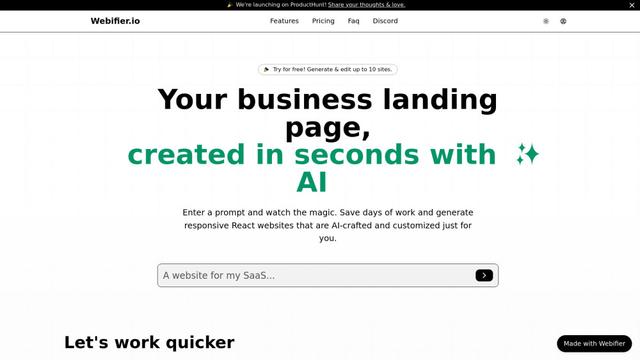
Webifier
Webifier is an AI-powered tool that transforms text prompts into fully functional React landing pages with clean, exportable code using NextJS14, TailwindCSS, and Shadcn components.
Popular AI Tools Like WordPress 7.0
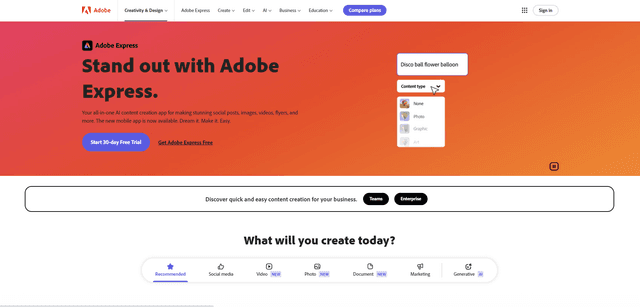
Adobe Express
Adobe Express is an all-in-one AI-powered content creation app for easily making stunning social posts, images, videos, flyers, and more with professionally designed templates and assets.
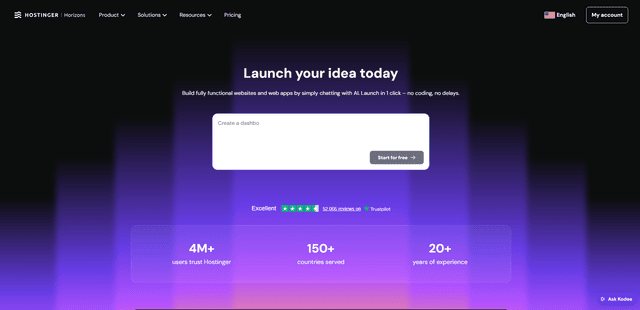
Hostinger
Hostinger is a web hosting and domain service provider offering AI-powered tools like Horizons that enables anyone to build, edit, and publish custom web apps and websites without coding through a simple chat interface.
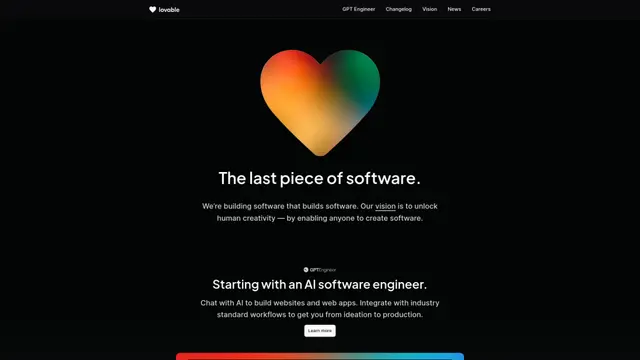
GPT Engineer
GPT Engineer is an AI-powered software development tool that enables anyone to build web applications by chatting with an AI engineer.
Manus Shopify Connector
Manus Shopify Connector lets you build a Shopify-backed storefront, manage your catalog, and generate data-driven campaigns from a single chat—using Shopify APIs with OAuth-scoped access and Shopify checkout.