
Upstream
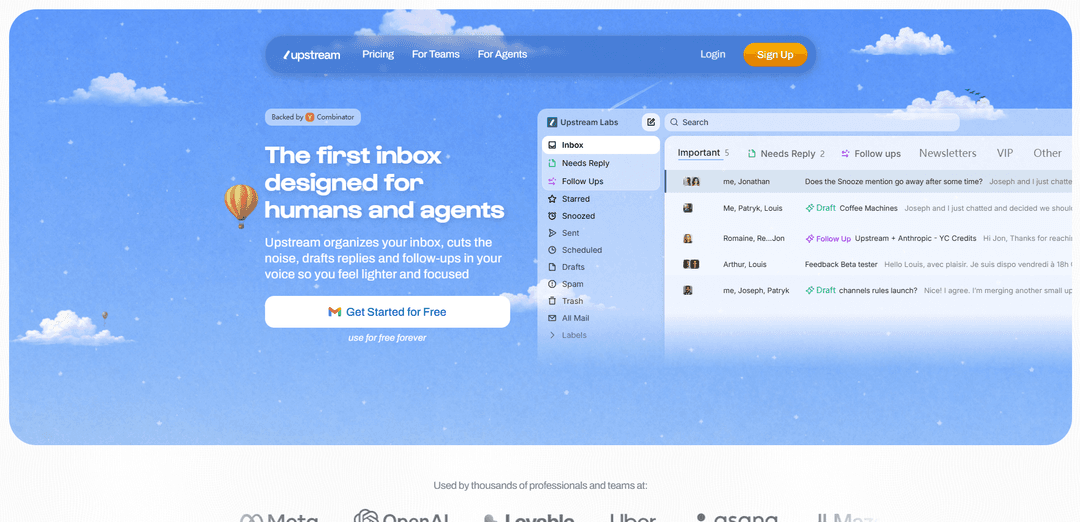
Upstream is an AI-powered email inbox for humans and agents that automatically organizes messages, drafts replies and follow-ups in your voice, and helps you triage faster with keyboard-first workflows.
https://www.upstream.do/?utm_source=aipure&utm_medium=launch&utm_campaign=launch&utm_content=top_button&ref=producthunt
Product Information
Updated:Jul 8, 2026
What is Upstream
Upstream is a modern email client focused on reducing inbox overload by combining smart inbox organization with agentic AI assistance. Positioned as “the first inbox designed for humans and agents,” it helps individuals and teams stay on top of important conversations by splitting email into prioritized views (e.g., Needs Reply, Follow Ups, VIP, newsletters/noise) and preparing context-aware drafts directly inside threads. Upstream supports fast navigation (Command-K and shortcuts), multi-account management, snoozing, and collaboration features like thread comments and team channels, with an emphasis on privacy and security.
Key Features of Upstream
Upstream is an AI-powered email client for individuals and teams that automatically organizes your inbox, pre-drafts replies and follow-ups in your personal voice, and helps you act quickly via fast search/command controls and bulk triage. It supports collaboration directly inside email threads (comments and @mentions), works across multiple accounts, and emphasizes security with encryption and a privacy-first stance (not training AI on your data), alongside mobile access via an iOS app.
Auto-organized inbox (Splits): Automatically categorizes email into focused views like Needs Reply, Follow Ups, VIP, newsletters/noise, and more—so important threads don’t get buried.
AI drafts in your voice: Learns your writing patterns from past emails and generates ready-to-send replies tailored to the thread context and recipients, reducing time spent composing.
Smart follow-ups & snoozing: Brings conversations back at the right time with suggested follow-up timing and accompanying AI drafts to prevent dropped threads.
Command bar + keyboard shortcuts: Blazing-fast navigation and actions (search, archive, snooze, go-to views) designed to help you process mail quickly with minimal context switching.
Team collaboration inside threads: Enables private team comments and @mentions directly on email threads so teams can coordinate decisions without forwarding chains.
Multi-account + mobile access: Manage multiple inboxes in one place and take it on the go with an iOS app for triage and response workflows.
Use Cases of Upstream
Sales & customer success inbox management: Prioritize leads and customer requests with Needs Reply/VIP splits, respond faster with voice-matched drafts, and ensure follow-ups happen on time.
Founder/executive email triage: Reduce inbox overload by separating signal from noise, using bulk actions to clear backlogs, and letting AI draft routine replies.
Recruiting and talent pipelines: Keep candidate communications organized, auto-draft consistent outreach and scheduling replies, and avoid missed follow-ups.
Agencies and client services coordination: Collaborate within client email threads using internal comments/@mentions, align on responses, and maintain consistent tone across the team.
Operations and vendor management: Track invoices, vendor conversations, and logistics threads with structured inbox views and reminders/follow-ups so tasks don’t slip.
Post-meeting follow-up automation: Draft follow-up emails after meetings (e.g., via connected context/tools) to quickly send recaps, action items, and next steps.
Pros
Significant time savings via auto-triage, bulk actions, and AI-written drafts/follow-ups
Personalized drafting that aims to match your voice and context (less “generic AI” tone)
Team-friendly collaboration with internal comments and @mentions inside email threads
Security positioning: encryption in transit/at rest and privacy-first claim of not training on user data
Cons
AI drafting quality may vary by user writing style, email complexity, and edge cases (needs review before sending)
Primary setup shown is Gmail-focused; support for other providers (e.g., Outlook) may be limited or require validation
Trust/compliance requirements may limit adoption for highly regulated organizations despite security claims
How to Use Upstream
1) Create an account and sign in: Go to https://app.upstream.do/ and click “Sign Up” (or “Login” if you already have an account). Complete onboarding to access your Upstream inbox.
2) Connect your email (Gmail): In the setup flow, connect your Gmail account. Upstream’s site states this takes seconds and requires no special configuration.
3) Let Upstream learn your voice and tone: After connecting email, Upstream analyzes your writing patterns and preferences to generate drafts “in your voice” (as described on the product page).
4) Use the Split Inbox to triage faster: Open your inbox and review Upstream’s pre-sorted sections (e.g., “Needs Reply”, “Follow Ups”, “Starred”, “Snoozed”, “Sent”, “Scheduled”, “Drafts”, etc.). Focus first on “Needs Reply” and defer the rest.
5) Review and send AI Drafts: Open a thread that needs a response. Upstream will often have an AI draft ready. Edit for accuracy and tone, then send.
6) Compose new emails with AI Compose: Use the AI Compose box to describe what you want to say; Upstream generates a complete draft. Edit as needed and send.
7) Snooze emails so they return at the right time: If an email isn’t actionable now, use Snooze and pick a time (e.g., tomorrow morning, next week, or a custom date/time). The email will reappear when you need it.
8) Use Follow Ups to avoid dropped threads: Rely on Upstream’s Follow Ups view to surface conversations that should be nudged. Upstream can bring threads back with an AI draft prepared for the follow-up.
9) Collaborate with Team Comments (if using with a team): In shared workflows, add private comments inside email threads to discuss context and decisions with teammates without sending anything to external recipients.
10) Navigate quickly with Command K and keyboard shortcuts: Use Command K to search, navigate, and trigger actions (archive, snooze, mark unread, jump to views like Drafts/Snoozed/Sent). Use the keyboard shortcuts shown in Upstream’s shortcuts panel to speed up daily triage.
11) Manage multiple accounts: Add additional email accounts from the account switcher so you can manage multiple inboxes in one place.
12) Bulk triage older mail: Use Bulk Triage to process large volumes of email quickly with batch actions (useful for clearing backlog).
13) Install the iOS app (optional): If you want mobile access, download “Upstream Email” from the iOS App Store via the link on https://www.upstream.do/.
14) (Optional) Use agent features to handle requests: Use Upstream’s agent capabilities to ask for help with tasks like finding information in email, drafting notes, or preparing follow-ups, leveraging connected context from your apps (as described on the product page).
Upstream FAQs
Upstream is an AI-powered email inbox (web + iOS) that organizes your inbox, reduces noise, drafts replies and follow-ups in your voice, and helps you stay focused.
Upstream Video
Popular Articles

Vosko AI: Localize and Dub Videos for Global Audiences
Oct 15, 2026

Atoms: A Multi-Agent AI Platform That Transforms Ideas into Launch-Ready Products
Oct 13, 2026

Nano Banana SBTI: What It Is, How It Works, and How to Use It in 2026
Apr 15, 2026

Atoms Review — The AI Product Builder Redefining Digital Creation in 2026
Apr 10, 2026
Latest AI Tools Similar to Upstream
10xBeast
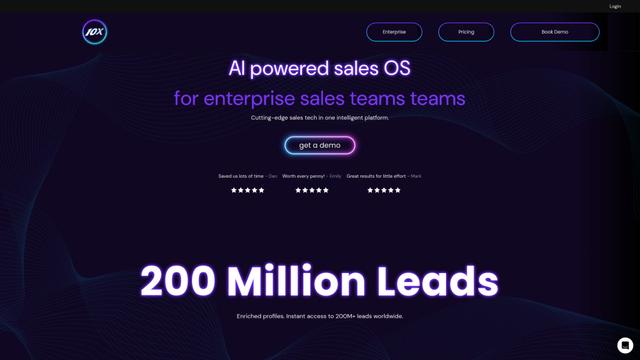
10xBeast is an AI-powered sales platform that helps businesses automate and personalize cold email outreach to convert leads into customers in just a few clicks.
Inbox AI
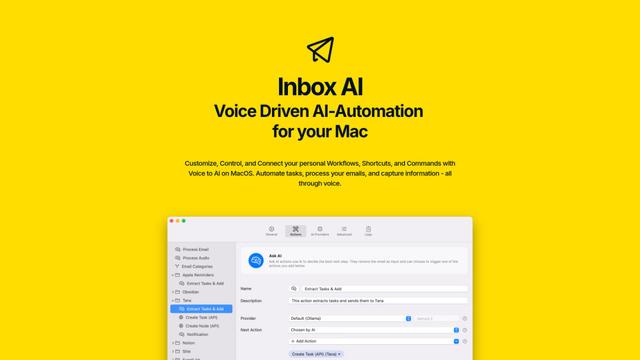
Inbox AI is a privacy-focused MacOS productivity app that combines voice-driven AI automation with email management capabilities, allowing users to create custom workflows and commands while offering both cloud-based and on-device AI options.

MailSense
MailSense is an AI-powered email assistant that filters, summarizes, and generates replies to emails through a Telegram bot interface to help users manage their inbox more efficiently.
Voltmailer
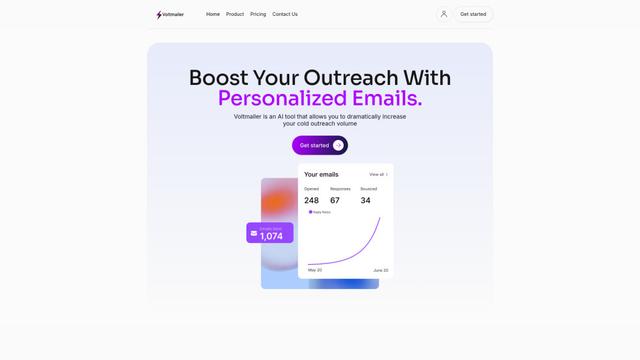
Voltmailer is an AI-powered email automation tool that helps businesses scale their cold outreach by generating personalized emails through website data scraping and automated personalization.
Popular AI Tools Like Upstream
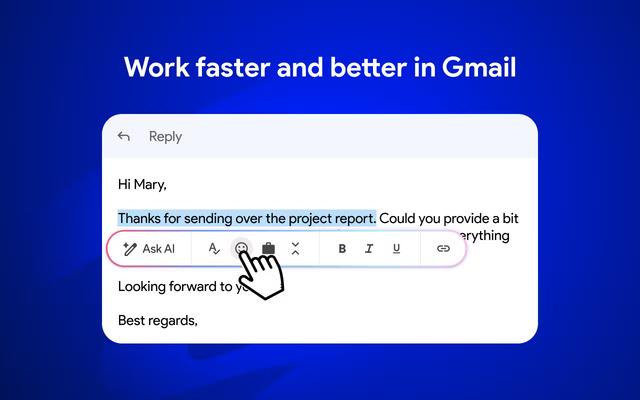
Mailmeteor AI for Gmail
Mailmeteor is a powerful Gmail extension that combines AI email writing, mail merge, automated follow-ups, and email export capabilities to enhance productivity and email management within Gmail.
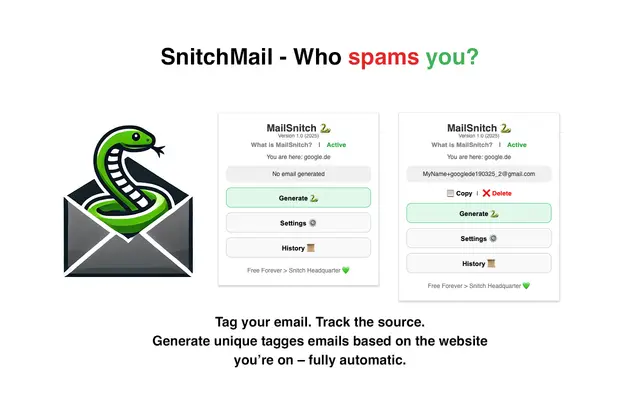
MailSnitch
MailSnitch is a free email tracking and anti-spam Chrome extension that helps users identify spam sources through automated email tagging and tracking system.
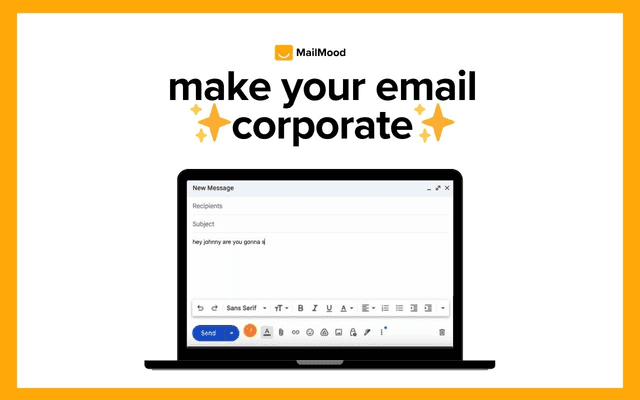
MailMood - AI Email Rewriter
MailMood is a Chrome extension that instantly transforms Gmail messages into professional, clean, and confident business language with three different tone options - corporate, casual, or assertive - all with just one click.
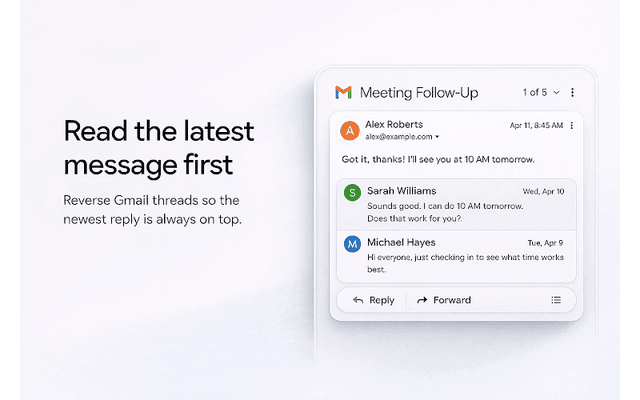
Apparent for Gmail
Apparent for Gmail is a Chrome extension that enhances Gmail's readability and usability by reorganizing conversations, simplifying layouts, and streamlining workflows while maintaining privacy and security.