
SpeakoFlow
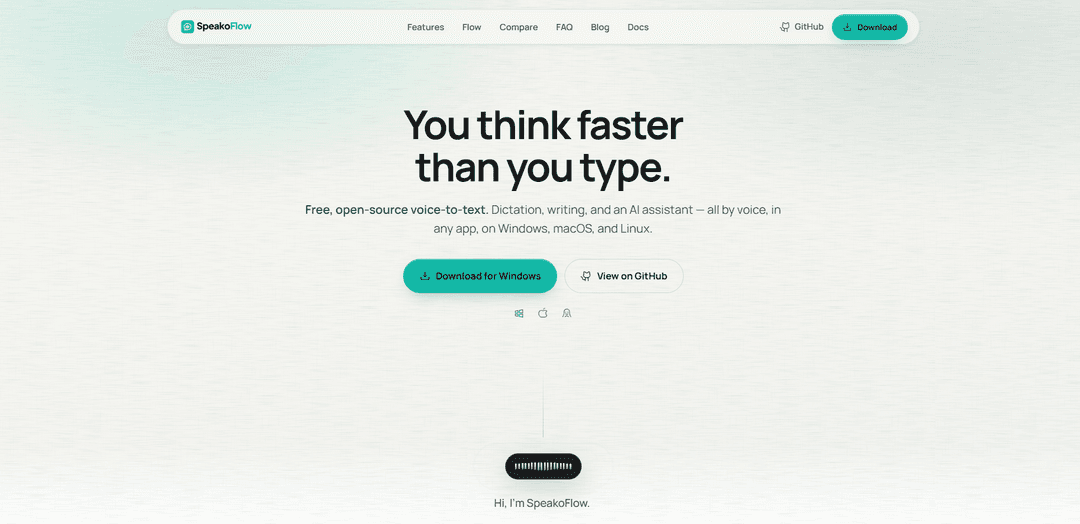
SpeakoFlow is a free, open-source, local-first desktop voice-to-text and voice assistant that lets you dictate into any app, trigger “Hey Flow” to generate finished writing, translate and clean up dictation, and optionally use screen context—all with privacy-by-default controls.
https://speakoflow.com/?ref=producthunt
Product Information
Updated:Aug 8, 2026
What is SpeakoFlow
SpeakoFlow is a desktop app for Windows, macOS, and Linux that turns your voice into text wherever you’re working—email, editors, chats, and more. It’s positioned as an alternative to paid, closed voice tools, offering an MIT-licensed, inspectable codebase and a “private by default” approach. Beyond basic dictation, SpeakoFlow adds AI-powered writing features like drafting replies, polishing messy speech into clean prose, translating spoken language into English text, and an assistant panel that can answer questions and read responses aloud.
Key Features of SpeakoFlow
SpeakoFlow is a free, MIT-licensed, open-source, local-first desktop voice-to-text and voice assistant app for Windows, macOS, and Linux. It lets you dictate into any application via hotkeys, optionally generate complete responses with a “Hey Flow” command, translate spoken language into clean English, and clean up messy dictation into polished writing with selectable tone. It also includes a floating assistant panel that can answer by text or voice, can optionally use screen context when you allow it, and offers optional on-device personal memory/profiles—private by default, with no account and no telemetry, and the ability to use local models or your own chosen provider.
Dictation into any app: Press a hotkey and speak; SpeakoFlow types directly into whatever app you’re using (email, editors, chat, terminal), either live as you talk or pasted when you stop.
“Hey Flow” voice-driven writing: Start dictating, say “Hey Flow,” and turn speech into a full written output (e.g., reply, email draft, prompt) that gets pasted at your cursor; the trigger phrase is customizable and not always listening.
On-device transcription & privacy-first design: Speech transcription runs locally so your voice isn’t uploaded; the assistant only contacts the model provider you choose (including fully local options), with no telemetry and no account required.
AI cleanup with tone control: Convert messy, filler-heavy speech into polished text by removing “ums,” fixing grammar, and matching a chosen tone (Professional, Friendly, Concise, or custom).
Voice translation to English: Speak in languages like Spanish, Hindi, French, or Japanese and have it output clean English text directly where you’re typing.
Assistant panel with optional screen context: Summon a floating chat panel from any app for streaming answers, spoken replies, and optional screen-aware help (you control when it looks, or can force skip).
Use Cases of SpeakoFlow
Customer support & sales replies: Dictate fast responses in CRM tools or email, then use “Hey Flow” to generate a polished reply based on what’s on-screen (when permitted) and paste it directly into the conversation.
Software development & IT troubleshooting: Use hands-free dictation in terminals, IDEs, and chat tools; ask the assistant about an error message on screen for quick explanations or next steps without switching contexts.
Content creation & writing workflows: Draft articles, scripts, or posts by voice, then run AI cleanup to remove verbal filler and adjust tone for publication-ready text.
Multilingual workplace communication: Speak naturally in your preferred language and output English for emails, documentation, or team chat—useful for global teams and cross-border collaboration.
Accessibility & RSI-friendly computing: Reduce keyboard usage by dictating across desktop apps and using the assistant by voice, supporting users with repetitive strain injuries or mobility constraints.
Pros
Free and open-source (MIT licensed), with no account required.
Local transcription keeps voice data on-device; privacy features like memory are optional and stored locally.
Works across Windows/macOS/Linux and types into any app via hotkeys.
Flexible model/provider choice, including fully local setups.
Cons
macOS installs may require a manual quarantine-attribute removal step because the app isn’t signed yet.
Some Linux environments may hit a WebKitGTK pinch-to-zoom crash (a dependency issue affecting many apps).
Advanced features like screen context and memory require explicit enablement and may need configuration to match your preferred model/provider.
How to Use SpeakoFlow
1) Install SpeakoFlow: Download and install the build for your OS (Windows, macOS, or Linux). On Linux, prefer the .deb on Ubuntu 24.04+/Debian-era systems (it registers the app/menu properly); use the AppImage on older distros if the .deb won’t run due to glibc age.
2) macOS first-run: allow the app to open (unsigned app workaround): On macOS, don’t move the app to Trash when Gatekeeper warns it can’t verify the developer. Drag SpeakoFlow to Applications, then run this once per version in Terminal: xattr -dr com.apple.quarantine /Applications/SpeakoFlow.app. Then open SpeakoFlow normally.
3) (Optional) macOS permissions for screen features: If you want screen-related features, enable Screen Recording permission for SpeakoFlow in System Settings (required for certain screen/overlay-style capabilities on Mac).
4) Launch SpeakoFlow and open Settings: Start the app, then go to Settings to choose how the assistant runs (offline built-in model, local server, or a cloud provider with your key).
5) Choose your assistant provider (offline/local/cloud): In Settings, pick one: (a) Built-in (offline): download a small local model and run fully on your machine (no API key). (b) Local server: point SpeakoFlow at Ollama or LM Studio. (c) Cloud provider: enter your own API key. Speech-to-text stays local either way; only the assistant uses the provider you choose.
6) (Optional) Configure privacy memory: If you want the assistant to remember preferences/style, enable Memory. It’s off by default, stored locally, and you can edit or erase it anytime.
7) Start dictation into any app (global hotkey): Place your cursor in any app (email, editor, chat, terminal). Press the dictation hotkey (default: Left Ctrl + Left Super) and speak. Your words will be typed into the active app.
8) Choose how dictation lands: live vs after you stop: Dictate normally; SpeakoFlow can show words landing as you talk or paste them all at once when you stop (behavior depends on your configuration).
9) Use “Generate with Flow” to turn speech into finished writing: At the start of a dictation, say “Hey Flow” (customizable trigger). Then describe what you want (e.g., “reply to this message”, “write an email”, “draft a prompt”). SpeakoFlow generates the full text and pastes it where your cursor is.
10) Use AI Cleanup to polish rough dictation: Dictate naturally (including filler words and false starts), then run AI Cleanup to remove filler, fix grammar, and reshape tone. Pick a tone like Professional, Friendly, Concise, or define your own.
11) Translate as you speak: Speak in a language that’s natural to you (e.g., Spanish, Hindi, French, Japanese) and have SpeakoFlow output clean English directly where you’re typing (runs on-device per the product description).
12) Open the floating Assistant panel (separate from dictation): Use the assistant hotkey (default: Left Ctrl + Left Alt) to open a floating panel from any app. Ask by voice or text; it streams answers and remembers the chat context, then you can collapse it when done.
13) Enable spoken answers (text-to-speech replies): In the assistant panel, have SpeakoFlow read answers out loud. Adjust reply length and speaking pace to your preference.
14) Use screen-aware answers when needed: Ask about what’s on your screen (an error, chart, email). Choose your screen-vision behavior: (a) Tell it to look (explicit capture), (b) Let it decide (only glances when needed), or (c) Tell it to skip (no screen capture; answers only from your words).
15) Linux: fix hotkeys/dictation not responding (input permissions): If dictation/assistant hotkeys don’t respond and logs repeat an rdev grab PermissionDenied (errno 13), your user likely can’t read /dev/input/event*. Add your user to the input group (per your distro’s standard method), then log out/in.
16) Linux: understand overlay behavior on Wayland (GNOME vs others): On native GNOME/Wayland, overlays can’t reliably stay on top because Mutter doesn’t support wlr-layer-shell and Wayland doesn’t allow apps to raise themselves. SpeakoFlow automatically runs under XWayland on GNOME/Wayland so “keep above” works and the overlay floats normally.
17) Linux: force native Wayland (if you accept overlay limitations): Launch with SPEAKOFLOW_ALLOW_WAYLAND=1 to force native Wayland even though the overlay may not stay on top.
18) Linux: disable layer-shell if overlay misbehaves on wlroots/KDE: If the overlay misbehaves under a layer-shell compositor, launch with SPEAKOFLOW_NO_GTK_LAYER_SHELL=1 to disable layer shell.
19) Customize triggers, hotkeys, and workflow: Rename the “Hey Flow” trigger if you prefer. Adjust hotkeys and behavior in Settings to fit your workflow (dictation, assistant panel, spoken replies, and screen-awareness).
20) Keep everything local if desired: For maximum privacy, use the built-in offline assistant model or a local server (Ollama/LM Studio). Speech-to-text runs locally by design; the assistant only contacts the provider you choose.
SpeakoFlow FAQs
Yes. SpeakoFlow is completely open source under the MIT license, so you can always use it for free. There is no trial, subscription, or word cap.
SpeakoFlow Video
Popular Articles

Vosko AI: Localize and Dub Videos for Global Audiences
Oct 15, 2026

Atoms: A Multi-Agent AI Platform That Transforms Ideas into Launch-Ready Products
Oct 13, 2026

Nano Banana SBTI: What It Is, How It Works, and How to Use It in 2026
Apr 15, 2026

Atoms Review — The AI Product Builder Redefining Digital Creation in 2026
Apr 10, 2026
Latest AI Tools Similar to SpeakoFlow

10xBeast
10xBeast is an AI-powered sales platform that helps businesses automate and personalize cold email outreach to convert leads into customers in just a few clicks.
Inbox AI
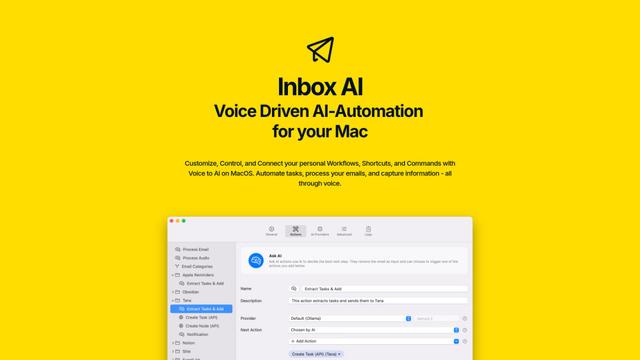
Inbox AI is a privacy-focused MacOS productivity app that combines voice-driven AI automation with email management capabilities, allowing users to create custom workflows and commands while offering both cloud-based and on-device AI options.

MailSense
MailSense is an AI-powered email assistant that filters, summarizes, and generates replies to emails through a Telegram bot interface to help users manage their inbox more efficiently.
Voltmailer
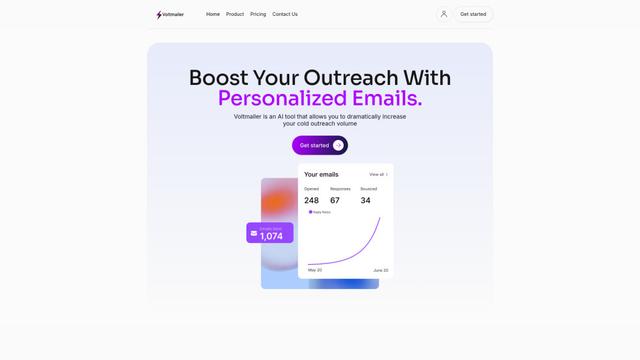
Voltmailer is an AI-powered email automation tool that helps businesses scale their cold outreach by generating personalized emails through website data scraping and automated personalization.
Popular AI Tools Like SpeakoFlow
Mailmeteor AI for Gmail
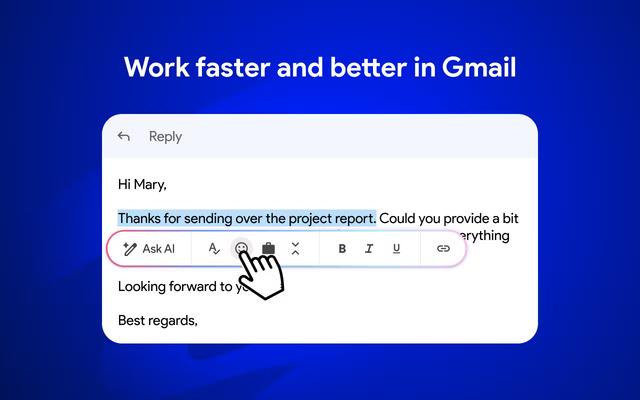
Mailmeteor is a powerful Gmail extension that combines AI email writing, mail merge, automated follow-ups, and email export capabilities to enhance productivity and email management within Gmail.
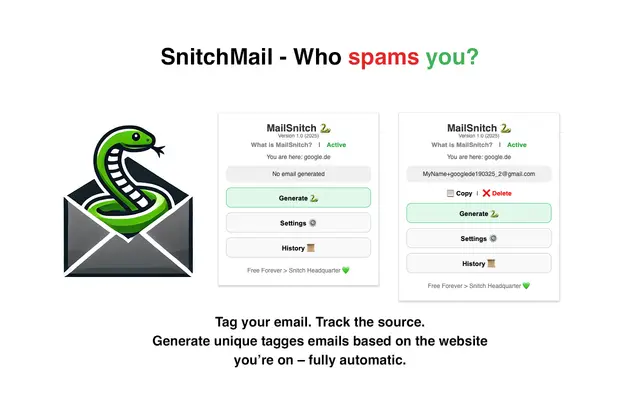
MailSnitch
MailSnitch is a free email tracking and anti-spam Chrome extension that helps users identify spam sources through automated email tagging and tracking system.
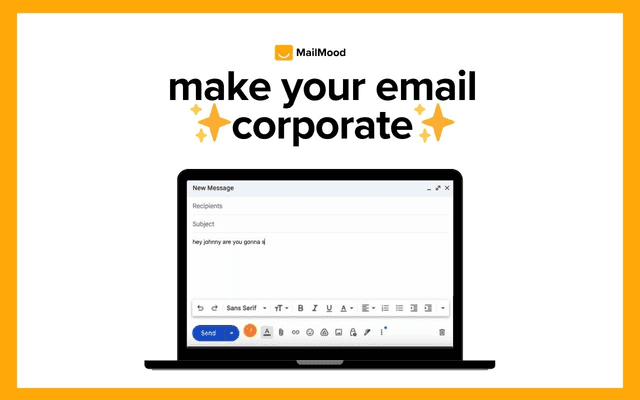
MailMood - AI Email Rewriter
MailMood is a Chrome extension that instantly transforms Gmail messages into professional, clean, and confident business language with three different tone options - corporate, casual, or assertive - all with just one click.
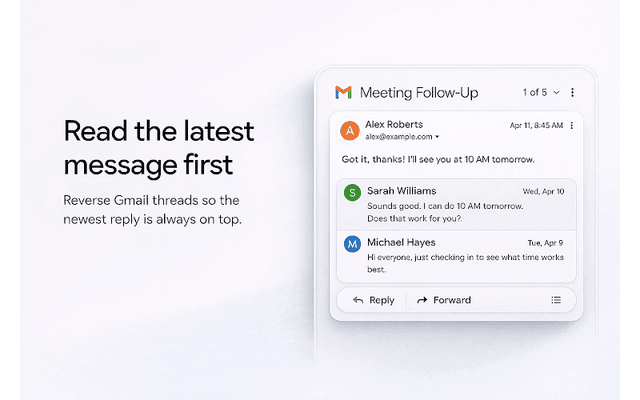
Apparent for Gmail
Apparent for Gmail is a Chrome extension that enhances Gmail's readability and usability by reorganizing conversations, simplifying layouts, and streamlining workflows while maintaining privacy and security.