
RecordMeeting
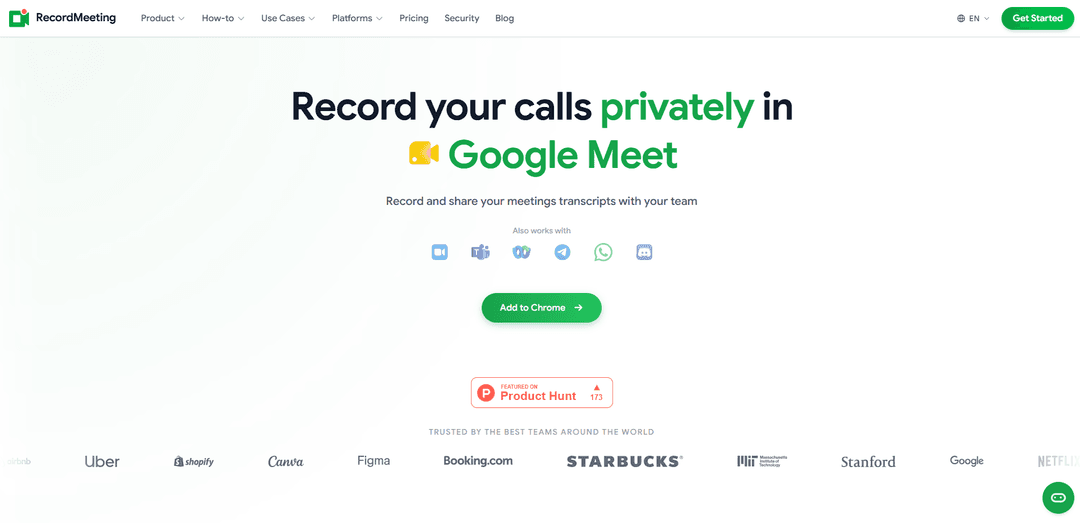
RecordMeeting is an AI-powered meeting recorder that captures browser-based calls across Google Meet, Zoom, Microsoft Teams, Webex (and more), producing encrypted recordings with searchable transcripts, speaker labels, and AI-generated summaries and action items.
https://recordmeeting.com/?ref=producthunt
Product Information
Updated:Jul 16, 2026
What is RecordMeeting
RecordMeeting is a browser-first meeting recording and transcription tool designed to help individuals and teams save, search, and share what happened in online calls. It began as a simple Chrome extension for recording Google Meet without requiring a paid Workspace plan or host permission, and has expanded to support multiple conferencing platforms (including Google Meet, Zoom, Microsoft Teams, Webex, plus web-based calls on services like Discord, Telegram, and WhatsApp). Each recording is stored in a private workspace on recordmeeting.com and comes with a full transcript and AI notes so you can revisit decisions, key points, and next steps without manual note-taking.
Key Features of RecordMeeting
RecordMeeting is a Chrome-based meeting recorder that captures calls directly from your browser and then automatically produces searchable transcripts, AI-generated summaries, and action items. It supports major meeting platforms (including Google Meet, Zoom, Microsoft Teams, and Webex, plus additional channels like Discord/Telegram/WhatsApp), works even on free accounts, and is designed to be easy to share and manage via a private workspace with per-recording access controls. The product emphasizes privacy and security with encryption in transit and at rest, GDPR compliance, and ISO 27001-aligned practices, while offering a free tier and paid plans for longer and unlimited recordings.
One-click browser recording: Start recording from the meeting with a single click; recording runs in the browser tab so it works across supported platforms without requiring a paid platform recording plan.
No host permission required: Any participant can record (useful when platform-native recording is restricted to hosts/co-hosts or certain paid tiers).
Transcription with speaker labels + timestamps: Each recording generates a full transcript that’s searchable and structured for review, including speaker labeling and time references.
AI meeting notes, summaries, and action items: Automatically produces a short narrative recap plus structured key points, decisions, and action items within minutes after the call.
Private workspace + link sharing: Recordings, transcripts, and summaries are stored in a private RecordMeeting workspace; share via links and control who can view, comment, or download.
Security and data controls: Recordings and transcripts are encrypted at rest and in transit; the service states GDPR compliance, ISO 27001-aligned practices, and supports deletion of stored content.
Use Cases of RecordMeeting
Sales calls & customer success: Record discovery/demo calls, auto-generate summaries and action items, and share recaps internally to keep pipeline updates accurate and consistent.
Hiring interviews: Capture interviews for structured review, share recordings with hiring panels, and use transcripts to compare candidates and reduce note-taking bias.
User research & customer interviews: Record sessions, search transcripts for themes/quotes, and quickly compile insights and decisions for product teams.
Team standups, 1:1s, and project syncs: Create lightweight meeting notes automatically, track decisions and owners, and make discussions searchable for later reference.
Online classes, webinars, and training: Record sessions and distribute shareable links plus transcripts to help learners review content and catch up asynchronously.
Legal/regulated documentation (e.g., depositions, steering/board meetings): Maintain a detailed record with audio/video plus transcript and structured recap for fast distribution and audit-friendly documentation (subject to local consent laws).
Pros
Works on free accounts and doesn’t rely on platform-native recording tiers (notably helpful for Google Meet and Zoom limitations).
Generates transcript, AI summary, and action items automatically, making recordings immediately useful.
Shareable links and per-recording access controls support collaboration without forcing recipients to create accounts.
Security-forward positioning: encryption in transit/at rest, GDPR compliance, and ISO 27001-aligned practices are stated.
Cons
Free plan is limited (e.g., capped number of recordings and duration per recording), so frequent users may need Pro/Enterprise.
Transcription accuracy can vary with poor audio quality, heavy accents, background noise, or domain-specific jargon.
Recording meetings may require participant consent depending on jurisdiction and company policy; users must ensure compliance.
How to Use RecordMeeting
1. Install RecordMeeting: Install the RecordMeeting Chrome extension from the Chrome Web Store (works on Chromium browsers like Chrome, Edge, Brave, and Arc).
2. Sign in / create your workspace: Open RecordMeeting and sign in (e.g., with Google) to create/access your private workspace where recordings, transcripts, and summaries are stored.
3. Open your meeting in a browser tab: Join your meeting using a web client in your browser tab (Google Meet, Zoom web client, Microsoft Teams, Webex, and other web-based meeting platforms). For Zoom, choose the browser option (Zoom web client) instead of the desktop app.
4. Start recording (audio or video): Click the RecordMeeting extension button and choose Start audio recording or Start video recording. Recording runs from your browser tab (no extra bot participant is added when using the extension/tab-capture workflow).
5. Continue your meeting normally: Proceed with the call. RecordMeeting captures the audio (and video if selected) from the active meeting tab.
6. Stop the recording when finished: At the end of the call (or whenever you want to end capture), click Stop in the extension.
7. Retrieve your recording file: After stopping, the recording is saved (commonly to your Downloads folder for local capture workflows). You can also access recordings in your RecordMeeting workspace at recordmeeting.com.
8. View transcript, speaker labels, and timestamps: Open the recording in your RecordMeeting workspace to see the auto-generated transcript (with speaker labels and timestamps). You can click transcript lines to jump to that moment in the recording.
9. Review the AI summary and action items: Check the automatically generated AI meeting notes/summary (key points and action items) that appears shortly after the meeting ends.
10. Search and replay efficiently: Use search across meetings to find topics quickly, and use faster playback (e.g., 2×/3×) to review decisions and action items.
11. Share with your team (optional): Share the recording via a link from your workspace. Set per-recording access controls (who can view, comment, or download) and optionally organize recordings by team/project.
12. Download or export (optional): Download the MP4/audio and export the transcript (e.g., as text/PDF/DOCX depending on available options). Recordings are not pushed to Google Drive unless you choose to export them.
RecordMeeting FAQs
RecordMeeting is an AI-powered meeting recorder and transcription tool that works inside Google Meet, Zoom, Microsoft Teams, and Webex. It records meetings and produces a full transcript plus an AI-generated summary after the call.
Popular Articles

Vosko AI: Localize and Dub Videos for Global Audiences
Oct 15, 2026

Atoms: A Multi-Agent AI Platform That Transforms Ideas into Launch-Ready Products
Oct 13, 2026

Nano Banana SBTI: What It Is, How It Works, and How to Use It in 2026
Apr 15, 2026

Atoms Review — The AI Product Builder Redefining Digital Creation in 2026
Apr 10, 2026
Latest AI Tools Similar to RecordMeeting
Ticknotes
Ticknotes is an AI-powered meeting assistant that automatically records, transcribes, and generates personalized meeting summaries, action items, and key insights from audio, video, and text content.
Feta
Feta is an AI-powered meeting tool that helps product and engineering teams run efficient meetings by capturing discussions, automating tasks, and providing actionable insights through smart summaries and integrations.
Aimeet
Aimeet is a comprehensive AI-powered communication platform that combines real-time translation, transcription, screen sharing, and unlimited meeting capabilities for effective virtual collaboration.
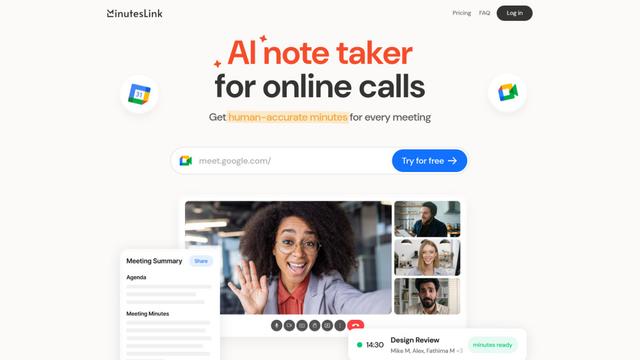
MinutesLink
MinutesLink is an advanced AI-powered note-taking assistant that automatically records, transcribes, summarizes and organizes virtual meetings while building personalized digital avatars from meeting data.
Popular AI Tools Like RecordMeeting
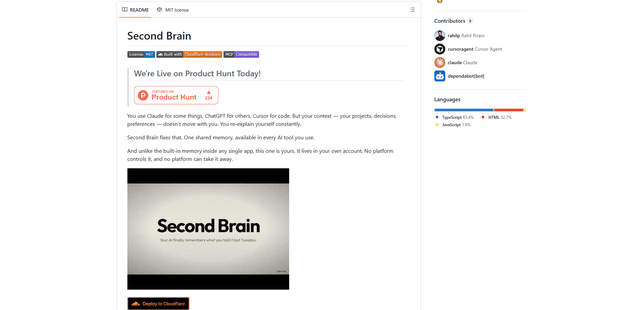
Second Brain for AI
Second Brain for AI is a self-hosted, MCP-compatible persistent memory layer on Cloudflare that lets Claude, ChatGPT, Cursor, and other AI clients store and semantically recall shared context across sessions.
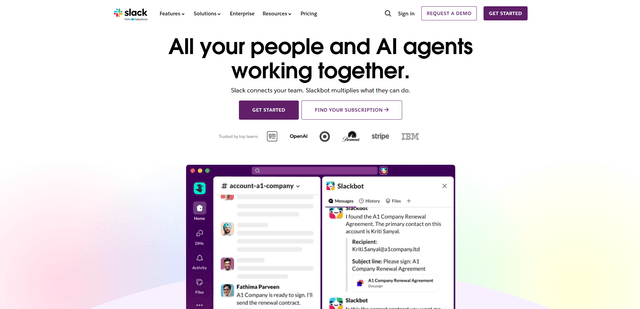
Slack
Slack is an AI-powered work platform that brings team communication, channels, files, automation, and app integrations into one conversational workspace.
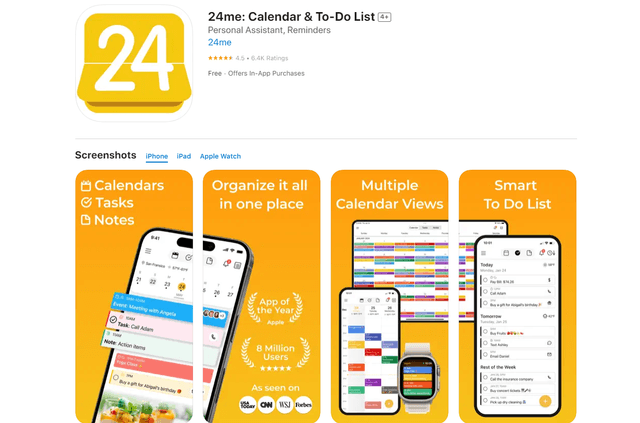
24me Smart Personal Assistant
24me is an award-winning smart personal assistant app that combines calendar, to-do lists, notes, and personal accounts in one unified platform to help boost productivity and time management.
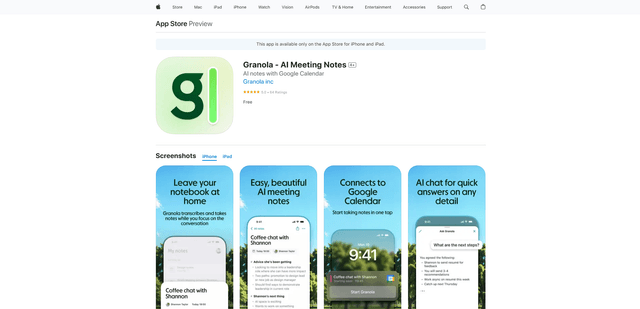
Granola for iOS
Granola for iOS is an AI-powered notepad app that helps users effortlessly capture, transcribe and summarize meeting conversations through intelligent note-taking and one-tap recording capabilities.