
Slack
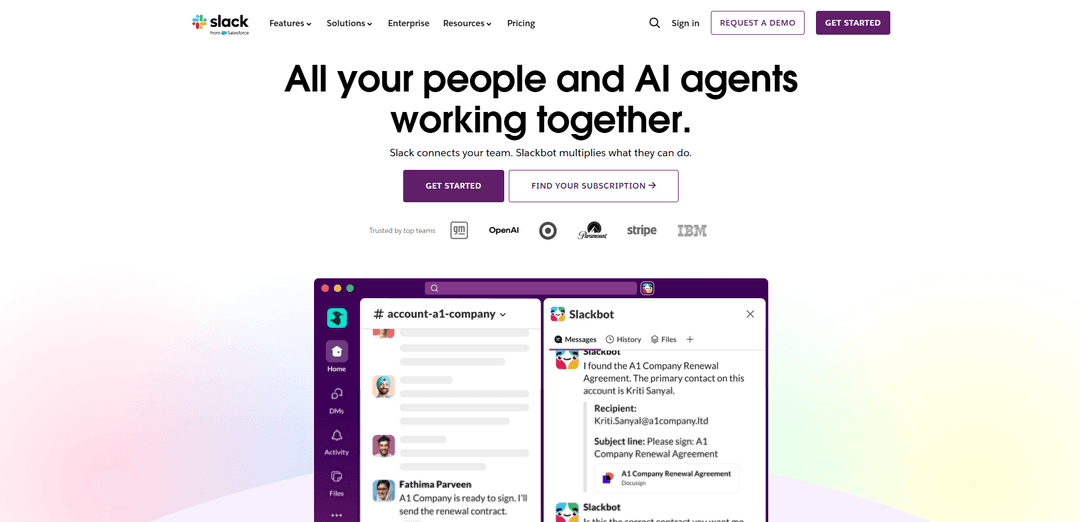
Slack is an AI-powered work platform that brings team communication, channels, files, automation, and app integrations into one conversational workspace.
https://slack.com/?ref=producthunt
Product Information
Updated:Jul 8, 2026
Slack Monthly Traffic Trends
Slack received 140.9m visits last month, demonstrating a Slight Growth of 5.8%. Based on our analysis, this trend aligns with typical market dynamics in the AI tools sector.
View history trafficWhat is Slack
Slack is a cloud-based collaboration hub (owned by Salesforce) designed to help teams communicate and coordinate work in one place. Instead of relying on scattered email threads and disconnected tools, Slack organizes conversations, decisions, and shared content so people can find context quickly and keep work moving. It supports real-time messaging, structured collaboration in channels, file sharing, and built-in calling features like huddles, while also connecting to a wide ecosystem of business apps and services.
Key Features of Slack
Slack is a cloud-based collaboration hub that organizes work into searchable conversations and shared spaces, helping teams replace scattered email threads with real-time messaging, files, and decisions in one place. It supports internal and external collaboration (via Slack Connect), quick meetings through built-in audio/video huddles, and lightweight documentation and project tracking with Canvas and Lists. Slack also serves as an integration and automation platform through apps and Workflow Builder, and is positioned as an AI-enabled work platform with Slackbot/AI features like summarization and search. For enterprises, Slack emphasizes security and compliance capabilities (e.g., encryption controls and Enterprise Key Management) and alignment with common compliance standards.
Channels (organized, transparent workspaces): Persistent chat rooms for teams, projects, or topics that keep discussions, files, and decisions in one searchable place, reducing reliance on email threads.
Slack Connect (secure external collaboration): Shared channels and messaging with clients, vendors, and partners to bring cross-company work into Slack while extending enterprise security controls to external collaboration.
Huddles (audio/video meetings with screen sharing): Lightweight, in-context calls for quick real-time discussions, including screen sharing and collaboration features, useful when typing is slower than talking.
Canvas & Clips (rich docs + async updates): Canvas enables flexible, collaborative documents inside Slack, while Clips let teams record and share updates to keep work moving asynchronously.
Apps, Integrations & Workflow Builder (automation and orchestration): Connect tools like calendars, file storage, and business apps, and automate routine processes (requests, standups, approvals) with no/low-code workflows.
AI in Slack / Slackbot (summaries, search, next-step help): AI features help users catch up via conversation summaries and improve information retrieval through AI-powered search, with Slackbot acting as a personal productivity agent.
Use Cases of Slack
Software engineering & IT incident response: Centralize incident channels, coordinate responders in real time, run huddles for rapid triage, and integrate alerts and dev tools to shorten time-to-resolution.
Sales and customer account collaboration: Keep deal and account conversations in shared channels, bring CRM context into Slack, and use Slack Connect to collaborate with customers and partners without long email chains.
Customer support and service operations: Coordinate escalations across support, product, and engineering using threads and huddles, share knowledge via Canvas, and automate intake/hand-offs with workflows.
Marketing and cross-functional campaign execution: Run campaign channels for planning, approvals, and asset sharing; use Clips for async status updates; and integrate calendars and project tools to keep stakeholders aligned.
Regulated industries (finance/health/public sector) collaboration: Enable controlled collaboration with enterprise-grade security and compliance-aligned configurations, plus admin governance features for safer internal and external communication.
Pros
Strong collaboration model with channels, threads, search, and shared context that reduces email dependency
Robust ecosystem of integrations and workflow automation to connect tools and streamline processes
Enterprise-grade security and compliance posture with advanced options like Enterprise Key Management
Cons
Can get expensive at scale, especially for advanced features and enterprise tiers
Free plan limitations (e.g., restricted message/file history) can hinder long-term knowledge retention
High message volume can create notification overload and make conversations feel “buried” without good hygiene
How to Use Slack
1) Sign up or sign in to a workspace: Go to your organization’s Slack URL (e.g., yourcompany.slack.com) or slack.com/signin, then sign in. If you’re new, create an account with your email and join the workspace you’ve been invited to.
2) Download the desktop/mobile apps (optional but recommended): Install Slack for desktop and/or mobile from slack.com/downloads so you can get notifications and a smoother experience than the browser.
3) Understand the main places you’ll work: Use Channels for team/project conversations, DMs for one-off or small-group chats, Activity to see mentions/threads/reactions that need attention, and Files to find shared or created files.
4) Join and use channels: Open a channel (e.g., #general, #random) to read and post updates. Use channels for work that benefits from visibility and shared context.
5) Send a direct message (DM) for quick 1:1 or small-group chats: Open the Direct Messages section, pick a person, and message them. Use DMs for one-off conversations that don’t require a full channel, or to coordinate quickly with a coworker.
6) Start a huddle for quick audio/video: From a DM or channel, start a huddle when it’s faster to talk than type. Use it for quick alignment or troubleshooting.
7) Reply in threads to keep channels organized: When responding to a specific message, use “Reply in thread” so detailed back-and-forth stays attached to the original message instead of cluttering the channel.
8) Use @mentions to notify the right people: Type @ followed by a name to notify someone. Use mentions sparingly to respect attention and avoid over-notifying large groups.
9) React with emoji to acknowledge without extra messages: Add emoji reactions to confirm you’ve seen something, agree, or mark status (e.g., ✅ for approved) without sending a new message.
10) Search for messages, files, channels, and people: Click the search bar to find what you need across Slack—past messages, shared files, channels, or teammates—so you can retrieve context quickly.
11) Find and manage shared documents in Files: Open Files to browse or search for items shared in conversations or created in Slack, so you can quickly locate attachments and references.
12) Use the plus (+) button to create and start work faster: Use the plus button to quickly create messages, channels, huddles, canvases, lists, and workflows from one place.
13) Automate routine work with Workflow Builder: Use Slack’s workflow tools to automate everyday tasks (e.g., intake forms, reminders, handoffs) so common processes run consistently inside Slack.
14) Add apps and integrations from the Slack Marketplace: Browse the Slack Marketplace (or your workspace’s Apps page) to connect tools like file storage, project management, and other services so updates and actions happen inside Slack.
15) Keep up with what needs attention using Activity: Check Activity to see a single view of mentions, threads you’re part of, and reactions to your messages—use it as your inbox for Slack.
Slack FAQs
Slack is a work platform that connects teams through channels and messaging, and includes features like huddles (audio/video), clips, file sharing, workflows, and integrations with other tools.
Slack Video
Popular Articles

Vosko AI: Localize and Dub Videos for Global Audiences
Oct 15, 2026

Atoms: A Multi-Agent AI Platform That Transforms Ideas into Launch-Ready Products
Oct 13, 2026

Nano Banana SBTI: What It Is, How It Works, and How to Use It in 2026
Apr 15, 2026

Atoms Review — The AI Product Builder Redefining Digital Creation in 2026
Apr 10, 2026
Analytics of Slack Website
Slack Traffic & Rankings
140.9M
Monthly Visits
#220
Global Rank
#8
Category Rank
Traffic Trends: Nov 2024-Oct 2025
Slack User Insights
00:16:35
Avg. Visit Duration
8.86
Pages Per Visit
28.06%
User Bounce Rate
Top Regions of Slack
US: 33.06%
JP: 24.44%
IN: 3.89%
GB: 3.48%
CA: 2.59%
Others: 32.54%
Latest AI Tools Similar to Slack
Ticknotes
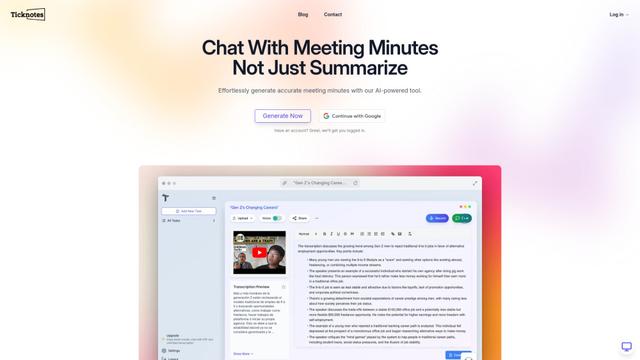
Ticknotes is an AI-powered meeting assistant that automatically records, transcribes, and generates personalized meeting summaries, action items, and key insights from audio, video, and text content.
Feta
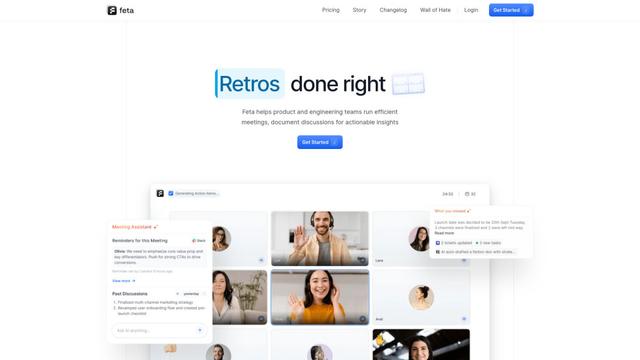
Feta is an AI-powered meeting tool that helps product and engineering teams run efficient meetings by capturing discussions, automating tasks, and providing actionable insights through smart summaries and integrations.
Aimeet
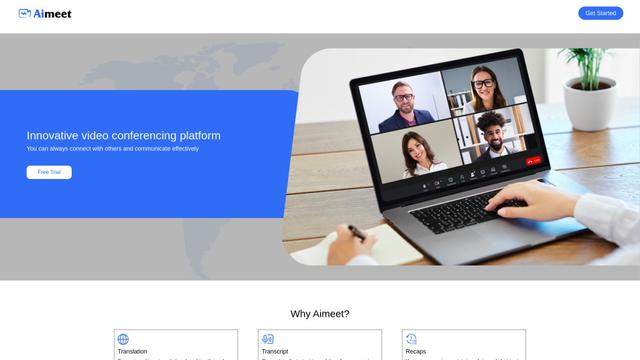
Aimeet is a comprehensive AI-powered communication platform that combines real-time translation, transcription, screen sharing, and unlimited meeting capabilities for effective virtual collaboration.
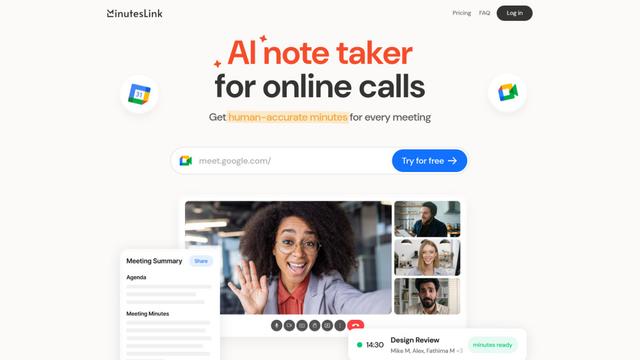
MinutesLink
MinutesLink is an advanced AI-powered note-taking assistant that automatically records, transcribes, summarizes and organizes virtual meetings while building personalized digital avatars from meeting data.
Popular AI Tools Like Slack
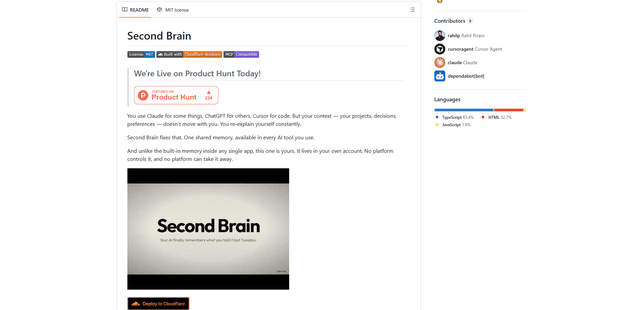
Second Brain for AI
Second Brain for AI is a self-hosted, MCP-compatible persistent memory layer on Cloudflare that lets Claude, ChatGPT, Cursor, and other AI clients store and semantically recall shared context across sessions.
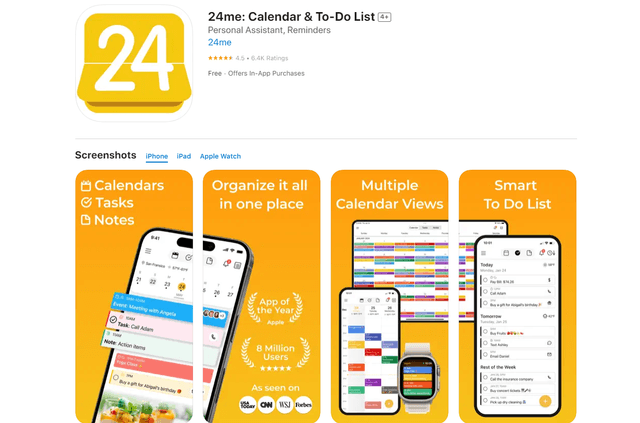
24me Smart Personal Assistant
24me is an award-winning smart personal assistant app that combines calendar, to-do lists, notes, and personal accounts in one unified platform to help boost productivity and time management.
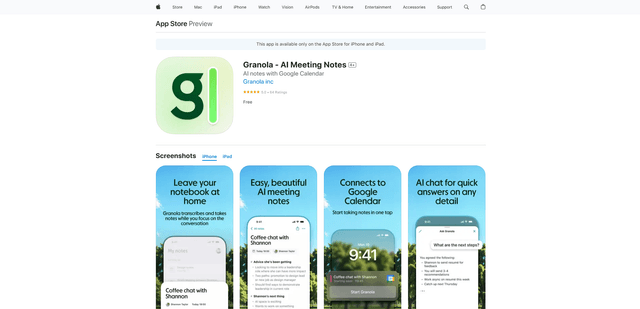
Granola for iOS
Granola for iOS is an AI-powered notepad app that helps users effortlessly capture, transcribe and summarize meeting conversations through intelligent note-taking and one-tap recording capabilities.
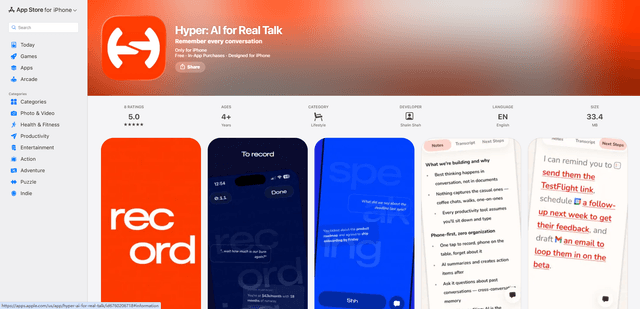
Hyper
Hyper is an AI-powered conversation assistant that helps you capture, transcribe, search and recall important details from in-person conversations through a simple one-tap recording system.