
NudgeFile
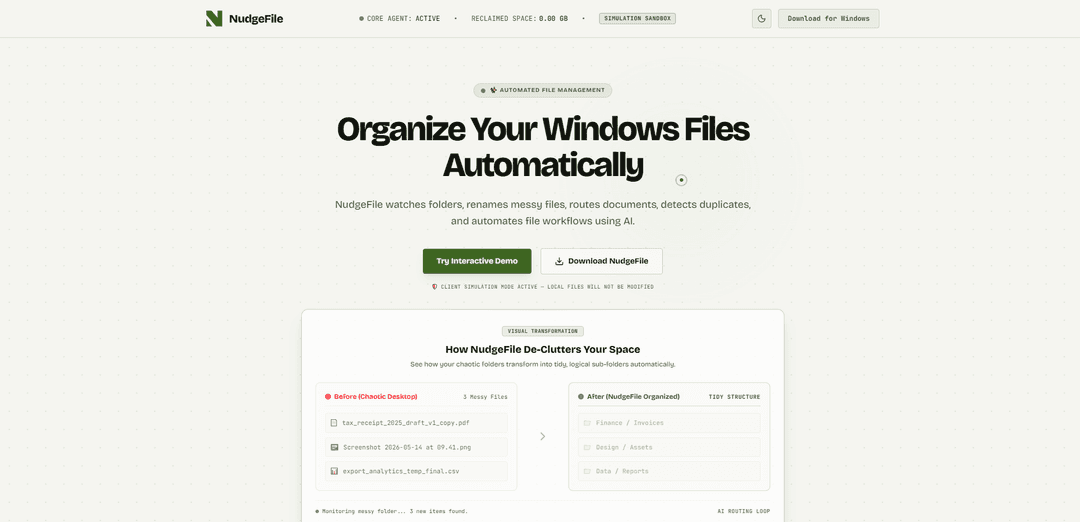
NudgeFile is an AI-powered Windows file organizer that watches folders in real time to automatically rename documents, route them into structured directories, detect duplicates, and run rule-based workflows with a human-approval safety layer—using local (offline) AI for privacy.
https://nudgefile.com/?ref=producthunt
Product Information
Updated:Jun 15, 2026
What is NudgeFile
NudgeFile is a Windows utility designed to keep messy folders like Desktop, Downloads, or scan-in directories automatically organized. Running in the background, it continuously monitors selected locations and applies AI-assisted naming and sorting so files land in clean, logical folder structures without manual effort. It emphasizes privacy and control by supporting 100% offline local AI processing (powered by Ollama) and includes safeguards like simulation mode and full operation logging for easy recovery.
Key Features of NudgeFile
NudgeFile is a Windows AI file organizer and workflow automation tool that continuously watches selected folders (e.g., Desktop/Downloads), then automatically renames, routes, and de-clutters files into a logical structure. It emphasizes privacy by running AI locally (via an offline engine such as Ollama) with optional controls for performance, and it adds safety through transaction history and one-click restore (infinite undo). It also detects duplicates using checksum-based comparisons and can suggest best versions for near-identical images, helping users reclaim storage while keeping file operations auditable and reversible.
Real-time folder monitoring: Runs in the background watching chosen directories and queues new files the moment they appear for automated organization.
AI-powered smart renaming: Analyzes document content/structure to propose clearer, standardized filenames that replace messy or generic names.
Automated routing & sorting: Maps files into appropriate destination folders (e.g., invoices to Finance, images to Design, CSVs to Reports) automatically as they’re detected.
Rule-based automation with human approval: Builds conditional workflows using triggers like file type, size, extensions, or keywords, with an approval pipeline to review actions before committing.
Smart duplicate detection: Finds exact duplicates via byte-level/checksum comparison and helps identify near-duplicate images to reclaim disk space.
Transaction history + instant restore: Logs rename/move operations and enables one-click rollback to restore files to their original names and locations.
Use Cases of NudgeFile
Finance & accounting document intake: Automatically routes receipts, invoices, and tax documents into structured folders and applies consistent naming for faster audits and retrieval.
Creative teams managing assets: Organizes design exports, screenshots, and project assets into predictable directories while reducing clutter and duplicate media.
Data/analytics workflow hygiene: Sorts CSV exports and report files into project or reporting folders, helping analysts keep repeat exports organized and discoverable.
Legal/contract operations: Renames and routes contracts, amendments, and drafts based on keywords/metadata patterns, with review steps to prevent misfiling.
Personal productivity (Desktop/Downloads cleanup): Continuously de-clutters common drop zones by renaming and filing new downloads, while providing undo if something is miscategorized.
Pros
Privacy-forward: supports fully local/offline AI processing so files don’t need to be uploaded to third-party servers.
Automation with safety: transaction logging and one-click restore reduce the risk of accidental renames/moves.
Hands-off organization: real-time monitoring and routing minimize manual filing work.
Storage savings: duplicate and near-duplicate detection can reclaim disk space.
Cons
Windows-focused: primarily designed for Windows workflows (limited/no cross-platform parity implied).
Local AI resource usage: offline analysis may require CPU/GPU resources and tuning for performance/battery impact.
Automation can misclassify: smart routing/renaming may still need user review to avoid edge-case mistakes.
How to Use NudgeFile
1) Download and install NudgeFile (Windows): Go to https://nudgefile.com/ and click “Download for Windows”. Run the installer and launch NudgeFile.
2) Start in Simulation Mode (recommended): Confirm Simulation Mode is enabled (the site notes “client simulation mode active — local files will not be modified”). Use this mode to preview renames/moves without changing real files.
3) Choose folders to monitor: In Folder Setup, select the directories you want NudgeFile to watch (common choices: Desktop, Downloads, scanner/import folders). NudgeFile will monitor these in real time and queue new files for organization.
4) Trigger a test detection: Use “Force Detect File Now” to immediately scan the monitored folder(s), or adjust “Simulator Speed” controls to see how quickly NudgeFile detects incoming files.
5) Use AI Smart Naming (rename messy files): Open the AI Smart Naming / AI-Powered File Renaming area. Provide or select a messy filename (e.g., “IMG_9283_draft.pdf”) and run “Analyze with Local AI” to get clearer, standardized naming suggestions.
6) Apply or customize the rename suggestion: Review the proposed descriptive filename. If needed, type your own base name (example shown: “rent_agreement_v2”) and re-run analysis to refine the result before applying.
7) Configure routing categories (where files should go): In File Sorting / Automated Directory Routing, enable or disable destination folders (examples shown: Finance/Invoices, Design/Assets, Data/Reports; also mentions toggles like Design, Contracts). This determines how NudgeFile maps files into tidy sub-folders.
8) Run file routing: Click “Run File Routing” to sort detected files into the enabled destination folders based on matches (e.g., financial records to tax folders, graphic assets to design directories, CSVs to reports/workspaces).
9) Build automation rules (Human Approval Pipeline): In Smart Automation / Human Approval Pipeline, create conditional triggers for workflows (the source mentions rules based on file size, key phrases, or file extensions). Use the visual designer to define what happens when a file matches.
10) Test automation rules with a simulated filename: Enter a sample name (example shown: “draft_invoice.pdf”) into the “Simulated Filename” field to verify whether it matches any active automation rule.
11) Scan for duplicates: Open Smart Duplicate Detection and run a duplicate scan. NudgeFile uses checksum comparisons for exact duplicates and local visual AI to find near-identical images.
12) Resolve duplicates safely: Expand duplicate groups, then choose actions such as “Declaim & Purge” to reclaim space or “Rename” to keep a preferred version with a clearer name.
13) Choose Local AI (privacy-first) or Cloud AI (if available): In the Local AI or Cloud AI section, select your preferred processing mode. The source emphasizes local processing via Ollama and that files are not uploaded to third-party servers when using local AI.
14) Tune performance and privacy controls: Adjust speed/privacy settings such as Offline AI Model Type, GPU usage, and processor cores used to balance organization speed with battery/CPU impact.
15) Review activity and health metrics: Check the status/health panel for real-time diagnostics (examples shown: files cleaned, tidy speed, processor impact, disk status) to confirm the background process is running as expected.
16) Use transaction history to undo/restore changes: Open Transaction History to review logged operations (renames, moves, automated sorting). Use Restore to roll back a batch and return files to their original names/locations (described as a “Private Time Machine (Infinite Undo)”).
17) Move from simulation to live organization: After validating your folder monitoring, naming, routing, automation rules, and duplicate handling in Simulation Mode, disable simulation (if applicable in the app) so NudgeFile can apply changes to your real files.
NudgeFile FAQs
NudgeFile is an AI file organizer for Windows that watches selected folders, renames messy files, routes documents into logical folders, detects duplicates, and automates file workflows.
Popular Articles

Atoms: A Multi-Agent AI Platform That Transforms Ideas into Launch-Ready Products
May 22, 2026

Nano Banana SBTI: What It Is, How It Works, and How to Use It in 2026
Apr 15, 2026

Atoms Review — The AI Product Builder Redefining Digital Creation in 2026
Apr 10, 2026

Kilo Claw: How to Deploy and Use a True "Do‑It‑For‑You" AI Agent(2026 Update)
Apr 3, 2026
Latest AI Tools Similar to NudgeFile
Sortio
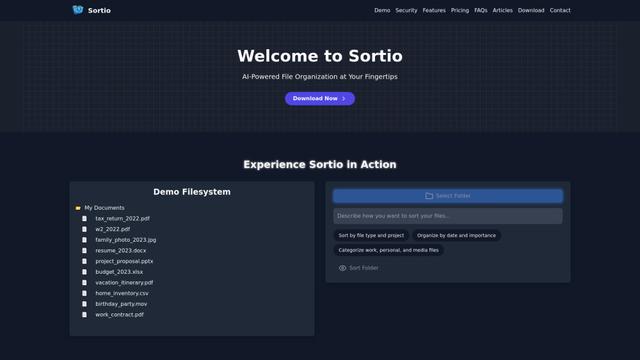
Sortio is an AI-powered desktop application that enables effortless file organization through natural language commands and intelligent sorting capabilities.

elDoc
elDoc is an all-in-one integrated automated platform that combines eSignatures, Document Workflow Automation, Secure File Management, and AI Document Processing capabilities to streamline document management and processing tasks.

RemoteSpace
RemoteSpace is a secure collaboration platform that transforms any online tool into a shared workspace, allowing teams to manage multiple accounts, collaborate asynchronously, and maintain security without sharing passwords.

Proxy Booster
Proxy Booster is an all-in-one proxy management platform that helps users boost proxy speed, reduce proxy costs, and enhance security through AI-powered features like Smart-cache and custom proxy rules.
Popular AI Tools Like NudgeFile

Claude Folder Upload
A Chrome extension that enables users to upload entire folders to Claude AI while intelligently preserving directory structures and file relationships, with smart filtering capabilities for irrelevant files.
Quill
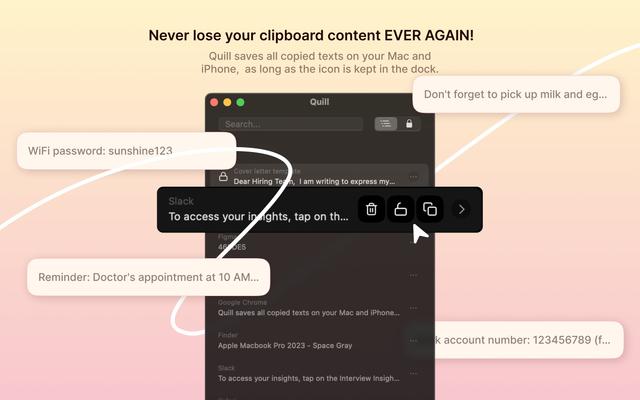
Quill is a comprehensive clipboard manager that automatically captures and organizes everything you copy across your Apple devices, featuring smart search, quick access, and seamless synchronization capabilities.
Cleana: iPhone Storage Cleaner
FreemiumAI Files Assistant
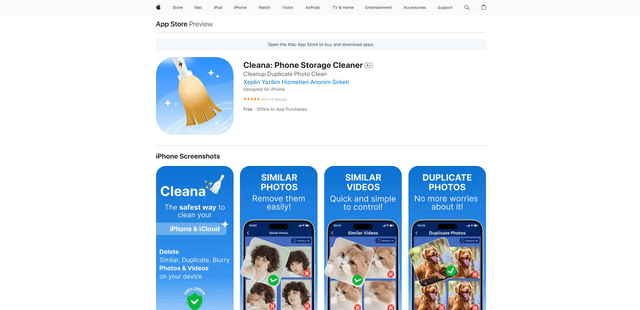
Cleana is an AI-powered iPhone storage cleaner that helps users efficiently identify and remove duplicate photos, similar videos, and unnecessary files while ensuring 100% offline data privacy.
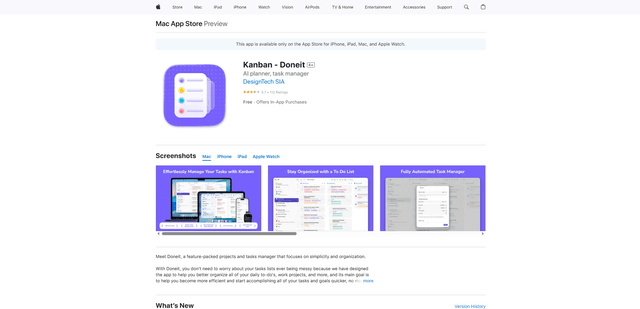
Doneit
Doneit is a feature-packed projects and tasks manager app that focuses on simplicity and organization, offering multiple views like list, grid, Kanban board and timeline to help users better organize all their daily to-do's and work projects.