Notion 3.4
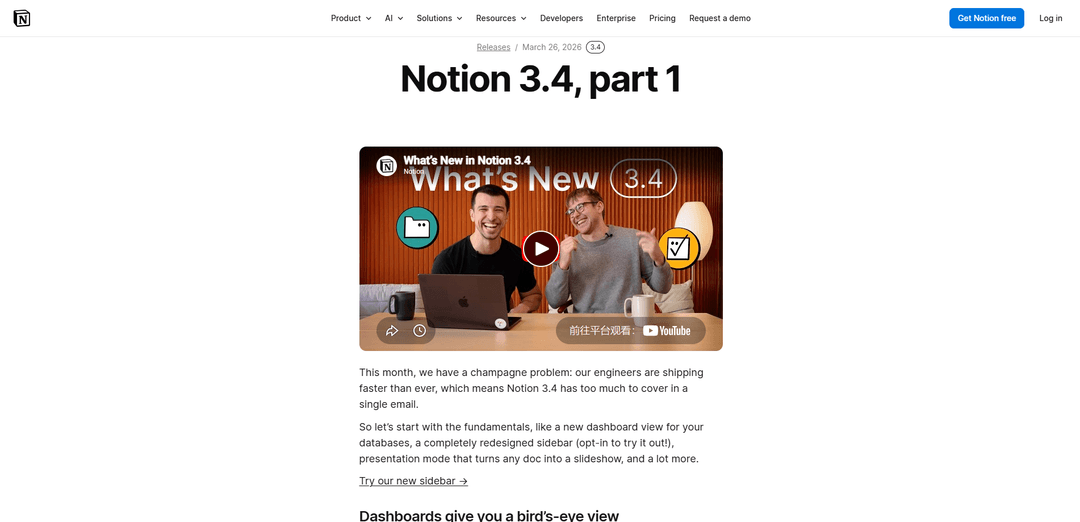
Notion 3.4 is a major update that adds database dashboards, an opt-in redesigned sidebar, presentation mode, a new tabs block, AI-powered image generation, archiving for cleaner search/AI, and developer/API improvements like H4 and better SDK support.
https://www.notion.com/releases/2026-03-26?ref=producthunt
Product Information
Updated:May 18, 2026
What is Notion 3.4
Notion 3.4 is a 2026 release focused on making work in Notion easier to navigate, easier to present, and faster to build—especially as teams adopt Agents and more advanced database workflows. It introduces foundational product upgrades (like dashboards for databases and a redesigned, tabbed sidebar) alongside new content formats (presentation mode and tabs) and AI capabilities (generating images and visuals directly in context). The release also includes quality-of-life improvements such as page archiving to keep large workspaces tidy and more accurate for search and AI.
Key Features of Notion 3.4
Notion 3.4 focuses on core workflow upgrades and more polished “output” from your workspace: new database Dashboards for a bird’s-eye view of metrics, an opt-in redesigned sidebar organized into tabs, and a built-in Presentation mode that turns any page into a slideshow. It also adds long-requested structure blocks like Tabs and H4 headings, expands AI creation with in-page image/chart/diagram generation, introduces page Archiving to reduce clutter and improve search/AI results, and improves developer workflows with a Markdown Content API plus SDK reliability enhancements (e.g., retries and better support for Markdown and meeting notes).
Database Dashboards: Create a dedicated dashboard view for databases to bring charts, KPIs, and metrics together—simpler to build and maintain than linked-view workarounds; can be kickstarted by describing what you want to a Notion Agent (Business & Enterprise).
Redesigned sidebar (opt-in): A cleaner, more customizable sidebar organized into four tabs (pages, agent chats, meetings, notifications), helping teams navigate large workspaces with less clutter.
Presentation mode (beta): Present directly from any Notion doc as a slideshow without recreating content elsewhere, using shortcuts (⌘+opt+p / Ctrl+alt+p) for faster stakeholder-ready sharing.
Tabs block: Organize content into clickable tabbed sections inside a page, reducing reliance on deep subpage hierarchies for cleaner documentation and hubs.
AI visual generation in context: Generate images and visuals (e.g., charts, slides, diagrams) directly on the page so visuals stay connected to the plan, brief, and decisions.
Archiving + API/SDK improvements: Archive old pages to keep them accessible but hidden from search by default (improving navigation and AI responses), alongside a Markdown Content API and SDK upgrades like automatic retries and better Markdown/meeting-notes support.
Use Cases of Notion 3.4
Executive/operations reporting: Ops and leadership teams can use database Dashboards to track KPIs, status, and changes over time in a single view, reducing manual report assembly.
Sales and customer success QBRs: Turn account plans or performance pages into live presentations using Presentation mode, keeping slides automatically aligned with the underlying source of truth.
Product and engineering documentation hubs: Use Tabs blocks and H4 headings to structure specs, runbooks, and onboarding guides into scannable sections without exploding into many subpages.
Marketing and creative production: Generate diagrams, charts, and images directly in briefs and campaign docs, iterating in context and keeping visual assets tied to decisions and copy.
Knowledge management at scale: Archive outdated pages instead of deleting them to reduce search noise and improve workspace AI answer quality while preserving institutional memory.
Developer tooling and content pipelines: Use the Markdown Content API and improved SDK to build more reliable integrations (e.g., syncing docs from repos, migrating content, or automating updates) with fewer workflow breaks.
Pros
Better at “output”: dashboards and presentation mode make it easier to share metrics and narratives without leaving Notion.
Improved organization at scale via sidebar redesign, tabs, and archiving—less clutter and more navigable workspaces.
Stronger creation and automation workflows with in-context AI visuals plus more integration-friendly APIs/SDK reliability.
Cons
Some key improvements are gated or staged (e.g., dashboards with agent setup on Business/Enterprise; presentation mode is beta; sidebar redesign is opt-in).
New structure options (tabs, archiving behavior) may require teams to update page conventions and governance to stay consistent.
How to Use Notion 3.4
1) Create a database dashboard view: Open the database you want to summarize → add a new view → choose “Dashboard” (or the dashboard-style view option) → add the charts/KPIs/metrics you want to track so you get a bird’s-eye view without building a page of linked database views.
2) Build a dashboard faster with a Notion Agent (Business/Enterprise): Open an Agent chat → describe the dashboard you want (what metrics, which database(s), what charts) → let the Agent create the dashboard and update it as your data changes.
3) Try the redesigned sidebar (opt-in): Find the opt-in for the new sidebar experience in your workspace settings/feature previews → enable it → use the four tabs to switch between pages, agent chats, meetings, and notifications → customize the sidebar by toggling sections on/off to reduce clutter.
4) Present any page with Presentation mode (beta): Open the page you want to present → start Presentation mode with ⌘ + opt + p (Mac) or Ctrl + alt + p (Windows) → present directly from the page instead of rebuilding slides.
5) Organize a page with the new Tabs block: On a page, insert a “Tabs” block → create multiple tabs (sections) → move related content into each tab so readers can click between sections without scrolling or creating lots of subpages.
6) Generate images/diagrams/charts/slides with Notion AI: Open an Agent (or Notion AI prompt) on the page where you want visuals → ask it to generate an image, chart, slide, or diagram based on your text/context → iterate and remix in place so the visual stays connected to the surrounding plan/brief/notes.
7) Archive old pages to declutter search and improve AI results: Open a page you no longer want in active navigation → choose the new “Archive” option (instead of deleting) → keep it accessible while hiding it from search by default to reduce noise for both humans and AI.
8) Use H4 headings for tighter hierarchy: In any page, add a Heading 4 (H4) where you need a smaller section header than H3 → use it to create more granular structure without switching to plain text.
Notion 3.4 FAQs
Notion 3.4 (part 1) introduces a new dashboard view for databases, a redesigned sidebar (opt-in), a presentation mode that turns a page into a slideshow (beta), a new “tabs” block, image/chart/slide/diagram generation via Notion AI, and an archive option for pages to reduce clutter and improve search/AI results.
Notion 3.4 Video
Popular Articles

Atoms: A Multi-Agent AI Platform That Transforms Ideas into Launch-Ready Products
May 22, 2026

Nano Banana SBTI: What It Is, How It Works, and How to Use It in 2026
Apr 15, 2026

Atoms Review — The AI Product Builder Redefining Digital Creation in 2026
Apr 10, 2026

Kilo Claw: How to Deploy and Use a True "Do‑It‑For‑You" AI Agent(2026 Update)
Apr 3, 2026
Latest AI Tools Similar to Notion 3.4
PPTalker
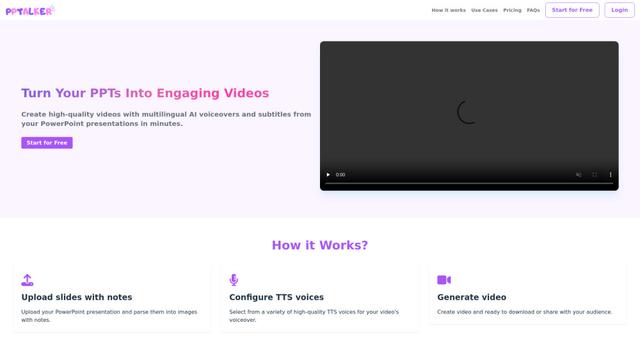
PPTalker is an online PowerPoint to video converter that transforms presentations into engaging videos with AI-powered multilingual voiceovers and subtitles.
Napkin
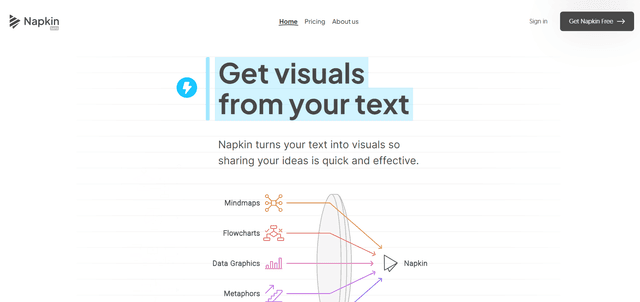
Napkin AI is an innovative AI-powered tool that automatically transforms text into visually appealing graphics, diagrams, and illustrations to enhance business communication and storytelling.
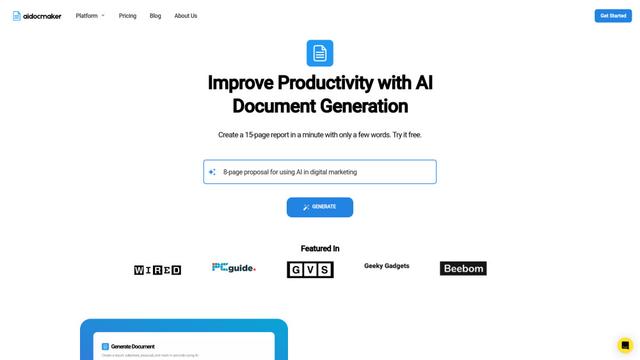
Aidocmaker.com
Aidocmaker.com is an AI-powered document creation platform that allows users to effortlessly generate professional documents, presentations, spreadsheets, and voiceovers in minutes.

Yanbi AI
Yanbi AI is a free AI-powered writing tool that generates high-quality content for various writing scenarios with one click.
Popular AI Tools Like Notion 3.4
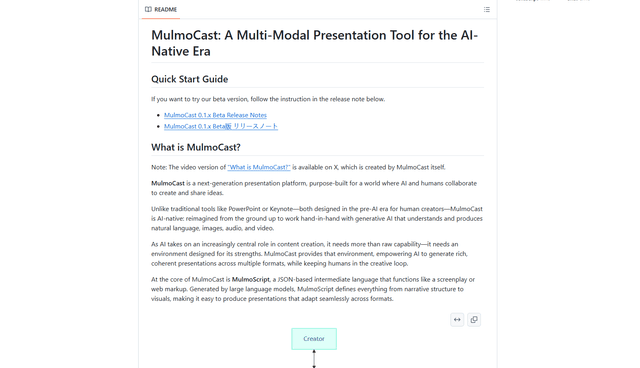
MulmoCast
MulmoCast is an AI-native multi-modal presentation tool that automatically generates videos, podcasts, slides, PDFs, and manga-style content from a single script using various AI technologies.
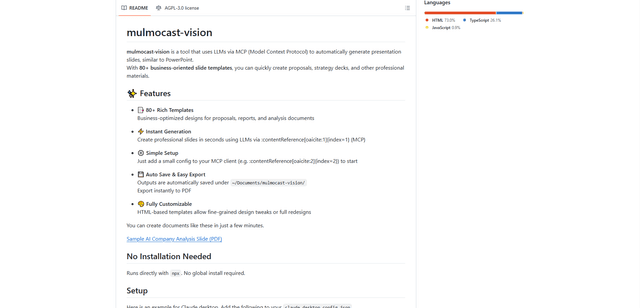
MulmoCast Vision
MulmoCast Vision is an AI-powered tool that automatically generates professional presentation slides through LLMs via Model Context Protocol (MCP), featuring 80+ business-oriented templates for various corporate needs.
Gamma
Free TrialAI Presentation Generator
Gamma App is an AI-powered tool for creating beautiful presentations, documents, and websites with no design or coding skills required.
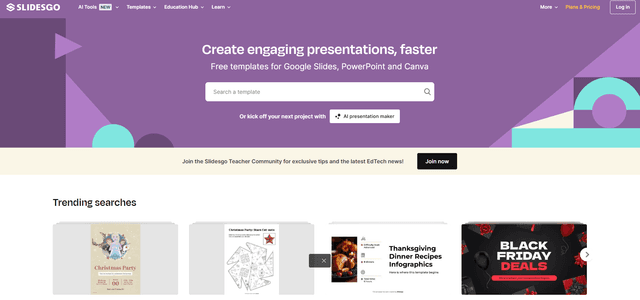
SLIDESGO
Slidesgo is a free online platform that provides professionally designed presentation templates for Google Slides and PowerPoint with customizable themes, infographics, and AI-powered tools to help create engaging presentations faster.