
moar
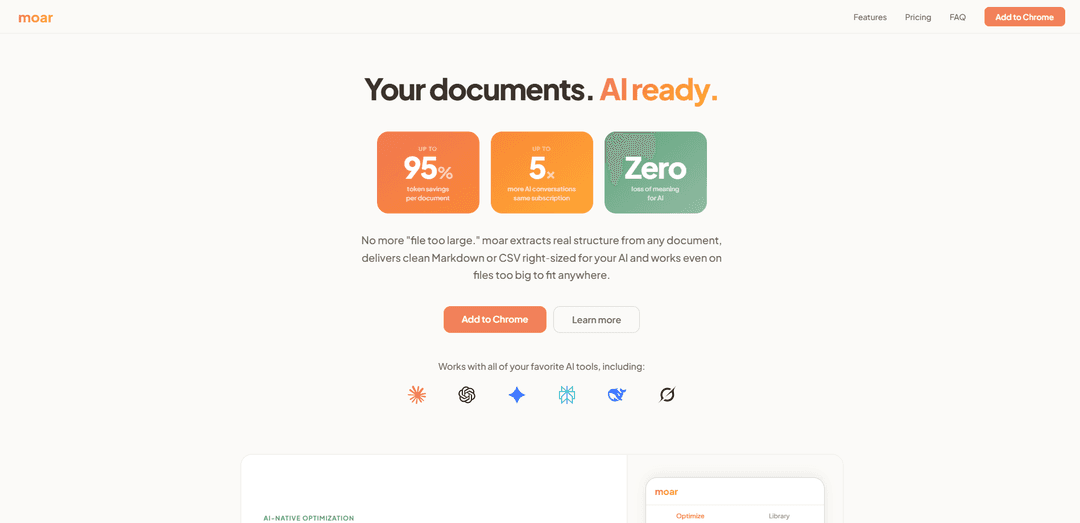
moar is a 100% private, offline-capable Chrome extension that optimizes and right-sizes documents for AI tools—preserving structure (headers, tables, footnotes) while cutting tokens by up to 95% and enabling up to 5× more usable AI conversations.
https://getmoar.ai/?ref=producthunt
Product Information
Updated:May 18, 2026
What is moar
moar is a “context layer” between your files and AI chat tools like ChatGPT, Claude, Gemini, Perplexity, DeepSeek, and Grok. Instead of pasting noisy, poorly extracted text into a model’s limited context window, moar converts documents into clean, AI-friendly formats (typically structured Markdown for prose and CSV for data), keeping the original meaning and key structure intact. It supports common formats including PDF, DOCX, PPTX, XLSX, CSV, TXT, MD, JSON, and HTML, processes files up to 50 MB, and runs entirely in your browser with no uploads, no accounts, and no telemetry.
Key Features of moar
moar is a Chrome extension that optimizes documents specifically for how LLMs (ChatGPT, Claude, Gemini, Perplexity, etc.) consume context: it extracts real document structure (not a noisy text dump), converts content into AI-friendly formats like Markdown (for prose) or CSV (for data), and then sizes or splits outputs to fit the selected model’s context window. It runs fully client-side in the browser (offline-capable), aiming to reduce token usage dramatically while preserving meaning, so you can include more relevant context and get longer, higher-quality AI conversations from the same subscription limits.
AI-native document optimization: Compresses documents by removing redundancy and formatting clutter while preserving semantic meaning, producing cleaner inputs for LLMs and often reducing tokens substantially (claims up to 95% reduction depending on content).
Structure-aware extraction to clean formats: Reads each file type using format-specific extraction engines and outputs structured content (e.g., prose to Markdown, data to CSV) instead of raw, artifact-filled text.
Platform-aware context window sizing: Lets you choose the target AI tool and plan tier, then shapes the output to fit that model’s real context window (e.g., ChatGPT vs Claude vs Gemini), preserving room for conversation.
Smart Select (query-driven extraction): A premium feature that works with your AI to surface only the most relevant sections for a question (a lightweight, in-browser alternative to traditional RAG workflows).
Intelligent Chunking with boundary context: For documents too large for any context window, splits the full document into right-sized chunks tailored to your model while preserving headers, cross-references, and context at chunk boundaries (premium).
Private, local-first processing: Processes everything in your browser with no uploads, no server, no accounts, and offline support—positioned for sensitive documents and privacy-conscious workflows.
Use Cases of moar
Financial and quarterly reporting analysis: Optimize board reports or quarterly filings to fit within an LLM context window, enabling faster Q&A, summarization, and issue-spotting without pasting huge, noisy extracts.
Legal and policy document lookup: Use Smart Select to pull only relevant clauses (e.g., HOA bylaws, contracts, compliance policies) for questions like rules, approvals, penalties, or enforcement—reducing tokens and review time.
Research and literature review workflows: Convert research PDFs into structured Markdown and chunk long documents for systematic reading, synthesis, and citation-focused Q&A across multiple AI sessions.
Operations and analytics spreadsheets at scale: Turn large spreadsheets into AI-ingestible chunks sized to a target model, enabling analysis of quarterly ops, returns, or cost summaries that exceed any single context window.
Product specs and engineering documentation: Clean and structure specs, manuals, and logs so an LLM can reason over requirements, tables, and footnotes with fewer tokens and less formatting noise.
Personal knowledge and planning documents: Optimize dense documents like DnD rulebooks, wedding venue spreadsheets, or home lab budgets to make AI-assisted search, comparison, and decision-making easier within token limits.
Pros
Local-first privacy: runs in-browser with no uploads/telemetry and can work offline.
Better context efficiency: reduces noise and redundancy, often shrinking token counts and extending usable conversation length.
Model-aware outputs: sizes and chunks content to match specific AI context windows rather than a one-size-fits-all export.
Cons
Premium features required for advanced workflows: Smart Select and Intelligent Chunking are in the paid “moar Most” tier.
Chrome-extension dependency: primarily delivered as a Chrome extension, which may not fit all environments or browser policies.
Compression claims may vary by document type: token reduction is content-dependent (e.g., some structured data may shrink only slightly).
How to Use moar
1) Install moar: Go to the Chrome Web Store listing for moar and click “Add to Chrome” to install the extension.
2) Open the moar extension: Click the moar extension icon in Chrome to open its interface (it may open in a side panel).
3) Add a document: In moar, drag-and-drop a file into the drop zone or click to upload. Supported formats include PDF, DOCX, PPTX, XLSX, CSV, TXT, MD, JSON, and HTML (up to 50 MB per file).
4) Choose your target AI and plan tier (context sizing): Select the AI tool and plan tier you’ll paste into (e.g., ChatGPT Plus, Claude Pro, Gemini). moar will size the output to fit that model’s context window.
5) Optimize the document: Click “Optimize.” moar extracts the document’s structure (headers/clauses/tables/footnotes), removes noise and redundancy, and outputs AI-ready content (typically clean Markdown for prose and CSV for data).
6) Review fit vs. context window: Check moar’s token/fit indicators to confirm the optimized output fits your selected model’s context window (and see how many tokens you saved). If it still exceeds the limit, proceed to chunking (moar Most) or adjust your selection.
7) Copy or download the optimized output: Use moar’s “Copy” or “Download” option to get the optimized text, then paste it into your AI tool (ChatGPT/Claude/Gemini/Perplexity/etc.).
8) Use Smart Select for question-driven extraction (moar Most): If you only need specific parts of a large document, use Smart Select: type a query describing what you need (e.g., “What are the rules about exterior paint colors?”). moar surfaces the relevant sections and outputs a single right-sized chunk ready to paste.
9) Use Intelligent Chunking for oversized files (moar Most): If the full document can’t fit any context window (e.g., huge spreadsheets), run Intelligent Chunking. moar splits the document into multiple right-sized chunks tailored to your selected AI, preserving headers, cross-references, and boundary context, and provides setup instructions for processing across multiple conversations.
10) Access your library/history (optional): Open the Library to view previously optimized documents, token savings, and processing history. This history is stored locally on your device.
11) Manage privacy and delete data (optional): moar runs locally in your browser (works offline, no uploads/telemetry). To delete moar data, clear your browser’s local storage or uninstall the extension.
moar FAQs
moar is a Chrome extension that optimizes documents for AI tools (e.g., ChatGPT, Claude, Gemini, Perplexity). It extracts document structure, removes noise/redundancy, and outputs clean Markdown/CSV sized to your model’s context window.
Popular Articles

Atoms: A Multi-Agent AI Platform That Transforms Ideas into Launch-Ready Products
May 22, 2026

Nano Banana SBTI: What It Is, How It Works, and How to Use It in 2026
Apr 15, 2026

Atoms Review — The AI Product Builder Redefining Digital Creation in 2026
Apr 10, 2026

Kilo Claw: How to Deploy and Use a True "Do‑It‑For‑You" AI Agent(2026 Update)
Apr 3, 2026
Latest AI Tools Similar to moar

Folderr
Folderr is a comprehensive AI platform that enables users to create custom AI assistants by uploading unlimited files, integrating with multiple language models, and automating workflows through a user-friendly interface.
InDesign Translator
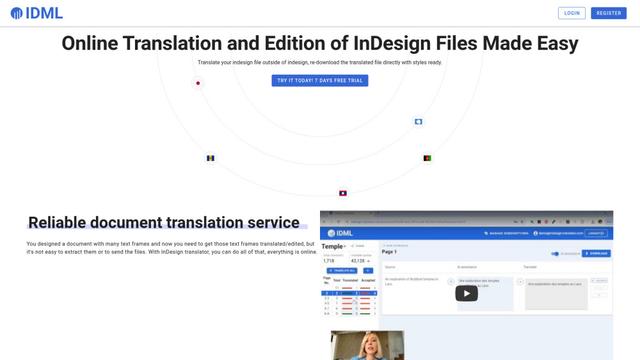
InDesign Translator is an online translation service that enables users to translate InDesign files while maintaining formatting and styles, offering AI-assisted translation and easy collaboration features without requiring translators to have InDesign installed.

Specgen.ai
Specgen.ai is an AI-powered platform that helps businesses optimize their bid responses by automatically analyzing tender requirements and generating personalized responses while ensuring 100% data confidentiality through proprietary AI models.

TurboDoc
TurboDoc is an AI-powered invoice processing software that automatically extracts and transforms unstructured invoice data into organized, easy-to-read structured data through Gmail integration and intelligent document processing.
Popular AI Tools Like moar
R2R
R2R (Reason to Retrieve) is an advanced AI retrieval system that provides production-ready Retrieval-Augmented Generation (RAG) capabilities with multimodal content ingestion, hybrid search, knowledge graphs, and comprehensive document management through a RESTful API.

Claude Folder Upload
A Chrome extension that enables users to upload entire folders to Claude AI while intelligently preserving directory structures and file relationships, with smart filtering capabilities for irrelevant files.

Web Clipper for NotebookLM
Web Clipper for NotebookLM is a Chrome extension that saves web pages, PDFs, YouTube content, social posts/threads, and even AI chat conversations directly into Google NotebookLM in one click, plus adds powerful export, sync, and notebook-management tools.

ReadHero
ReadHero is a comprehensive book tracking and note-taking app that helps readers remember and retain more of what they read by enabling progress tracking, note-taking, and book management all in one place.