
Macuse
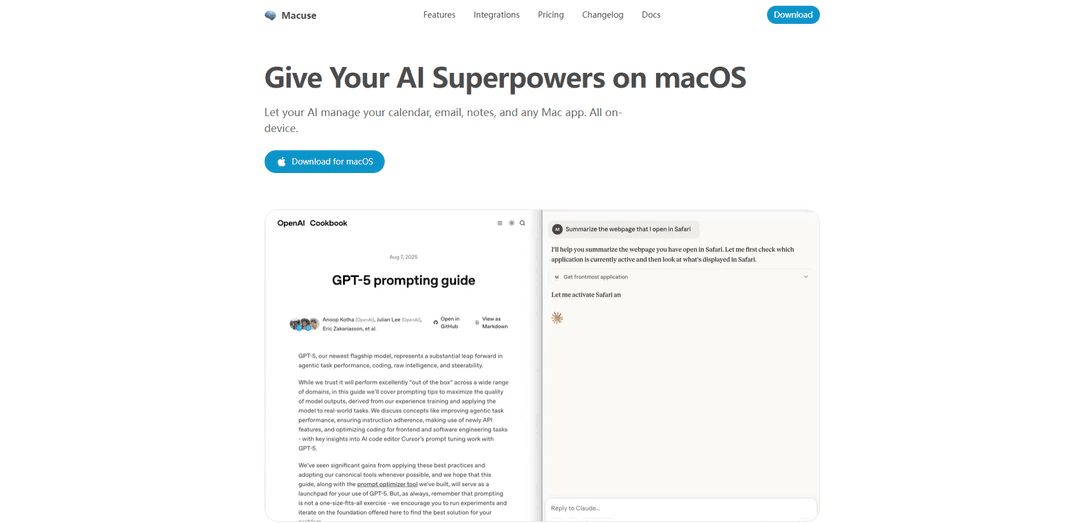
Macuse is a native, on-device macOS app that runs a local MCP server to let AI assistants (Claude Desktop, Cursor, Raycast, and other MCP clients) securely control Calendar, Mail, Notes, Reminders, Messages, and virtually any Mac app via “Computer Use.”
https://macuse.app/?ref=producthunt
Product Information
Updated:Jul 8, 2026
What is Macuse
Macuse is a native macOS application designed to turn your everyday Mac apps into tools your AI assistant can actually use. Instead of stopping at advice or text generation, it connects AI clients to real actions on your Mac—like managing calendar events, reading and drafting Apple Mail, working with Notes and Reminders, searching Contacts, sending Messages, and automating workflows across apps. It’s built around the open Model Context Protocol (MCP), so one Macuse installation can serve multiple AI tools without vendor lock-in, and it aims to be simple to set up with one-click configuration rather than terminal commands or manual JSON editing.
Key Features of Macuse
Macuse is a native, local-first macOS app that runs an on-device MCP server to give AI assistants (e.g., Claude Desktop, Cursor, Raycast, and other MCP-compatible clients) direct, permissioned access to macOS apps and system automation. It provides deep integrations with Apple apps like Calendar, Mail, Notes, Reminders, Contacts, and Messages, plus “Computer Use” UI automation to control virtually any Mac application by clicking, typing, scrolling, and inspecting UI elements—while operating in the background without taking over your active cursor/window. Setup is designed to be one-click with auto-detection of AI tools, and access is governed by granular, per-client approvals and revocable permissions.
On-device MCP server for macOS: Connects your AI clients to Mac apps via the Model Context Protocol, enabling reliable tool-based actions instead of chat-only assistance.
Native app integrations (Calendar/Mail/Notes/Reminders/Contacts/Messages): Lets AI manage events, draft/read/reply to email, create and search notes, set reminders, look up contacts, and send messages using macOS-native data sources.
Computer Use (UI automation for any app): Enables AI to control apps without dedicated APIs by interacting with real interfaces—clicking, typing, scrolling, navigating, extracting text, and inspecting UI hierarchies.
Background operation without disrupting your workflow: Runs on-device and works in the background so your active window and cursor stay untouched while the AI operates other apps.
Granular, per-client permissions and approvals: You can allow/deny/one-time approve each AI client per app; sensitive apps can require reconfirmation every time, and revoking a client clears its permissions.
Easy setup with auto-configuration: Auto-detects supported AI tools and configures with one click—no terminal commands, no JSON editing required (with options to copy configs when needed).
Use Cases of Macuse
Executive assistant workflows: Automatically schedule meetings, manage calendar conflicts, draft email replies, create reminders, and capture notes from action items—across Apple apps in one conversational flow.
Sales and customer support follow-ups: Search contacts, draft personalized outreach emails, log call notes, set follow-up reminders, and send messages—reducing manual CRM-adjacent busywork on macOS.
Project management and deep work routines: Turn chat instructions into multi-step actions: create project notes, set milestone reminders, schedule check-ins, and automate repetitive app navigation using Computer Use.
Operations and admin automation (non-API tools): Automate tasks in internal or legacy Mac apps that lack integrations by having the AI drive the UI (open forms, copy/paste data, navigate menus) with inspection support.
Personal productivity and life admin: Manage personal email triage, plan events, create shopping/to-do reminders, and send messages—while keeping personal data processed locally on the device.
Pros
Local-first: personal content (mail, calendar, notes, messages) is processed on-device and not sent off the machine.
Broad compatibility: works with multiple MCP clients (e.g., Claude Desktop, Cursor, Raycast) without vendor lock-in.
Powerful reach: combines native app toolboxes with UI automation to control almost any Mac app.
Security controls: granular per-client approvals and easy permission revocation.
Cons
Requires elevated macOS permissions for some features (e.g., Full Disk Access for Mail/Notes, Accessibility for UI automation), which may be sensitive in regulated environments.
Free tier has daily tool-call limits and supports only one connected client; unlimited usage requires a paid license.
UI automation can be less deterministic than API-based integrations and may require careful approvals for high-risk actions.
How to Use Macuse
1) Download and install Macuse: Go to https://macuse.app/download and install the Macuse macOS app (native app). Launch it once after installation so macOS can register permissions prompts and background components.
2) Understand what Macuse provides (two ways to control your Mac): Macuse enables (a) direct integrations with macOS apps like Calendar, Mail, Notes, Reminders, Messages, Contacts, and (b) “Computer Use” UI automation to click/type/navigate any Mac app—even without a dedicated integration—over MCP (Model Context Protocol).
3) Grant only the permissions you want (per feature): When prompted, approve the minimum permissions needed for the features you plan to use: Calendar/Reminders/Contacts access for those apps; Full Disk Access for Mail and Notes; Accessibility for Computer Use (UI automation). You can allow/deny per feature.
4) Connect Macuse to your AI client (automatic setup option): Macuse can auto-detect supported AI tools and configure them with one click (no config files, no terminal, no JSON editing). Use this if your client is supported and you prefer the simplest setup.
5) Connect Macuse to your AI client (manual MCP stdio config option): If your client requires manual MCP configuration, add an MCP server entry using stdio transport. Canonical command: /Applications/Macuse.app/Contents/MacOS/macuse. Canonical args (per provided snippet): ["mcp"]. Some clients may use ["--stdio"] depending on their integration; follow your client’s MCP guide.
6) Provide the required access token to the MCP server: Macuse configuration may require an access token passed via environment variable (e.g., ACCESS_TOKEN) or via HTTP headers depending on the client. Obtain the token from Macuse and add it to your client’s MCP server configuration as required.
7) Approve the AI client connection (per-client authorization): Macuse supports per-client approvals. When your AI client first attempts to use Macuse tools, approve the connection. You can allow, deny, or one-time approve each client for each app it touches.
8) Verify the MCP server is connected: In your AI client, confirm the Macuse MCP server appears as connected/available (often shown in an MCP/tools panel). Then run a simple test request such as listing calendars, reading today’s events, or creating a note to confirm tool calls succeed.
9) Use Macuse for native app actions (Calendar/Mail/Notes/Reminders/Messages/Contacts): Ask your AI in natural language to perform tasks like: schedule meetings, read/reply to emails, capture notes, set reminders, search contacts, or send messages. Macuse executes these actions locally on your Mac via its MCP toolboxes.
10) Use “Computer Use” to control any Mac app (UI automation): For apps without a dedicated integration, ask your AI to open the app and perform UI steps (click, type, navigate). Ensure Accessibility permission is granted. Macuse runs on-device and can operate in the background without taking over your active cursor/window.
11) Manage security and sensitive apps: Macuse uses per-app permissions and can re-confirm access for sensitive apps (e.g., password managers, banking) every time. Review prompts carefully and deny access where appropriate.
12) Revoke or adjust permissions anytime: If you want to change what Macuse can access, revoke permissions in macOS Privacy & Security settings and/or within Macuse’s per-client/per-app approval controls (where available).
13) Add additional AI clients (optional): Macuse can work with multiple MCP-compatible clients (e.g., Claude Desktop, Cursor, Raycast, VS Code, Warp, Zed, LM Studio, Windsurf). Repeat the connect/approve steps for each client you want to use.
14) Troubleshoot connection issues: If your client fails to start the MCP server, re-check the command path, args, and token. Ensure Macuse is installed in /Applications, and that required permissions (especially Accessibility for Computer Use) are granted. If issues persist, consult per-client setup guides at macuse.app/docs/clients.
Macuse FAQs
Macuse is a native macOS app that lets AI assistants control and automate macOS apps via the Model Context Protocol (MCP), including Apple apps like Calendar, Mail, Notes, Reminders, and Messages, plus “Computer Use” to control virtually any Mac app.
Popular Articles

Atoms: A Multi-Agent AI Platform That Transforms Ideas into Launch-Ready Products
May 22, 2026

Nano Banana SBTI: What It Is, How It Works, and How to Use It in 2026
Apr 15, 2026

Atoms Review — The AI Product Builder Redefining Digital Creation in 2026
Apr 10, 2026

Kilo Claw: How to Deploy and Use a True "Do‑It‑For‑You" AI Agent(2026 Update)
Apr 3, 2026
Latest AI Tools Similar to Macuse

MultipleWords
MultipleWords is a comprehensive AI platform offering 16 powerful tools for content creation and manipulation across audio, video, and image editing with cross-platform accessibility.
Athena AI
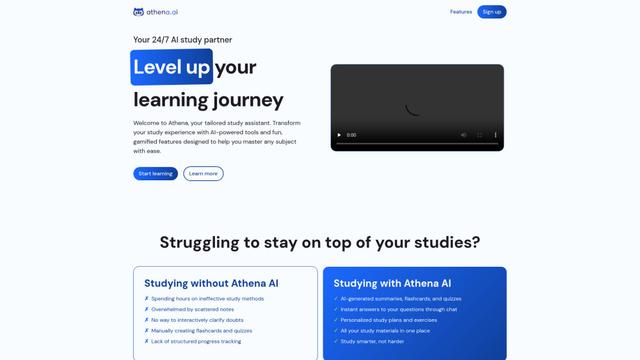
Athena AI is a versatile AI-powered platform offering personalized study assistance, business solutions, and life coaching through features like document analysis, quiz generation, flashcards, and interactive chat capabilities.

Taidai.io
Taidai.io is an AI-powered tool that automatically converts notes, emails, and text content into actionable todo lists.

Repliio
Repliio is an AI-powered email assistant Chrome extension that helps users generate professional, context-aware email responses quickly with customizable tones and multi-language support.
Popular AI Tools Like Macuse
Microsoft Excel: Spreadsheets
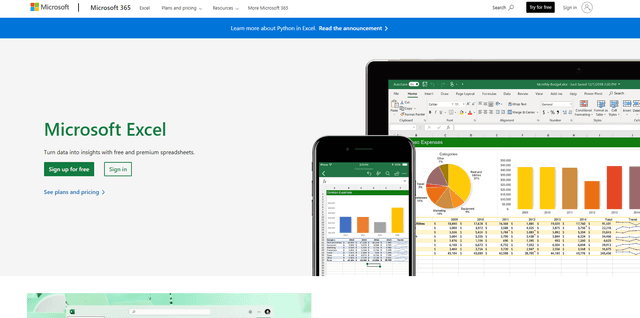
Microsoft Excel is the industry-leading spreadsheet software that allows users to organize, analyze, and visualize data through powerful features like formulas, charts, and AI-powered insights.
Standboy
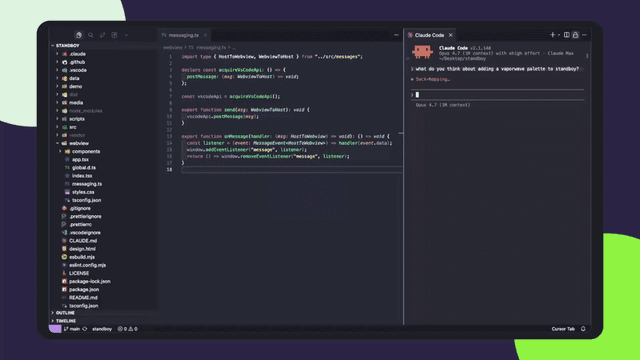
Standboy is a VS Code/Cursor extension that auto-expands a Game Boy (GB/GBC/GBA) emulator in the sidebar during AI agent activity, then auto-hides and pauses—resuming mid-frame next time—while keeping a persistent ROM library, saves, and cover art.
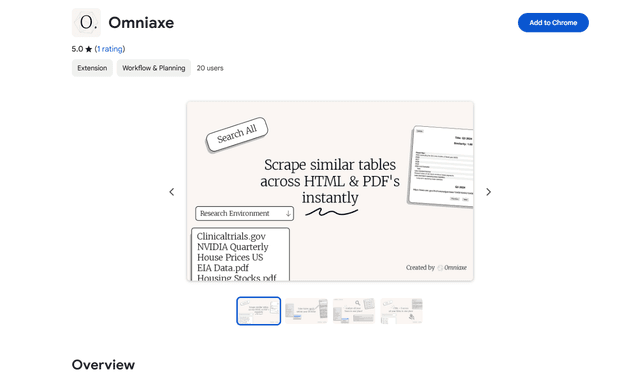
Omniaxe
Omniaxe is an all-in-one Chrome extension research tool that combines seamless data extraction, AI-powered analysis, and centralized note-taking capabilities designed specifically for analysts, researchers and students.
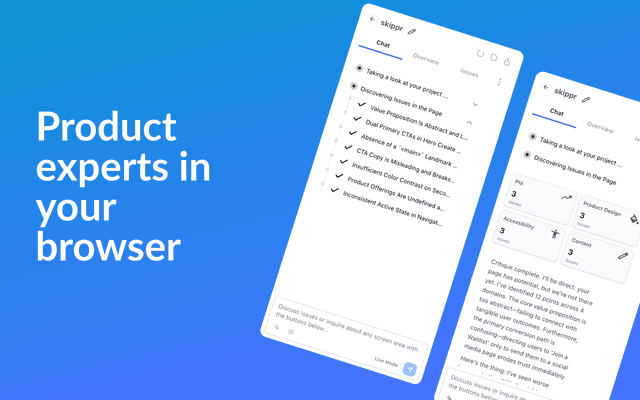
Finesse by Skippr AI
Finesse by Skippr AI is a browser extension that provides instant, expert-level product feedback and critiques across design, content strategy, accessibility, and product direction through specialized AI reviewers.