
Invoko
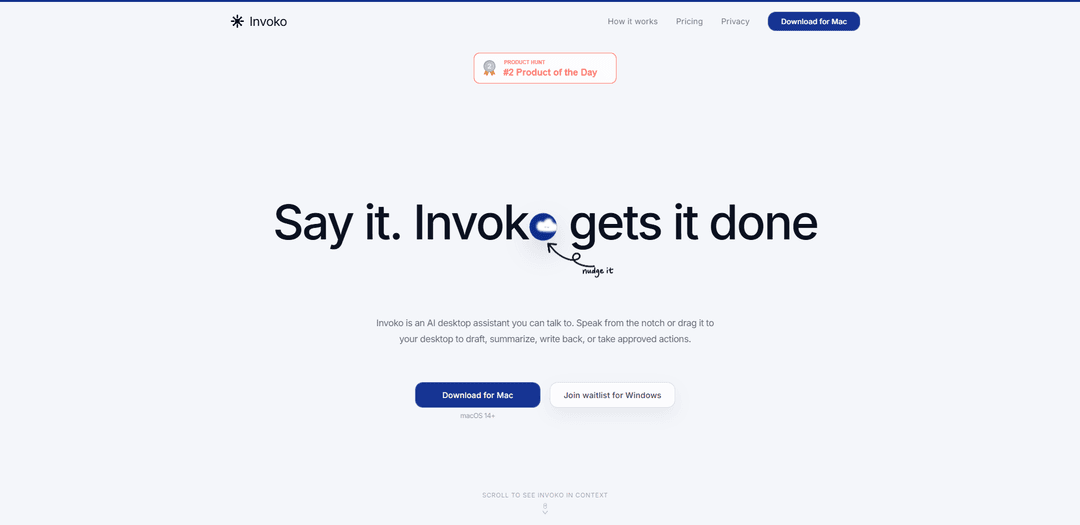
Invoko is a macOS AI voice desktop assistant that understands what’s on your screen, drafts and summarizes in place, and can take approved actions across apps while keeping context across sessions with privacy-first controls.
https://invoko.ai/?ref=producthunt
Product Information
Updated:Jul 8, 2026
What is Invoko
Invoko is an AI desktop helper for Mac designed to work alongside whatever you’re already doing—email, docs, browsers, PDFs, code, design tools like Figma, and more. Instead of switching tabs to chat with an AI, you can speak to Invoko (e.g., from the notch or its on-screen panel) to draft replies, rewrite text, summarize pages, explain what you’re reading, or get guided “next steps” inside unfamiliar software. Invoko is currently in beta for macOS 14+ and primarily targets Apple Silicon Macs, with Intel support depending on the available download option for your device.
Key Features of Invoko
Invoko is a macOS (Apple Silicon, macOS 14+) voice-first desktop AI assistant that sits beside whatever you’re working on and uses on-screen context (active app/page, selection, focused field, and optionally a screenshot) to draft replies, summarize, rewrite, explain content, and guide you through software—without constant tab switching. You invoke it via shortcuts (e.g., hold Fn) and can approve actions for it to carry out across apps; longer tasks can run in the background and return results. It also maintains useful cross-session context (“memory”) while emphasizing privacy: voice isn’t stored on servers and screenshots/recordings aren’t retained by default, with permissions and connectors gated by user approval.
Voice invoke (Hold Fn): Press/hold a shortcut and speak a command to draft, rewrite, summarize, or create quick outputs faster than typing, without leaving your current app.
Screen- and app-aware context: Understands the work in front of you using the current app, window title, page URL, selected text, focused field, and (when needed) a screenshot—so you don’t have to re-explain context.
Inline writing + quick reply: Generates responses and edits directly where you work (e.g., email/chat/docs), enabling follow-ups and thread replies without switching tabs or opening separate AI chat tools.
Background agent + approved actions: For longer tasks, Invoko can continue working after you approve—moving between apps, gathering allowed info, and returning a finished result.
Cross-session memory & continuity: Uses recent turns, task history, saved context, artifacts, and learned preferences to keep continuity across sessions and reference prior details when helpful.
Privacy & permissions first: Voice is not stored on servers, most data stays on the Mac, screenshots/voice recordings aren’t retained by default, and connectors/permissions are requested explicitly.
Use Cases of Invoko
Sales & customer success follow-ups: Draft and send fast, context-aware email responses and reminders based on the open thread—reducing CRM/email busywork and improving responsiveness.
Product design workflow (Figma + updates): While designing, ask Invoko to summarize changes, extract key points, and draft stakeholder/client updates without breaking flow or switching tools.
Engineering & technical reading assistance: Summarize long docs/pages, explain what you’re reading, and generate quick outlines or next steps while working in browsers, editors, or PDFs.
Operations & task management replacement: Create reminders, capture notes/memos from screenshots, and queue small admin tasks via voice—replacing multiple helper apps and reducing context switching.
Onboarding & “walk me through this app” help: Get step-by-step guidance in unfamiliar software by asking questions tied to the current screen, speeding up training and reducing support dependency.
Pros
Strong context awareness (uses what’s on screen/selected) reduces prompting and tab switching.
Voice-first invocation (Fn shortcut) enables fast, in-flow drafting, rewriting, and summarization.
Privacy-forward approach with explicit permissions; voice not stored and screenshots not retained by default.
Background/agentic workflows can continue longer tasks after user approval.
Cons
Mac-only and beta-focused (macOS 14+, primarily Apple Silicon), limiting cross-platform adoption.
Deeper actions may require granting permissions/connectors, which some orgs/users may be cautious about.
Context accuracy depends on what’s visible/selected; wrong suggested actions may require correction.
Still early-stage (beta), so stability, coverage of apps, and feature completeness may vary.
How to Use Invoko
1) Install Invoko (Mac): Download and install Invoko for macOS 14+. During beta it targets Apple Silicon Macs (Intel support depends on the available download for your device). Launch Invoko so it can run on your desktop.
2) Grant only the permissions you want: Invoko is permission-based. Approve access separately for voice (microphone), screen context (e.g., screenshot when needed), app control, and any account connectors. You can use core voice + writing flows without connecting accounts.
3) Open the work you want help with: Navigate to the app/page/document you’re working in (email, chat, browser, docs, notes, code, calendar, PDFs, design files, task tools). Invoko uses what’s in front of you—like the current app, window title, page URL, selected text, and focused field—to avoid you having to describe everything.
4) Invoke voice mode with the shortcut: Hold Fn to speak your request. Invoko uses the microphone for that moment, then turns what you said into a reply, rewrite, or quick answer.
5) Ask for an explanation or summary of what’s on screen: While viewing a page or document, hold Fn and say things like “Summarize this,” “Explain this section,” or “What does this mean?” Invoko can use the open page context to answer based on what you’re already reading.
6) Draft or rewrite text directly where you’re working: Click into the field you want to edit (the focused field), optionally select text, then hold Fn and say “Rewrite this more concise,” “Make this friendlier,” or “Draft a reply.” Invoko can respond in its panel and/or replace selected text depending on the action.
7) Use action cards when they appear: On supported surfaces, Invoko can show action cards (shortcuts) such as summarize, explain, rewrite, draft, extract, capture, search, or check. Click a card to run that action quickly. If it suggests the wrong next move, type or speak what you want in the same panel.
8) Approve actions before Invoko does work across apps: For tasks that require taking action (e.g., moving between apps, gathering info, scheduling), tell Invoko what you want done and then approve before it proceeds. Invoko can open targets, read allowed context, use authorized tools, and bring results back.
9) Hand off longer tasks to the background agent flow: If a task is more involved, let Invoko continue via its longer-work/agent flow. It can keep working after you approve, then return with the completed output or next step.
10) Connect accounts only when you need deeper actions: If you want Invoko to perform deeper actions via connected services, enable the relevant account connectors. Invoko asks before using a connected account.
11) Continue across sessions using history and memory: Invoko can use recent turns, task history, saved context, artifacts, and learned preferences to help with follow-ups. It stores only the context needed for continuity (it does not need to remember your whole desktop).
12) Understand privacy defaults and adjust diagnostics/feedback: By default, voice recordings and screenshots are not retained. You can optionally share anonymous diagnostics when something goes wrong and send feedback if you find something frustrating or delightful.
Invoko FAQs
Invoko is a macOS AI desktop assistant you can talk to. It can draft, summarize, rewrite, explain content on your screen, and (with approval) take actions across apps.
Popular Articles

Vosko AI: Localize and Dub Videos for Global Audiences
Oct 15, 2026

Atoms: A Multi-Agent AI Platform That Transforms Ideas into Launch-Ready Products
Oct 13, 2026

Nano Banana SBTI: What It Is, How It Works, and How to Use It in 2026
Apr 15, 2026

Atoms Review — The AI Product Builder Redefining Digital Creation in 2026
Apr 10, 2026
Latest AI Tools Similar to Invoko
MultipleWords
MultipleWords is a comprehensive AI platform offering 16 powerful tools for content creation and manipulation across audio, video, and image editing with cross-platform accessibility.

Athena AI
Athena AI is a versatile AI-powered platform offering personalized study assistance, business solutions, and life coaching through features like document analysis, quiz generation, flashcards, and interactive chat capabilities.

Taidai.io
Taidai.io is an AI-powered tool that automatically converts notes, emails, and text content into actionable todo lists.
Repliio
Repliio is an AI-powered email assistant Chrome extension that helps users generate professional, context-aware email responses quickly with customizable tones and multi-language support.
Popular AI Tools Like Invoko
Microsoft Excel: Spreadsheets
Microsoft Excel is the industry-leading spreadsheet software that allows users to organize, analyze, and visualize data through powerful features like formulas, charts, and AI-powered insights.
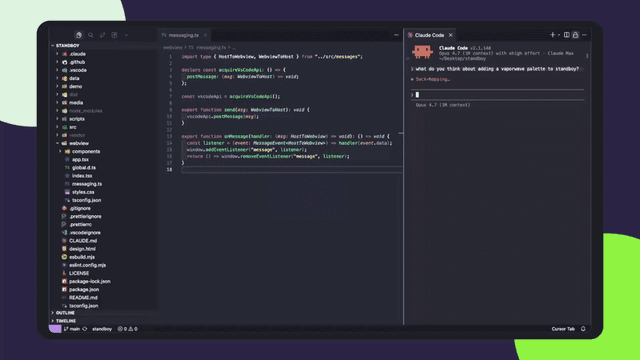
Standboy
Standboy is a VS Code/Cursor extension that auto-expands a Game Boy (GB/GBC/GBA) emulator in the sidebar during AI agent activity, then auto-hides and pauses—resuming mid-frame next time—while keeping a persistent ROM library, saves, and cover art.
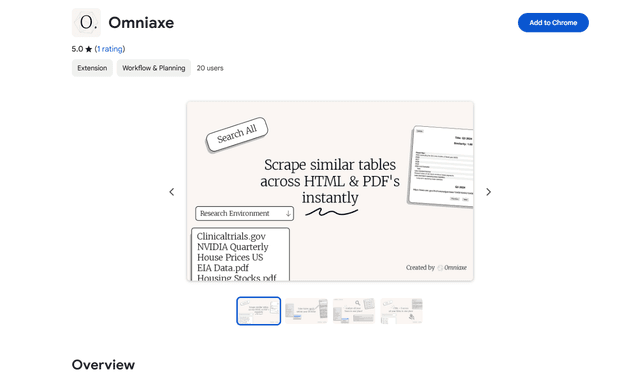
Omniaxe
Omniaxe is an all-in-one Chrome extension research tool that combines seamless data extraction, AI-powered analysis, and centralized note-taking capabilities designed specifically for analysts, researchers and students.
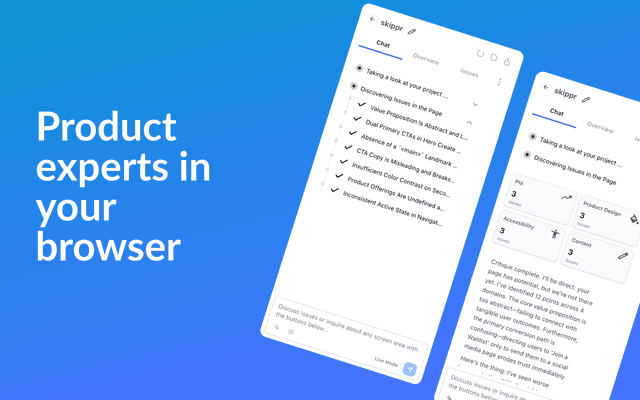
Finesse by Skippr AI
Finesse by Skippr AI is a browser extension that provides instant, expert-level product feedback and critiques across design, content strategy, accessibility, and product direction through specialized AI reviewers.