
Gemini Spark
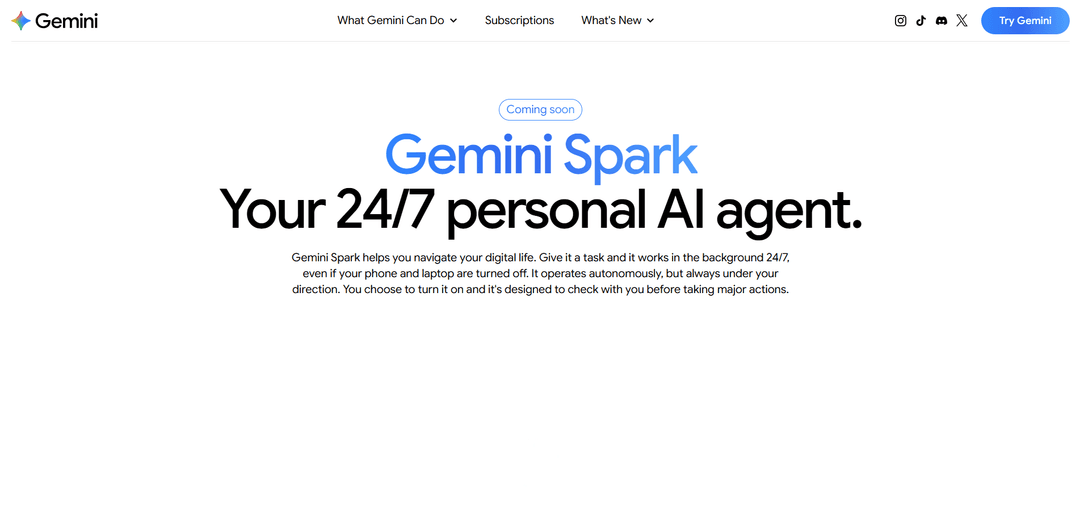
Gemini Spark is Google’s 24/7 cloud-based personal AI agent that autonomously completes multi-step tasks across Google Workspace and connected services, using configurable Tasks, Skills, and Schedules with user-controlled permissions and approvals for major actions.
https://gemini.google/overview/agent/spark?ref=producthunt
Product Information
Updated:Jul 8, 2026
Gemini Spark Monthly Traffic Trends
Gemini Spark received 35.4m visits last month, demonstrating a Slight Decline of -12.2%. Based on our analysis, this trend aligns with typical market dynamics in the AI tools sector.
View history trafficWhat is Gemini Spark
Gemini Spark is a persistent “always-on” AI agent built into the Gemini experience that’s designed to do more than chat—it can take actions on your behalf, under your direction. Announced as a productivity-focused agent, Spark can connect natively to Google apps such as Gmail, Calendar, Drive, Docs, Sheets, Slides, YouTube, and Google Maps (connections are off by default and enabled by you). It’s intended to handle complex workflows like summarizing inbox threads, organizing files, drafting documents, and coordinating plans, while keeping you in control through settings and confirmations for high-stakes actions. Availability is rolling out to trusted testers and is planned as a beta for Google AI Ultra subscribers (18+ in the United States), along with select business users.
Key Features of Gemini Spark
Gemini Spark is Google’s always-on, cloud-based personal AI agent built into the Gemini app that can execute multi-step workflows in the background 24/7—even when your phone or laptop is off. It operates autonomously but under user direction, with opt-in connections to Google apps (Gmail, Calendar, Drive, Docs, Sheets, Slides, YouTube, Maps) and the ability to automate work through three building blocks: Tasks (workflows), Skills (reusable behaviors/personalized routines), and Schedules (time-based or conditional triggers). Spark is designed to ask for confirmation before high-stakes actions (e.g., sending emails or spending money) and is rolling out to trusted testers, with availability planned for U.S. Google AI Ultra subscribers (18+) and select business users.
24/7 persistent cloud execution: Runs continuously on Google Cloud so it can keep working in the background even when your devices are asleep or turned off, enabling long-horizon and asynchronous workflows.
Tasks for multi-step automation: Executes end-to-end workflows across connected apps (e.g., search, extract, write, log, organize) rather than only answering prompts, handling complex sequences from start to finish.
Skills for personalization and reuse: Lets you define repeatable behaviors (e.g., a “ghostwriter” email style guide derived from your sent mail) that Spark can automatically apply whenever relevant.
Schedules with time/condition triggers: Automates recurring work via time-based or conditional triggers (e.g., weekly inbox review with a prioritized to-do list and calendar blocks), reducing repetitive prompting.
Deep Google Workspace integration (opt-in): Connects natively to Gmail, Calendar, Drive, Docs, Sheets, and Slides (off by default) to summarize, organize, draft, and take action across your workspace.
Safety and user control guardrails: Designed to operate under your direction, with checks before major/high-stakes actions and guidance around agent risks (e.g., prompt injection), plus the ability to supervise and interrupt.
Use Cases of Gemini Spark
Sales & lead intake automation: When inbound inquiries arrive (e.g., via Gmail), Spark can extract key fields (name, date, needs), log them into a CRM-like Google Sheet, and create a matching Google Drive folder for documents and follow-ups.
Professional services project kickoff: Synthesizes facts from emails, docs, sheets, and slides to produce a polished project brief in Google Docs and draft the companion kickoff email, reducing manual coordination overhead.
Finance/admin invoice and receipt organization: Finds invoices and receipts across email threads, organizes them into a spreadsheet, and surfaces what’s missing or pending—useful for freelancers, small businesses, and operations teams.
Recruiting and career search tracking: Finds and tracks opportunities (e.g., internships in a specific city), maintains a structured tracker, and can schedule reminders or follow-up tasks to keep applications moving.
Team productivity and weekly planning: On a schedule (e.g., Monday morning), reviews your inbox and calendar, summarizes key updates, generates a prioritized to-do list, and automatically blocks time for deep work.
Personal planning and group travel coordination: Turns messy email chains into an itinerary, logs shared expenses into a spreadsheet, and drafts update emails so everyone stays aligned on plans and responsibilities.
Pros
Always-on execution enables true background automation for long-running workflows (not just chat responses).
Strong native integration with Google Workspace (Gmail/Calendar/Drive/Docs/Sheets/Slides) for read/write productivity tasks.
Flexible automation primitives (Tasks, Skills, Schedules) make it easier to build reusable, personalized workflows without coding.
User-direction and confirmation prompts for high-stakes actions help reduce accidental sends/spend and improve safety.
Cons
Limited availability during rollout (notably U.S.-focused; access tied to specific plans like Google AI Ultra and select business users).
Requires granting app permissions for full value, which increases privacy/security considerations despite opt-in controls.
Agent behavior can be unpredictable and is susceptible to risks like prompt injection; supervision may still be needed.
Usage/compute limits may constrain heavy or highly complex daily automation depending on workload.
How to Use Gemini Spark
1) Confirm you have access to Gemini Spark: Gemini Spark is rolling out to trusted testers and is available (as a beta) to Google AI Ultra subscribers (18+) in the United States, plus select business users. If you don’t see Spark yet, access may still be expanding to your account.
2) Update and open the Gemini app (mobile) or Gemini experience where Spark appears: Install/update the Gemini app to the latest version. Then open Gemini and look for the Spark entry point (commonly shown as an “Agent” tab/area in the app during rollout).
3) Open Spark and review the safety model (supervision + confirmations): Spark is designed to operate under your direction and to check with you before major actions (e.g., sending emails or spending money). Plan to review outputs and interrupt/stop tasks if something looks wrong.
4) Turn on Connected Apps (off by default): Go to Spark/Gemini settings and enable the Google apps you want Spark to use. Supported native connections include Gmail, Calendar, Drive, Docs, Sheets, Slides, YouTube, and Google Maps. Only enable what you need for the workflow.
5) Create your first Task (a goal Spark should complete): In Spark, create a Task by describing the outcome you want in plain language. Example: “Scan my Google Drive and organize the most important files in a spreadsheet tagging information and adding some notes about it.” Tasks can be multi-step and can span multiple connected apps.
6) Add clear constraints and outputs to the Task: Specify what ‘done’ looks like (format, destination app/file, naming conventions, and what not to touch). Example constraints: “Don’t delete anything,” “Only use the folder /Projects/2026,” “Output a Google Sheet with columns: File, Link, Owner, Last modified, Tags, Notes.”
7) Run the Task once and supervise the execution: Start the Task and monitor progress. Spark can work in the background, but you should review intermediate results and final outputs for correctness—especially when it’s acting across Gmail/Drive/Calendar.
8) Create a Skill (reusable instructions for how Spark should do work): When you find yourself repeating preferences, turn them into a Skill. Example from the official page: “Read through the last 50 emails that I wrote and turn it into a style guide for how I write emails. Turn that into a skill that gets called every time I ask you to draft emails for me. Call that skill ghostwriter.” Skills help standardize tone, formatting, and decision rules.
9) Attach or invoke the Skill in relevant Tasks: Use your Skill whenever you create or run Tasks that match it (e.g., drafting email replies). Tell Spark explicitly: “Use the ‘ghostwriter’ skill for all email drafts in this task.”
10) Create a Schedule (time-based or conditional trigger): Schedules automate when Spark runs. Create a Schedule and define the trigger. Example from the official page: “Every Monday at 9:00 AM, scan my inbox and review my emails from the past week. Give me a quick recap of the most important updates and provide a suggested, prioritized to-do list for this week. Also schedule some calendar blocks for deep work.”
11) Use conditional workflows for inbox/lead routing (example automation): Set up a workflow that triggers on a condition like receiving a certain type of email. Example from the official page: “When I receive an email inquiring about my photography services, automatically extract the client’s name, requested date, and log the lead in my ‘Client Tracker’ Sheet. Then create a new Google Drive folder named after the client.”
12) Validate permissions and ‘ask-first’ behavior for high-stakes actions: If a workflow involves sending emails, scheduling meetings, or making purchases/bookings, ensure Spark is set to confirm before acting. Review drafts (emails/docs) and proposed calendar changes before approving.
13) Iterate: refine Tasks, Skills, and Schedules based on results: If Spark’s output isn’t what you want, update the Task steps/constraints or improve the Skill (e.g., add examples of good vs. bad drafts, tagging rules, or prioritization criteria). Re-run and compare.
14) Practice safe agent use (reduce prompt-injection and privacy risk): Be cautious when Spark reads content from emails, documents, websites, or files that could contain hidden malicious instructions. Limit connected apps to what’s necessary, review actions before approval, and avoid granting broad access unless the workflow truly needs it.
15) Keep within operational limits and manage concurrent work: Spark has compute-based usage limits similar to Gemini and may limit how many tasks can run at once (some reports cite up to 15 concurrent tasks). If schedules don’t run, check whether you’ve hit task limits and wait for tasks to complete.
Gemini Spark FAQs
Gemini Spark is Google’s 24/7 personal AI agent for productivity. You give it a task and it can work autonomously in the background—under your direction—to complete multi-step workflows across your connected apps.
Gemini Spark Video
Popular Articles

Atoms: A Multi-Agent AI Platform That Transforms Ideas into Launch-Ready Products
May 22, 2026

Nano Banana SBTI: What It Is, How It Works, and How to Use It in 2026
Apr 15, 2026

Atoms Review — The AI Product Builder Redefining Digital Creation in 2026
Apr 10, 2026

Kilo Claw: How to Deploy and Use a True "Do‑It‑For‑You" AI Agent(2026 Update)
Apr 3, 2026
Analytics of Gemini Spark Website
Gemini Spark Traffic & Rankings
35.4M
Monthly Visits
#1806
Global Rank
#41
Category Rank
Traffic Trends: Feb 2025-Oct 2025
Gemini Spark User Insights
00:01:39
Avg. Visit Duration
2.02
Pages Per Visit
59.13%
User Bounce Rate
Top Regions of Gemini Spark
US: 10.48%
IN: 9.03%
BR: 5.15%
ES: 4.51%
VN: 4.42%
Others: 66.41%
Latest AI Tools Similar to Gemini Spark
Ticknotes
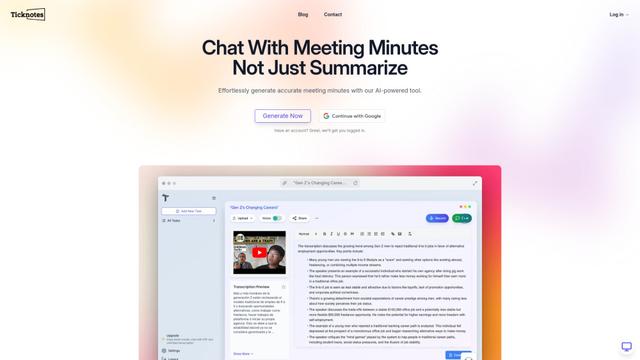
Ticknotes is an AI-powered meeting assistant that automatically records, transcribes, and generates personalized meeting summaries, action items, and key insights from audio, video, and text content.
Feta
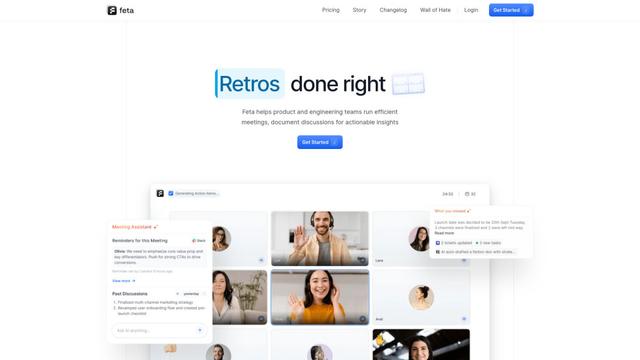
Feta is an AI-powered meeting tool that helps product and engineering teams run efficient meetings by capturing discussions, automating tasks, and providing actionable insights through smart summaries and integrations.
Aimeet
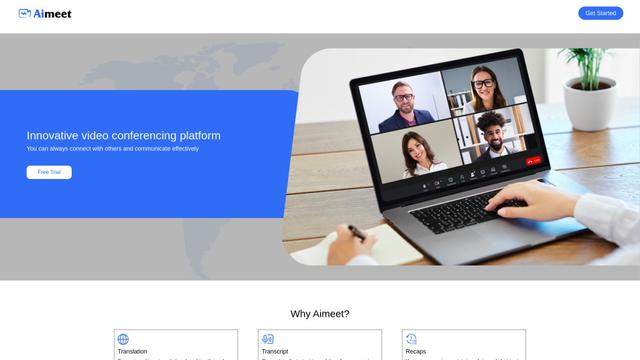
Aimeet is a comprehensive AI-powered communication platform that combines real-time translation, transcription, screen sharing, and unlimited meeting capabilities for effective virtual collaboration.
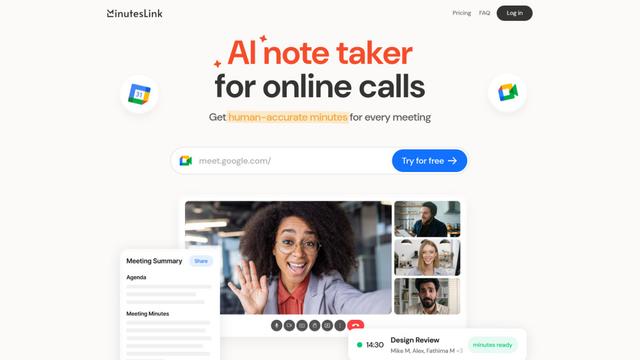
MinutesLink
MinutesLink is an advanced AI-powered note-taking assistant that automatically records, transcribes, summarizes and organizes virtual meetings while building personalized digital avatars from meeting data.
Popular AI Tools Like Gemini Spark
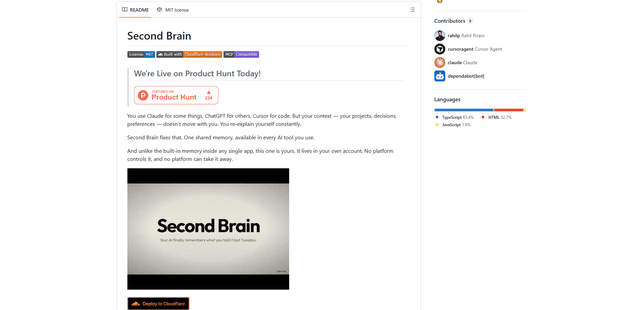
Second Brain for AI
Second Brain for AI is a self-hosted, MCP-compatible persistent memory layer on Cloudflare that lets Claude, ChatGPT, Cursor, and other AI clients store and semantically recall shared context across sessions.
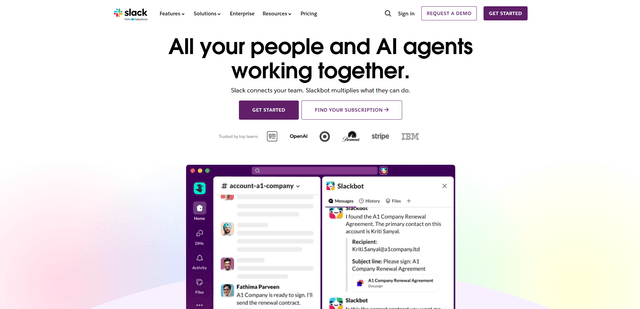
Slack
Slack is an AI-powered work platform that brings team communication, channels, files, automation, and app integrations into one conversational workspace.
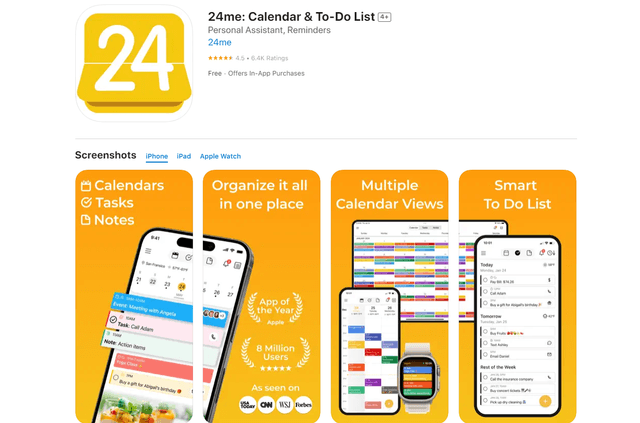
24me Smart Personal Assistant
24me is an award-winning smart personal assistant app that combines calendar, to-do lists, notes, and personal accounts in one unified platform to help boost productivity and time management.
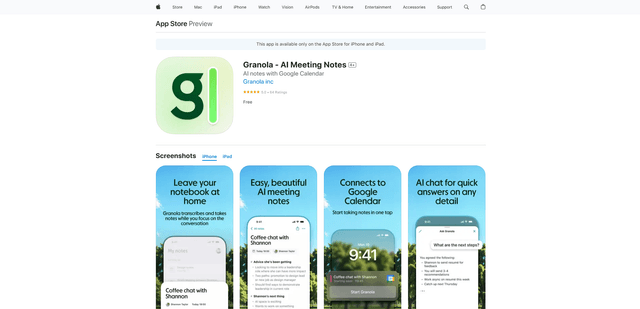
Granola for iOS
Granola for iOS is an AI-powered notepad app that helps users effortlessly capture, transcribe and summarize meeting conversations through intelligent note-taking and one-tap recording capabilities.