
Effects SDK
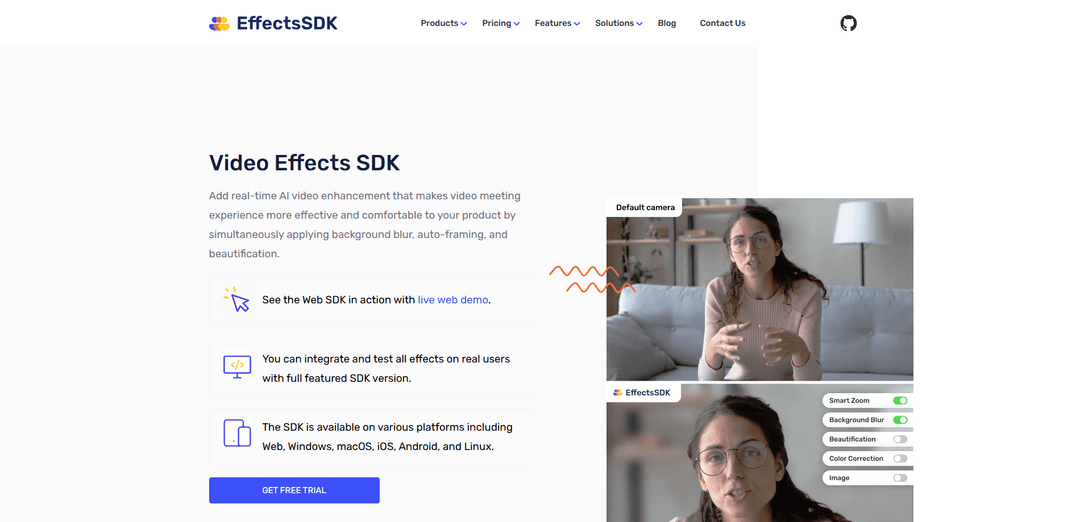
Effects SDK is a cross-platform real-time AI video effects toolkit that adds background blur/replacement, auto-framing, beautification, denoise, and color grading to live video in web and native apps.
https://effectssdk.ai/?ref=producthunt
Product Information
Updated:Jul 15, 2026
What is Effects SDK
Effects SDK is a ready-to-integrate software development kit for enhancing live video meetings, streaming, and recording with real-time AI effects. It helps products deliver a more professional and comfortable video experience by applying features such as background blur or replacement, intelligent auto-framing (smart zoom), skin smoothing/beautification, AI denoise for low-light webcams, and AI color grading. The SDK is available across major platforms—Web (JS + WASM), Windows/macOS/Linux (C++), iOS (C++ with Objective-C wrapper), and Android (C++ with Kotlin wrapper)—and is designed to be simple to integrate with documented APIs, demos, and technical support.
Key Features of Effects SDK
Effects SDK is a cross-platform, real-time AI video (and optional audio) enhancement toolkit for live conferencing, streaming, and recording. It provides ready-to-integrate effects such as background blur/replacement, auto-framing (smart zoom/follow), beautification/skin smoothing, low-light denoise, and color correction/grading, with GPU acceleration where available and a Web (JS+WASM) option for modern browsers. It’s designed for fast integration, runtime configurability, and production use across Web/WebRTC, desktop, and mobile apps, with documented APIs, demos, and support options including on-prem deployments.
Background blur & virtual backgrounds: Automatically segments the person and blurs, removes, or replaces the background with images, video, or solid color—configurable at runtime for privacy and branding.
Auto-framing (smart zoom/follow): Intelligently keeps the speaker centered by combining face tracking and motion with digital zoom; can follow the nearest person and maintain a configured zoom level.
Beautification / skin smoothness: Real-time face touch-up features (e.g., smoothing skin, reducing blemishes/eye bags, softening lighting) to help users look more polished on camera.
Low-light AI denoise & video quality improvements: Reduces grain/digital noise from webcams in low light and includes quality-oriented effects such as sharpening and other enhancements (varies by SDK/version).
Color correction / AI color grading: Automatically improves exposure, white balance, contrast, saturation, and overall look to achieve a more professional, consistent video appearance.
Cross-platform, accelerated processing & flexible integration: Available for Web, Windows, macOS, iOS, Android, and Linux; supports GPU acceleration (e.g., DirectX/OpenGL/Metal and platform engines like CoreML/OpenVINO) and can output to canvas or a processed MediaStream for WebRTC pipelines.
Use Cases of Effects SDK
Video conferencing platforms: Add blur/virtual background, auto-framing, beautification, and color correction to improve comfort, professionalism, and privacy in meetings.
Live streaming & creator tools: Enhance webcam feeds in-browser or in apps with background replacement, overlays/lower-thirds (where supported), and visual polish for streams and recordings.
Telehealth and remote consultation: Provide privacy-preserving backgrounds and consistent image quality for clinicians and patients, improving trust and reducing distractions.
Online education & tutoring: Help instructors appear clear and centered with auto-framing and low-light improvements, and enable branded or distraction-free backgrounds.
Enterprise webinars & sales demos: Support brand recognition via custom backgrounds and more cinematic color/lighting, improving perceived production quality without studio hardware.
Browser-based meeting extensions / virtual webcam experiences: Power “effects anywhere” experiences (e.g., Chrome extension-style workflows) by processing camera streams and feeding the enhanced stream into any web meeting.
Pros
Broad effect set for real-time video enhancement (background, framing, beautification, denoise, color) aimed at conferencing/streaming needs
Cross-platform availability (Web, desktop, mobile, Linux) with GPU acceleration options and demo apps/samples to speed evaluation
Runtime configurability and pipeline-friendly outputs (e.g., processed MediaStream/canvas on Web) suitable for WebRTC integrations
Cons
Requires a Customer ID and licensing/trial activation via the vendor portal, which adds dependency on vendor provisioning
Performance and latency depend heavily on device hardware, resolution, and backend (CPU/GPU/WebGPU), requiring tuning and testing
Some advanced or non-default features may be roadmap/custom-development items rather than guaranteed out-of-the-box capabilities
How to Use Effects SDK
1) Get a Customer ID (license/trial): Register on the Effects SDK developer portal (effectssdk.ai) to create a Customer ID, view pricing, and activate a trial. The SDK won’t run without a valid Customer ID because it authorizes via an HTTPS request.
2) Choose your platform and integration method: Effects SDK is available for Web/WebRTC (JS + WASM), Windows/macOS (C++), iOS (C++ with Objective‑C wrapper / Swift Package), and Android (C++ with Kotlin wrapper). Pick the SDK that matches your product and rendering pipeline (CPU/GPU, DirectX/OpenGL/Metal, etc.).
3) Web: Install the SDK (NPM option): In your web project, install the package: `npm i effects-sdk`. This provides the `tsvb` class used to initialize and control the video effects pipeline.
4) Web: Or load via script tag (CDN option): Add the SDK script to your page: `<script crossorigin="anonymous" src="https://effectssdk.ai/sdk/web/{VERSION}/tsvb-web.js"></script>`. You will then access it via `window.tsvb`.
5) Web: Create an SDK instance with your Customer ID: NPM: `import { tsvb } from 'effects-sdk'; const sdk = new tsvb('{CUSTOMER_ID}');` Script tag: `const sdk = new window.tsvb('{CUSTOMER_ID}');`
6) Web: Configure runtime options (preset/provider) and WASM URLs: Call `sdk.config(...)` and ensure WASM file versions match the SDK version. WASM paths must be full URLs, e.g.: `sdk.config({ preset: 'balanced', provider: 'webgpu', test_inference: true, cache_models: true, wasmPaths: { 'ort-wasm.wasm': 'https://effectssdk.ai/sdk/web/{VERSION}/ort-wasm.wasm', 'ort-wasm-simd.wasm': 'https://effectssdk.ai/sdk/web/{VERSION}/ort-wasm-simd.wasm' } });`
7) Web: Preload (and optionally cache) models/resources: Warm up the SDK to reduce first-use latency: `sdk.preload();` Optionally enable caching via config (`cache_models: true`) and/or call `sdk.cache()` if available in your version.
8) Wait until the SDK is ready before applying effects: Only apply effects configuration after the SDK signals readiness (documentation notes that configuration should be applied after the `onReady` callback fires).
9) Connect your camera stream (Web/WebRTC usage): Provide your MediaStream as the input source using the SDK’s stream mode (documentation references `useStream()` as the mode that is mutually exclusive with manual frame processing). This recreates the pipeline and loads required resources, then triggers `onReady`.
10) Enable desired effects (blur, replace background, beautification, auto-framing, etc.): Use the SDK’s effect configuration APIs to enable features such as Background Blur, Virtual Background (image/video), Beautification/Skin Smoothness, AI Denoise, AI Color Grading, and Intelligent Camera Framing (Smart Zoom). Apply and adjust parameters at runtime (e.g., blur strength).
11) Alternative: Process frames manually (VideoFrame mode): If you don’t want to use a MediaStream pipeline, use the Frame Processor mode to process `VideoFrame` objects directly. Call `processFrame(inputFrame)` and receive a processed `VideoFrame`. Important: the input `VideoFrame` is consumed/closed by the SDK, even on failure—do not reuse it.
12) Implement backpressure control for real-time performance: The SDK can handle up to ~2 frames in-flight simultaneously. Track in-flight frames and drop incoming frames beyond the limit to prevent memory buildup and keep latency low.
13) Handle stream changes by restoring your effect state: The SDK does not keep configuration state internally. If the camera stream changes, you must re-apply your stored configuration (reconfigure effects as needed).
14) Temporarily disable effects without breaking your call flow: When you need to bypass processing (e.g., performance constraints), stop the SDK’s processing so the original stream passes through. For audio SDK, docs explicitly mention calling `stop` to bypass and `run()` to re-enable; apply the same operational pattern where supported for video.
15) Tune performance/quality for your target devices: Choose presets (e.g., `balanced`) and providers (e.g., `webgpu`) appropriate for your users’ hardware. The SDK supports GPU acceleration across platforms (DirectX/OpenGL/Metal; OpenVINO/WinML/CoreML where applicable).
16) Clean up resources when done: Call `sdk.destroy()` when the user leaves the call or you no longer need effects. This cleans up resources including WebGL contexts and helps prevent memory leaks. After `destroy()`, create a new instance to use the SDK again.
Effects SDK FAQs
Effects SDK is an AI video effects SDK for real-time video applications (meetings, streaming, recording). It can enhance webcam video by applying effects such as background blur/replacement, auto-framing, beautification/skin smoothness, AI denoise, and AI color grading.
Effects SDK Video
Popular Articles

Vosko AI: Localize and Dub Videos for Global Audiences
Oct 15, 2026

Atoms: A Multi-Agent AI Platform That Transforms Ideas into Launch-Ready Products
Oct 13, 2026

Nano Banana SBTI: What It Is, How It Works, and How to Use It in 2026
Apr 15, 2026

Atoms Review — The AI Product Builder Redefining Digital Creation in 2026
Apr 10, 2026
Latest AI Tools Similar to Effects SDK
Rad Beauty
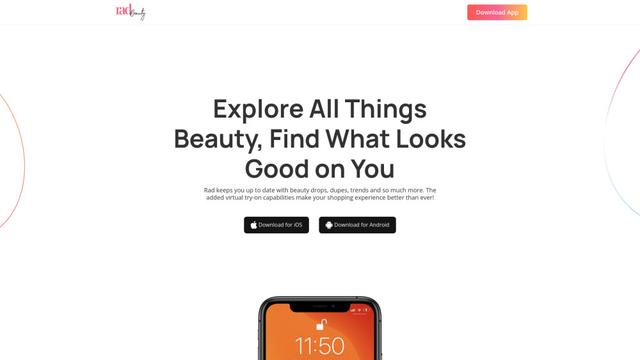
Rad Beauty is an AI-powered beauty app that provides personalized makeup recommendations, virtual try-ons, and product discovery through AR technology to revolutionize the beauty shopping experience.

AnyEnhancer
AnyEnhancer is an AI-powered video enhancement software that transforms low-quality videos into high-definition content through upscaling, denoising, colorizing, and frame interpolation capabilities.
AutoCut
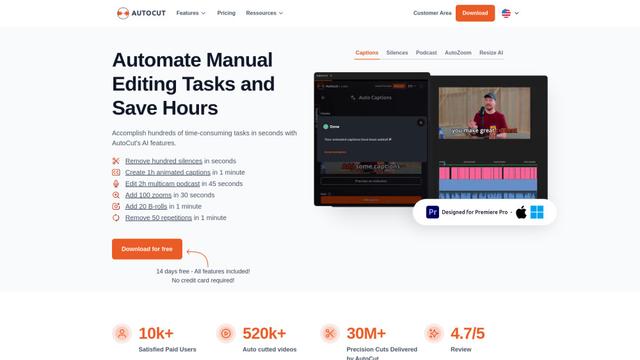
AutoCut is an AI-powered Premiere Pro plugin that automates video editing tasks like adding animated captions, removing silences, and editing podcasts to save hours of manual work.
Kill Frames
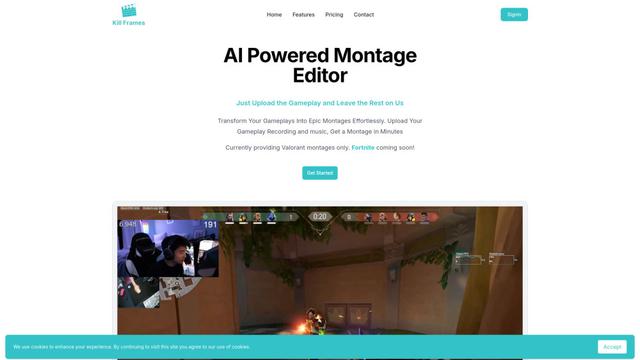
Kill Frames is an AI-powered montage editor that automatically creates epic gaming highlight videos from uploaded gameplay footage.
Popular AI Tools Like Effects SDK
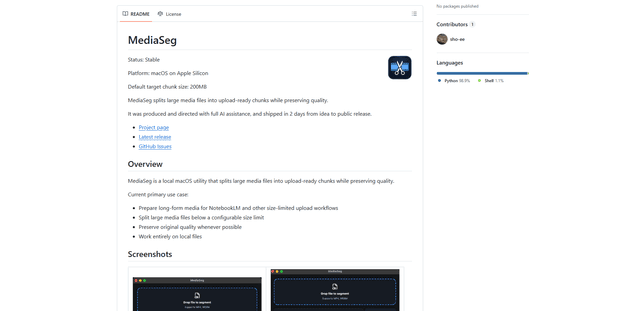
MediaSeg
MediaSeg is a stable, local-first macOS utility that splits large MP4/WEBM media files into upload-ready chunks under a configurable size limit while preserving quality using ffmpeg/ffprobe and an AI-assisted, target-based sizing strategy.
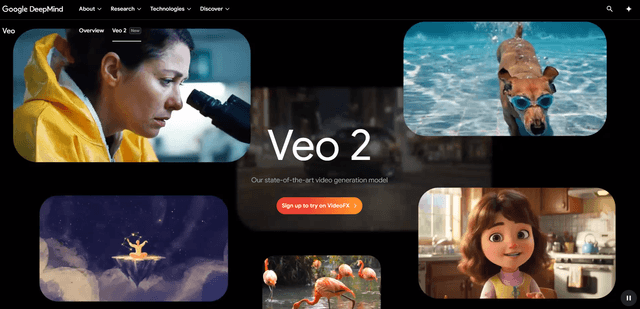
Google Veo 2
Veo 2 is Google DeepMind's state-of-the-art AI video generation model that can create high-quality videos up to 4K resolution with realistic motion, extensive camera controls, and improved physics simulation from text prompts.
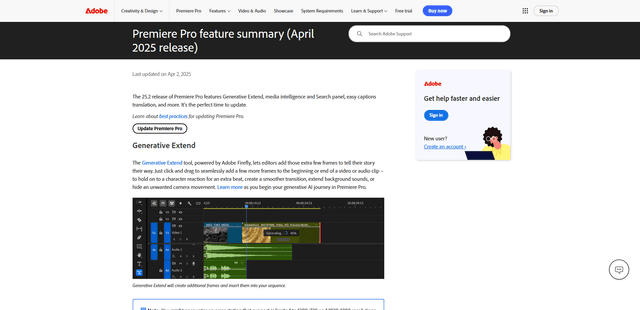
Adobe Premiere Pro 25.2
Adobe Premiere Pro 25.2 is the latest release of the industry-leading video editing software featuring powerful AI-powered tools like Generative Extend, enhanced media intelligence search capabilities, automatic caption translation, and improved color management.
VEED
VEED is an AI-powered online video editing platform that makes creating professional-quality videos easy and accessible to everyone.