
Dina
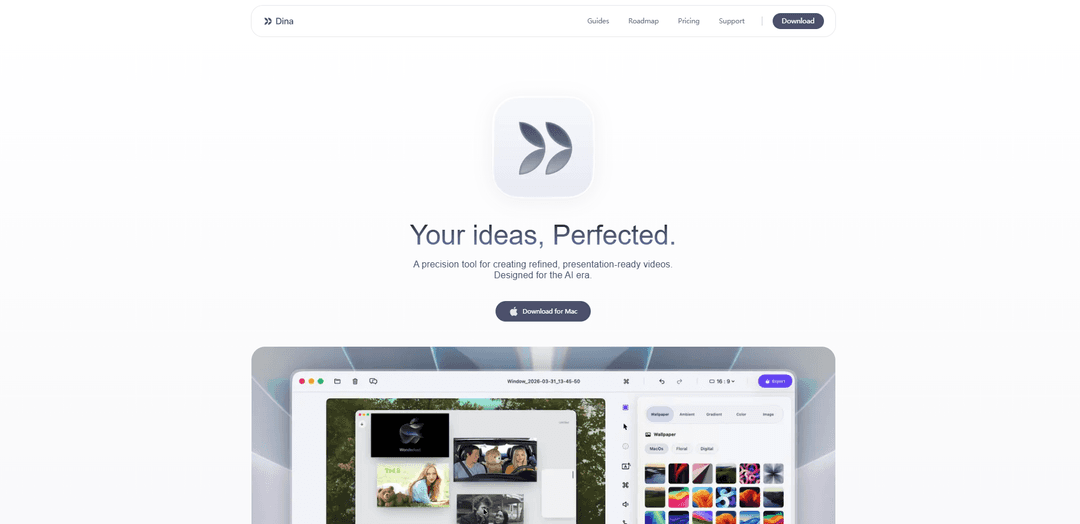
Dina is a macOS-only screen recording and editing app that automatically adds cinematic zoom, smooth cursor motion, captions, and AI transcript/voiceover tools to produce presentation-ready videos fast and offline.
https://dina.so/?ref=producthunt
Product Information
Updated:May 19, 2026
What is Dina
Dina is a precision screen-recording and video workflow tool built specifically for macOS to help creators produce refined, presentation-ready recordings. It combines capture (screen, system audio, mic, webcam, cursor, and keystrokes) with an integrated editor that supports timeline and transcript-based editing, layouts, annotations, and high-quality exports. Designed for the AI era, Dina runs intelligent features on-device (via Core ML) and saves files locally, emphasizing privacy and an offline-first workflow.
Key Features of Dina
Dina is a macOS-only, privacy-focused screen recording and editing app designed to produce presentation-ready videos with minimal manual work. It captures screen, system audio, mic, and webcam in one workflow, then enhances recordings with cinematic zoom, smooth cursor motion, captions/transcripts, and timeline + transcript-based editing. Dina also supports layouts, annotations, masking, iPhone recording (via USB or iPhone mirroring), and high-quality exports (including 4K and layered export), while running AI features fully on-device (offline) via Core ML and offering a one-time purchase license.
Cinematic zoom (auto + manual): Automatically zooms into key interactions to keep viewers focused, with options for precise manual zoom control and smooth zoom animations.
All-in-one capture (screen + audio + camera): Records display/window/area along with system audio, microphone, webcam, cursor, and even keystrokes in a single take.
Timeline + transcript editing: Edit with a full timeline and transcript controls, including AI-assisted removal of fillers/silence and the ability to edit video via text.
On-device AI voiceovers and captions: Generates editable transcripts/captions and creates natural-sounding voiceovers from text using efficient on-device models (offline).
Polish tools: cursor smoothing, annotations, layouts, masking: Adds refined cursor motion and customizable cursor/keystroke visuals, plus arrows/highlights/callouts, slide/text layouts, and multi-region masking for sensitive info.
High-quality exports + iPhone recording: Exports in native resolution (including 4K) and supports layered export for pro workflows; records iPhone screens in original resolution with device mockups and keyframes.
Use Cases of Dina
Product demos for SaaS teams: Create polished feature walkthroughs with automatic zoom, cursor refinement, captions, and quick edits—ideal for marketing pages, sales enablement, and launches.
Tutorials and online courses: Record lessons with webcam + mic, add captions and callouts, and use transcript editing to clean narration for clearer instructional content.
Customer support and onboarding: Produce short how-to clips that highlight exactly where to click (zoom/annotations) and mask private data, improving ticket resolution and user activation.
Internal training and SOP documentation: Standardize internal process videos with consistent layouts, visible keystrokes, and fast trimming/splitting—useful for ops, IT, and HR enablement.
Mobile app demos and QA sharing: Capture iPhone recordings with device mockups and smooth transitions, making it easier for product/QA teams to share bugs, flows, and release notes.
Creator content for social and community: Adapt aspect ratios, add text/slide scenes, and export high-quality clips for YouTube, X, TikTok, and community updates without heavy post-production.
Pros
macOS-native performance (Apple Silicon/Metal/SwiftUI) with a workflow designed for polished screen recordings
Strong privacy posture: works fully offline, saves locally, and runs AI on-device via Core ML
One-time purchase (no subscription) with lifetime updates listed
Cons
No Windows version (macOS-only)
Requires macOS Sequoia or later, limiting compatibility with older Macs/OS versions
Best value depends on needing its built-in polish/AI features; simpler recorders may be sufficient for basic capture
How to Use Dina
1) Download and install Dina (macOS): Go to https://dina.so/download → download the Mac app → install it like a standard macOS app (drag to Applications if prompted) → open Dina.
2) Start a new recording: Open Dina’s recording panel → choose what to capture: Display / Window / Area → enable the inputs you need: Microphone, System Audio, and (optionally) Webcam.
3) Configure what viewers will see (cursor + keys): In recording settings, enable keystroke display so every keypress appears on-screen → adjust cursor size/variant and highlight effects for clarity and brand consistency.
4) Set your framing (background, spacing, aspect ratio): Choose an aspect ratio appropriate for your destination (e.g., widescreen vs. vertical) → set a background and adjust spacing/padding around the captured content to keep the frame clean and consistent.
5) Record with presence (camera + captions): If desired, turn on webcam and position/shape it (size, roundness, placement) → record your mic along with system audio so the capture is complete from the start → enable captions/transcript generation if available in your workflow.
6) Use Pause / Resume to keep takes clean: During recording, use Pause Recording when you need to think or reset → Resume when ready, keeping the final timeline tighter and easier to edit.
7) (Optional) Schedule a recording: If you need to capture something at a specific time, use Scheduled Recording → set the start time → Dina will begin recording automatically.
8) Record iPhone content (optional): Connect your iPhone via USB (or select the iPhone mirroring window) → start recording → optionally place the capture into an iPhone device mockup for a polished presentation.
9) Review the timeline and refine structure: After recording, use the timeline to trim and split clips → refine pacing and remove mistakes → use transcript controls (where available) to adjust timing/wording and clean up filler/silence.
10) Add cinematic zoom (auto or manual): Enable Automatic Zoom to follow key interactions → switch to Manual Zoom when you want precise emphasis → adjust zoom animation smoothness so transitions feel intentional.
11) Add layouts to create complete scenes: Insert layouts to combine titles, slides, images, and video into cohesive scenes → use Slide Layout for slide-like moments and Text Layout for on-screen text timed to enter/exit naturally.
12) Guide attention with annotations: Add arrows, shapes, highlights, and callouts directly on the video to direct the viewer’s eye → time them to appear exactly when the viewer needs guidance.
13) Mask sensitive information (optional): Use Mask Layout to hide sensitive areas (multi-region masking) → position masks precisely over confidential UI elements before exporting.
14) Record voiceovers in the timeline (optional): If you need narration changes, record voiceovers directly into the timeline → re-take sections without re-recording the entire screen capture.
15) Customize keyboard shortcuts for speed: Open shortcut settings → remap shortcuts to match your workflow (and brand/consistency goals) so editing and navigation are faster.
16) Export for sharing or pro workflows: Export in native resolution to preserve quality for demos/tutorials → if you need advanced post-production, export as layers for maximum flexibility in professional editing pipelines.
Dina FAQs
Dina is a macOS app for creating refined, presentation-ready videos from screen recordings, with built-in editing and AI-assisted features.
Popular Articles

Atoms: A Multi-Agent AI Platform That Transforms Ideas into Launch-Ready Products
May 22, 2026

Nano Banana SBTI: What It Is, How It Works, and How to Use It in 2026
Apr 15, 2026

Atoms Review — The AI Product Builder Redefining Digital Creation in 2026
Apr 10, 2026

Kilo Claw: How to Deploy and Use a True "Do‑It‑For‑You" AI Agent(2026 Update)
Apr 3, 2026
Latest AI Tools Similar to Dina
EzVideos
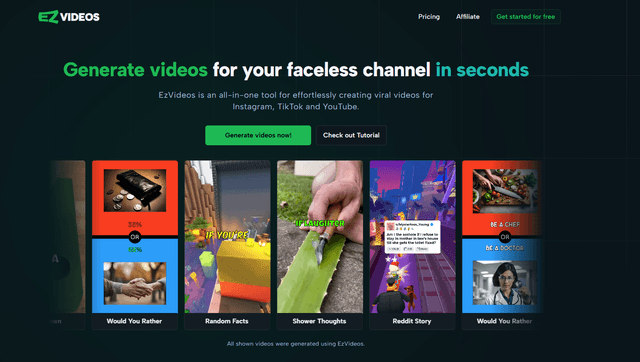
EzVideos is an all-in-one video creation tool that helps users generate viral videos for social media platforms like Instagram, TikTok, and YouTube with automated editing features and built-in resources.

Blanc AI
Blanc AI is a revolutionary AI solution that enables video content translation and dubbing into 47+ languages while preserving the original voice, emotions, and lip synchronization.
Wink Mody
Wink Mody is a modified version of the Wink video editing app that offers premium features like AI-powered retouching, 4K exports, and watermark-free editing completely free of charge.
Shortmake AI
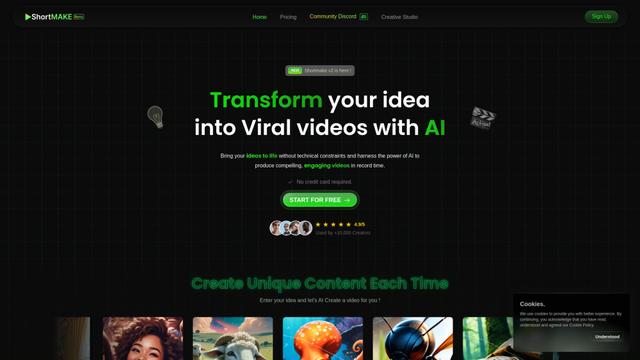
ShortMake is an AI-powered video creation platform that transforms ideas into viral-ready videos by automatically generating scripts, voiceovers, visuals, and subtitles specifically optimized for platforms like TikTok and YouTube Shorts.
Popular AI Tools Like Dina
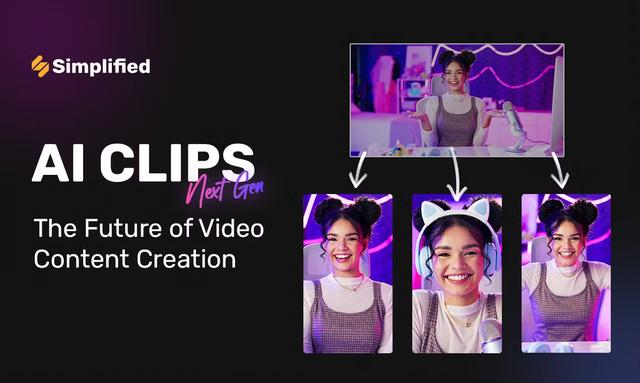
AI Clips - New Gen
AI Clips - New Gen is an AI-powered video clipping tool that automatically generates engaging short-form content from long videos for multiple social media platforms like YouTube Shorts, TikTok, Instagram Reels and more.
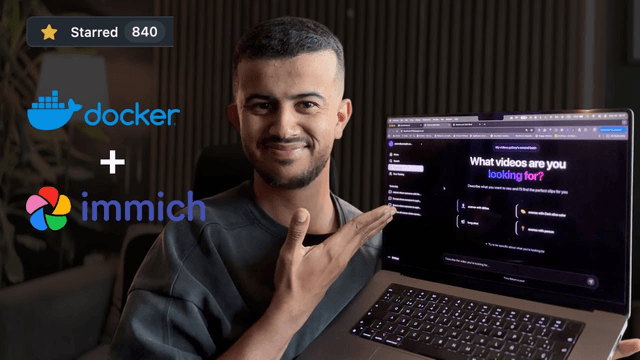
Edit Mind
Edit Mind is an open-source, AI-powered video indexing and semantic search platform that enables users to analyze and search through video content using natural language queries, with features including transcription, frame analysis, face recognition, and object detection.
Dinamo Notebook
FreeAI Video Editing
Dinamo Notebook is a free, MIT-licensed, local-first browser extension for football video analysis that lets you draw tactical annotations on YouTube/Dailymotion/Twitch footage and optionally use AI (with your own OpenAI API key) for tactical insights.
MediaSeg
MediaSeg is a stable, local-first macOS utility that splits large MP4/WEBM media files into upload-ready chunks under a configurable size limit while preserving quality using ffmpeg/ffprobe and an AI-assisted, target-based sizing strategy.