
Cadence
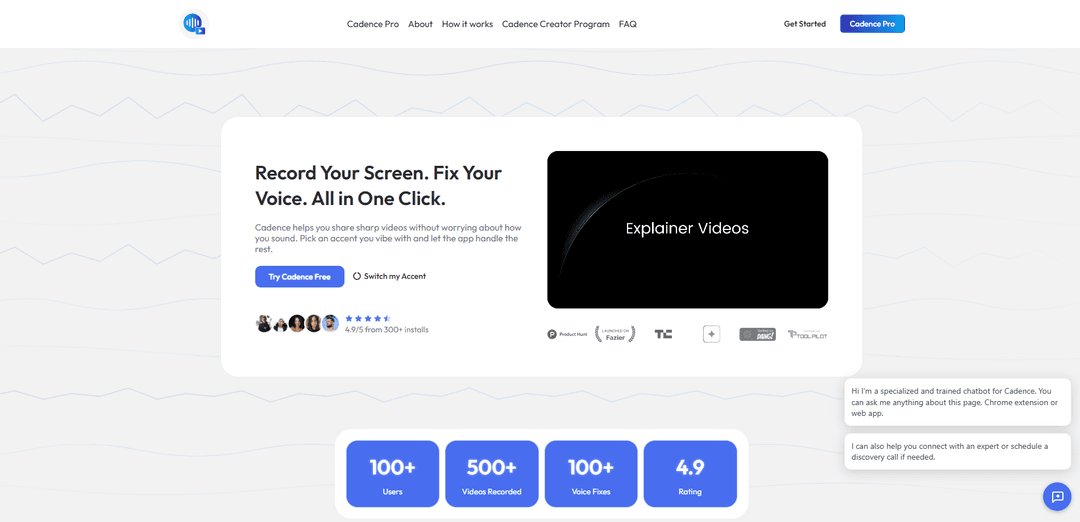
Cadence is a screen recording app and Chrome extension that captures your screen and uses AI to enhance your voice—swapping accents, cleaning audio, and optionally dubbing/translating—so you can share polished videos without re-recording.
https://usecadence.co/?ref=producthunt
Product Information
Updated:Jul 8, 2026
What is Cadence
Cadence is an AI-powered screen recording toolkit built for people who create demos, tutorials, and walkthroughs but don’t love how they sound on playback. It combines reliable screen capture (tabs, apps, full screen, or camera feed) with voice enhancement features like AI accent swap and audio reconstruction to produce clearer, more confident narration. The product emphasizes a fast workflow (record once, then enhance), practical recording utilities (on-screen markup, cursor highlights, and live blurring of sensitive information), and flexible sharing options such as saving locally or sending exports to Google Drive, with additional Pro features for longer sessions and storage.
Key Features of Cadence
Cadence is a Chrome-based screen recording tool that pairs capture features (tabs/apps/full screen/camera, markup, cursor highlights, and privacy blurring) with AI voice enhancement to help creators and teams ship polished videos without re-recording. It can swap or rebuild your accent/voice to sound clearer and more “global,” reduce noise and mic distortion, and (in Pro) translate recordings into 25+ languages, support longer sessions, and add cloud storage plus shareable/private links—making async demos, tutorials, and updates faster to produce and easier to share.
Screen + camera recording: Capture browser tabs, apps, full screen, or a camera feed with stable playback, designed to handle fast window switching for smooth demos.
AI accent swap & voice rebuild: Transforms your voice into a cleaner regional accent while preserving pacing and tone, and reconstructs audio to reduce noise/mic distortion; original audio remains available to toggle back.
In-recording clarity tools: On-screen markup (draw while recording), cursor highlights for click/pointer emphasis, and timeline-clean overlays to make walkthroughs easier to follow.
Privacy controls for sensitive content: Blur/hide sensitive information on the fly—useful for internal demos, support videos, and product walkthroughs.
Pro sharing & storage: Cloud storage (100GB), access across devices, and private or shareable links for quick distribution; free mode emphasizes local storage with optional Google Drive export.
Pro production upgrades: Long sessions (up to 1 hour), pro recording tools (e.g., captions, templates, layout tools, keyframes/auto-zoom on click), plus language translation into 25+ languages.
Use Cases of Cadence
Product demos for SaaS teams: Record feature walkthroughs and internal updates with clearer voice delivery, cursor emphasis, and shareable links—especially useful for async communication across time zones.
Developer and security-sensitive walkthroughs: Create confidential codebase demos using blur tools for secrets/PII and local-first storage options, then selectively share via private links when needed.
Customer support and troubleshooting videos: Record step-by-step fixes with markup and cursor highlights; improve audio clarity to reduce misunderstandings and avoid multiple retakes.
Education and training content: Produce lessons, tutorials, and longer explainers (up to 1 hour) with polished narration, captions/templates, and optional translation for multilingual learners.
Marketing and sales enablement: Create polished pitch videos and landing-page explainers with improved voice quality; exported audio/video can be used commercially.
Global team communication: Record once and translate into 25+ languages (Pro), helping international teams share consistent updates and training materials.
Pros
Combines screen recording and AI voice enhancement in one workflow, reducing re-recording and editing effort.
Strong usability for demos: markup, cursor highlights, and sensitive-info blurring are built in.
Flexible storage/sharing: local storage by default with Google Drive export; Pro adds cloud storage and shareable/private links.
Commercial usage allowed for exported AI voiceover per the FAQ.
Cons
Not designed for real-time voice changing (e.g., live Zoom calls); it’s record-then-process.
Some key capabilities are gated behind Pro (e.g., long sessions, translation, cloud storage, full/unlimited accent swap).
Accent/voice transformation may not fit every brand or compliance context and may require review before publishing.
How to Use Cadence
1) Install Cadence: Go to https://usecadence.co/ and install Cadence (the app and/or the Chrome extension, depending on how you plan to record).
2) Decide your workflow (App vs Extension): Use the Cadence app when you want an all-in-one screen recording toolkit (screen + camera + markup + privacy tools). Use the Chrome extension when you want quick access to the in-extension AI features (Accent Change, Voice Dubbing, Avatar Generation) while recording in the browser.
3) Start a new recording: Open Cadence and choose what you want to capture: a browser tab, a specific app window, your full screen, and optionally your camera feed.
4) Record your screen normally (don’t overthink your voice): Hit record and speak naturally. Cadence is designed so you can record once and apply voice improvements after, instead of doing multiple takes.
5) Use on-screen markup while recording (optional): If you’re explaining something, draw directly on the screen during the recording. Adjust pen size as needed; Cadence keeps overlays clean in the final export.
6) Hide sensitive information during the recording (optional): If private content appears (credentials, customer data, internal dashboards), use the ‘Hide Sensitive Info’ blur feature on the fly to obscure it.
7) Make your cursor easier to follow (optional): Enable cursor highlights so clicks and pointer movement are more visible—useful for tutorials, walkthroughs, and product demos.
8) Finish the recording and keep it local by default: Stop recording when done. Cadence keeps recordings on your device (local video storage) so you’re not forced to upload or hit an account wall.
9) Apply AI Accent Swap / Accent Change: Use Cadence’s AI Accent Swap to transform your voice into a cleaner, more global accent while preserving your emotion, pacing, and pauses. Free trial supports 1-minute recordings; Pro supports unlimited length and multiple accent choices (e.g., Neutral American, British RP, Australian, Transatlantic).
10) Clean up poor mic audio and background noise: If your recording has noise or mic distortion, run the voice rebuild/enhancement so the audio sounds more studio-quality—even if you recorded on a laptop mic in a noisy room.
11) Toggle between original and AI-enhanced audio: Compare the raw audio vs the AI-enhanced version. Cadence lets you switch back anytime so your original recording remains safe.
12) Translate your screencast (Pro, optional): If you need multilingual versions, use Language Translation to translate recordings into 25+ languages. This works alongside voice transformation for global teams and international audiences.
13) Generate an AI avatar (Extension, optional): If you don’t want to appear on camera, use AI Avatar Generation (available in the extension) to create a professional on-screen avatar while your voice carries the presentation.
14) Use Pro recording tools for polish (Pro, optional): For more refined videos, use Pro tools like keyframes, auto-zoom on click, templates, captions, layout tools, and improved camera/mic layering with better syncing.
15) Save and share your finished video: Export the final recording. You can save directly to Google Drive for easy sharing and cross-device access. If you’re on Pro, you can also use cloud storage (100GB) and generate private or shareable links.
16) Use Cadence for confidential demos safely: For internal or sensitive work demos, record as usual and rely on Cadence’s privacy stance: recordings are processed securely, not sold, and your voice data is not used to train public models.
17) Confirm usage rights before publishing: If you’re using the output commercially (YouTube, paid ads, landing pages), Cadence states you retain full commercial rights to the exported audio/video.
18) Know the intended use (not real-time calls): Cadence is built for asynchronous communication: record first, then apply AI processing. It is not designed to run in real time like a Zoom call.
Cadence FAQs
Cadence is an app for recording your screen and improving your voice in one workflow. It can capture tabs/apps/full screen (and camera feed) and then uses AI to rebuild audio—such as swapping your accent, removing noise, and improving clarity—so you don’t have to re-record.
Popular Articles

Proferex: A Cloud-Based Ad Tracking and Campaign Optimization Platform
Nov 4, 2026

How to Create Viral Talking Baby Podcast Videos with AI: Step-by-Step Guide
Nov 2, 2026

Vosko AI: Localize and Dub Videos for Global Audiences
Oct 15, 2026

Atoms: A Multi-Agent AI Platform That Transforms Ideas into Launch-Ready Products
Oct 13, 2026
Latest AI Tools Similar to Cadence
Rad Beauty
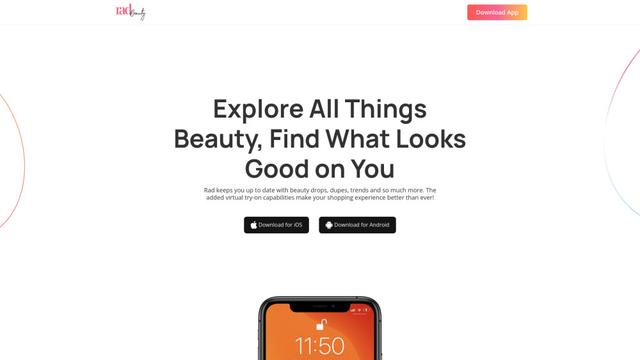
Rad Beauty is an AI-powered beauty app that provides personalized makeup recommendations, virtual try-ons, and product discovery through AR technology to revolutionize the beauty shopping experience.
AnyEnhancer
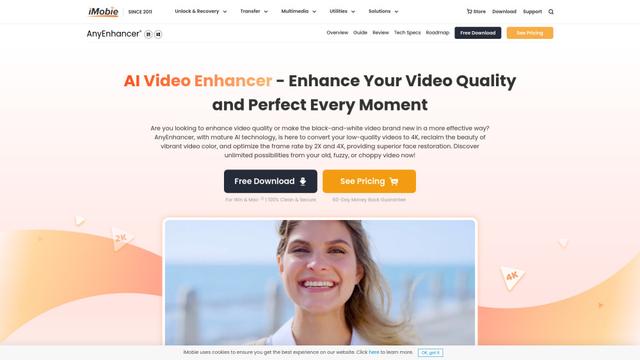
AnyEnhancer is an AI-powered video enhancement software that transforms low-quality videos into high-definition content through upscaling, denoising, colorizing, and frame interpolation capabilities.
AutoCut
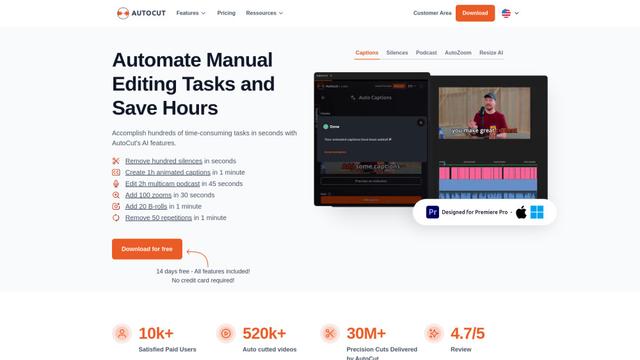
AutoCut is an AI-powered Premiere Pro plugin that automates video editing tasks like adding animated captions, removing silences, and editing podcasts to save hours of manual work.
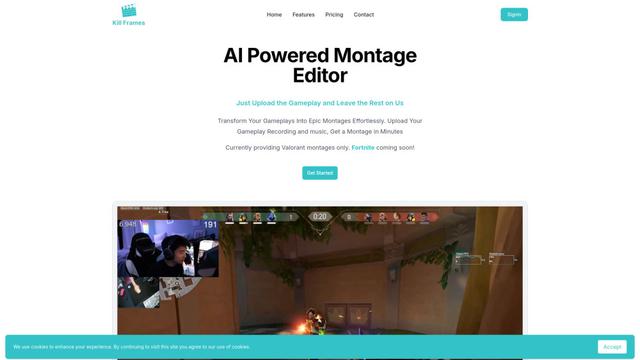
Kill Frames
Kill Frames is an AI-powered montage editor that automatically creates epic gaming highlight videos from uploaded gameplay footage.
Popular AI Tools Like Cadence
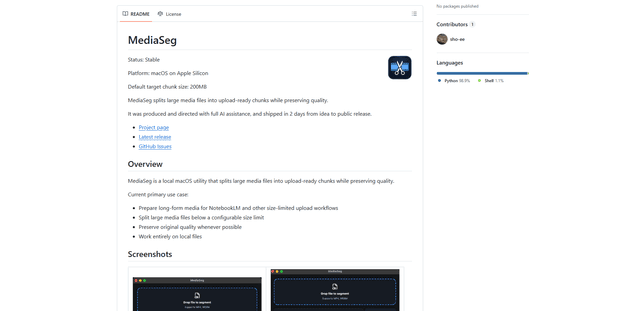
MediaSeg
MediaSeg is a stable, local-first macOS utility that splits large MP4/WEBM media files into upload-ready chunks under a configurable size limit while preserving quality using ffmpeg/ffprobe and an AI-assisted, target-based sizing strategy.
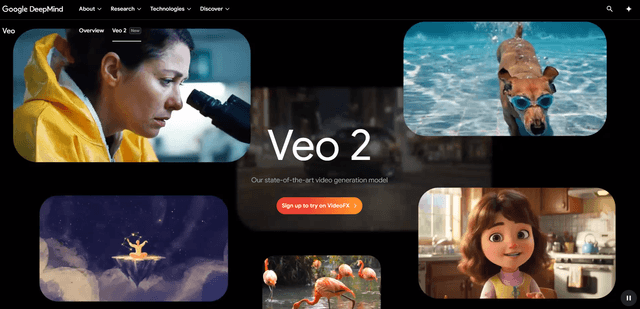
Google Veo 2
Veo 2 is Google DeepMind's state-of-the-art AI video generation model that can create high-quality videos up to 4K resolution with realistic motion, extensive camera controls, and improved physics simulation from text prompts.
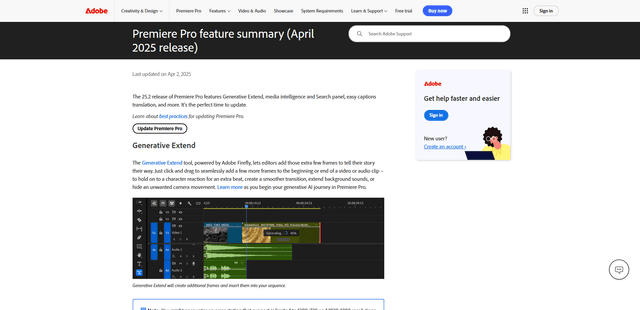
Adobe Premiere Pro 25.2
Adobe Premiere Pro 25.2 is the latest release of the industry-leading video editing software featuring powerful AI-powered tools like Generative Extend, enhanced media intelligence search capabilities, automatic caption translation, and improved color management.
VEED
VEED is an AI-powered online video editing platform that makes creating professional-quality videos easy and accessible to everyone.