
BugShot
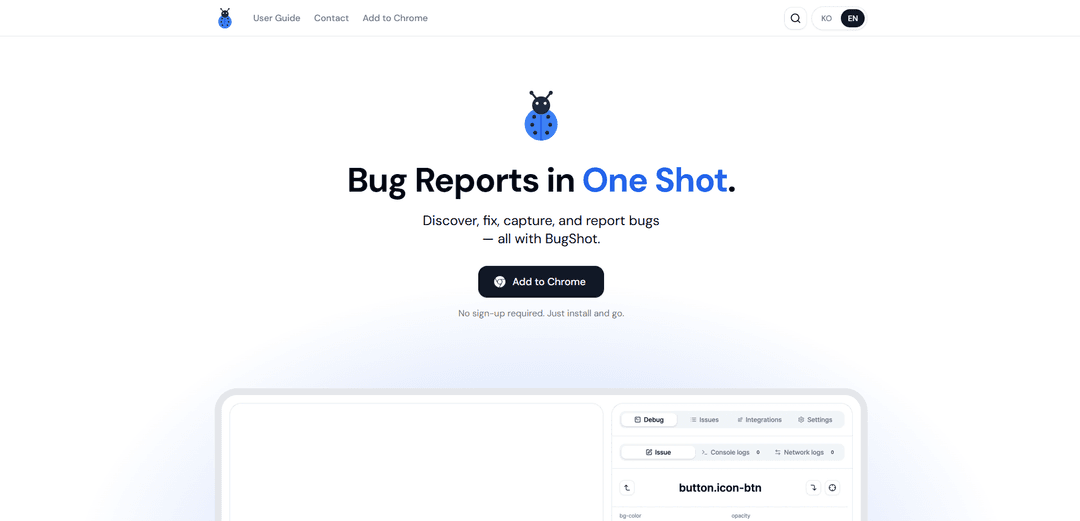
BugShot é uma extensão gratuita do Chrome para relatórios visuais de bugs que permite inspecionar/editar CSS, capturar replays instantâneos, coletar contexto automaticamente e registrar problemas ricos em ferramentas como Jira e GitHub com um clique.
https://bug-shot.com/?ref=producthunt&utm_source=aipure
Informações do Produto
Atualizado:Jul 16, 2026
O que é BugShot
BugShot é uma ferramenta visual de rastreamento e relatório de bugs que funciona como uma extensão do navegador Chrome, projetada para ajudar as equipes a capturar, explicar e enviar bugs de sites sem longas mensagens de ida e volta. Em vez de depender apenas de descrições escritas, ele permite que você anote e demonstre problemas diretamente na página, enquanto empacota automaticamente detalhes técnicos importantes (como navegador e resolução) em um relatório amigável para desenvolvedores. O BugShot é posicionado como um fluxo de trabalho completo no navegador – da descoberta ao envio do problema – e está disponível sem necessidade de inscrição.
Principais Recursos do BugShot
BugShot é uma ferramenta de relatório de bugs visuais baseada no Chrome que permite capturar, anotar e registrar relatórios de bugs de alta qualidade diretamente do navegador. Ele combina inspeção na página e edição CSS ao vivo (incluindo estilo assistido por IA), gravação/reprodução para capturar problemas à medida que acontecem (ou mesmo depois do fato) e relatórios estruturados gerados por IA. Cada relatório coleta automaticamente o contexto principal, como navegador, resolução e detalhes do DOM, e pode ser enviado com um clique para rastreadores de problemas como Jira, GitHub, Linear, Notion e muito mais – além de um visualizador de log que sincroniza vídeo com console, rede e logs de ação para acelerar a depuração e reduzir o "vai e vem".
Inspecionar e Editar na página: Clique em qualquer elemento para visualizar estilos/atributos aplicados e ajustar o CSS ao vivo em um editor visual para demonstrar a correção exata ou o estado de UI desejado.
Estilo de IA para alterações CSS: Descreva a alteração visual em linguagem simples e o BugShot reescreve o CSS, permitindo comparar antes/depois diretamente na página.
Gravar, Reproduzir e captura dos "últimos 30 segundos": Grave interações ao vivo ou capture os últimos 30 segundos de uma reprodução sempre ativa para capturar problemas intermitentes mesmo depois de notá-los.
Relatórios de bugs estruturados gerados por IA: Transforma os dados capturados em um formato de relatório claro (etapas para reproduzir, comportamento esperado, comportamento real) para melhorar a clareza e a consistência.
Coleta automática de contexto técnico: Anexa automaticamente detalhes do ambiente como navegador e resolução, além do contexto DOM, reduzindo informações ausentes em tickets de bug.
Registro de problemas com um clique + rastreamento de status: Envie tickets com anexos para ferramentas como Jira, GitHub, Linear e Notion, e depois rastreie e atualize o status do problema dentro do BugShot.
Casos de Uso do BugShot
Teste de QA para aplicativos da web: Engenheiros de QA podem capturar evidências reproduzíveis (vídeo + logs + contexto) e gerar relatórios estruturados, reduzindo o tempo de triagem e esclarecendo as etapas.
Relatórios de regressão de Frontend/UI: Designers ou desenvolvedores frontend podem anotar problemas de UI e propor correções CSS via edição ao vivo/estilo de IA, tornando os defeitos visuais mais fáceis de entender e resolver.
Equipes de produto registrando problemas sem experiência em DevTools: Não-engenheiros podem relatar bugs com metadados automáticos e gravações claras, reduzindo a dependência do conhecimento técnico e melhorando a qualidade do relatório.
Colaboração entre equipes em fluxos de trabalho ágeis: Equipes usando Jira/GitHub/Linear/Notion podem padronizar o envio de bugs e manter o status do problema visível em um só lugar para reduzir o "vai e vem".
Depuração de bugs intermitentes ou difíceis de capturar: O buffer de reprodução e o visualizador de log sincronizado ajudam a capturar problemas instáveis e correlacionar as ações do usuário com o comportamento do console/rede para uma análise mais rápida da causa raiz.
Vantagens
Não é necessário se inscrever e é gratuito para começar, diminuindo o atrito de adoção para as equipes.
Contexto rico e amigável ao desenvolvedor (gravações, logs, dados do ambiente, contexto DOM) melhora a reprodutibilidade e acelera a depuração.
Integrações diretas e registro com um clique para rastreadores populares simplificam os fluxos de trabalho e reduzem a cópia/colagem manual.
A inspeção/edição visual mais as alterações CSS assistidas por IA ajudam a comunicar problemas de UI com precisão.
Desvantagens
O fluxo de trabalho de extensão do navegador pode ser menos adequado para equipes que precisam de captura de bugs de aplicativos móveis/desktop nativos além do navegador.
O estilo gerado por IA e o conteúdo do relatório podem exigir revisão/ajuste para corresponder aos padrões da equipe e evitar sugestões incorretas.
A configuração da integração (chaves OAuth/API) pode adicionar uma sobrecarga de configuração inicial para algumas organizações.
Como Usar o BugShot
1. Instale o BugShot no Chrome: Vá para a listagem do BugShot na Chrome Web Store e clique em “Adicionar ao Chrome” para instalar a extensão. Nenhuma inscrição é necessária.
2. Abra o site onde você encontrou um bug: Navegue até a página que você deseja relatar. O BugShot funciona diretamente no navegador para que você possa capturar o problema no contexto.
3. Inspecione o elemento da interface do usuário problemático: Use o recurso de inspeção do BugShot para clicar no elemento e visualizar seus estilos e atributos aplicados, ajudando você a identificar o que está errado sem depender de explicações apenas textuais.
4. (Opcional) Edite estilos ao vivo para demonstrar uma correção: Ajuste o CSS no editor visual do BugShot para mostrar como a interface do usuário deve parecer. Isso cria uma referência clara de antes/depois para os desenvolvedores.
5. (Opcional) Use o Estilo de IA para gerar alterações de CSS: Descreva a alteração desejada em linguagem simples e deixe a IA do BugShot reescrever o CSS. Compare o antes e o depois diretamente na página.
6. Grave o comportamento do bug: Use Gravar e Reproduzir para capturar o problema enquanto ele acontece. Se você notar o bug depois do ocorrido, use a reprodução sempre ativa para pegar os últimos ~30 segundos.
7. Gere um relatório de bug assistido por IA: Use o Relatório de IA para transformar os dados capturados em um relatório estruturado que inclui etapas para reproduzir, comportamento esperado e comportamento real.
8. Revise o contexto coletado automaticamente: Confirme se o BugShot anexou o contexto de depuração principal (por exemplo, detalhes do navegador, resolução e contexto DOM) para que os desenvolvedores não precisem pedir informações de ambiente.
9. Conecte seu rastreador de problemas (somente na primeira vez): Vincule Jira, GitHub, Linear, Notion ou outro rastreador suportado usando OAuth ou uma chave de API. O BugShot sincronizará projetos e campos comuns (rótulos, responsáveis, prioridades).
10. Envie o problema com um clique: Use o Registro de Problemas com Um Clique para criar um tíquete em seu rastreador conectado com a gravação e outros anexos incluídos.
11. Use o Visualizador de Logs para depurar com reprodução sincronizada: Abra o visualizador de logs anexado para reproduzir o vídeo em sincronia com logs do console, atividade de rede e logs de ação para um diagnóstico mais rápido.
12. Rastreie e atualize o status do problema no BugShot: Verifique o status dos problemas enviados dentro do BugShot e atualize-os sem alternar para o seu rastreador.
Perguntas Frequentes do BugShot
BugShot é uma ferramenta do navegador Chrome para descobrir, capturar e relatar bugs de sites em um único fluxo de trabalho. Ele ajuda você a inspecionar elementos, capturar gravações e transformar os dados capturados em relatórios de bugs estruturados.
Artigos Populares

Vosko AI: Localize e Duble Vídeos para Públicos Globais
Oct 15, 2026

Atoms: Uma Plataforma de IA Multiagente Que Transforma Ideias em Produtos Prontos para Lançamento
May 22, 2026

Nano Banana SBTI: O Que É, Como Funciona e Como Usá-lo em 2026
Apr 15, 2026

Análise do Atoms — O Construtor de Produtos de IA Redefinindo a Criação Digital em 2026
Apr 10, 2026
Ferramentas de IA Mais Recentes Semelhantes a BugShot
Gait
O Gait é uma ferramenta de colaboração que integra a geração de código assistida por IA com controle de versão, permitindo que as equipes rastreiem, entendam e compartilhem o contexto do código gerado por IA de forma eficiente.
invoices.dev
invoices.dev é uma plataforma de faturamento automatizada que gera faturas diretamente dos commits do Git dos desenvolvedores, com capacidades de integração para GitHub, Slack, Linear e serviços do Google.
EasyRFP
EasyRFP é um kit de ferramentas de computação de borda alimentado por IA que agiliza as respostas a RFP (Pedido de Proposta) e possibilita fenotipagem de campo em tempo real por meio de tecnologia de aprendizado profundo.

Cart.ai
O Cart.ai é uma plataforma de serviços impulsionada por IA que fornece soluções abrangentes de automação de negócios, incluindo codificação, gerenciamento de relações com clientes, edição de vídeo, configuração de e-commerce e desenvolvimento de IA personalizado com suporte 24/7.
Ferramentas de IA Populares Como BugShot

GitHub Copilot Chat
O GitHub Copilot Chat é um assistente de codificação alimentado por IA que fornece interações em linguagem natural, sugestões de código em tempo real e suporte contextual diretamente dentro de IDEs suportadas e GitHub.com.
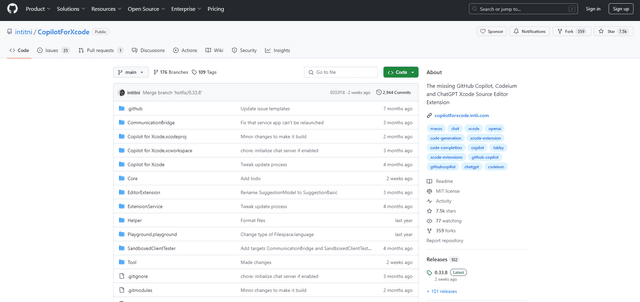
CopilotForXcode
O CopilotForXcode é uma Extensão do Editor de Código do Xcode que integra GitHub Copilot, Codeium e ChatGPT para fornecer sugestões de código impulsionadas por IA, assistência por chat e funcionalidade de prompt-para-código dentro do Xcode.
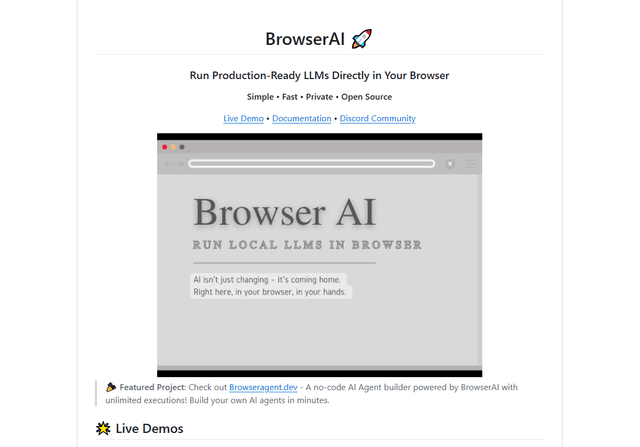
BrowserAI
BrowserAI é uma biblioteca de código aberto que permite executar Modelos de Linguagem Grandes (LLMs) locais diretamente em navegadores da web com aceleração WebGPU, oferecendo recursos de IA focados na privacidade sem exigir infraestrutura de servidor.
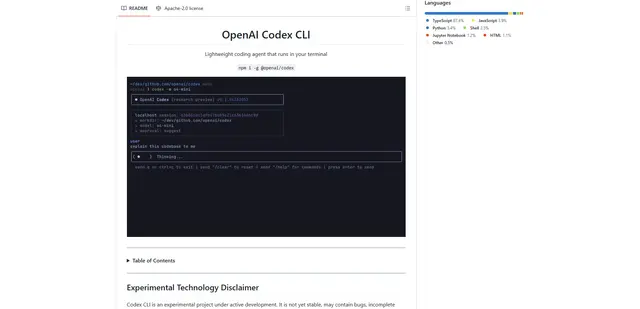
OpenAI Codex CLI
OpenAI Codex CLI é um agente de codificação leve e de código aberto que é executado no seu terminal, permitindo que os desenvolvedores traduzam linguagem natural em execução de código, ao mesmo tempo em que fornece raciocínio em nível de ChatGPT com a capacidade de executar código, manipular arquivos e iterar sob controle de versão.