
AutoEdit
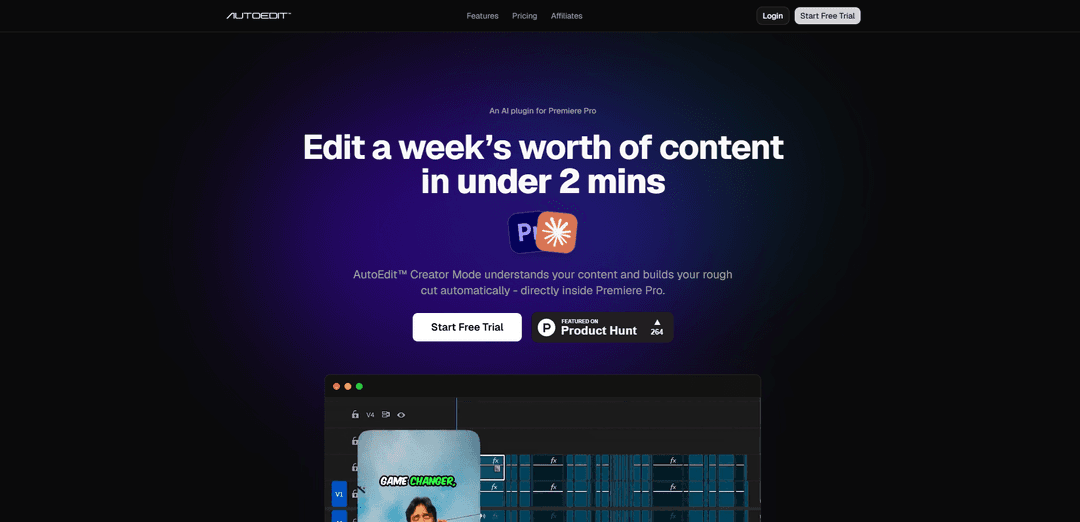
AutoEdit is an AI-powered Adobe Premiere Pro plugin that generates a cleaner rough cut in minutes by removing silences, filler words, repeats, and bad takes, plus creating editable captions—so creators can edit significantly faster.
https://www.autoeditai.net/?ref=producthunt
Product Information
Updated:Jun 16, 2026
What is AutoEdit
AutoEdit is a suite of AI plugins ("modes") built to speed up common editing workflows directly inside Adobe Premiere Pro. Designed for creators and editors working on YouTube videos, TikToks, Reels, podcasts, and more, it focuses on automating the repetitive first-pass work—like cleaning dialogue, structuring a timeline, and preparing captions—so you can start from a strong rough cut instead of a blank timeline. AutoEdit is positioned as a workflow accelerator rather than a one-click final edit, helping you move from raw footage to an editable foundation quickly.
Key Features of AutoEdit
AutoEdit is an AI-powered plugin that runs directly inside Adobe Premiere Pro to generate a cleaner rough cut from raw footage in minutes. It focuses on speeding up common creator workflows—removing silences, filler words, repeated takes, and “bad takes,” while also generating editable captions in 99+ languages. Powered by Claude AI, it can make context-aware cutting decisions based on meaning (not just audio waveforms), automatically structuring timelines so creators can spend less time on tedious first-pass editing and more time polishing the final cut.
Premiere Pro-native AI plugin: Works directly inside Adobe Premiere Pro (no exporting or switching tools), generating edits on your existing timeline.
Context-aware rough cut (Claude-powered): Understands what you’re saying to create a smarter first pass—beyond simple silence detection—so the cut is based on meaning and intent.
Silence & pause removal: Automatically trims dead air and awkward pauses while aiming to keep pacing natural for talking-head content.
Bad take + repetition cleanup: Detects restarts, stutters, weak takes, and repeated lines/ideas; keeps the best take and removes the rest to tighten delivery.
Filler word removal: Cuts common verbal clutter (e.g., “um,” “uh,” “like”) to create a more polished, concise edit.
Auto captions (99+ languages): Transcribes and creates captions quickly, supporting multilingual workflows and creator-style caption needs.
Use Cases of AutoEdit
YouTube talking-head editing: Turn long recordings into a tight rough cut by removing silences, filler, and bad takes—reducing hours of first-pass editing.
Short-form content (TikTok/Reels/Shorts): Rapidly condense raw footage into punchier clips with cleaner pacing, helping creators publish more frequently.
LinkedIn thought-leadership videos: Polish professional commentary by removing verbal clutter and awkward pauses, producing a cleaner, more confident delivery.
Podcast/video interview cleanup: Speed up edit prep for interview-based content by trimming dead air, restarts, and weak sections, plus generating captions.
Agency/editor rough-cut acceleration: Editors can use AutoEdit to create a fast, structured starting timeline for client projects, then refine creatively instead of doing repetitive cuts.
Pros
Runs inside Premiere Pro, minimizing workflow disruption (no separate tool/export step).
Saves significant time on repetitive first-pass edits (silences, filler, bad takes, repeats).
Context-aware editing (Claude-powered) can produce smarter rough cuts than waveform-only tools.
Includes fast caption generation with 99+ language support.
Cons
Not intended to produce a perfect final cut; it may cut lines you’d keep or choose takes you wouldn’t.
Premiere Pro dependency (plugin workflow) limits use for editors on other NLEs.
AI usage is time/plan-based (monthly tiers with hour limits), which may constrain heavy users.
How to Use AutoEdit
1) Install AutoEdit (Creator Mode) and start a trial: Go to https://www.autoeditai.net/ and start the free trial. Download and install the AutoEdit™ Creator Mode plugin so it appears inside Adobe Premiere Pro.
2) Open Adobe Premiere Pro and your project: Launch Premiere Pro and open (or create) the project you want to edit.
3) Prepare your sequence/timeline with your raw footage: Place your raw talking-head/podcast/interview footage into a Premiere sequence so AutoEdit can analyze the content on your timeline.
4) Launch AutoEdit inside Premiere Pro: Open the AutoEdit plugin panel from within Premiere Pro (AutoEdit runs directly inside Premiere—no exporting or switching tools).
5) Choose how you want AutoEdit to edit (Prompt or Auto-Edit): Either type a prompt telling the AI what you want, or click the Auto-Edit option to let it generate a rough cut automatically.
6) Let AutoEdit analyze your content (context-aware editing): AutoEdit analyzes what you’re saying (not just silence) to build a smarter rough cut based on meaning and which takes “land.”
7) Generate the rough cut (AI removes common talking-head issues): AutoEdit creates a cleaner first edit by automatically removing silences/awkward pauses, filler words (e.g., “um,” “uh,” “like”), repeated takes/ideas (keeping the best take), and bad takes (restarts, stutters, weak attempts).
8) (Optional) Create captions: Use Auto Captions to transcribe and generate captions (supports 99+ languages) and apply a creator-style caption look or customize your own.
9) Review the suggested changes: Check the proposed rough cut and confirm it matches your intent—AutoEdit is designed to speed up the first pass, but it may cut lines you would have kept or choose a take you wouldn’t pick.
10) Apply Edits to your timeline: Click “Apply Edits” to commit the changes. Your rough cut is now built directly in your Premiere timeline.
11) Finish the edit manually (creative pass): Do the final creative decisions in Premiere Pro: refine pacing, restore any lines you want, adjust timing, add B-roll, music, sound design, color, and any stylistic edits.
12) Export as usual from Premiere Pro: Once satisfied, export your final video using your normal Premiere Pro export workflow.
AutoEdit FAQs
Yes. AutoEdit Creator Mode runs natively inside Adobe Premiere Pro as a plugin.
AutoEdit Video
Popular Articles

Vosko AI: Localize and Dub Videos for Global Audiences
Oct 14, 2026

Atoms: A Multi-Agent AI Platform That Transforms Ideas into Launch-Ready Products
Oct 13, 2026

Nano Banana SBTI: What It Is, How It Works, and How to Use It in 2026
Apr 15, 2026

Atoms Review — The AI Product Builder Redefining Digital Creation in 2026
Apr 10, 2026
Latest AI Tools Similar to AutoEdit
EzVideos
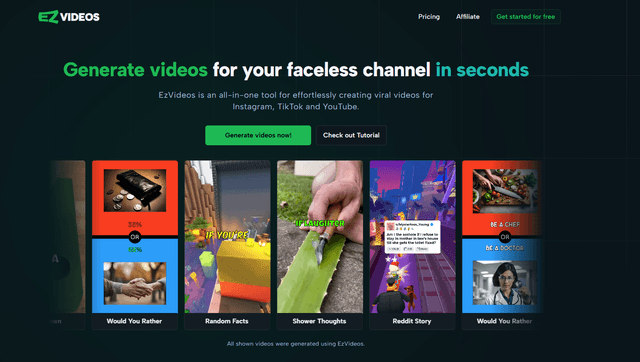
EzVideos is an all-in-one video creation tool that helps users generate viral videos for social media platforms like Instagram, TikTok, and YouTube with automated editing features and built-in resources.

Blanc AI
Blanc AI is a revolutionary AI solution that enables video content translation and dubbing into 47+ languages while preserving the original voice, emotions, and lip synchronization.
Wink Mody
Wink Mody is a modified version of the Wink video editing app that offers premium features like AI-powered retouching, 4K exports, and watermark-free editing completely free of charge.
Shortmake AI
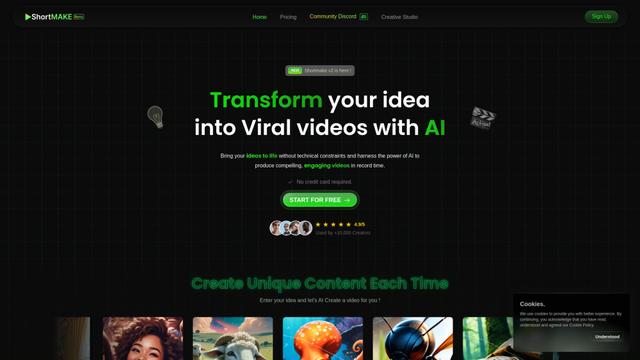
ShortMake is an AI-powered video creation platform that transforms ideas into viral-ready videos by automatically generating scripts, voiceovers, visuals, and subtitles specifically optimized for platforms like TikTok and YouTube Shorts.
Popular AI Tools Like AutoEdit
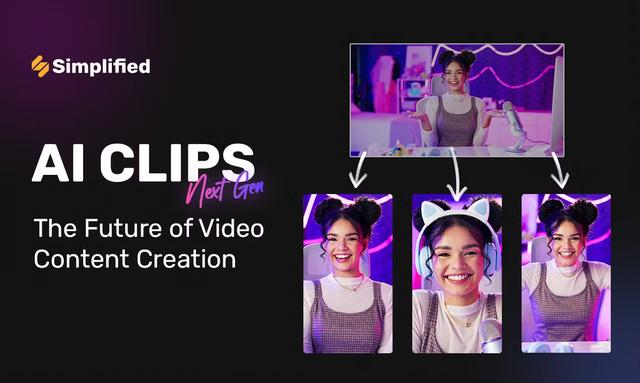
AI Clips - New Gen
AI Clips - New Gen is an AI-powered video clipping tool that automatically generates engaging short-form content from long videos for multiple social media platforms like YouTube Shorts, TikTok, Instagram Reels and more.
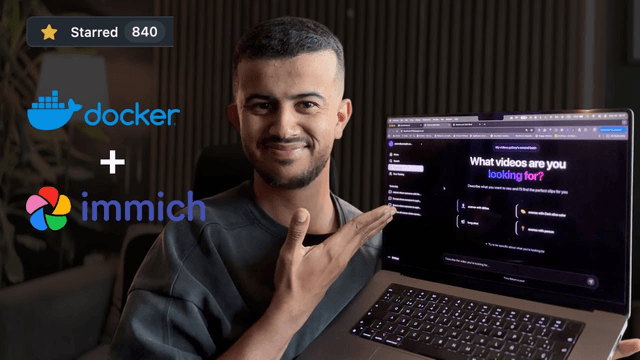
Edit Mind
Edit Mind is an open-source, AI-powered video indexing and semantic search platform that enables users to analyze and search through video content using natural language queries, with features including transcription, frame analysis, face recognition, and object detection.
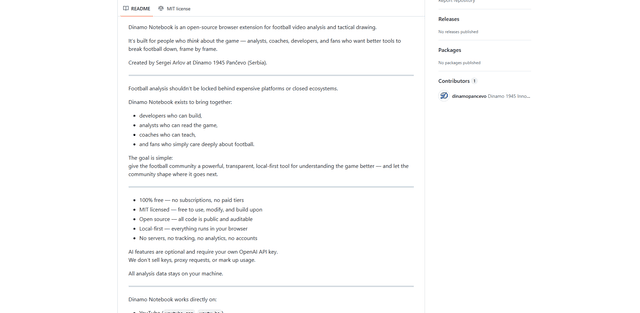
Dinamo Notebook
FreeAI Video Editing
Dinamo Notebook is a free, MIT-licensed, local-first browser extension for football video analysis that lets you draw tactical annotations on YouTube/Dailymotion/Twitch footage and optionally use AI (with your own OpenAI API key) for tactical insights.
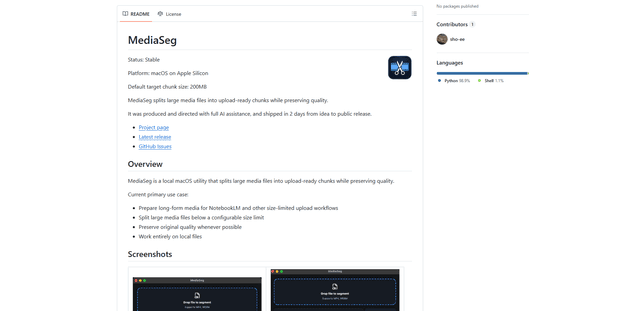
MediaSeg
MediaSeg is a stable, local-first macOS utility that splits large MP4/WEBM media files into upload-ready chunks under a configurable size limit while preserving quality using ffmpeg/ffprobe and an AI-assisted, target-based sizing strategy.