CtrlOps
CtrlOps is a local-first desktop app for managing Linux servers over agentless SSH with an AI-assisted terminal, real-time monitoring, a visual file manager, log browsing, backups, access control, and one-click deployments.
https://ctrlops.io/?ref=producthunt
Product Information
Updated:Nov 23, 2026
What is CtrlOps
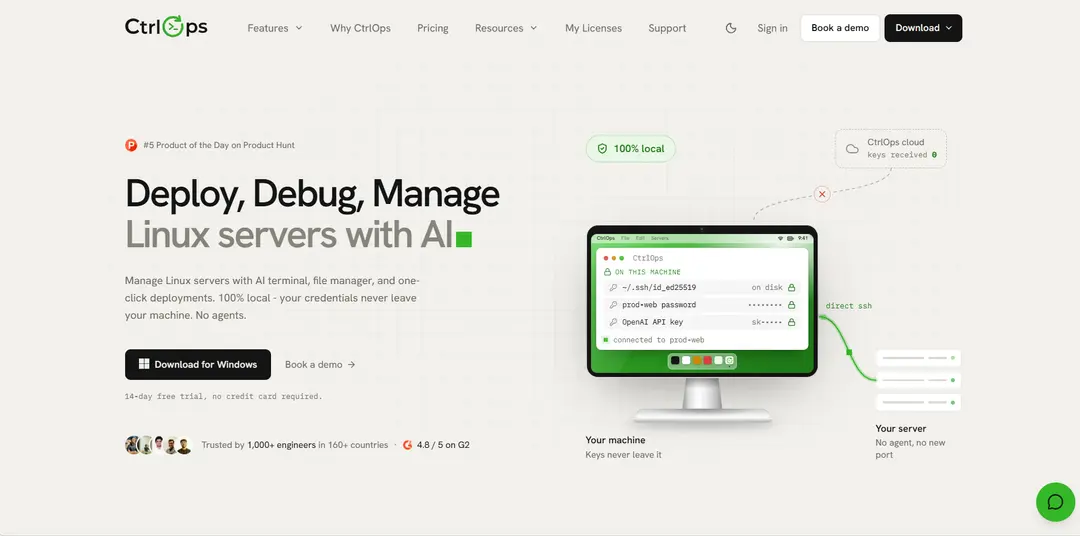
CtrlOps is a native desktop application (macOS, Windows, and Linux) designed to make Linux server operations feel like a unified workspace instead of a collection of SSH tabs, spreadsheets, and separate tools. Built for developers, small teams, and even non-DevOps users who still need to run production infrastructure, it brings core server workflows—connecting via SSH, troubleshooting, monitoring, file operations, and deployments—into a single dashboard. A key part of its positioning is privacy and security: CtrlOps is 100% local-first, storing SSH keys and credentials encrypted on your machine and not uploading them to a vendor cloud.
Key Features of CtrlOps
CtrlOps is a local-first desktop app for managing Linux servers over standard SSH (no agents required) from one unified workspace. It combines an AI-assisted terminal (plain English to commands with an approve-before-run safety gate), multi-server fleet management, real-time infrastructure monitoring, a visual file manager, log browsing, access/SSH key management, security audits with reports and fix commands, port forwarding, backups to S3, and one-click deployments from GitHub (with PM2/Nginx/SSL handling). All credentials and SSH keys are encrypted and stored on the user’s machine and are not uploaded to CtrlOps or third parties.
AI Terminal with approval gate: Describe tasks in plain English and CtrlOps generates the exact Linux commands, explains what they do, and waits for explicit approval before executing—designed for safer operations on live servers.
Agentless SSH-based server access: Connect to any Linux server via standard SSH with no server-side agents, plugins, or web panels exposed to the internet; credentials remain local and encrypted.
Multi-server fleet dashboard: Manage unlimited servers from one screen using named hosts/tags, quick switching, and parallel tabs—reducing IP spreadsheets and terminal-tab confusion.
Real-time infrastructure monitoring: Live CPU, memory, disk (and related system health signals) over SSH with no monitoring agent setup, enabling fast triage across a fleet.
Visual file + log management: GUI file manager for upload/download/edit/unzip over SSH plus log browsing/search/tail—replacing separate SFTP clients and ad-hoc log workflows.
Deployment, automation, and governance tools: One-click GitHub deployments, PM2 process management, script directory for reusable commands, cron jobs with reporting, access management (see/revoke access), security audits with PDF reports and guided fixes, and scheduled backups to S3.
Use Cases of CtrlOps
Startup/SaaS production operations without a dedicated DevOps hire: Founders and small teams can deploy from GitHub, monitor server health, troubleshoot incidents with AI-assisted commands, and manage processes/logs in one tool while keeping credentials local.
Digital agencies managing many client VPS instances: Centralize access to dozens of client servers, use the file manager for quick config edits, run saved scripts for repeatable fixes, and view fleet-wide monitoring to catch issues early.
Enterprise/IT access governance and offboarding: Use access management to audit who can log in and who has sudo across servers, then revoke access quickly when roles change—reducing security risk and manual cleanup.
Developer-led incident response and troubleshooting: Engineers can ask the AI terminal to interpret errors/logs and propose safe remediation steps with human approval, speeding up debugging while reducing risky copy-paste commands.
Security hardening and compliance reporting: Run SSH-based security audits, generate a hardening score and PDF report, and apply recommended fix commands (with approval) to improve baseline security posture.
Private access to internal services via port forwarding: Expose private services (e.g., databases, internal admin tools) only to localhost through SSH port forwarding for safer debugging and maintenance without opening inbound ports.
Pros
Local-first security: SSH keys/credentials are encrypted and stored on-device; no cloud sync required.
Agentless setup: works over standard SSH with no server-side installation, reducing operational overhead.
All-in-one workflow: AI terminal, monitoring, file/log management, deployments, and access controls reduce tool switching.
Safer AI operations: approve-before-execute gate helps prevent accidental or unsafe changes on production.
Cons
Requires desktop usage: designed as a desktop app (not a mobile-first workflow), which may limit on-the-go administration.
Not a full hosting control panel: does not replace traditional web hosting panels for DNS/email/vhost-style shared hosting management; may need pairing with other tools in those setups.
AI suggestions still need operator judgment: despite the approval gate, users must review commands carefully for correctness and risk.
How to Use CtrlOps
1) Download and install CtrlOps (macOS / Windows / Linux): Go to https://ctrlops.io and download the correct build for your OS. On macOS, open the .dmg and drag CtrlOps into Applications. On Windows, install from the Microsoft Store listing. On Linux, follow the official install instructions provided by CtrlOps for your distro.
2) Launch CtrlOps and complete the activation wizard: Open CtrlOps and follow the activation wizard to set up the local vault. This vault stores your server list and SSH credentials on-device (encrypted via the OS keychain / local encryption).
3) Get your API/trial key from the CtrlOps dashboard: Sign in at ctrlops.io (Google or email), copy your trial/license key from the dashboard (API Key page), then paste it into the desktop app to link your local installation to your subscription/trial.
4) Add your first server connection (SSH): In CtrlOps, click “New Connection” and enter a friendly name (e.g., “prod-web” or “db-01”), host/IP, username, and authentication method. You can connect using an SSH key, a password, or a pasted connection string. CtrlOps is agentless—nothing is installed on the server.
5) Verify the connection and open the server workspace: Select the server from your list to connect. CtrlOps will open a server workspace with tabs for Terminal/AI Terminal, File Manager, Monitoring, Logs, and other modules depending on your plan and server setup.
6) Use the AI Terminal (plain English → bash) with approval gating: Open the AI Terminal tab. Describe what you want in plain English (e.g., “check memory and CPU” or “why is nginx failing?”). CtrlOps will propose commands as a preview card with an explanation and a read/write indicator. Review the exact command and approve it before it runs.
7) Run manual SSH commands when you already know them: In the same terminal, you can type commands directly like a normal SSH session (e.g., “systemctl status nginx”). Use multiple terminal tabs to work on different tasks without losing context.
8) Save repeatable commands as one-click scripts: When you find commands you run often (or rarely but don’t want to re-learn), save them into the Scripts/Script Directory. Add variables, tags, and colors so you can run the same script across different servers quickly.
9) Browse and edit remote files using File Manager (over SSH): Open the File Manager tab to browse the server filesystem over your SSH connection. You can upload/download files, create folders, rename/delete items, copy paths, and edit text files (configs, scripts, env files) inside CtrlOps. Deletions are permanent (no trash), so download a backup first if needed.
10) Jump to system locations and manage files safely: From File Manager, use “Go to Root” to jump to /. Use search/filter to find files quickly. For risky edits (e.g., nginx configs), download a copy before editing, then apply changes and validate services via the terminal.
11) Monitor server health in real time (no agent): Open the Infra Monitoring/Monitoring tab to view live CPU, memory, and disk gauges plus a top-process list. CtrlOps collects these by running standard read-only commands over SSH and visualizing the results—no exporter/daemon required.
12) Inspect logs without memorizing tail/grep syntax: Open the Log Management/Logs tab to find, search, and tail log files over SSH. Use Follow to stream new lines in real time. Adjust the number of lines shown (e.g., 200 → 5000) and use built-in search instead of manual grep.
13) Use AI to explain errors and logs: When you hit an error in the terminal or see suspicious log output, ask the AI panel to explain what happened and propose a fix. Approve each suggested command before execution, especially on production.
14) Deploy an app from GitHub with Single-Click Deployment: Open the Deployment feature and click “Add Application.” Connect your GitHub account, choose a repo and branch, set environment variables, and configure domain/SSL options. CtrlOps can deploy common web stacks like Node.js/React/Next.js and handle typical setup steps (e.g., process management and web server/SSL configuration) through the guided form.
15) Manage processes with PM2 Process Manager (if applicable): If your app uses PM2, open the PM2 Manager module to restart/reload processes and manage runtime state without manually typing PM2 commands each time.
16) Set up scheduled backups to S3: Open the Backup module and configure scheduled folder copies to S3. Use the visible status indicators to confirm backups actually ran and that restore points exist.
17) Audit and harden servers with Security Audit: Run the Security Audit module to perform the set of SSH-based checks (25 audits). Review the hardening score and export the PDF report. If fixes are suggested, apply them via approval-gated commands.
18) Manage SSH keys and access across your fleet: Use SSH Management and Access Management to see who can log in to each server and who has sudo. Offboard a user by removing their access across servers (CtrlOps updates the server’s existing authorized_keys/access configuration over SSH).
19) Use port forwarding for private services: If you need to access an internal service (e.g., a private database admin UI), use the Port Forwarding feature to expose it locally on localhost through your SSH connection.
20) Adopt a safe production workflow (recommended): For production safety, connect with a restricted/read-only SSH user on prod and use a full-access user on staging. Combine this with the AI approval gate so nothing changes on production unless you explicitly approve it.
21) Troubleshoot connection issues and contact support: If a server won’t connect, verify SSH works outside CtrlOps (host, port, username, key permissions). Then consult CtrlOps documentation/troubleshooting guides. For support, email [email protected] with your OS, CtrlOps version, server distro, exact error message, and steps to reproduce.
CtrlOps FAQs
CtrlOps is a local-first desktop app for managing Linux servers over SSH with AI-assisted terminal workflows, real-time monitoring, file management, and one-click deployments. It’s agentless (no software to install on your servers) and works directly over standard SSH.
CtrlOps Video
Popular Articles

Proferex: A Cloud-Based Ad Tracking and Campaign Optimization Platform
Nov 4, 2026

How to Create Viral Talking Baby Podcast Videos with AI: Step-by-Step Guide
Nov 2, 2026

Vosko AI: Localize and Dub Videos for Global Audiences
Oct 15, 2026
Atoms: A Multi-Agent AI Platform That Transforms Ideas into Launch-Ready Products
Oct 13, 2026
Latest AI Tools Similar to CtrlOps

Hapticlabs
Hapticlabs is a no-code toolkit that enables designers, developers and researchers to easily design, prototype and deploy immersive haptic interactions across devices without coding.
Deployo.ai
Deployo.ai is a comprehensive AI deployment platform that enables seamless model deployment, monitoring, and scaling with built-in ethical AI frameworks and cross-cloud compatibility.
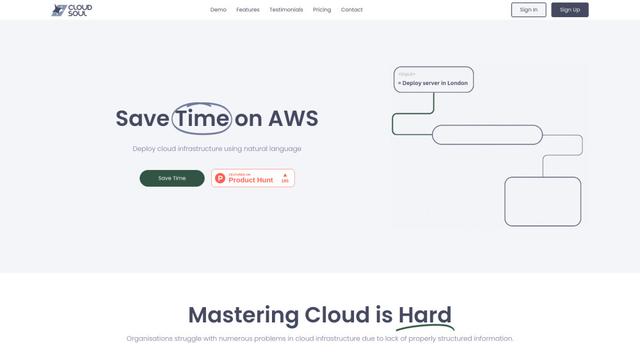
CloudSoul
CloudSoul is an AI-powered SaaS platform that enables users to instantly deploy and manage cloud infrastructure through natural language conversations, making AWS resource management more accessible and efficient.
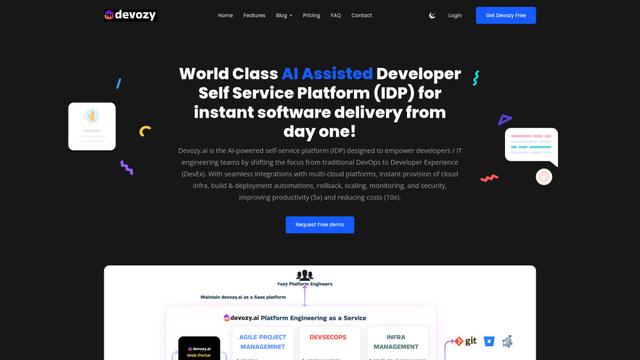
Devozy.ai
Devozy.ai is an AI-powered developer self-service platform that combines Agile project management, DevSecOps, multi-cloud infrastructure management, and IT service management into a unified solution for accelerating software delivery.
Popular AI Tools Like CtrlOps

A2A Protocol
A2A (Agent2Agent) Protocol is an open interoperability protocol developed by Google that enables seamless communication and collaboration between AI agents across different frameworks and vendors, regardless of their underlying architecture.
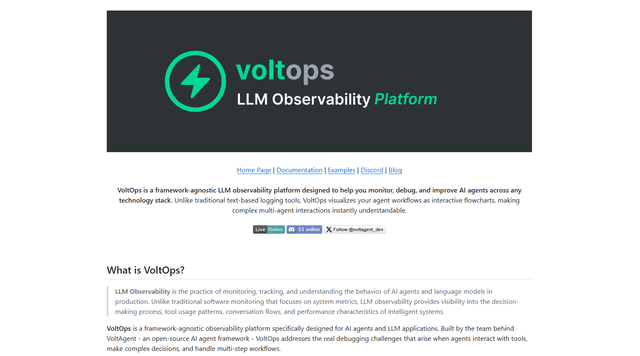
VoltOps
VoltOps is a framework-agnostic LLM observability platform that provides real-time visual monitoring, debugging, and optimization tools for AI agents across any technology stack.
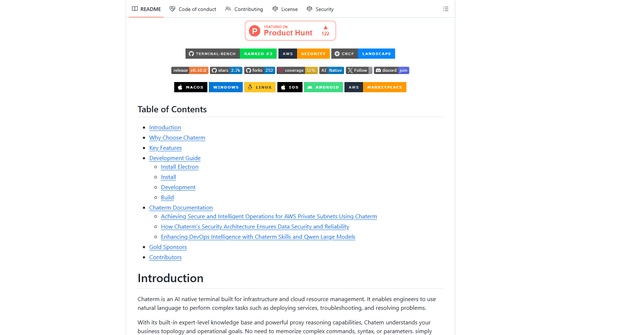
Chaterm
Chaterm is an open-source AI-native terminal and SRE copilot that enables engineers to manage complex infrastructure through natural language, automating deployment, troubleshooting, and operations without memorizing commands.
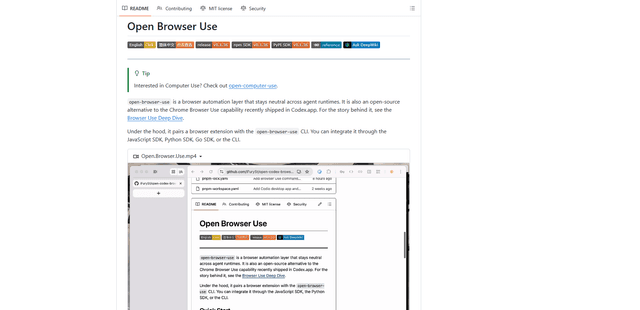
Open Browser Use
Open Browser Use is an open-source, agent-runtime-neutral browser automation layer that pairs a Chrome extension with a CLI/SDK/MCP to enable DOM-aware, CDP-powered tab control, navigation, and actions across different AI agent tools.