Wondershare Filmora
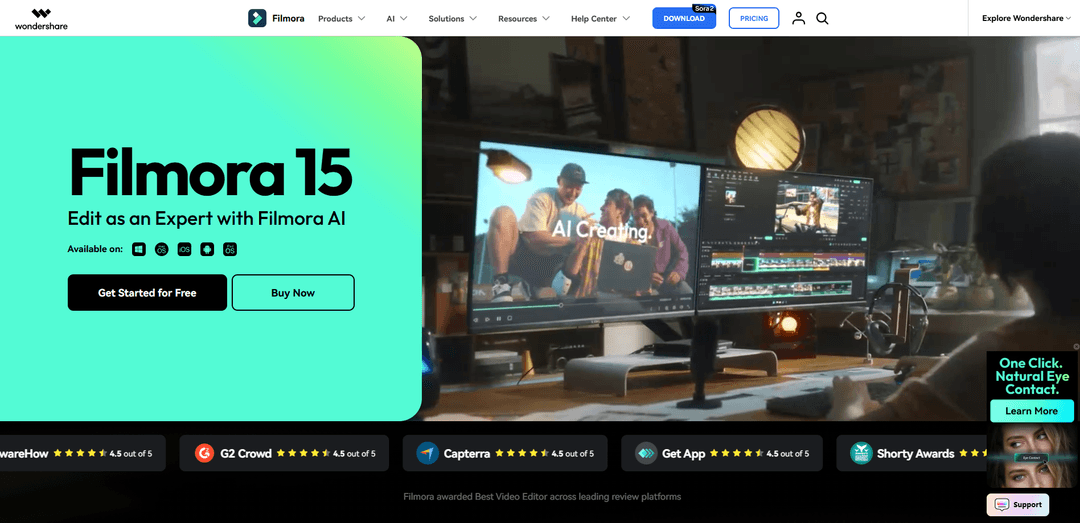
Wondershare Filmora is an all-in-one, AI-powered, cross-platform video editor with an intuitive drag-and-drop workflow, professional editing tools, and a large built-in library of creative assets.
https://filmora.wondershare.com/?utm_source=aipure
Product Information
Updated:Jun 8, 2026
Wondershare Filmora Monthly Traffic Trends
Wondershare Filmora received 2.2m visits last month, demonstrating a Slight Decline of -1.8%. Based on our analysis, this trend aligns with typical market dynamics in the AI tools sector.
View history trafficWhat is Wondershare Filmora
Filmora is an AI-powered, all-in-one video creation platform designed for content creators, YouTubers, marketers, and solo editors who need to produce professional-quality video content fast—without the complexity of traditional tools like Final Cut Pro or DaVinci Resolve.Powered by cutting-edge deep learning models, including Veo 3.1, Sora 2, and Nano Banana Pro, Filmora transforms creative ideas into polished, ready-to-publish videos. With access to a vast creative asset library of 2.9M+ templates, effects, transitions, stock footage, and music, creators can edit on desktop or mobile, then export in any format or publish directly to social platforms. Whether you're building short-form content, YouTube videos, or international campaigns, Filmora delivers professional results without the steep learning curve.
Key Features of Wondershare Filmora
Wondershare Filmora is a cross-platform, paid video editor (with a free trial) designed for creators who want professional-looking results without a steep learning curve. It combines an intuitive timeline workflow with a large library of built-in creative assets and a growing set of AI-assisted tools (e.g., dynamic captions, enhancement, masking), plus performance features like GPU acceleration and (on Mac) Metal rendering. Filmora supports common export formats and social platform presets, including direct YouTube export and scheduling, making it especially suited to social-first production while still offering prosumer controls such as keyframing, motion tracking, and multi-timeline editing.
Beginner-friendly timeline editor: Clean, intuitive interface with drag-and-drop editing, trimming, titles, transitions, effects, and templates—built to help non-professionals produce polished videos quickly.
AI-powered captions and text tools: Dynamic/auto captions and AI-assisted text workflows to speed up subtitling and on-screen text styling for social and accessibility needs.
Advanced motion controls (keyframes, tracking, pen tool): Anchor points and keyframing for precise animation, motion tracking for attaching graphics to moving subjects, and a Pen Tool for drawing motion paths and shaping transitions.
Video enhancement and cleanup: Tools like video enhancement (improving color/contrast/sharpness) and denoise to improve footage quality, plus additional AI-assisted improvements depending on version/plan.
Creative Assets library (royalty-free stock): Access to millions of built-in assets (effects, music, stickers, templates, etc.), with commercial-use availability depending on asset labeling and AI vs non-AI resource rules.
Social-ready exporting and performance acceleration: Export to common formats (MP4, MOV, AVI, MKV, MPEG, etc.), presets for platforms like YouTube/TikTok, direct YouTube upload and scheduling, plus GPU acceleration and Metal rendering on Mac for smoother playback and faster renders.
Use Cases of Wondershare Filmora
YouTube and creator content production: Edit vlogs, tutorials, and commentary videos with templates, effects, auto captions, and direct YouTube export/scheduling to maintain consistent posting.
Social media marketing for small businesses: Produce short-form ads, promos, and product demos using ready-made assets, aspect-ratio-friendly workflows, and quick enhancement tools for better-looking footage.
Training and internal communications: Create instructional videos with clear captions, screen-recording-friendly workflows (noted in guides), and simple editing for fast turnaround in HR, IT, or operations.
Education and course content: Teachers and course creators can assemble lectures, add dynamic captions and titles, and export in widely compatible formats for LMS or video hosting.
Freelance and prosumer client edits: Handle client work that needs motion graphics polish—keyframing, tracking, color matching across shots/subprojects—without the complexity of high-end NLEs.
Data-driven presentations and explainers: Use Animated Charts and screen recording to turn metrics into visual stories for sales decks, product updates, or performance reporting videos.
Pros
Easy to learn and fast to produce “splashy” edits with templates/effects and a clean UI
Strong value for creators: lots of built-in assets plus AI tools like dynamic captions and enhancement
Good performance support (GPU acceleration; Metal rendering on Mac) and social-friendly export options
Cons
Often seen as less controllable/advanced than pro editors (e.g., Premiere Pro/DaVinci Resolve) for deep workflows
Free trial exports include a watermark; full usefulness typically requires a paid plan
Some functionality may require internet (activation/proof of purchase, updates, AI features, cloud/asset downloads)
How to Use Wondershare Filmora
1) Download and install Filmora: Go to the official Wondershare Filmora website, download the version for Windows or macOS, run the installer, and complete setup.
2) Launch Filmora and sign in: Open Filmora and log in with your Wondershare ID (or create one). Signing in helps manage licenses, purchases, and projects.
3) Create a new project: On the startup screen, click "New Project" to open the editing workspace with default project settings.
4) Import media (video, audio, images): In the Edit window, click "Import Media Files Here" (or use the Import option) and select the files you want to edit. Your items will appear in the Media Library.
5) Organize your media in the Media Library: Keep clips and assets organized before editing. If you remove an item from Filmora’s Media Library, it only removes it from Filmora (not from your computer).
6) Add clips to the timeline (drag-and-drop): Drag video, audio, and images from the Media Library onto the timeline to build your sequence. Filmora’s interface is designed for quick drag-and-drop editing.
7) Do basic edits: trim, split, and arrange: Trim clip edges to shorten/extend, split clips to cut out sections, and reorder clips on the timeline to match your story.
8) Combine multiple clips (join on export): Place clips in sequential order on the timeline. They will be combined into one continuous video when you export.
9) Add transitions between clips: Open the Transitions section, choose a transition, and drag it between two clips on the timeline. Adjust its duration by dragging its edges.
10) Add effects, filters, and overlays: Go to Effects, select a filter/overlay, and drag it onto the timeline. Adjust the effect length by dragging either end. Use effects in moderation for best results.
11) Add text and captions (including Dynamic Captions): Add titles/text for labels and storytelling. Use Filmora’s caption tools (including Dynamic Captions) to create styled subtitles that enhance clarity and engagement.
12) Use keyframes for motion and precision: Use Anchor & Keyframes to control movement and timing of elements (e.g., text, overlays, zooms) for more professional motion design.
13) Improve color and consistency (optional): Use Filmora’s color tools to fine-tune color values. If mixing footage from different cameras/projects, use AI-assisted matching features where available.
14) Add music and sound effects (royalty-free assets): Use Filmora’s built-in library of music and sound effects or import your own. Check asset labels for commercial usability (AI-generated vs non-AI resources).
15) Preview and refine: Play back your timeline to review pacing, transitions, captions, and audio balance. Make final adjustments before exporting.
16) Export your finished video (local file): Click Export and choose a format such as MP4, MOV, AVI, MKV, or other supported formats. Select resolution/quality settings and export to your computer.
17) Export directly to YouTube (optional): Use Filmora’s YouTube export/upload mode, which can compress videos according to YouTube’s recommended settings. You can also schedule publishing using the Social Video Planner.
18) Work across devices (optional): If you have a cross-platform plan, you can use Filmora on multiple devices with the same account (for one individual) and continue editing across desktop/mobile/tablet.
Wondershare Filmora FAQs
Filmora is designed to be easy to use while still offering professional-level tools and effects. It also includes access to over 2.9 million built-in stock media assets, plus features like templates and AI-powered automation to speed up editing.
Official Posts
Loading...Popular Articles

Proferex: A Cloud-Based Ad Tracking and Campaign Optimization Platform
Nov 4, 2026

How to Create Viral Talking Baby Podcast Videos with AI: Step-by-Step Guide
Nov 2, 2026

Vosko AI: Localize and Dub Videos for Global Audiences
Oct 15, 2026

Atoms: A Multi-Agent AI Platform That Transforms Ideas into Launch-Ready Products
Oct 13, 2026
Analytics of Wondershare Filmora Website
Wondershare Filmora Traffic & Rankings
2.2M
Monthly Visits
-
Global Rank
-
Category Rank
Traffic Trends: Jul 2024-Jun 2025
Wondershare Filmora User Insights
00:01:35
Avg. Visit Duration
1.95
Pages Per Visit
66.28%
User Bounce Rate
Top Regions of Wondershare Filmora
IN: 23.93%
US: 16.77%
ID: 4.86%
PK: 3.96%
GB: 3.34%
Others: 47.15%
Latest AI Tools Similar to Wondershare Filmora
EzVideos
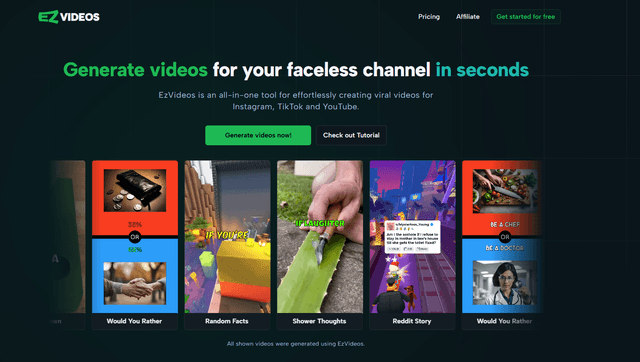
EzVideos is an all-in-one video creation tool that helps users generate viral videos for social media platforms like Instagram, TikTok, and YouTube with automated editing features and built-in resources.

Blanc AI
Blanc AI is a revolutionary AI solution that enables video content translation and dubbing into 47+ languages while preserving the original voice, emotions, and lip synchronization.
Wink Mody
Wink Mody is a modified version of the Wink video editing app that offers premium features like AI-powered retouching, 4K exports, and watermark-free editing completely free of charge.
Shortmake AI
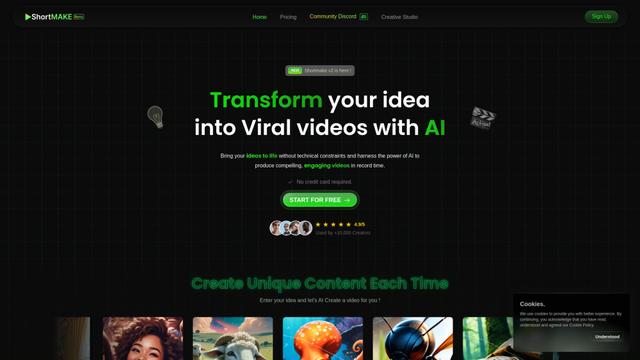
ShortMake is an AI-powered video creation platform that transforms ideas into viral-ready videos by automatically generating scripts, voiceovers, visuals, and subtitles specifically optimized for platforms like TikTok and YouTube Shorts.
Popular AI Tools Like Wondershare Filmora
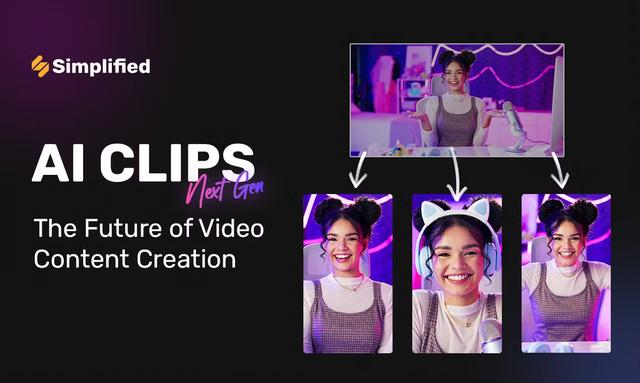
AI Clips - New Gen
AI Clips - New Gen is an AI-powered video clipping tool that automatically generates engaging short-form content from long videos for multiple social media platforms like YouTube Shorts, TikTok, Instagram Reels and more.
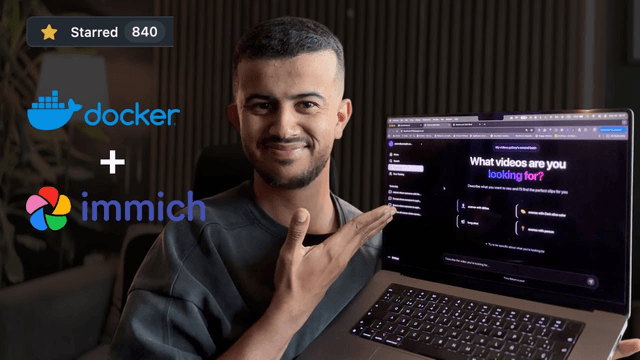
Edit Mind
Edit Mind is an open-source, AI-powered video indexing and semantic search platform that enables users to analyze and search through video content using natural language queries, with features including transcription, frame analysis, face recognition, and object detection.
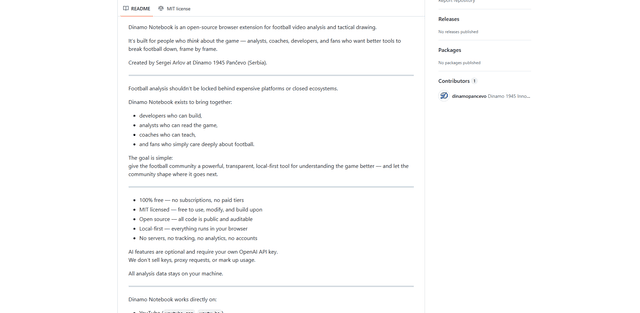
Dinamo Notebook
FreeAI Video Editing
Dinamo Notebook is a free, MIT-licensed, local-first browser extension for football video analysis that lets you draw tactical annotations on YouTube/Dailymotion/Twitch footage and optionally use AI (with your own OpenAI API key) for tactical insights.
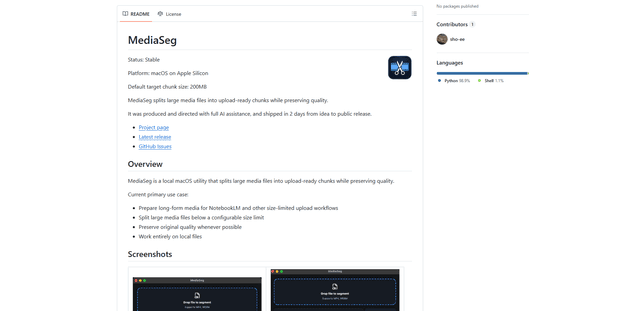
MediaSeg
MediaSeg is a stable, local-first macOS utility that splits large MP4/WEBM media files into upload-ready chunks under a configurable size limit while preserving quality using ffmpeg/ffprobe and an AI-assisted, target-based sizing strategy.