
Web Clipper for NotebookLM
Web Clipper for NotebookLM is a Chrome extension that saves web pages, PDFs, YouTube content, social posts/threads, and even AI chat conversations directly into Google NotebookLM in one click, plus adds powerful export, sync, and notebook-management tools.
https://chromewebstore.google.com/detail/web-clipper-for-notebookl/ancgeemmgnlempppapnfkdpghghphgjb?ref=producthunt
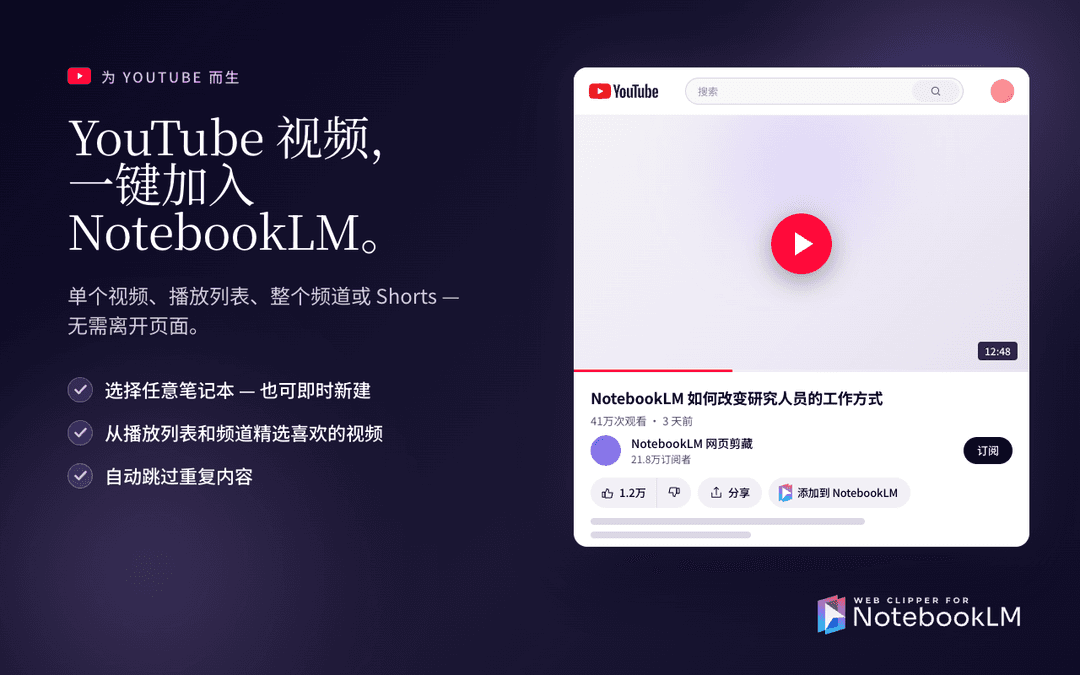
Product Information
Updated:Jun 8, 2026
What is Web Clipper for NotebookLM
Web Clipper for NotebookLM is a productivity-focused Chrome extension designed to remove the friction of building source libraries in Google NotebookLM. Instead of switching tabs, downloading files, or copy‑pasting links, it lets you capture sources from the page you’re already viewing—such as articles, full web pages, PDFs (including in-browser PDF viewers), YouTube videos/Shorts/playlists/channels, X (Twitter) tweets and threads, Reddit posts and selected comments, Note.com articles, and AI assistant chats—and send them straight into a chosen NotebookLM notebook. Beyond capture, it also adds workflow features like exporting NotebookLM-generated artifacts (e.g., flashcards, quizzes, mind maps, reports, notes, slide decks), duplicating notebooks, and keeping Google Drive-based sources synchronized.
Key Features of Web Clipper for NotebookLM
Web Clipper for NotebookLM is a Chrome extension that streamlines adding sources to Google NotebookLM by letting you clip web pages, PDFs, YouTube content, X (Twitter) threads, Reddit discussions, and even AI chat conversations directly from the page or a side panel—reducing tab switching and copy/paste. It also adds power workflows like exporting NotebookLM-generated artifacts (flashcards, quizzes, mind maps, reports, notes, slide decks) into common formats (e.g., Anki TSV, Markdown, Word, PDF), duplicating notebooks in one click, exporting NotebookLM chats to Markdown/PDF, and keeping Google Drive-based sources synced via manual refresh or background AutoSync.
One-click source capture (web, PDFs, more): Save web pages and articles directly into a chosen NotebookLM notebook without leaving the current tab; includes PDF-friendly capture via a floating button in Chrome PDF viewer (e.g., arXiv papers).
YouTube capture at multiple levels: Add a single video with one click, save Shorts via an in-page floating button, and batch-import playlists or even entire channels (optionally selecting specific videos) for lecture/podcast-style research notebooks.
Clip social and community knowledge (X + Reddit): Save individual tweets or entire threads as a single NotebookLM source (with automatic thread detection), and clip Reddit posts with top comments or hand-picked replies to preserve discussion context.
AI chat clipping (full threads or selected messages): Capture conversations from AI assistants (e.g., ChatGPT/Claude/Gemini) either as full chats (complete prompt/response context) or as selected high-value messages; supports re-clipping to update an existing source in place (Pro) to avoid duplicates.
Artifact export in many formats: Export NotebookLM artifacts—tables, flashcards/quizzes, mind maps, notes, reports, slide decks—into formats such as Excel/CSV, JSON, Anki TSV, Markdown, Word, PDF, OPML/FreeMind/Obsidian Canvas, and ZIPs of slides as PNGs.
NotebookLM workflow power-ups (duplicate, chat export, Drive sync, bulk delete): Duplicate entire notebooks (sources + Drive links), export NotebookLM chats to Markdown/PDF with citations preserved, manually sync or AutoSync Google Drive sources, and bulk-delete many sources from the Sources panel.
Use Cases of Web Clipper for NotebookLM
Academic research & literature review: Clip papers and PDFs (e.g., arXiv), related web articles, and key community discussions into a single NotebookLM notebook, then export study artifacts (tables, notes) to Word/Excel for writing and analysis.
Training, education, and exam prep: Import YouTube lectures/playlists and course readings, generate flashcards/quizzes in NotebookLM, and export to Anki TSV or spreadsheets for spaced-repetition and classroom materials.
Market/competitive intelligence for business teams: Save breaking news, analyst takes from X threads, and Reddit sentiment discussions into NotebookLM, then export reports to PDF/Word for stakeholders while keeping Drive-based sources updated via AutoSync.
Content creation and writing workflows: Clip sources while browsing (articles, threads, videos), use NotebookLM to synthesize outlines and notes, and export mind maps/notes to Markdown or Obsidian Canvas to plan posts, scripts, or briefs.
Engineering and technical knowledge management: Archive AI coding-help conversations as durable sources, re-clip to keep them updated, and export structured outputs (tables, notes) to Markdown/Word for team documentation.
Consulting/client project templating: Create a “base” NotebookLM notebook for a project type, duplicate it per client in one click, and keep shared Drive documents synchronized so each client notebook stays current.
Pros
Significantly reduces friction of adding sources to NotebookLM (in-page buttons, side panel, and specialized flows for PDFs/YouTube/social).
Broad capture coverage (web, PDFs, YouTube, X threads, Reddit, AI chats) with context-preserving options like full-thread clipping.
Strong export options for NotebookLM artifacts (including Anki-ready formats) and chat export to Markdown/PDF with citations.
Adds productivity features beyond clipping (notebook duplication, Drive source sync/AutoSync, bulk source deletion).
Cons
Requires Chrome/Chromium and extension permissions; some users may be cautious given declared data categories (PII, location, user activity) even if the developer states data isn’t sold.
Some advanced behavior is gated (e.g., smart re-clipping updates without duplicates is listed as Pro).
Login/account-detection flows can be finicky in practice for some users (e.g., reports of sign-in not reflecting properly).
How to Use Web Clipper for NotebookLM
1) Install the extension: Go to the Chrome Web Store listing for “Web Clipper for NotebookLM” and install it in Chrome.
2) Sign in to NotebookLM (so the clipper can detect your session): Open NotebookLM in Chrome and sign in with the Google account you use for NotebookLM. The extension works by detecting that you’re logged into NotebookLM.
3) Open the content you want to save: Navigate to any supported source you want to add to NotebookLM, such as a web page/article, a PDF opened in Chrome, or a YouTube video.
4) Launch Web Clipper for NotebookLM: Click the extension icon in the Chrome toolbar to open the clipper. On some pages (notably PDFs and YouTube), you may also see a floating on-page button you can use instead.
5) Choose the destination notebook: In the clipper UI, select the NotebookLM notebook you want to add the source to.
6) Add the source to NotebookLM: Click the action to add/save the current page (or video/PDF) into the selected notebook. This avoids manual copy/paste or switching tabs to import.
7) Verify in NotebookLM and start working with the source: Open NotebookLM and confirm the new source appears in the notebook’s Sources list. Then use NotebookLM to summarize, ask questions, and generate artifacts (e.g., study guides, flashcards, quizzes, mind maps, reports, audio overviews).
8) Clip YouTube content (video/shorts/channel/playlist): On YouTube, open a video (or Shorts) and use the extension (or floating button) to add it. The extension also supports adding channels or playlists, with options to batch add and/or select specific videos to include.
9) Clip AI chats (full conversation or selected messages): When using supported AI assistants (e.g., ChatGPT, Claude, Gemini), use the clip buttons injected into the assistant UI or clip from the extension side panel. You can save an entire chat thread as one source or pick only specific messages.
10) Re-clip to update an existing conversation source (Pro feature): If you clip the same AI conversation again, the extension can update the existing source in place to avoid duplicate sources (noted as a Pro feature).
11) Export NotebookLM artifacts to other formats: After NotebookLM generates artifacts (flashcards, quizzes, mind maps, reports, notes, tables, slide decks), use the extension’s export menu that appears in the artifact context menu to export to formats such as Anki TSV, Excel, Markdown, JSON, Word, PDF, OPML/FreeMind, or Obsidian Canvas (depending on artifact type).
12) Export a NotebookLM chat conversation (Markdown or PDF): Use the download/export control added to the NotebookLM chat panel header to export the full conversation as a clean Markdown file or a formatted PDF.
13) Keep Google Drive sources in sync (manual sync or AutoSync): For sources imported from Google Drive (Docs/Sheets/Slides/PDFs), use the extension’s sync controls: refresh an individual Drive source from its “More” (⋮) menu, sync all sources, or enable AutoSync per notebook via the extension side panel settings (gear icon).
14) Manage notebooks without opening NotebookLM (optional): From the extension side panel, you can create, rename, and delete notebooks, and choose where new clips are saved.
15) Duplicate a notebook (optional): Use the extension’s “Duplicate” action (available from the notebook list and/or side panel actions) to clone a notebook with its sources and preserved Google Drive links.
16) Bulk delete sources (optional cleanup): Use the extension’s bulk-delete/trash control in the NotebookLM Sources panel to select many sources (with search/filter) and remove them in one batch without disrupting your in-progress chat.
Web Clipper for NotebookLM FAQs
It’s a Chrome extension that lets you save sources (web pages, PDFs, YouTube links, AI chats, and more) directly into your Google NotebookLM notebooks without leaving the page you’re on.
Popular Articles

Vosko AI: Localize and Dub Videos for Global Audiences
Oct 15, 2026

Atoms: A Multi-Agent AI Platform That Transforms Ideas into Launch-Ready Products
Oct 13, 2026

Nano Banana SBTI: What It Is, How It Works, and How to Use It in 2026
Apr 15, 2026

Atoms Review — The AI Product Builder Redefining Digital Creation in 2026
Apr 10, 2026
Latest AI Tools Similar to Web Clipper for NotebookLM
MultipleWords
MultipleWords is a comprehensive AI platform offering 16 powerful tools for content creation and manipulation across audio, video, and image editing with cross-platform accessibility.
Athena AI
Athena AI is a versatile AI-powered platform offering personalized study assistance, business solutions, and life coaching through features like document analysis, quiz generation, flashcards, and interactive chat capabilities.
Taidai.io
Taidai.io is an AI-powered tool that automatically converts notes, emails, and text content into actionable todo lists.
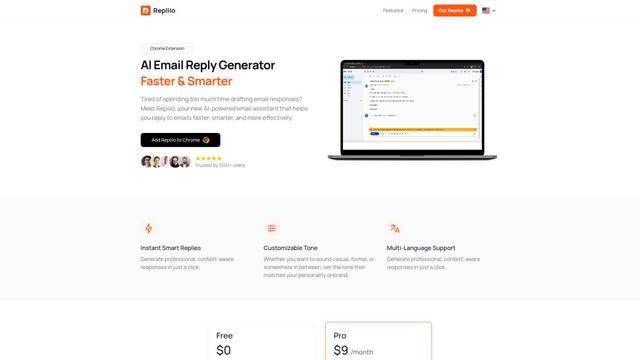
Repliio
Repliio is an AI-powered email assistant Chrome extension that helps users generate professional, context-aware email responses quickly with customizable tones and multi-language support.
Popular AI Tools Like Web Clipper for NotebookLM
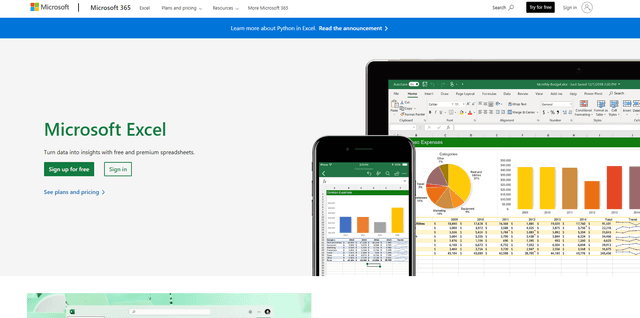
Microsoft Excel: Spreadsheets
Microsoft Excel is the industry-leading spreadsheet software that allows users to organize, analyze, and visualize data through powerful features like formulas, charts, and AI-powered insights.
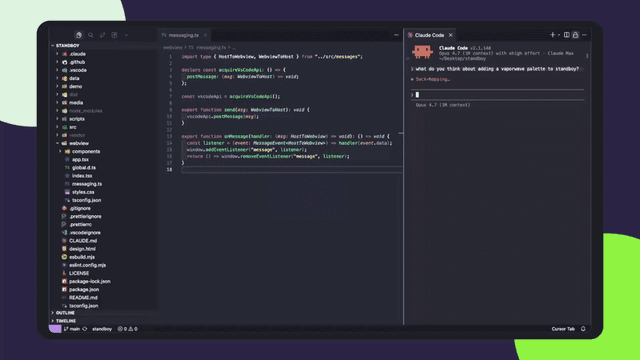
Standboy
Standboy is a VS Code/Cursor extension that auto-expands a Game Boy (GB/GBC/GBA) emulator in the sidebar during AI agent activity, then auto-hides and pauses—resuming mid-frame next time—while keeping a persistent ROM library, saves, and cover art.
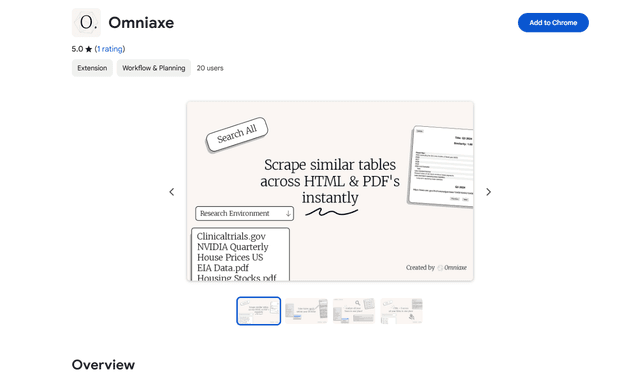
Omniaxe
Omniaxe is an all-in-one Chrome extension research tool that combines seamless data extraction, AI-powered analysis, and centralized note-taking capabilities designed specifically for analysts, researchers and students.
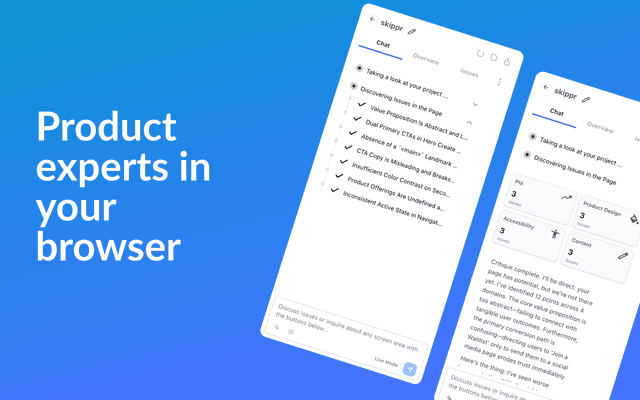
Finesse by Skippr AI
Finesse by Skippr AI is a browser extension that provides instant, expert-level product feedback and critiques across design, content strategy, accessibility, and product direction through specialized AI reviewers.