ViiTor Translate
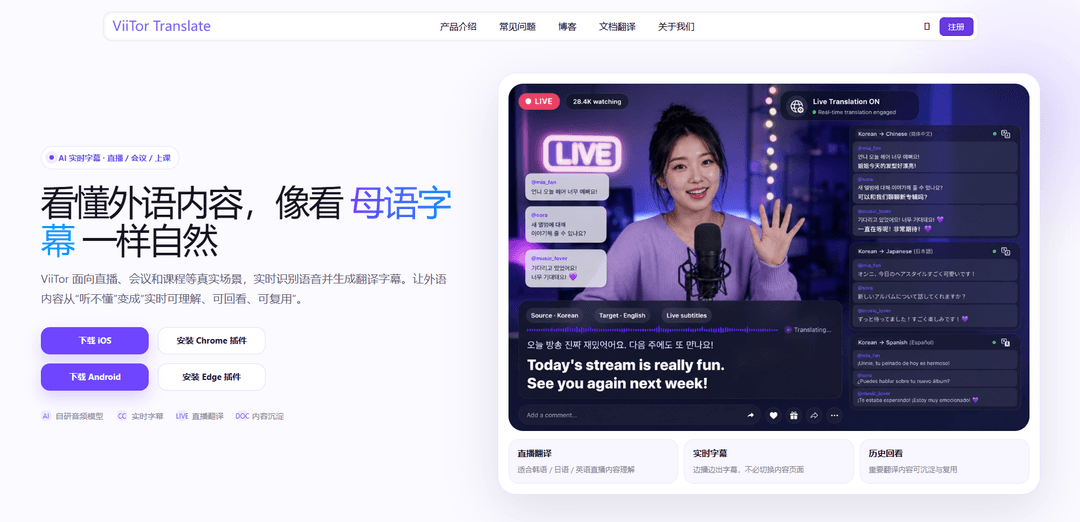
ViiTor Translate is an AI-powered real-time speech transcription and multilingual subtitle/translation tool for live streams, videos, meetings, and classes, with bilingual captions and saved, searchable history for later review.
https://viitor.info/?ref=producthunt
Product Information
Updated:Aug 8, 2026
What is ViiTor Translate
ViiTor Translate is a real-time translator designed to help people understand foreign-language audio as naturally as reading native subtitles. It delivers low-latency speech transcription and contextual translation, generating subtitles while you watch live streams, attend online meetings, or follow lectures and courses. Built around everyday multilingual scenarios (livestreams, calls, and learning), ViiTor also keeps reusable records—turning subtitles and transcripts into a history you can revisit—so important moments, notes, and key points don’t disappear once the session ends.
Key Features of ViiTor Translate
ViiTor Translate is an AI-powered real-time transcription and translation tool (available as a browser plugin and mobile app) that turns live audio/video—such as livestreams, online meetings, and classes—into bilingual subtitles with low latency. It combines speech recognition, contextual translation, and on-screen subtitle rendering, and also saves transcripts/subtitles into searchable history so users can revisit past sessions. Beyond live subtitles, it supports broader translation scenarios like voice conversation translation and camera/AR-style image text translation for everyday multilingual understanding.
Real-time speech transcription + translation: Captures browser or device audio (livestreams, videos, meetings) and produces near-instant transcriptions and translations for continuous speech.
Bilingual live subtitles overlay: Displays translated subtitles as content plays, enabling side-by-side understanding (original + translated) for streams, videos, and calls.
Scenario/context-aware translation: Optimizes translation for real spoken content (e.g., livestream chatter, meeting dialogue, lecture delivery) rather than word-for-word output.
History and reusable records: Saves subtitles/transcripts (and related translated content) into a history view so users can review, search, and revisit key information later.
One-click activation & multi-language support: Designed for quick enablement when needed and supports a broad set of languages (commonly cited around 19, including English, Japanese, Korean, Chinese, Spanish, Arabic, and more).
Mobile translation modes (voice + camera/AR): On mobile, supports real-time voice translation for conversations and camera-based text recognition/translation for menus, signs, packaging, and manuals.
Use Cases of ViiTor Translate
Livestream viewing (gaming, creator lives, K-pop lives): Follow foreign-language livestreams on platforms like YouTube Live/Twitch with real-time translated subtitles to catch interactions, jokes, and key moments.
Cross-border meetings and client calls: Provide live transcription/translation during Zoom/Google Meet-style calls so global teams and clients can communicate with less language friction.
Education and online courses: Translate international lectures and course videos in real time and keep transcripts/subtitles for later review and study notes.
Travel and on-the-go understanding: Use camera translation to instantly translate printed text (menus, road signs, instructions) and voice translation for quick conversations.
Content accessibility for multilingual audiences: Creators can make streams more accessible by providing real-time subtitles/translation, helping expand reach to viewers across languages.
Pros
Real-time, low-latency subtitles for live audio/video, useful for streams, meetings, and classes
Bilingual subtitle experience improves comprehension and language learning
History/records make translations reusable for review, notes, and follow-up
Broad language coverage and quick one-click workflow across common scenarios
Cons
Subtitle speed/accuracy can degrade for very fast speech or long content due to server performance constraints (as noted by the product’s own messaging)
Some platform/OS limitations (e.g., iOS restrictions on certain floating-window behaviors) may reduce UI flexibility
Network conditions (e.g., VPN routing) can affect real-time stability for live translation
How to Use ViiTor Translate
1) Install ViiTor Translate: Go to the official ViiTor site (https://viitor.info/) or your platform’s store (e.g., Chrome Web Store / app store). Search for “ViiTor Translate” or “ViiTor Translate Plugin/Extension” and complete the installation.
2) Open the content you want to translate: Navigate to the scenario you need: a live stream, online video (e.g., YouTube/Twitch), or an online meeting (e.g., Zoom/Meet). Keep the page/app playing audio normally.
3) Enable/launch ViiTor Translate: Turn on the extension/plugin (in the browser) or open the ViiTor Translate app (mobile/desktop). Use the one-click activation to start translation when needed.
4) Choose languages and display mode: Set the source language (what is being spoken) and the target language (what you want to read/hear). If available, choose a subtitle display mode such as translated-only or bilingual subtitles.
5) Start real-time transcription + translation: Begin playback (or continue the meeting). ViiTor will perform real-time speech recognition and contextual translation, generating subtitles as the audio plays.
6) Use bilingual subtitles for learning or clarity (optional): Enable bilingual subtitles to see both the original and translated text at the same time—useful for language learning and verifying meaning during fast conversations.
7) Customize subtitle appearance (optional): Adjust subtitle style settings (e.g., size/color/position) if supported, so subtitles remain readable over different videos or meeting layouts.
8) Review saved history/records: After or during a session, open the history/records area to revisit subtitles, transcripts, and translated content. Use this to re-check key moments or study later.
9) Use AI summaries for meetings/classes (optional): If available in your version, generate AI summaries to extract key points, conclusions, and action items from the translated transcript for meeting notes or study review.
10) Use mobile real-time voice translation (app workflow, optional): In the ViiTor Translate app, select source and target languages, then tap the microphone button to start real-time voice translation for in-person conversations.
11) Use camera/AR translation (app workflow, optional): Open the app’s camera/AR translation feature to recognize and translate text in images (e.g., menus, signs, books) and display the translation on-screen in real time.
12) Troubleshoot connectivity (optional): If real-time translation is unstable while using a VPN, exclude ViiTor from the VPN routing (split tunneling) to improve connection stability.
ViiTor Translate FAQs
ViiTor Translate is a real-time voice translation and live subtitle tool designed for streams, meetings, and classes. It provides an end-to-end audio workflow including speech recognition, contextual translation, subtitle generation, and saved history you can revisit.
ViiTor Translate Video
Popular Articles

Vosko AI: Localize and Dub Videos for Global Audiences
Oct 15, 2026

Atoms: A Multi-Agent AI Platform That Transforms Ideas into Launch-Ready Products
Oct 13, 2026

Nano Banana SBTI: What It Is, How It Works, and How to Use It in 2026
Apr 15, 2026

Atoms Review — The AI Product Builder Redefining Digital Creation in 2026
Apr 10, 2026
Latest AI Tools Similar to ViiTor Translate
InDesign Translator
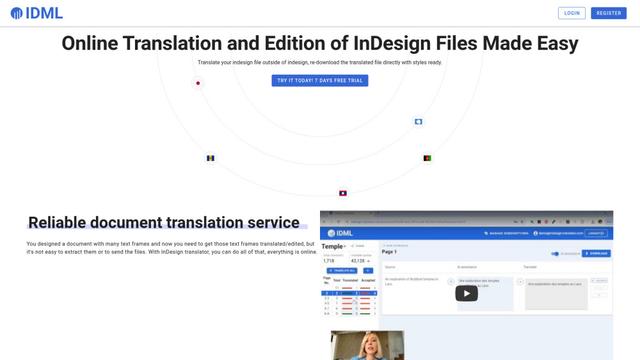
InDesign Translator is an online translation service that enables users to translate InDesign files while maintaining formatting and styles, offering AI-assisted translation and easy collaboration features without requiring translators to have InDesign installed.

Blanc AI
Blanc AI is a revolutionary AI solution that enables video content translation and dubbing into 47+ languages while preserving the original voice, emotions, and lip synchronization.
MenuGuide
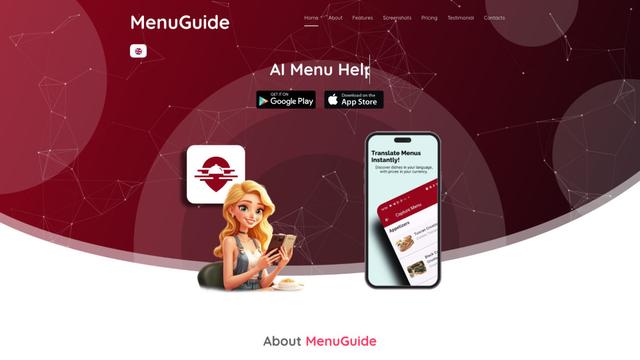
MenuGuide is a cutting-edge AI-powered app that instantly translates restaurant menus from any language to your preferred language, providing dish details, allergen information, and nutritional facts for seamless global dining experiences.
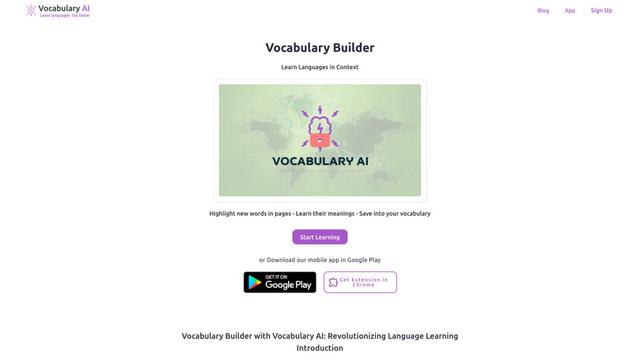
Vocabulary AI
Vocabulary AI is an advanced AI-powered language learning platform that combines translation, vocabulary building, and personalized practice through website, mobile app, and browser extension to help users effectively learn and retain new words.
Popular AI Tools Like ViiTor Translate
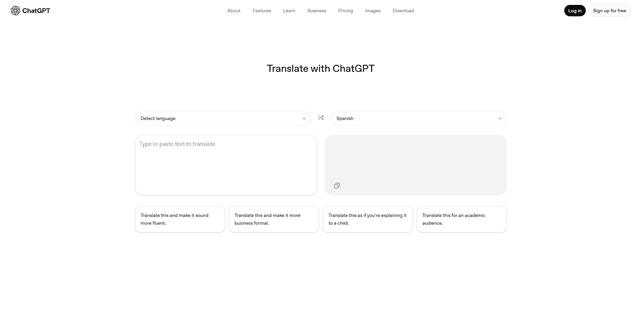
ChatGPT Translate
FreeTranslate
ChatGPT Translate is OpenAI's dedicated translation service that supports 50+ languages with AI-powered customization features for producing natural, context-aware translations across different tones and styles.
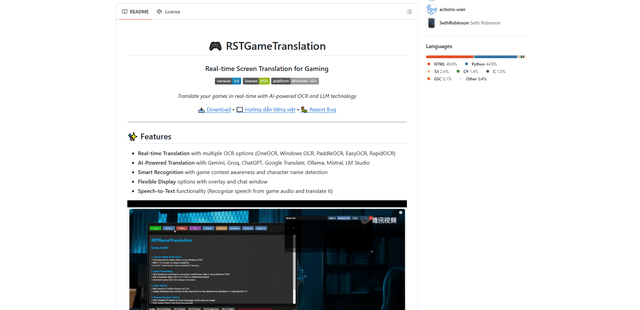
RSTGameTranslation
RSTGameTranslation is an open-source real-time game translation tool that combines OCR and AI translation technologies to automatically translate game text across multiple languages while supporting both offline and online modes.
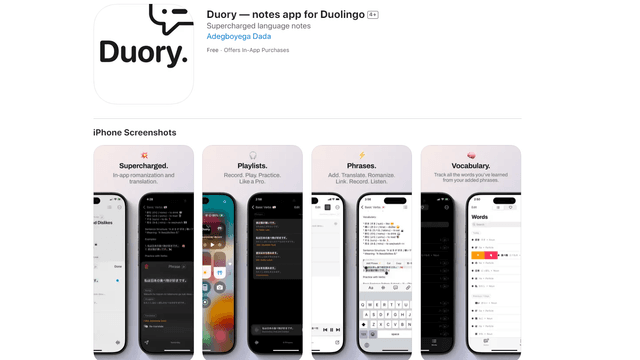
Duory
Duory is a dynamic language learning companion app that helps Duolingo users reinforce their lessons through interactive note-taking, translation features, and voice recording capabilities.