
uTerminal
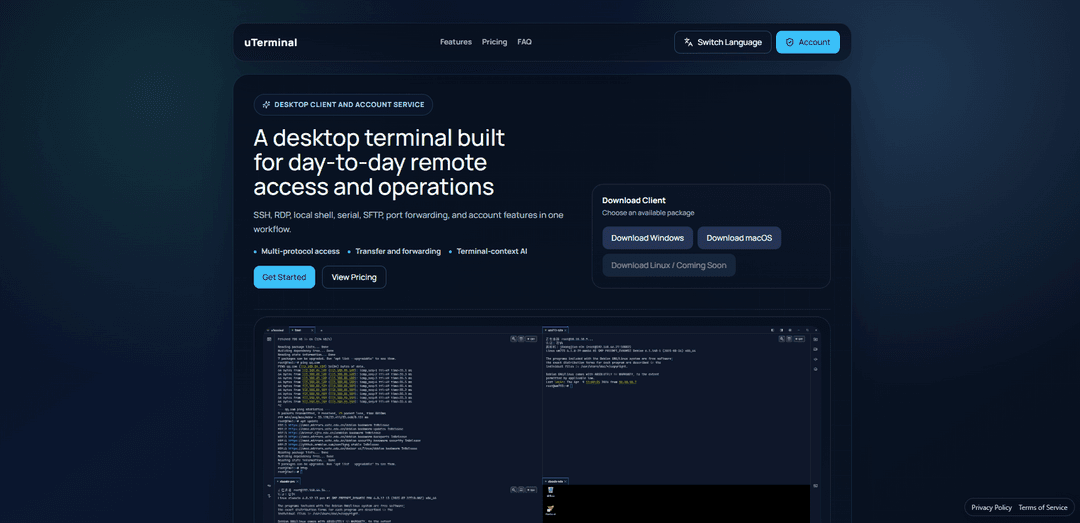
uTerminal is a modern desktop terminal application that provides multi-protocol remote access including SSH, RDP, local shell, serial connections, SFTP, and port forwarding, enhanced with AI assistance and cloud synchronization capabilities.
https://uterminal.app/?ref=producthunt
Product Information
Updated:Apr 15, 2026
What is uTerminal
uTerminal is a comprehensive desktop client and account service designed for day-to-day remote access and operations. It consolidates multiple connection protocols—SSH, RDP, local shell, serial, SFTP, and port forwarding—into a single, unified workflow. The application features a flexible workspace with multi-session layouts, allowing users to manage multiple hosts and connections simultaneously. Available for download across major platforms, uTerminal offers three subscription tiers: a Free plan for basic use, a Plus plan ($9.9/year) that unlocks AI assistance and enhanced cloud sync, and a Lifetime plan ($19.9 one-time) for long-term users. With built-in credential management, session logging, and terminal-context AI suggestions, uTerminal streamlines the complexity of managing remote systems into an intuitive, modern interface.
Key Features of uTerminal
uTerminal is a comprehensive desktop terminal application designed for day-to-day remote access and operations, supporting multiple protocols including SSH, RDP, local shell, serial connections, SFTP, and port forwarding. It provides a unified workspace with flexible tab layouts, credential management, and AI-assisted features for system operations. The application offers session logging and playback capabilities, along with cloud synchronization for managing connections across devices. Available for Windows and other platforms, it comes with Free, Plus ($9.9/year), and Lifetime ($19.9) subscription options to suit different user needs.
Multi-Protocol Workspace: Supports SSH, RDP, local shell, and serial access all within a single desktop application, eliminating the need to switch between multiple tools for different connection types.
Flexible Tabs and Layouts: Enables users to open multiple hosts and sessions simultaneously with customizable workspace arrangements, allowing efficient multi-session management and personalized layout preferences.
Integrated SFTP and Port Forwarding: Provides built-in file transfer capabilities and port forwarding functionality within the same workflow, streamlining remote operations without requiring external tools.
Terminal-Context AI Assistant: Offers AI-powered suggestions and assistance based on terminal context, along with side panels for system information and related helpers to enhance productivity.
Session Logs and Playback: Automatically records session activity with playback capability, enabling users to review past operations for troubleshooting, auditing, or learning purposes.
Centralized Credential Management: Manages saved connections, organized folders, reusable credentials, and account state in one centralized location with cloud synchronization support.
Use Cases of uTerminal
DevOps and System Administration: System administrators can manage multiple servers simultaneously through SSH connections, perform file transfers via SFTP, and set up port forwarding for secure access to internal services, all within a single interface.
Remote IT Support: IT support teams can use RDP and SSH protocols to access client systems remotely, troubleshoot issues, and review session recordings to understand problem patterns or train junior staff.
Embedded Systems Development: Hardware developers can connect to embedded devices via serial connections for debugging and configuration, while managing multiple device sessions and keeping logs for development documentation.
Cloud Infrastructure Management: Cloud engineers can manage multiple cloud instances across different providers using organized connection folders, leverage AI assistance for command suggestions, and maintain secure credential management.
Network Operations Center (NOC): NOC teams can monitor and manage network devices through multiple concurrent sessions with flexible layout arrangements, enabling efficient oversight of infrastructure and quick response to incidents.
Security Auditing and Compliance: Security professionals can utilize session recording and playback features to maintain audit trails of administrative actions, ensuring compliance with regulatory requirements and security policies.
Pros
Unified multi-protocol support (SSH, RDP, serial, local shell) eliminates the need for multiple specialized applications
Affordable pricing with flexible options including a free tier and reasonable annual/lifetime subscriptions
AI-assisted features and terminal-context suggestions enhance productivity and reduce command errors
Built-in session recording and playback capabilities for troubleshooting and compliance purposes
Cons
AI assistant and enhanced cloud sync features require paid subscription (Plus or Lifetime)
Relatively new product with limited user reviews and community feedback available
Feature expiration for paid users may disrupt workflow if subscription lapses
Bilingual support may be limited compared to enterprise-grade terminal applications
How to Use uTerminal
1: Download the uTerminal desktop client from the official website (uterminal.app) and choose the appropriate package for your operating system
2: Install the downloaded client on your computer and launch the application
3: Sign in to your uTerminal account. If you don't have an account, create one during the sign-in process
4: Choose a subscription plan: Free (for trial and basic use), Plus ($9.9/year for AI assistant and enhanced cloud sync), or Lifetime ($19.9 one-time payment)
5: Add your remote connections by clicking to create new SSH, RDP, local shell, or serial connections in the workspace
6: Configure connection details including host addresses, credentials, and any specific settings for each connection type
7: Manage saved connections and credentials in the hosts management section, organizing them into folders if needed
8: Open multiple sessions using tabs and arrange them in flexible layouts according to your workflow preferences
9: Use SFTP for file transfers directly within the same workflow without switching to external tools
10: Set up port forwarding as needed for your remote access requirements
11: Access the AI assistant (available with Plus or Lifetime plans) for terminal-context suggestions and command help
12: Use side panels to preview files, logs, and system information while working in your terminal sessions
13: Review session logs and playback recordings for troubleshooting or auditing purposes
14: Customize language settings if needed - the interface supports bilingual operation with auto-detection based on browser language
uTerminal FAQs
uTerminal is a desktop terminal application built for day-to-day remote access and operations. It supports multiple protocols including SSH, RDP, local shell, serial connections, SFTP, and port forwarding, all integrated into one workflow with account management features.
Popular Articles

Atoms: A Multi-Agent AI Platform That Transforms Ideas into Launch-Ready Products
Oct 13, 2026

Nano Banana SBTI: What It Is, How It Works, and How to Use It in 2026
Apr 15, 2026

Atoms Review — The AI Product Builder Redefining Digital Creation in 2026
Apr 10, 2026

Kilo Claw: How to Deploy and Use a True "Do‑It‑For‑You" AI Agent(2026 Update)
Apr 3, 2026
Latest AI Tools Similar to uTerminal
Gait
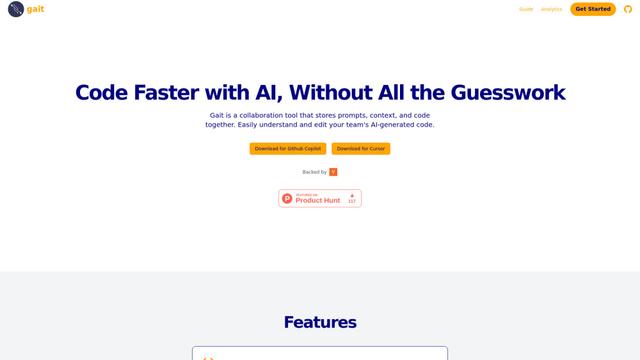
Gait is a collaboration tool that integrates AI-assisted code generation with version control, enabling teams to track, understand, and share AI-generated code context efficiently.
invoices.dev
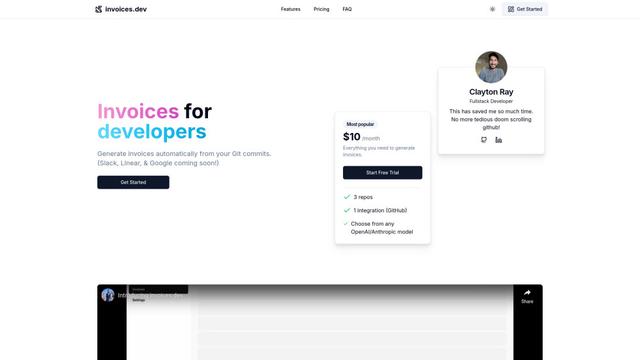
invoices.dev is an automated invoicing platform that generates invoices directly from developers' Git commits, with integration capabilities for GitHub, Slack, Linear, and Google services.
EasyRFP
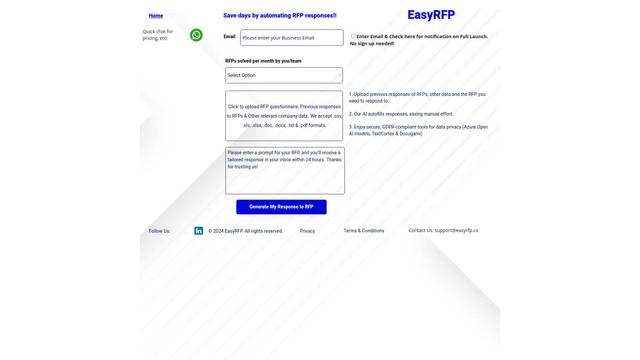
EasyRFP is an AI-powered edge computing toolkit that streamlines RFP (Request for Proposal) responses and enables real-time field phenotyping through deep learning technology.

Cart.ai
Cart.ai is an AI-powered service platform that provides comprehensive business automation solutions including coding, customer relations management, video editing, e-commerce setup, and custom AI development with 24/7 support.
Popular AI Tools Like uTerminal

GitHub Copilot Chat
GitHub Copilot Chat is an AI-powered coding assistant that provides natural language interactions, real-time code suggestions, and contextual support directly within supported IDEs and GitHub.com.
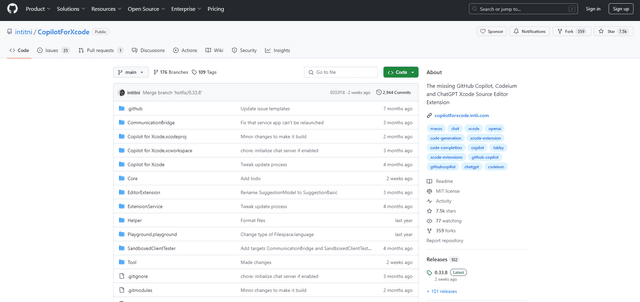
CopilotForXcode
CopilotForXcode is an Xcode Source Editor Extension that integrates GitHub Copilot, Codeium, and ChatGPT to provide AI-powered code suggestions, chat assistance, and prompt-to-code functionality within Xcode.

BrowserAI
BrowserAI is an open-source library that enables running local Large Language Models (LLMs) directly in web browsers with WebGPU acceleration, offering privacy-focused AI capabilities without requiring server infrastructure.
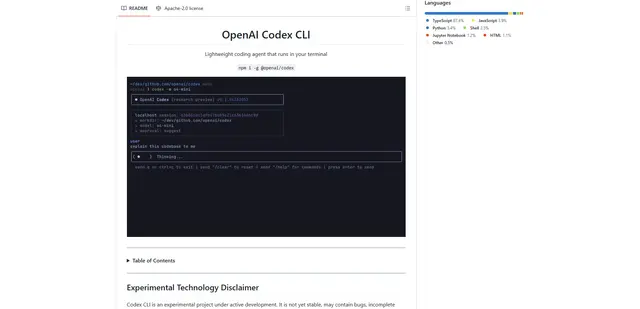
OpenAI Codex CLI
OpenAI Codex CLI is a lightweight, open-source coding agent that runs in your terminal, enabling developers to translate natural language into code execution while providing ChatGPT-level reasoning with the ability to run code, manipulate files, and iterate under version control.