
TongueType for macOS
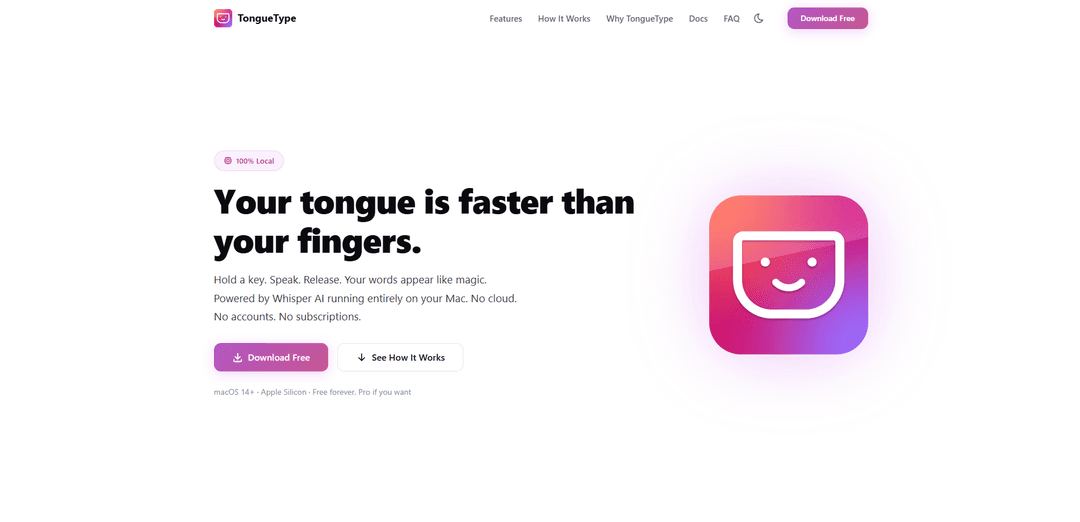
TongueType for macOS is a 100% local, privacy-first Whisper AI dictation app that lets you hold a hotkey to speak and instantly type anywhere, with file transcription and customizable post-processing rules—no cloud, accounts, or subscriptions.
https://tonguetype.app/?ref=producthunt
Product Information
Updated:Jun 8, 2026
What is TongueType for macOS
TongueType is a macOS menu bar voice dictation app built for fast, accurate, system-wide speech-to-text. It runs OpenAI’s Whisper model entirely on your Mac (Apple Silicon required) using Apple’s Neural Engine via CoreML, so your audio never leaves your device. Designed as a lightweight “hold, speak, release” tool rather than a separate editor window, it drops transcribed text directly at your cursor in any app. TongueType supports 12 languages (with optional auto-detection), includes audio/video file transcription, and offers a free tier with optional Pro unlock for unlimited usage via a one-time purchase.
Key Features of TongueType for macOS
TongueType is a macOS menu bar dictation app that turns speech into text anywhere your cursor can type using Whisper AI running fully on-device (Apple Silicon + macOS 14+). Its core workflow is “hold a hotkey, speak, release,” with a lightweight on-screen overlay showing it’s listening. It supports multiple languages (with optional auto-detection), includes audio/video file transcription, and offers customizable postprocessing rules (e.g., spoken punctuation, “new paragraph,” and cancel phrases like “scratch that”). It’s privacy-first (no cloud, no accounts, no analytics) and is free with monthly live-dictation limits, with a one-time Pro license to remove limits and enable full-length file transcription.
100% local Whisper transcription: Runs Whisper AI on your Mac (Apple Neural Engine via CoreML) so audio stays on-device—no cloud processing, accounts, or analytics.
Hold-to-talk hotkey workflow: Press and hold a configurable hotkey to record, then release to instantly insert text at the cursor—no app switching or separate editor window.
Recording overlay with feedback: A small floating overlay appears while dictating, showing a live waveform and timer so you know it’s actively listening.
Postprocessing rules & voice commands: Map spoken cues (e.g., “new line,” “question mark”) to symbols/formatting, filter non-speech annotations like [music], and cancel a take mid-stream with phrases like “scratch that.”
Multi-language support + auto-detect: Supports 12 languages (including English, Spanish, French, German, Portuguese, Italian, Japanese, Chinese, Korean, Dutch, and Russian) with optional language auto-detection.
File transcription + settings sync: Transcribe audio/video files (full-length in Pro; short preview in free tier) and optionally sync preferences across Macs via iCloud.
Use Cases of TongueType for macOS
Cross-app writing for knowledge workers: Dictate emails, docs, tickets, and notes directly into any app field where typing works, using a fast hotkey-driven workflow.
Developer workflows (coding-adjacent text): Use voice to draft commit messages, code comments, documentation, and AI prompts in tools like terminals, editors, and chat apps—anywhere the cursor can type.
Accessibility & reduced-strain input: Serve as an alternate input method for users with RSI, arthritis, tremor, or other conditions that make typing difficult, while keeping output system-wide.
Multilingual drafting and translation prep: Dictate in supported languages (or let auto-detect choose) to quickly produce text for international communication or multilingual content creation.
Interview/lecture/podcast rough transcripts: Create quick transcripts from audio/video files for research, review, and content logging (best when you need private, on-device processing).
Pros
Privacy-first: on-device transcription with no cloud, accounts, or analytics
Fast system-wide workflow: hotkey hold/speak/release inserts text at the cursor in any app
Flexible customization: hotkeys, overlay appearance, postprocessing rules, and optional iCloud settings sync
Cons
Requires Apple Silicon (M1+) and macOS 14+; Intel Macs aren’t supported
Free tier is limited (30 minutes/month live dictation; file transcription preview only), with a one-time Pro fee to remove limits
Not available on iOS due to platform constraints
How to Use TongueType for macOS
1) Check compatibility: Make sure you’re on macOS 14+ and an Apple Silicon Mac (M1 or later). TongueType doesn’t support Intel Macs because it runs Whisper on the Neural Engine via CoreML.
2) Download and install TongueType: Download TongueType from the official site and install it like a standard macOS app (move it to Applications if prompted), then launch it.
3) Find TongueType in the menu bar: TongueType is a menu bar app (no Dock icon, no main window). Look for its icon at the top-right near the clock. If you don’t see it, your menu bar may be full (it can hide behind the notch/overflow) or inside a menu bar manager (Bartender, Ice, Hidden Bar).
4) Confirm it’s running using the hotkey: Press the dictation hotkey (Right Option by default). If TongueType is running, a small recording overlay should appear.
5) Dictate text anywhere (Hold → Speak → Release): Click into any text field where you can type (Mail, Notes, Slack, browser, code editor). Hold the hotkey, speak, then release the key. Your words are inserted wherever your cursor is.
6) Use the on-screen overlay as feedback: While holding the hotkey, watch the overlay for a live waveform and an elapsed timer so you know it’s listening.
7) Change the hotkey and basic behavior: Open TongueType Settings → General. Set your preferred hotkey, adjust the grace period (to avoid accidental activation), and choose your output mode (e.g., insert text at cursor).
8) Enable “double-tap to latch” for longer dictation: In Settings → General, turn on double-tap to latch so you can keep recording without holding the key down for long takes.
9) Customize the overlay appearance: Go to Settings → Appearance. Choose a color scheme, pick an accent color (or Rainbow Mode), set the overlay position (one of several anchor points), and customize the listening label text.
10) Configure postprocessing (spoken punctuation, cleanup, cancel phrases): Open Settings → Postprocessing. Optionally filter non-speech annotations like [music] or (laughter). Add/adjust phrase-to-symbol rules (e.g., “new line”, “new paragraph”, “question mark”, “open parenthesis”). Set a cancel phrase (e.g., “scratch that”, “cancel that”, “discard that”) to discard a take mid-recording.
11) Transcribe audio/video files (try it via the shortcut): Use the transcribe-file shortcut shown in Settings → General to select an audio/video file for transcription. (Free tier transcribes only the first 10 seconds of each file as a trial.)
12) Choose language or auto-detection: In TongueType settings, select a supported language (English, Spanish, French, German, Portuguese, Italian, Japanese, Chinese, Korean, Dutch, Russian) or use auto-detection if you switch languages.
13) Sync your settings across Macs (optional): If you use multiple Macs, enable Settings → General → “Sync settings via iCloud” to sync preferences like hotkey, output mode, appearance, language, and postprocessing rules across Macs on the same Apple ID.
14) Understand the free tier limits (and how to unlock Pro): The free tier includes 30 minutes of live dictation per calendar month and file transcription is limited to the first 10 seconds per file. To remove limits, choose “Unlock Pro…” from the menu bar and purchase a one-time license; paste the license key to activate (up to 5 Macs).
15) Privacy check (what happens to your audio): Use TongueType knowing audio is processed entirely on-device (no cloud, no accounts, no analytics, no servers), because it runs Whisper locally on Apple Silicon.
TongueType for macOS FAQs
TongueType is a macOS voice dictation app that lets you hold a hotkey, speak, and release to insert transcribed text wherever your cursor is. It uses the Whisper AI model running entirely on your Mac (no cloud).
TongueType for macOS Video
Popular Articles

Atoms: A Multi-Agent AI Platform That Transforms Ideas into Launch-Ready Products
May 22, 2026

Nano Banana SBTI: What It Is, How It Works, and How to Use It in 2026
Apr 15, 2026

Atoms Review — The AI Product Builder Redefining Digital Creation in 2026
Apr 10, 2026

Kilo Claw: How to Deploy and Use a True "Do‑It‑For‑You" AI Agent(2026 Update)
Apr 3, 2026
Latest AI Tools Similar to TongueType for macOS
Ticknotes
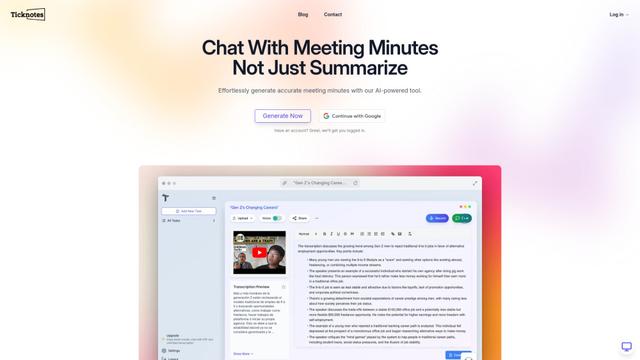
Ticknotes is an AI-powered meeting assistant that automatically records, transcribes, and generates personalized meeting summaries, action items, and key insights from audio, video, and text content.

Feta
Feta is an AI-powered meeting tool that helps product and engineering teams run efficient meetings by capturing discussions, automating tasks, and providing actionable insights through smart summaries and integrations.

TranscriptionPlus
TranscriptionPlus is an AI-powered transcription service that offers accurate speech-to-text conversion with advanced features like speaker identification, summary generation, and multi-language support at affordable pricing tiers.

AudioScribe.io
AudioScribe.io is a revolutionary AI-powered transcription service that converts audio and video content into accurate text while offering advanced features like automated meeting recording, full-text search, and multi-language support.
Popular AI Tools Like TongueType for macOS
Ghost Pepper 🌶️
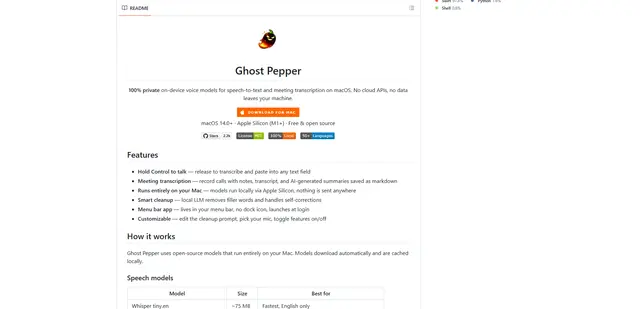
Ghost Pepper is a 100% local, privacy-focused speech-to-text and meeting transcription app for macOS that runs entirely on your Mac using open-source AI models, featuring hold-to-talk recording, intelligent text cleanup, and multi-language support without sending any data to the cloud.
Whisper AI
Whisper is an open-source automatic speech recognition system from OpenAI that approaches human-level accuracy and robustness for transcribing and translating speech in multiple languages.

Youtube to transcript
Youtube to Transcript is a Chrome extension that allows users to easily convert YouTube videos into text transcripts with features like multi-language support, AI-powered summarization, and downloadable formats.

inFin
inFin is a lightweight, user-friendly AI-powered voice notes app that offers unlimited recording, real-time transcription, and translation between Chinese and English, with offline capabilities and local storage for enhanced privacy.