
Stanley Studio
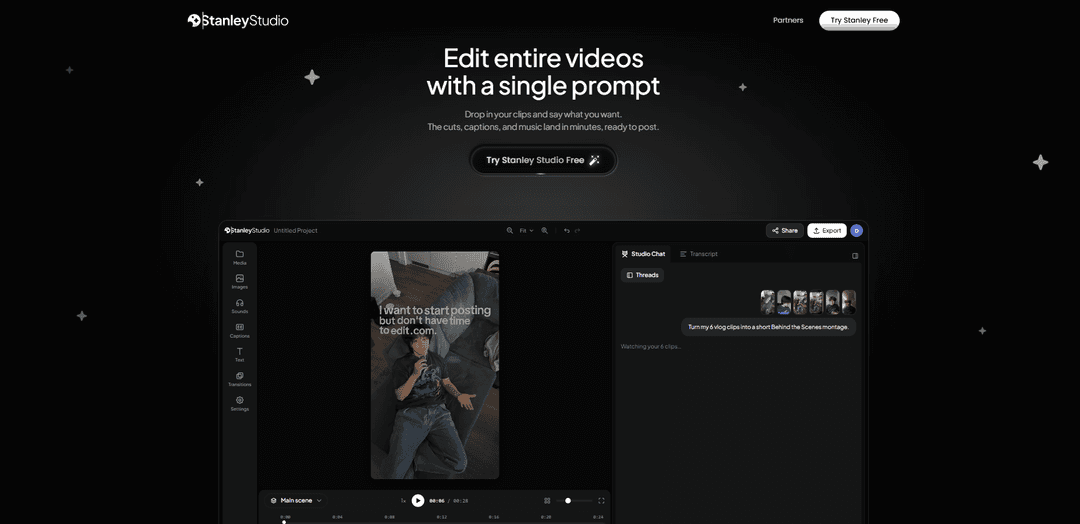
Stanley Studio é um editor de vídeo AI baseado em navegador que permite pular a linha do tempo descrevendo as edições que você deseja – cortando automaticamente silêncios e tomadas ruins, gerando legendas sincronizadas, adicionando b-roll, cortes com rastreamento facial e balanceando o áudio em minutos.
https://studio.getstanley.ai/?ref=producthunt&utm_source=aipure
Informações do Produto
Atualizado:Jul 8, 2026
O que é Stanley Studio
Stanley Studio é uma ferramenta de edição de vídeo baseada em IA, no navegador, projetada para criadores e equipes que desejam vídeos prontos para redes sociais sem gastar horas em cortes manuais. Em vez de depender de cortes quadro a quadro e arrastar constante na linha do tempo, você pode simplesmente dizer ao Stanley o que deseja e ele atualiza a edição – adicionando legendas, removendo silêncios, colocando b-roll e muito mais. Ele também inclui uma linha do tempo completa de várias trilhas e com precisão de quadro para controle manual quando você precisar, além de colaboração em tempo real e acesso entre dispositivos para que os projetos permaneçam sincronizados entre telefone, laptop e iPad.
Principais Recursos do Stanley Studio
Stanley Studio é um editor de vídeo assistido por IA baseado em navegador que permite aos criadores "pular" o trabalho manual na linha do tempo, descrevendo as edições em linguagem simples. Ele pode cortar automaticamente silêncios e tomadas ruins, gerar e estilizar legendas perfeitas, inserir b-roll relevante, aplicar corte/zoom com rastreamento facial para manter os oradores centralizados e equilibrar o áudio com músicas e efeitos sonoros integrados. Ele também suporta colaboração em tempo real e continuidade em vários dispositivos (telefone, laptop, iPad), ao mesmo tempo em que oferece uma linha do tempo "multi-track" completa para controle preciso quando necessário.
Edição baseada em prompt (pule a linha do tempo): Descreva o que você quer – por exemplo, "adicionar legendas, cortar silêncios, adicionar b-roll" – e Stanley executa a edição, atualizando a linha do tempo automaticamente em minutos.
Legendas automáticas com controles de estilo: Gera legendas perfeitas e sincronizadas com o tempo e permite ajustar a redação, trocar fontes e alterar animações projetadas para "parar a rolagem" em vídeos curtos.
Corte inteligente (silêncios, "filler", tomadas ruins): Analisa a filmagem para remover automaticamente o "dead air" e segmentos fracos, mantendo apenas os momentos mais fortes para apertar o ritmo.
Posicionamento automático de b-roll: Encontra e insere b-roll onde ele se encaixa na narrativa, reduzindo o tempo gasto procurando clipes ou alternando entre aplicativos.
Corte e zoom com rastreamento facial: Mantém os assuntos "talking-head" centralizados com reenquadramento automático, eliminando o "keyframing" manual para corte/zoom.
Editor profissional no navegador + colaboração: Inclui uma linha do tempo "multi-track" real e precisa em quadros com atalhos familiares (por exemplo, J-K-L), além de colaboração ao vivo com cursores e comentários – sem necessidade de instalação.
Casos de Uso do Stanley Studio
Reels de criadores e vídeos curtos estilo TikTok em escala: Transforme filmagens "talking-head" brutas em vídeos curtos polidos e legendados rapidamente, com ritmo apertado, reenquadramento automático e b-roll para maior retenção.
Equipes de marketing produzindo anúncios sociais: Monte rapidamente várias versões de vídeos promocionais com legendas consistentes, nivelamento de áudio e iteração rápida via edição colaborativa no navegador.
Montagem de vlog e "montage" do YouTube: Analise vários clipes, corte silêncios e monte uma "montage" ou corte de vlog coeso mais rápido do que a edição manual, depois ajuste na linha do tempo.
Fluxos de trabalho de agências e revisão de clientes: Use colaboração em tempo real, comentários e entregas limpas para acelerar os ciclos de feedback e reduzir as exportações de "vai e vem".
Conteúdo educacional e de coaching: Converta aulas gravadas em clipes concisos e legendados com áudio claro e enquadramento consistente, adequados para marketing de cursos ou "snippets" sociais.
Vantagens
Reduz significativamente o tempo de edição, automatizando tarefas comuns (corte de silêncio, legendas, posicionamento de b-roll).
Baseado em navegador com colaboração em tempo real, permite fluxos de trabalho de equipe rápidos e revisões fáceis.
Mantém o controle criativo por meio de uma linha do tempo "multi-track" completa quando são necessários ajustes manuais.
Desvantagens
O b-roll e os cortes impulsionados por IA podem exigir revisão/refinamento para corresponder à intenção da marca ou à narrativa "nuanceada".
Os melhores resultados provavelmente dependem de ter filmagens de origem claras e um fluxo de trabalho alinhado aos formatos curtos/sociais.
Como Usar o Stanley Studio
1) Abra o Stanley Studio no seu navegador: Acesse https://studio.getstanley.ai/ e faça login. O Stanley Studio funciona totalmente no navegador (nada para instalar) e suporta o trabalho em telefone, laptop e iPad com projetos sincronizados.
2) Inicie um novo projeto e adicione sua filmagem: Crie uma nova edição/projeto e, em seguida, faça upload ou arraste seus clipes de vídeo (por exemplo, talking-head + b-roll). Este é o material bruto que Stanley analisará e montará.
3) Use o Studio Chat para descrever a edição que você deseja (ignore a linha do tempo): No prompt do chat, digite o que você deseja que Stanley faça (por exemplo, “Corte os silêncios, adicione legendas e insira b-roll onde couber”). Stanley fará o corte para você em vez de você cortar quadro a quadro.
4) Remova automaticamente silêncios, preenchimentos e tomadas ruins: Peça a Stanley para cortar silêncios e remover preenchimentos/tomadas ruins para que apenas os melhores momentos permaneçam. Stanley analisa seus clipes e atualiza a linha do tempo automaticamente.
5) Gere e estilize legendas: Peça a Stanley para adicionar legendas (por exemplo, “Adicione legendas perfeitas sincronizadas com a fala”). Em seguida, ajuste o texto da legenda, altere as fontes e ajuste as animações para combinar com seu estilo.
6) Adicione b-roll automaticamente do seu conteúdo ou ativos sugeridos: Diga a Stanley onde você quer b-roll (ou peça para ele colocar b-roll onde couber). Stanley pode ler seu roteiro/contexto e colocar b-roll na linha do tempo em momentos relevantes, reduzindo a pesquisa manual e as idas e vindas para outros aplicativos.
7) Mantenha o assunto centralizado com corte e zoom com rastreamento facial: Ative ou solicite corte/zoom com rastreamento facial para que o quadro o siga durante a tomada – útil para filmagens de talking-head – sem keyframing manual.
8) Melhore o áudio com música/SFX integrados e balanceamento automático: Adicione música e efeitos sonoros da biblioteca integrada e, em seguida, peça ao Studio para balancear os níveis de áudio para que nada corte e sua voz permaneça clara.
9) Ajuste fino na linha do tempo completa de várias trilhas (opcional): Se você quiser controle manual, mude para o editor de várias trilhas para cortes precisos de quadro e atalhos familiares (incluindo J-K-L). Isso é opcional – muitas edições podem ser concluídas inteiramente por meio de prompts.
10) Colabore em tempo real (opcional): Convide colegas de equipe para o mesmo projeto para colaboração ao vivo (cursores ao vivo, comentários e transferências) diretamente no navegador.
11) Itere com prompts adicionais até que esteja pronto para postar: Continue solicitando (por exemplo, “Aperte a introdução”, “Torne as legendas mais impactantes”, “Troque o b-roll na seção 2”, “Adicione um gancho mais forte”) e deixe Stanley atualizar a linha do tempo a cada vez.
12) Exporte seu vídeo/reel finalizado: Uma vez satisfeito, exporte a edição final como um vídeo pronto para postar para plataformas sociais (por exemplo, reels).
Perguntas Frequentes do Stanley Studio
Stanley Studio é um editor de vídeo baseado em navegador que usa IA para editar vídeos a partir de prompts, ajudando você a cortar filmagens, adicionar legendas e inserir b-roll rapidamente, sem depender de trabalho manual na linha do tempo.
Vídeo do Stanley Studio
Artigos Populares
Como Criar Vídeos Virais de Podcast de Bebê Falante com IA: Guia Passo a Passo
Nov 2, 2026

Proferex: Uma Plataforma em Nuvem para Rastreamento de Anúncios e Otimização de Campanhas
Nov 2, 2026

Vosko AI: Localize e Duble Vídeos para Públicos Globais
Oct 15, 2026

Atoms: Uma Plataforma de IA Multiagente Que Transforma Ideias em Produtos Prontos para Lançamento
May 22, 2026
Ferramentas de IA Mais Recentes Semelhantes a Stanley Studio
EzVideos
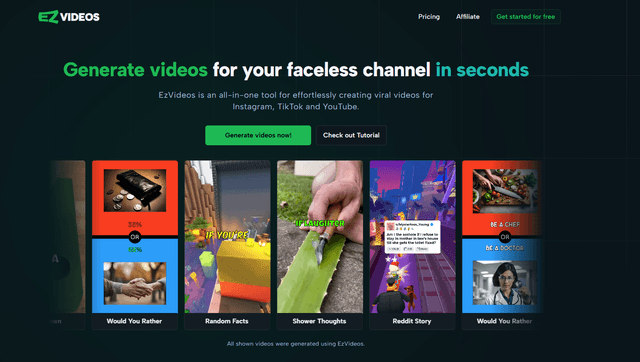
EzVideos é uma ferramenta de criação de vídeos tudo-em-um que ajuda os usuários a gerar vídeos virais para plataformas de mídia social como Instagram, TikTok e YouTube com recursos de edição automatizados e recursos integrados.

Blanc AI
Blanc AI é uma solução de IA revolucionária que permite a tradução e dublagem de conteúdo em vídeo em mais de 47 idiomas, preservando a voz original, emoções e sincronização labial.
Wink Mody
Wink Mody é uma versão modificada do aplicativo de edição de vídeo Wink que oferece recursos premium como retoque impulsionado por IA, exportações em 4K e edição sem marcas d'água completamente grátis.
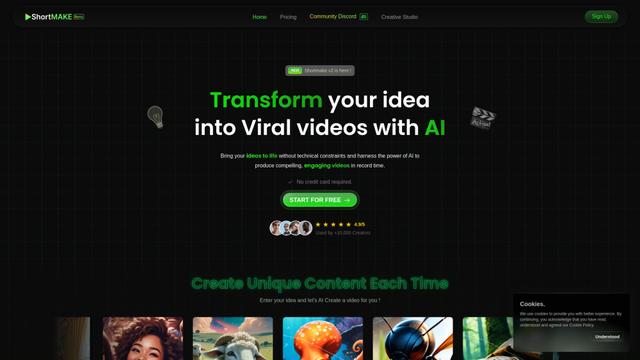
Shortmake AI
ShortMake é uma plataforma de criação de vídeos impulsionada por IA que transforma ideias em vídeos prontos para viralização, gerando automaticamente roteiros, narrações, visuais e legendas especificamente otimizados para plataformas como TikTok e YouTube Shorts.
Ferramentas de IA Populares Como Stanley Studio
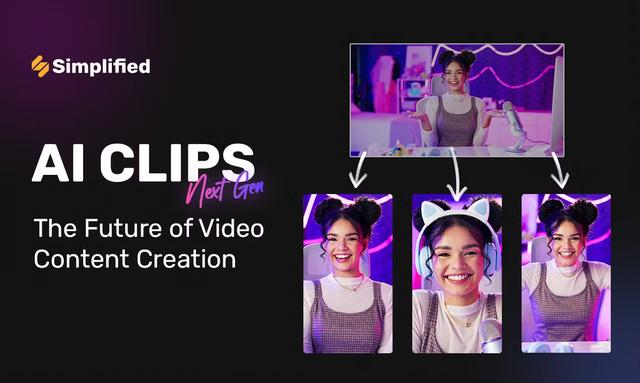
AI Clips - New Gen
AI Clips - New Gen é uma ferramenta de clipping de vídeo impulsionada por IA que gera automaticamente conteúdo curto envolvente a partir de vídeos longos para várias plataformas de mídia social como YouTube Shorts, TikTok, Instagram Reels e mais.
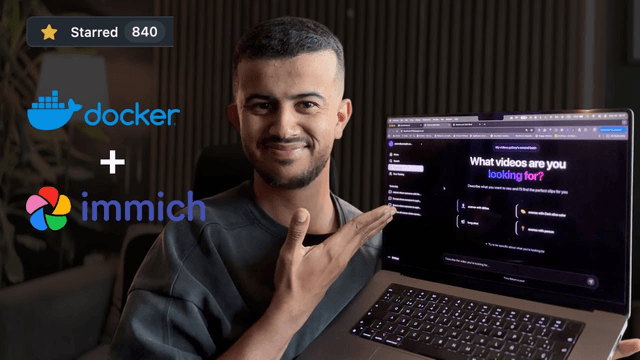
Edit Mind
Edit Mind é uma plataforma de indexação de vídeo e pesquisa semântica de código aberto, alimentada por IA, que permite aos usuários analisar e pesquisar conteúdo de vídeo usando consultas em linguagem natural, com recursos incluindo transcrição, análise de quadros, reconhecimento facial e detecção de objetos.
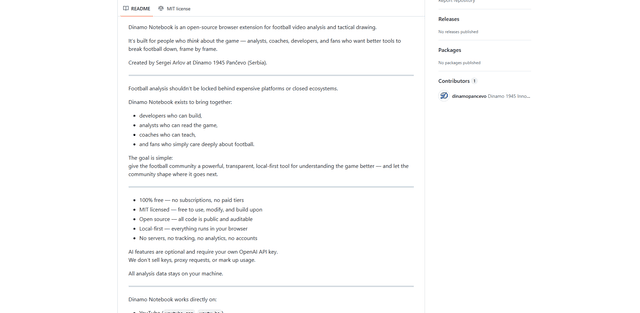
Dinamo Notebook
FreeAI Video Editing
O Dinamo Notebook é uma extensão de navegador gratuita, com licença MIT e local-first para análise de vídeo de futebol que permite desenhar anotações táticas em filmagens do YouTube/Dailymotion/Twitch e, opcionalmente, usar IA (com a sua própria chave de API OpenAI) para obter informações táticas.
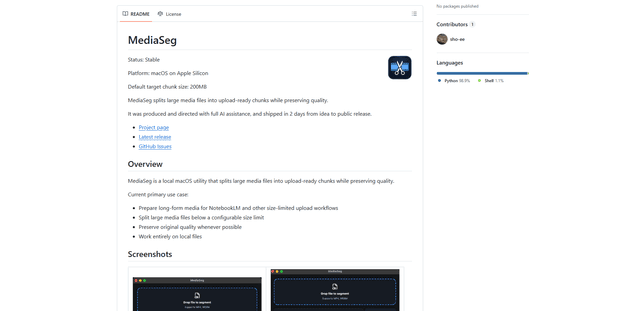
MediaSeg
MediaSeg é um utilitário macOS estável e local que divide grandes arquivos de mídia MP4/WEBM em blocos prontos para upload sob um limite de tamanho configurável, preservando a qualidade usando ffmpeg/ffprobe e uma estratégia de dimensionamento baseada em destino assistida por IA.