
SlimSnap
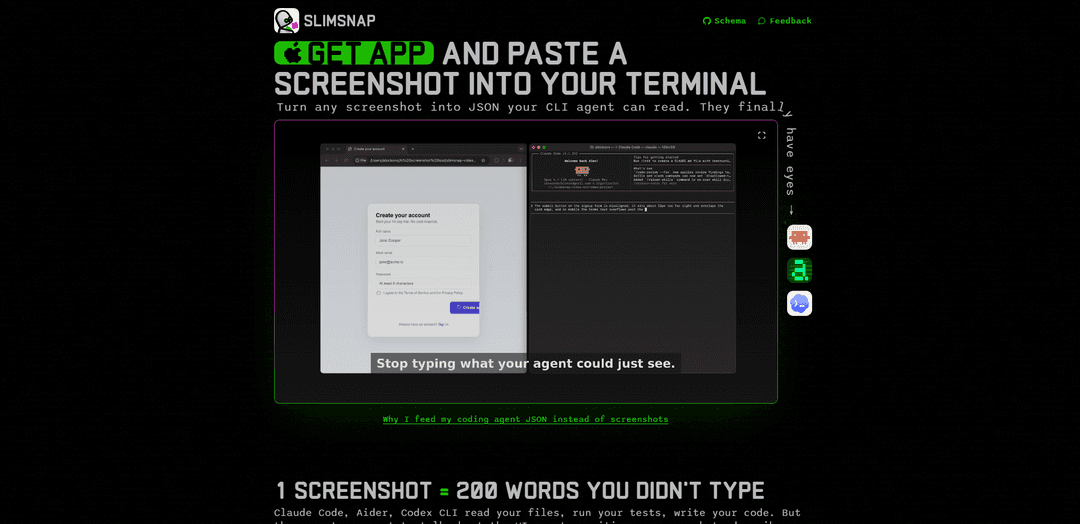
SlimSnap is a macOS tool that lets you capture and annotate screenshots, then copy them as structured JSON (with OCR and deterministic bounding boxes) to paste into terminal-based AI coding agents anywhere text is accepted.
https://slimsnap.ai/?ref=producthunt
Product Information
Updated:Jun 15, 2026
What is SlimSnap
SlimSnap is a Mac-only utility built to bridge a common gap in AI-assisted development: terminals and CLI coding agents (e.g., Claude Code, Aider, Codex CLI) can read text but often can’t accept images. Instead of writing long explanations of what’s on your screen, SlimSnap turns a screenshot into a compact, machine-readable JSON representation of the UI, including recognized text and layout coordinates. It runs locally, requires no account, and is designed for quickly sharing precise UI context in places that only support text—like terminals, SSH sessions, CI logs, or git commits.
Key Features of SlimSnap
SlimSnap is a macOS tool that turns annotated screenshots into structured, copy‑pasteable JSON so text-only environments (terminals, CLI coding agents, SSH, CI logs) can “see” UI layouts. It supports fast capture and annotation, performs local OCR to extract on-screen text, and outputs a deterministic element map (IDs + normalized bounding boxes) to reduce ambiguity and token usage versus pasting raw images into vision models. The format is open (MIT schema) and designed to work with agents like Claude Code, Aider, Codex CLI, Cursor, and Continue.dev—without uploading screenshots to a server.
Screenshot → JSON export: Capture a region of the screen and export a structured JSON representation (screen metadata, image size, elements, and annotations) that can be pasted anywhere text is accepted.
Deterministic UI element mapping: Each detected element gets an ID and a normalized 0–1 bounding box, making it clear exactly which button/label/input an annotation refers to—reducing “guessing” by AI tools.
Built-in local OCR: Reads labels, buttons, and error messages directly from the screenshot so downstream tools can reason over the same text the user sees.
Annotation tools (arrows/callouts/highlights): Mark the specific broken or important UI area and bind the annotation to a target element to communicate intent precisely.
Token-efficient for AI workflows: Produces a few hundred tokens of JSON instead of high-cost vision tokens from pasting images into models, leaving more context budget for code and logs.
Privacy-first + open schema: Capture and OCR run locally on Mac with no server upload; the JSON schema is published under MIT so teams can validate, generate, or build exporters.
Use Cases of SlimSnap
CLI-based UI debugging for developers: Paste SlimSnap JSON into Claude Code/Aider/Codex CLI when diagnosing UI bugs (misaligned components, wrong labels, disabled buttons) in environments that can’t accept images.
QA and bug reporting at scale: Replace ambiguous screenshots in tickets with structured element coordinates + OCR text, enabling reproducible bug reports and easier triage across distributed teams.
Customer support and incident response: Support agents can convert a user’s UI screenshot into text data for faster troubleshooting, searchable logs, and clearer escalation notes.
CI/CD and remote troubleshooting (SSH/terminals): Attach UI state to CI logs, terminal sessions, or git commits as JSON, making UI issues reviewable in text-only pipelines and code reviews.
UX review and design feedback loops: Designers and PMs can annotate UI problems and share precise, machine-readable feedback (what element, where, and why) to speed iteration.
Pros
Works where images can’t: outputs plain text JSON usable in terminals, SSH, CI logs, and text-only AI agents.
More reliable UI referencing: element IDs + bounding boxes reduce ambiguity compared to natural-language screenshot descriptions.
Lower model cost/context use: typically fewer tokens than vision pastes, especially over long iterative sessions.
Privacy-oriented: capture and OCR run locally; screenshots don’t need to leave the Mac.
Cons
Platform limitation: Mac-only today (Windows/Linux require alternative exporters or hand-written JSON).
Depends on OCR/element detection quality: complex or unusual UIs may yield imperfect extraction and require manual clarification.
Primarily optimized for agent workflows: less benefit if your workflow already supports direct image input end-to-end.
How to Use SlimSnap
1. Download SlimSnap (Mac): Go to https://slimsnap.ai/download and install the SlimSnap Mac app. It’s free and requires no registration.
2. Open the screen you want to share with an agent: Navigate to the UI you want help with (e.g., a web page, app window, error dialog).
3. Capture a region of your screen: Press ⌘⇧S, then click-and-drag to select the area you want to capture. Release to create the capture in SlimSnap.
4. Annotate what matters: In the SlimSnap editor, add arrows, callouts, and highlights to point at the broken/important UI element(s).
5. Copy the capture as structured JSON: Use the “Copy JSON” action. SlimSnap exports a JSON representation (elements with OCR text + normalized bounding boxes, plus your annotations).
6. Paste the JSON into your tool: Paste the JSON anywhere text goes—terminal agents like Claude Code, Aider, Codex CLI, or other tools such as Cursor/Continue.dev, as well as issues, CI logs, or git commits.
7. Ask for a UI-specific fix using element references: In your prompt, refer to the JSON’s elements/annotations (e.g., the button/input IDs and their values) so the agent can reason deterministically about what you’re pointing at.
8. Iterate: recapture and repaste as needed: After making changes, take another SlimSnap capture and paste the new JSON to continue the debugging loop with updated UI state.
9. (Optional) Use the Claude Code skill workflow: If using the SlimSnap Claude Code skill, SlimSnap writes a config file at ~/.slimsnap/config.json containing your default save folder and filename pattern. The skill reads that config, loads the latest SlimSnap JSON from the folder, and injects it into the agent context.
10. (Optional) Produce SlimSnap JSON without the Mac app: If you can’t use the Mac app, generate any valid SlimSnap JSON using the published MIT schema (https://github.com/bickov/slimsnap-schema). The workflow still works as long as the JSON matches the schema.
SlimSnap FAQs
SlimSnap is a macOS tool that lets you capture a screenshot, annotate it, and copy an OCR-backed, structured JSON representation you can paste anywhere text goes (like terminals and CLI coding agents).
Popular Articles

Atoms: A Multi-Agent AI Platform That Transforms Ideas into Launch-Ready Products
May 22, 2026

Nano Banana SBTI: What It Is, How It Works, and How to Use It in 2026
Apr 15, 2026

Atoms Review — The AI Product Builder Redefining Digital Creation in 2026
Apr 10, 2026

Kilo Claw: How to Deploy and Use a True "Do‑It‑For‑You" AI Agent(2026 Update)
Apr 3, 2026
Latest AI Tools Similar to SlimSnap

altcheckerai
AltCheckerAI is an AI-powered tool that automatically optimizes image alt text to improve website SEO and accessibility through intelligent recommendations.
IMG Processing
IMG Processing is a powerful API service that enables fast and reliable image processing capabilities including uploading, transforming, and watermarking through simple integration.

ImageKit.io
ImageKit.io is a comprehensive media management and delivery platform that provides real-time image and video optimization, processing APIs, and Digital Asset Management (DAM) solutions for delivering high-quality visual experiences on websites and apps.
FLORA
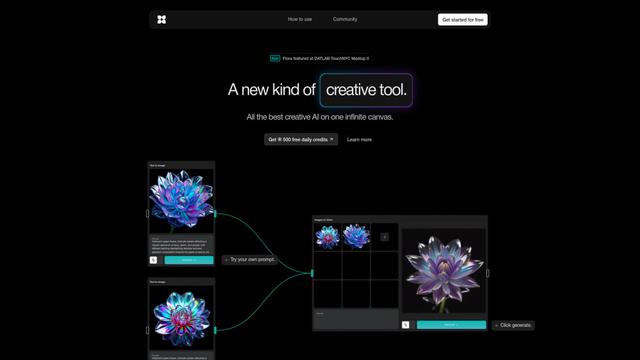
FLORA is an innovative AI-powered creative tool that combines multiple AI capabilities on an infinite canvas to enable personalized plant identification, creative design, and interactive botanical assistance.
Popular AI Tools Like SlimSnap

Somme: Wine Matched to You
FreemiumAI Image Recognition
Somme is an AI-powered personal sommelier app that combines advanced image recognition, personalized recommendations, and comprehensive wine insights to help users discover and enjoy wines that match their unique taste preferences.
FishPic
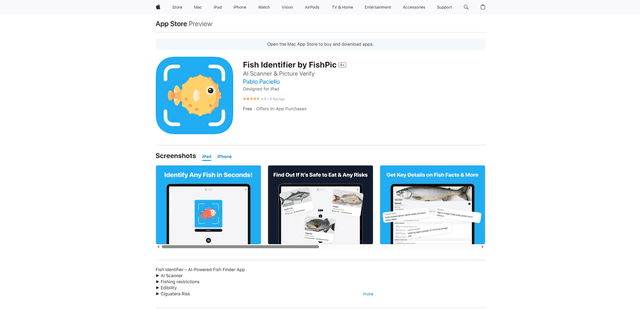
FishPic is an AI-powered fish identification app that instantly recognizes fish species from photos while providing comprehensive information about edibility, regulations, and recipes.
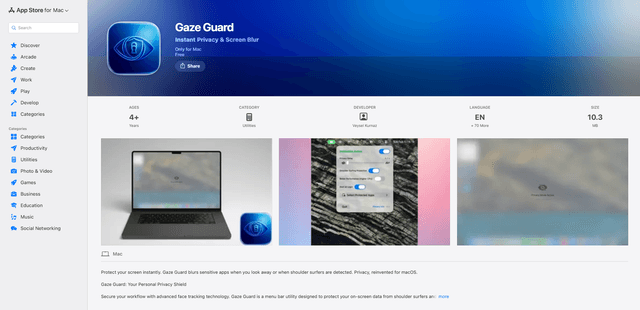
Gaze Guard
Gaze Guard is a privacy-focused menu bar utility for Mac that automatically blurs your screen content when you look away or when someone is shoulder surfing, using advanced face tracking technology.
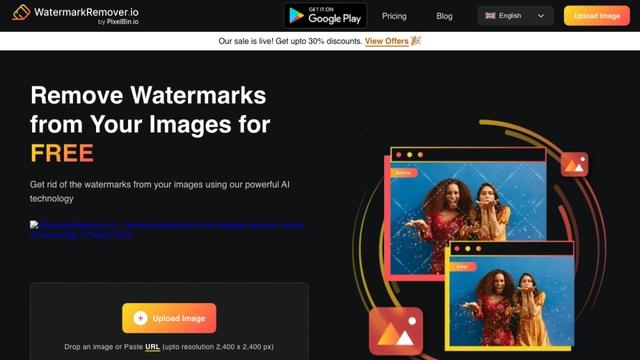
WatermarkRemover.io
WatermarkRemover.io is an AI-powered online tool that automatically removes watermarks from images for free while maintaining image quality.