
SceneNote
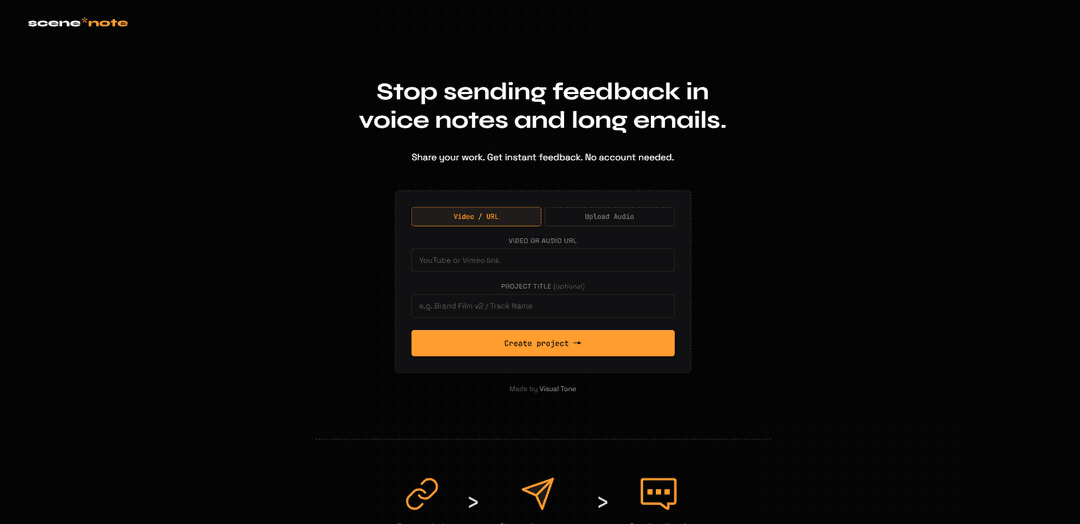
SceneNote is a free, no-account video and audio review tool that collects timestamped comments, frame annotations, voice notes with transcription, versioned cuts, and exports notes as CSV/EDL for NLE timelines.
https://scenenote.visual-tone.com/?ref=producthunt
Product Information
Updated:Aug 8, 2026
What is SceneNote
SceneNote is a link-based collaboration product by Visual Tone (Pty) Ltd (South Africa) designed for fast, professional feedback on work-in-progress video or audio. Instead of long emails or voice notes, you create a project by pasting a media link (e.g., YouTube, Vimeo, Dropbox, or direct MP4/MP3 links) or by uploading an audio file, then share a single review link with clients or collaborators—no sign-up required for you or reviewers. Projects are private-by-link (not indexed or publicly listed) and are automatically deleted after 45 days of inactivity, making it well-suited to NDA-style review workflows.
Key Features of SceneNote
SceneNote is a free, no-login tool for collecting timestamped feedback on video and audio projects. You create a project by pasting a hosted media link (e.g., YouTube/Vimeo/Dropbox/direct URLs) or uploading an audio file, then share a review link so collaborators can leave time-coded comments, frame annotations, and voice notes (with transcription). It supports version stacking (v2, v3, etc.) where feedback stays tied to the specific cut, and you can export notes as CSV/EDL for importing into editors like Premiere Pro, DaVinci Resolve, and Final Cut Pro as timeline markers.
No-account review links: Create a project by pasting a link or uploading audio, then share a link for reviewers—no sign-up or onboarding required for you or collaborators.
Timestamped comments & ranged notes: Reviewers can pin feedback to exact timestamps, stretch notes across a time range, and add context while scrubbing or pausing playback.
Frame annotations: Annotate directly on the video frame (circle, point, sketch) to make visual feedback unambiguous without long explanations.
Voice notes with transcription: Leave voice feedback that is automatically transcribed (via Cloudflare AI Whisper), keeping review fast while still searchable/readable.
Version stacking with locked older cuts: Add new cuts as v2/v3 tabs; feedback remains tied to the version it was left on, and older versions lock so reviewers comment on the latest cut.
CSV/EDL export to NLE markers: Export feedback as CSV or EDL and import into Premiere Pro, DaVinci Resolve, or FCPx so notes appear as timeline markers.
Use Cases of SceneNote
Video post-production client reviews: Editors share an unlisted YouTube/Vimeo cut and collect precise timestamped notes/annotations from clients, then import markers into the edit timeline.
Audio mixing and mastering approvals: Producers upload an audio file or share a direct link and gather time-coded mix notes, including voice notes, from artists and stakeholders.
Agency creative approvals (ads/social content): Creative teams centralize feedback on ad spots or social videos, use tasks to track changes, and keep comments organized by version.
Remote collaboration for distributed teams: Teams in different locations review the same cut asynchronously with clear, time-based context—no accounts needed for external collaborators.
Internal QA for training and product videos: Organizations review instructional or product demo videos, annotate specific frames, and export consolidated notes for efficient revisions.
Pros
Free to use with no per-seat pricing and no account required for creators or reviewers
Version stacking keeps feedback tied to each cut and helps prevent commenting on outdated versions
Exports to CSV/EDL enable direct import into major NLEs as timeline markers
Does not store linked videos (projects are link-based), which can simplify workflows and reduce re-uploading
Cons
Projects are automatically deleted after 45 days of inactivity, so notes must be exported for long-term retention
Playback reliability depends on the hosting platform and link type (e.g., Google Drive can stutter for high-bitrate files)
Anyone with the shared project link can view and leave feedback, so link security/sharing discipline is essential
Uploaded audio files have size limits (e.g., max 50MB) and are stored only for the project’s lifetime
How to Use SceneNote
1) Open SceneNote: Go to https://scenenote.visual-tone.com/ to access SceneNote in your browser (no account required).
2) Start a new project (choose Video/URL or Upload Audio): On the home screen, choose whether you want to create a project from a hosted media link (video/audio URL) or by uploading an audio file.
3) Create a project from a hosted link (Video/Audio URL): Paste a media link into the URL field (supported sources include YouTube, Vimeo, Dropbox, and direct .mp4/.mp3 links). Then optionally add a project title.
4) Or create an audio project by uploading a file: Drag-and-drop an audio file (MP3, WAV, AAC, FLAC; max 50MB) into the upload area (or browse to select it). Optionally add a project title, then proceed.
5) Click “Create project”: Select “Create project →” to generate your project room.
6) Copy and save your two links (Share link + Owner link): Copy the Share link to send to reviewers. Copy the Owner link and store it safely—this is your master key for managing and deleting the project.
7) (Optional) Email yourself the links: If you want, enter your email and use “Email me my links” so SceneNote sends you the Share link and Owner link. This is optional and not required to use the product.
8) Share the project with collaborators: Send the Share link to clients/collaborators. Anyone with the link can open the project and leave feedback without signing up.
9) Open the project and set a display name (optional): In the project room, you may enter a display name (e.g., “Julie”). This helps identify who left which notes and is visible to anyone with the project link.
10) Leave timestamped comments while watching/listening: Play the media, pause or scrub to the exact moment, then add a comment. Notes can be pinned to a precise timestamp or stretched across a time range.
11) Add frame annotations for visual clarity (video projects): Use the annotation tools to circle, point, or sketch directly on the video frame so feedback is unambiguous and tied to the moment on screen.
12) Record voice notes (with transcription): Add a voice note instead of typing. SceneNote transcribes voice notes using Cloudflare’s AI Whisper and stores the transcript alongside the note for the life of the project.
13) Turn feedback into tasks and resolve notes: Use the built-in task workflow to convert feedback into a to-do list, reply to comments, track progress, and resolve notes as changes are made.
14) Upload a new cut as a new version (v2, v3, …): To submit a new version, paste a new media link (e.g., a re-uploaded YouTube/Vimeo cut or direct URL). SceneNote stacks it as v2/v3 tabs; feedback remains tied to the version it was left on, and older versions lock so reviewers comment on the latest cut.
15) Enable email notifications for new feedback (optional): In the project, click the bell icon and enter your email to receive notifications when new notes are added. You can unsubscribe anytime via the one-click link in emails.
16) Export notes for editing software (CSV/EDL): Export feedback as CSV or EDL and import into Premiere Pro, DaVinci Resolve, or Final Cut Pro so notes appear as timeline markers.
17) Keep the project active (or let it expire): Projects are automatically deleted after 45 days of inactivity. Opening the project resets the inactivity timer, so active projects stay alive as long as they’re being used.
18) Delete a project (owner only): Use your Owner link to manage the project and delete it permanently when finished. Deletion removes all notes and project data and cannot be undone.
SceneNote FAQs
SceneNote is a free, no-account video and audio feedback tool. You paste a video/audio link (or upload an audio file), share the project link, and collect timestamped notes, annotations, and voice notes.
SceneNote Video
Popular Articles

Vosko AI: Localize and Dub Videos for Global Audiences
Oct 15, 2026

Atoms: A Multi-Agent AI Platform That Transforms Ideas into Launch-Ready Products
Oct 13, 2026

Nano Banana SBTI: What It Is, How It Works, and How to Use It in 2026
Apr 15, 2026

Atoms Review — The AI Product Builder Redefining Digital Creation in 2026
Apr 10, 2026
Latest AI Tools Similar to SceneNote
EzVideos
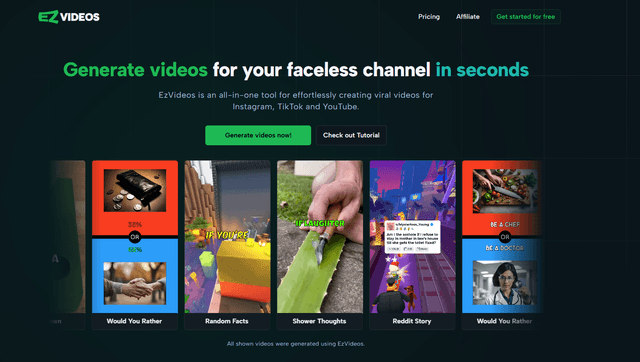
EzVideos is an all-in-one video creation tool that helps users generate viral videos for social media platforms like Instagram, TikTok, and YouTube with automated editing features and built-in resources.

Blanc AI
Blanc AI is a revolutionary AI solution that enables video content translation and dubbing into 47+ languages while preserving the original voice, emotions, and lip synchronization.
Wink Mody
Wink Mody is a modified version of the Wink video editing app that offers premium features like AI-powered retouching, 4K exports, and watermark-free editing completely free of charge.

Shortmake AI
ShortMake is an AI-powered video creation platform that transforms ideas into viral-ready videos by automatically generating scripts, voiceovers, visuals, and subtitles specifically optimized for platforms like TikTok and YouTube Shorts.
Popular AI Tools Like SceneNote
AI Clips - New Gen
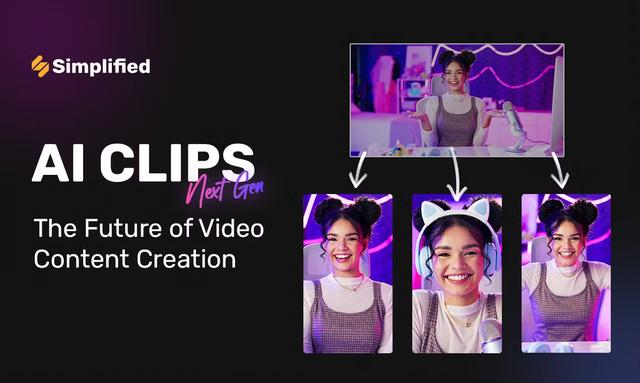
AI Clips - New Gen is an AI-powered video clipping tool that automatically generates engaging short-form content from long videos for multiple social media platforms like YouTube Shorts, TikTok, Instagram Reels and more.

Edit Mind
Edit Mind is an open-source, AI-powered video indexing and semantic search platform that enables users to analyze and search through video content using natural language queries, with features including transcription, frame analysis, face recognition, and object detection.
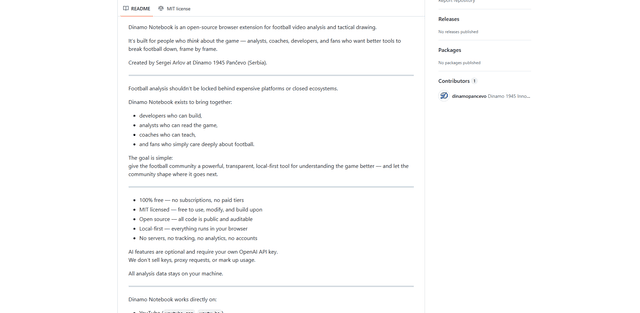
Dinamo Notebook
FreeAI Video Editing
Dinamo Notebook is a free, MIT-licensed, local-first browser extension for football video analysis that lets you draw tactical annotations on YouTube/Dailymotion/Twitch footage and optionally use AI (with your own OpenAI API key) for tactical insights.
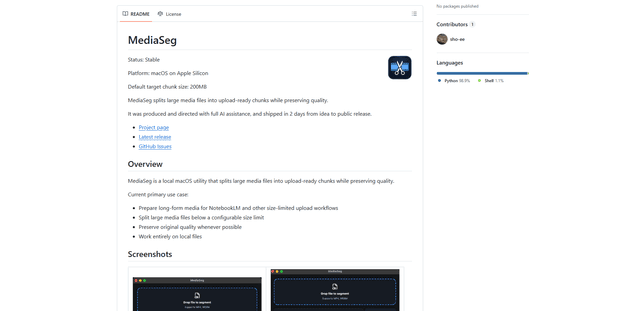
MediaSeg
MediaSeg is a stable, local-first macOS utility that splits large MP4/WEBM media files into upload-ready chunks under a configurable size limit while preserving quality using ffmpeg/ffprobe and an AI-assisted, target-based sizing strategy.