
QuickQuill
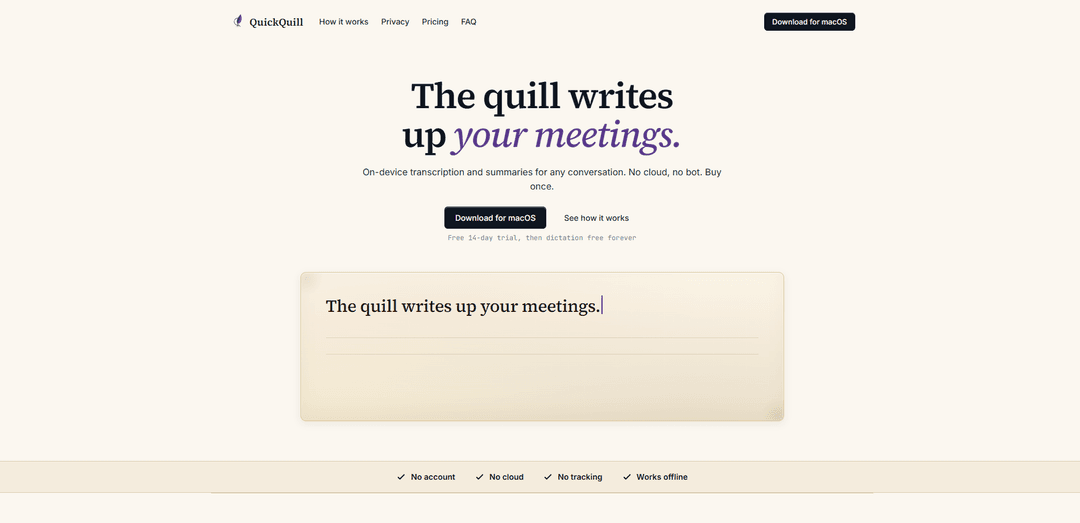
QuickQuill is a private, on-device meeting notes app for macOS that records, transcribes, and summarizes conversations offline—no bot, no cloud, no account—with live captions, translation, and rich exports.
https://quickquill.app/?ref=producthunt
Product Information
Updated:Jul 16, 2026
What is QuickQuill
QuickQuill is a Mac-first meeting transcription and summarization tool designed for people who want accurate notes without sending sensitive audio to the cloud. It runs locally on your Mac, works offline (even in airplane mode), and doesn’t require an account or any tracking. You can use it to capture meetings, calls, lectures, or even audio from videos your Mac is playing, then search, review, and export your transcripts and notes. The app is downloadable for macOS and offers a 14-day full trial starting from your first recording, after which dictation remains free forever; a one-time license unlocks the full meeting workflow.
Key Features of QuickQuill
QuickQuill is a Mac menu-bar app for private, on-device meeting notes: it records both sides of any conversation (your mic plus system audio), transcribes the audio locally, and generates on-device summaries—without inviting a bot, creating an account, or sending data to the cloud. It also supports live captions and on-device translation, works offline (even in airplane mode), and lets you review, search, and export transcripts and captions in multiple formats. Pricing is a one-time license (with a free trial and free dictation mode forever), and the app is distributed outside the Mac App Store to support required system-wide hotkeys and accessibility access.
On-device transcription & summaries: Transcribes and summarizes recordings entirely on your Mac, keeping audio and notes local and usable offline.
No bot, no links, no accounts: Starts from the menu bar and records what your Mac is already playing plus your microphone—no meeting assistant joins the call and no sign-in is required.
Captures both sides of conversations: Records your voice and the other party together, in order, for accurate end-to-end meeting notes.
Live subtitles and on-device translation: Provides a floating caption bar to read along in real time and can translate on the fly without sending content to external services.
Import & multi-format exports: Transcribe existing audio/video files and export notes and captions in formats like Markdown/text and subtitle formats (e.g., SRT, VTT), including subtitled video.
Searchable history & custom vocabulary: Keeps a local, searchable archive of transcripts and supports custom vocabulary to improve recognition for names and domain terms.
Use Cases of QuickQuill
Business meetings & 1:1s: Capture and summarize internal meetings without exposing sensitive discussions to cloud notetakers or third-party bots.
Sales and customer calls: Record calls for follow-up actions, key objections, and recap emails while keeping customer data on-device for privacy and compliance.
Research interviews & journalism: Transcribe interviews locally to protect sources and reduce risk from uploading recordings to external services.
Education (lectures and study): Record lectures or online classes, generate summaries, and export transcripts for review and studying.
Media and content workflows: Import podcasts/videos to create transcripts, subtitles (SRT/VTT), and even subtitled video outputs for publishing.
Cross-language communication: Use live captions and on-device translation to follow meetings, calls, or videos in another language without sharing audio externally.
Pros
Strong privacy by architecture: transcription and summaries run locally; audio/notes are not uploaded and it works offline.
No-bot workflow: records system audio plus mic without inviting a third party into calls.
Simple pricing: one-time purchase with a free trial; dictation remains free forever.
Cons
Mac-only and requires macOS 26 or later, limiting compatibility.
Not available on the Mac App Store due to sandbox restrictions, which may be a drawback for users who prefer store distribution.
Some features are described as still being polished (e.g., summaries/translation/exports), and pricing is expected to increase after the launch period.
How to Use QuickQuill
1. Download and install QuickQuill on your Mac: Go to https://quickquill.app/ and click “Download for macOS” to download the DMG, then open it and install QuickQuill.
2. Launch QuickQuill from the menu bar: Open QuickQuill and look for its icon in the macOS menu bar. QuickQuill is designed to start and stop recordings from there.
3. Start a recording (one click): When you’re about to begin a call, lecture, or any audio you want captured, click the menu bar control to start recording. There’s no bot to invite and no link to share—QuickQuill records the audio your Mac is already playing plus your microphone.
4. Talk normally—both sides are captured: Proceed with your meeting or conversation. QuickQuill captures your voice and the other side together, in order, while keeping everything on-device.
5. (Optional) Turn on live captions: Enable the floating caption bar to read along as the conversation happens. This is useful for following every word in real time.
6. (Optional) Use live translation: If you’re watching or listening across languages (e.g., a call or video in another language), turn on translation to translate on the fly using on-device translation.
7. Stop recording to generate notes: When the conversation ends, stop the recording from the menu bar. QuickQuill will transcribe the conversation and generate a summary in the background on your Mac.
8. Review, search, and manage your history: Open your saved items to review transcripts and summaries, and use history/search to find past recordings. Recordings and transcripts are stored locally and kept as long as you choose.
9. Export your transcript/notes: Export your content as text or Markdown (available in the free plan). With a license, you can export additional formats such as SRT, VTT, and subtitled video.
10. Import existing audio/video files (licensed feature): If you already have an audio or video file, use the file import feature to transcribe and summarize it.
11. Use dictation anywhere (free forever after trial): Use QuickQuill’s dictation (push-to-talk) for quick capture outside of meetings. After the 14-day full trial (which starts the first time you record), dictation remains free forever.
12. Keep it private and offline (optional best practice): If you want maximum privacy assurance, enable airplane mode—QuickQuill’s transcription and summaries run on-device. The only optional network activity mentioned is checking for a new version.
QuickQuill FAQs
No. Transcription and summaries run entirely on your Mac, and your recordings and notes stay local. QuickQuill says it makes no network requests for transcription/summaries; the only optional network use is checking for a new version.
QuickQuill Video
Popular Articles

Vosko AI: Localize and Dub Videos for Global Audiences
Oct 15, 2026

Atoms: A Multi-Agent AI Platform That Transforms Ideas into Launch-Ready Products
Oct 13, 2026

Nano Banana SBTI: What It Is, How It Works, and How to Use It in 2026
Apr 15, 2026

Atoms Review — The AI Product Builder Redefining Digital Creation in 2026
Apr 10, 2026
Latest AI Tools Similar to QuickQuill
Ticknotes
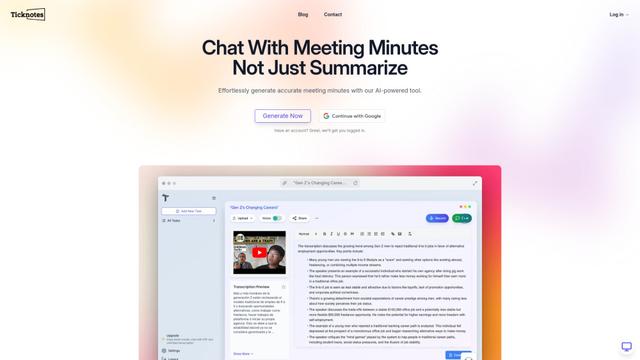
Ticknotes is an AI-powered meeting assistant that automatically records, transcribes, and generates personalized meeting summaries, action items, and key insights from audio, video, and text content.
Feta
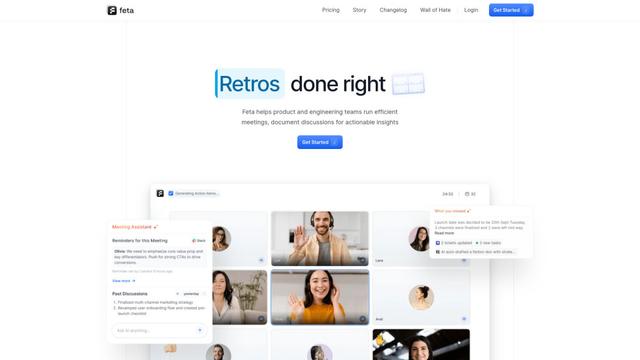
Feta is an AI-powered meeting tool that helps product and engineering teams run efficient meetings by capturing discussions, automating tasks, and providing actionable insights through smart summaries and integrations.
Aimeet
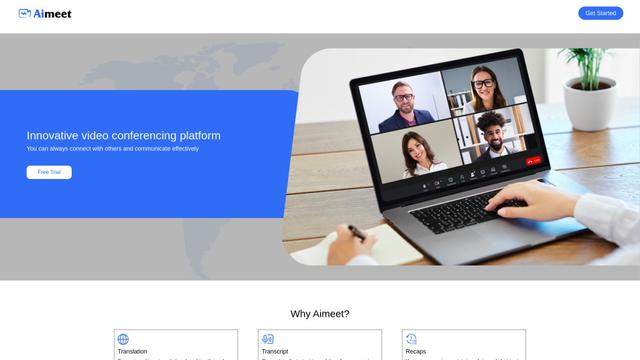
Aimeet is a comprehensive AI-powered communication platform that combines real-time translation, transcription, screen sharing, and unlimited meeting capabilities for effective virtual collaboration.
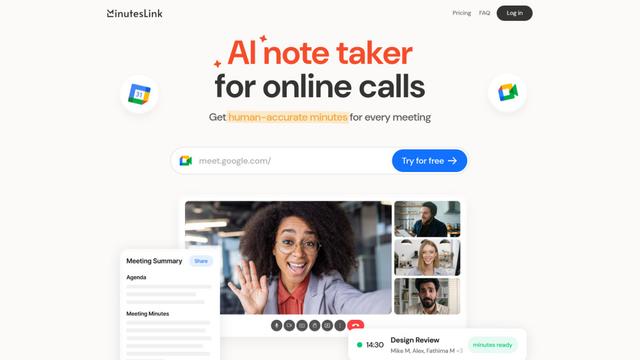
MinutesLink
MinutesLink is an advanced AI-powered note-taking assistant that automatically records, transcribes, summarizes and organizes virtual meetings while building personalized digital avatars from meeting data.
Popular AI Tools Like QuickQuill
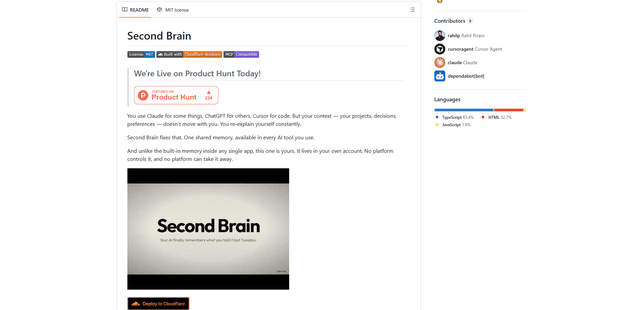
Second Brain for AI
Second Brain for AI is a self-hosted, MCP-compatible persistent memory layer on Cloudflare that lets Claude, ChatGPT, Cursor, and other AI clients store and semantically recall shared context across sessions.
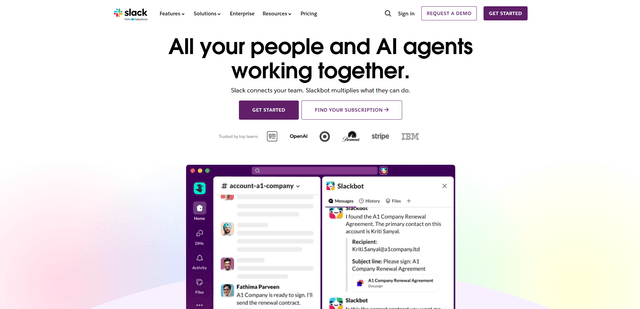
Slack
Slack is an AI-powered work platform that brings team communication, channels, files, automation, and app integrations into one conversational workspace.
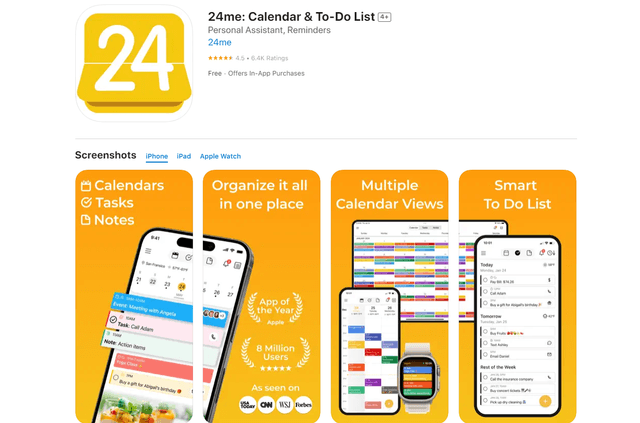
24me Smart Personal Assistant
24me is an award-winning smart personal assistant app that combines calendar, to-do lists, notes, and personal accounts in one unified platform to help boost productivity and time management.
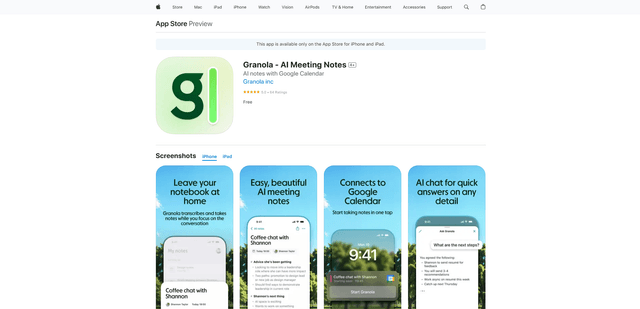
Granola for iOS
Granola for iOS is an AI-powered notepad app that helps users effortlessly capture, transcribe and summarize meeting conversations through intelligent note-taking and one-tap recording capabilities.