Mispher
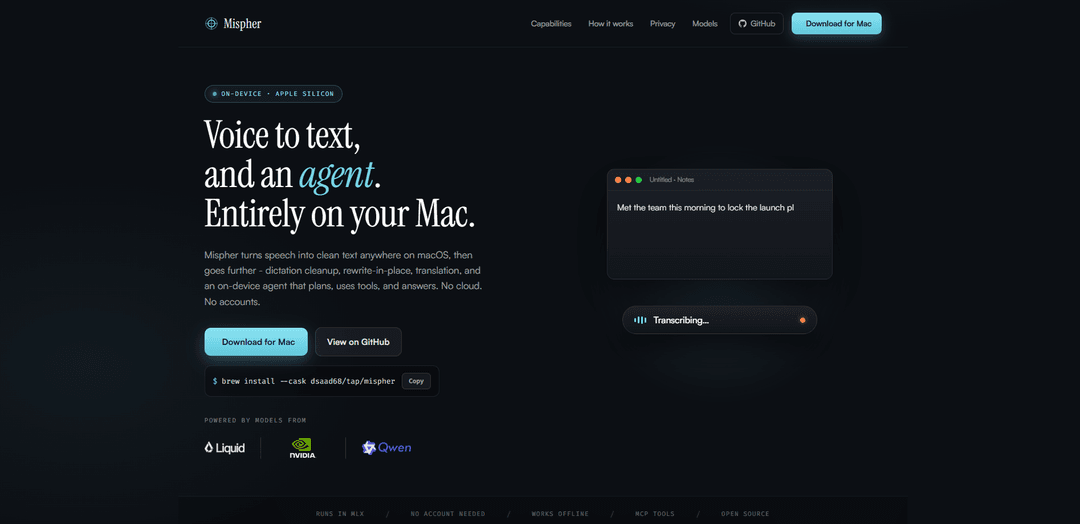
Mispher is an on-device macOS voice-to-text and agent app that turns speech into clean text anywhere, offering dictation cleanup, rewrite-in-place, translation, and tool-using “Ask” mode—fully offline with no accounts or cloud.
https://mispher.com/?ref=producthunt
Product Information
Updated:Jul 15, 2026
What is Mispher
Mispher is a Mac app for Apple Silicon that brings fast, accurate speech-to-text and AI assistance directly into any focused text field on macOS. Designed around privacy-by-architecture, it runs entirely on your device using Apple’s MLX framework, so audio and text don’t need to leave your computer. Beyond basic transcription, Mispher includes features to automatically polish dictated text (punctuation, capitalization, number formatting, filler-word removal), translate between languages, and even invoke an on-device agent that can plan tasks, answer questions, and work with approved tools.
Key Features of Mispher
Mispher is an on-device macOS app (Apple Silicon) that converts speech into clean text anywhere you can type, and adds higher-level writing and assistant workflows—dictation cleanup, rewrite-in-place, translation, and an offline “Ask” agent that can plan and use tools (including MCP integrations). It runs locally via Apple’s MLX framework with downloadable models, requires no account, sends no audio to the cloud, and supports multiple interaction styles (hold-to-speak with a radial dial, customizable shortcuts, and different overlays).
On-device speech-to-text anywhere in macOS: Fast dictation that inserts directly into the currently focused input field, using local ASR models (e.g., Parakeet for English; Nemotron for ~40 languages).
Dictation cleanup (polish after you speak): Automatically fixes punctuation/capitalization, formats numbers, and removes filler words like “um/uh” to produce cleaner, ready-to-send text.
Rewrite-in-place editing: Highlight text in any app, speak the change, and Mispher replaces the selection where it sits—useful for quick revisions without switching tools.
Live translation dictation: Speak in one language and insert another; supports auto-translate for everything you dictate or one-off translations into a target language.
Offline agent (“Ask”) with tool use: An on-device agent that can plan, use approved tools, and stream answers back; can read and update Apple Notes and connect to MCP tools (filesystem/web/custom MCP servers) with configurable approvals.
Privacy-first + offline-by-design: No accounts, no telemetry, no cloud processing—audio and inference stay on your Mac, enabling use fully offline (e.g., travel or restricted environments).
Use Cases of Mispher
Knowledge workers & email/report drafting: Dictate messages and documents with cleanup and rewrite-in-place to speed up writing, editing, and summarizing without leaving your current app.
Customer support & sales follow-ups: Turn spoken call notes into clean text, rewrite for tone/clarity, and generate consistent follow-up messages while keeping sensitive data local.
Multilingual teams & localization workflows: Dictate in one language and output another for quick internal communication, ad-hoc translation, and bilingual note-taking.
Developers & analysts using tool-assisted Q&A: Use the on-device agent with MCP connections (e.g., filesystem/web/custom tools) to help plan tasks, answer questions, and update notes—while controlling tool permissions.
Privacy-sensitive environments (legal/health/finance): Capture dictation and perform edits/translations locally to reduce exposure of confidential audio/text to third-party cloud services.
Pros
Strong privacy posture: on-device processing, no account, no cloud audio
Versatile workflows: transcription + cleanup + rewrite + translation + agent in one tool
Offline capable and fast on Apple Silicon via MLX
Flexible interaction: hold-to-speak radial dial, remappable shortcuts, multiple overlays
Cons
Apple Silicon/macOS focus limits availability for Windows/Linux or older Intel Macs
Local models require downloads and storage (multi-GB depending on chosen models)
Quality and language coverage depend on the specific local model selected (may vary across languages and tasks)
How to Use Mispher
1) Install Mispher: On macOS (Apple Silicon), install via Homebrew: `brew install --cask dsaad68/tap/mispher`.
2) Launch Mispher: Open Mispher on your Mac. It runs entirely on-device (no cloud, no account).
3) Download/select the local models you want: In Mispher, download the speech recognition and language models you plan to use (e.g., Parakeet for English, Nemotron for ~40 languages). Everything runs locally via Apple’s MLX framework.
4) Use the hold-to-speak trigger to bring up the radial dial: Press and hold the trigger key (default is left ⌥ Option). The radial dial appears wherever you are.
5) Aim at a mode (choose what you want Mispher to do): While holding the trigger, flick/aim the dial toward the mode you want (Transcribe, Translate, Rewrite, or Ask). You can also use arrow keys to select a slice.
6) Release to run, then speak: Release to start the selected action, speak your content, and Mispher inserts the result directly into the currently focused field/app.
7) Transcribe (speech-to-text anywhere): Focus any text field in any app, hold the trigger, select Transcription, and dictate. Mispher drops the recognized text into the focused field.
8) Dictation cleanup (polish after you talk): Use Dictation cleanup to automatically add punctuation/capitalization, format numbers, and remove filler words like “um” and “uh” after dictating.
9) Rewrite in place (edit existing text by voice): Highlight text in any app, hold the shortcut, choose Rewrite in place, and speak your edit. Mispher replaces the selected text where it sits.
10) Translate (speak one language, insert another): Hold the trigger, choose Translate, then speak. Mispher inserts the translated text in your target language (either auto-translate everything you dictate or do a one-off translation).
11) Ask (use the on-device agent): Hold the trigger, choose Ask, and speak a question or request (e.g., “Search for a baked potatoes recipe.”). The on-device agent plans, uses tools, and streams an answer back; it can also read/update Apple Notes.
12) Connect MCP tools (optional): If you want the agent to use tools, connect MCP servers (filesystem, web, or your own). Choose which tools the agent may use and how approvals happen.
13) Customize shortcuts and mode selection: Remap the radial dial slices and/or assign each mode its own shortcut (push-to-talk, trigger, or hold & release) based on your workflow.
14) Choose an overlay style: Pick how recording appears on-screen: Dynamic Island, Floating pill, or Floating notch. You can set different overlays for voice modes vs. Ask.
15) Use offline with privacy by design: Use Mispher fully offline—audio never touches a network, and there are no accounts, telemetry, or cloud processing.
Mispher FAQs
Mispher is a macOS app that turns speech into clean text anywhere on your Mac, and also provides dictation cleanup, rewrite-in-place, translation, and an on-device agent that can plan, use tools, and answer questions.
Mispher Video
Popular Articles

Vosko AI: Localize and Dub Videos for Global Audiences
Oct 15, 2026

Atoms: A Multi-Agent AI Platform That Transforms Ideas into Launch-Ready Products
Oct 13, 2026

Nano Banana SBTI: What It Is, How It Works, and How to Use It in 2026
Apr 15, 2026

Atoms Review — The AI Product Builder Redefining Digital Creation in 2026
Apr 10, 2026
Latest AI Tools Similar to Mispher
Ticknotes
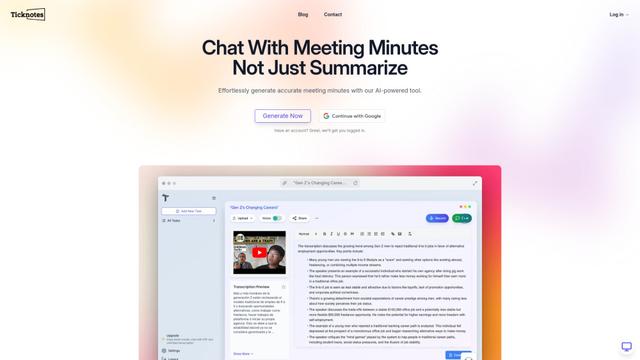
Ticknotes is an AI-powered meeting assistant that automatically records, transcribes, and generates personalized meeting summaries, action items, and key insights from audio, video, and text content.
Feta
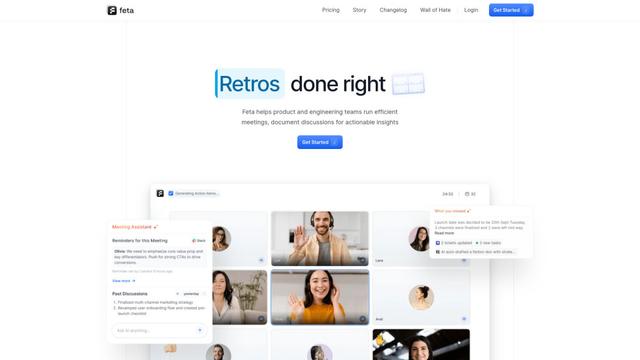
Feta is an AI-powered meeting tool that helps product and engineering teams run efficient meetings by capturing discussions, automating tasks, and providing actionable insights through smart summaries and integrations.
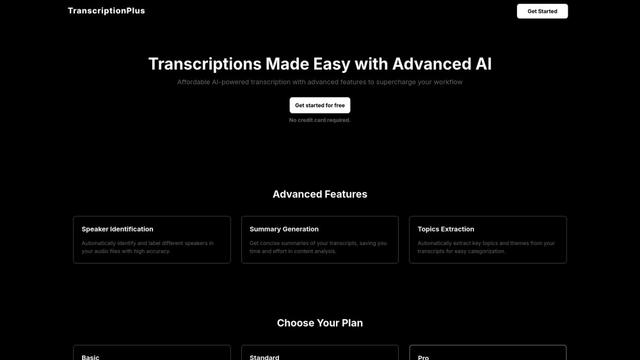
TranscriptionPlus
TranscriptionPlus is an AI-powered transcription service that offers accurate speech-to-text conversion with advanced features like speaker identification, summary generation, and multi-language support at affordable pricing tiers.
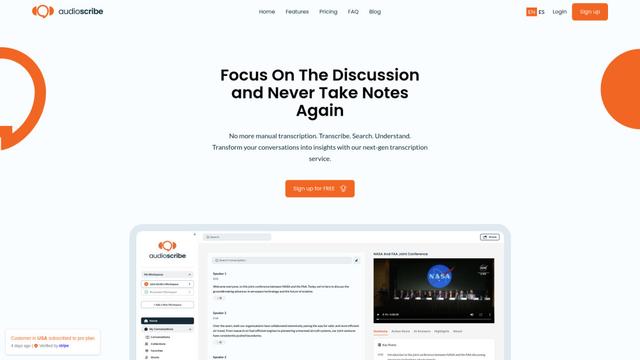
AudioScribe.io
AudioScribe.io is a revolutionary AI-powered transcription service that converts audio and video content into accurate text while offering advanced features like automated meeting recording, full-text search, and multi-language support.
Popular AI Tools Like Mispher
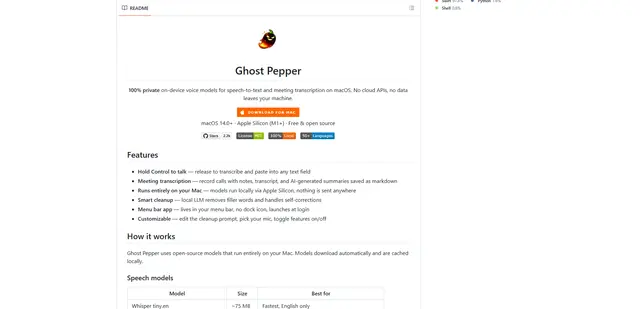
Ghost Pepper 🌶️
Ghost Pepper is a 100% local, privacy-focused speech-to-text and meeting transcription app for macOS that runs entirely on your Mac using open-source AI models, featuring hold-to-talk recording, intelligent text cleanup, and multi-language support without sending any data to the cloud.
Whisper AI
Whisper is an open-source automatic speech recognition system from OpenAI that approaches human-level accuracy and robustness for transcribing and translating speech in multiple languages.

Youtube to transcript
Youtube to Transcript is a Chrome extension that allows users to easily convert YouTube videos into text transcripts with features like multi-language support, AI-powered summarization, and downloadable formats.
inFin
inFin is a lightweight, user-friendly AI-powered voice notes app that offers unlimited recording, real-time transcription, and translation between Chinese and English, with offline capabilities and local storage for enhanced privacy.