MenuForma – QR Menu & Online Ordering
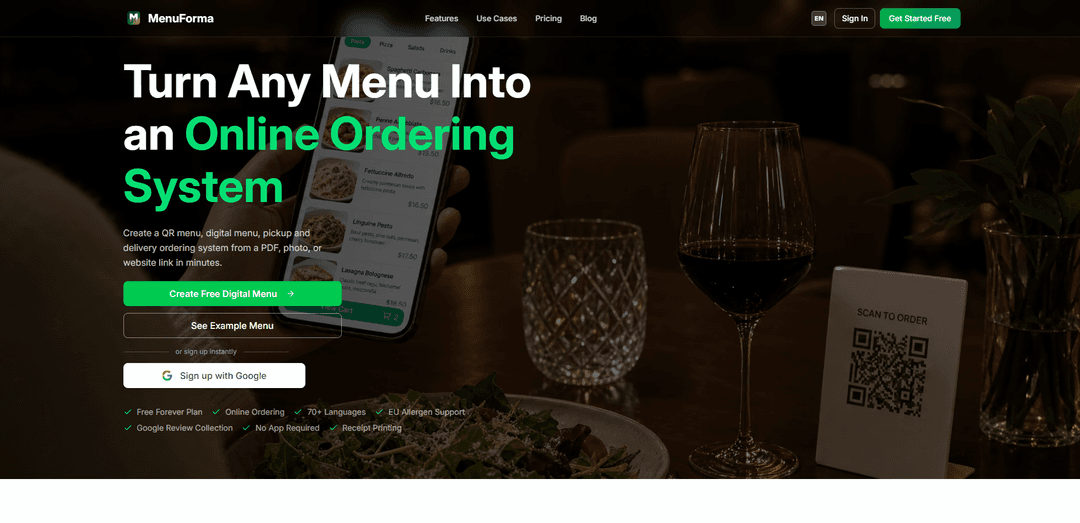
MenuForma is an all-in-one platform that turns any restaurant menu (PDF, photo, or link) into a QR-based digital menu with online ordering, automatic translation in 70+ languages, branded QR codes, and tools like analytics, receipt printing, and Google review collection—no app or coding required.
https://menuforma.com/?utm_source=aipure
Product Information
Updated:Jul 13, 2026
What is MenuForma – QR Menu & Online Ordering
MenuForma is an AI-powered restaurant platform that transforms any menu (PDF, photo, or website link) into a QR menu, online ordering system, and multilingual digital menu in minutes.It helps restaurants increase revenue by enabling QR code ordering, supporting 70+ languages for international guests, and collecting Google reviews automatically after dining.MenuForma is designed for restaurants, cafés, bars, food trucks, and hospitality businesses that want to digitize their menus and improve customer experience without apps or complex setup.
Key Features of MenuForma – QR Menu & Online Ordering
MenuForma is an all-in-one digital menu and restaurant management platform that turns a PDF/photo/link menu into a QR-based digital menu and online ordering system in minutes. It supports pickup, takeaway, dine-in, and hotel/room-service ordering, automatically translates menus into 70+ languages, and includes EU allergen labeling support. The platform also offers customizable QR codes, real-time order alerts, analytics, and tools to boost Google reviews after ordering. Payments can be enabled via Stripe, and it’s designed to work without requiring customers to download an app.
QR menu generator from existing menus: Upload a PDF, photo, or website link and quickly generate a shareable digital menu with QR access.
Online ordering for multiple service styles: Accept dine-in, pickup, and delivery/takeaway orders, with modes like per-table QR, unified QR, room service, and tablet mode.
Automatic multilingual menus (70+ languages): Auto-translates menu content so international guests can browse and order in their preferred language without an app.
EU allergen labels & compliance support: Displays allergen information to help meet EU menu requirements and improve guest safety and clarity.
Payments via Stripe: Lets customers pay online securely through Stripe; transactions are encrypted and payment data isn’t stored on MenuForma servers.
Growth & operations tools: Includes Google review collection prompts after ordering, real-time order alerts across devices, menu/ordering analytics, and multi-location management.
Use Cases of MenuForma – QR Menu & Online Ordering
Full-service restaurants with table ordering: Use per-table QR codes so orders are tagged by table number, speeding service and reducing ordering friction.
Cafés, food courts, and counter service: Deploy a unified QR code so guests place orders and receive an order number—useful for high-throughput environments.
Hotels and resorts (room service): Assign QR codes per room number so guests can order room service immediately or schedule delivery times.
Food trucks and pop-ups: Offer quick mobile ordering and update menus rapidly as items sell out, without needing an app download.
Bars and pubs with rotating menus: Share drink menus via QR, highlight happy-hour specials, and rotate seasonal items while tracking popularity via analytics.
Marketing and window-display menus: Use “Display Only” mode to share a browseable menu link/QR on social media, review sites, or storefront signage without accepting orders.
Pros
Fast setup: converts a PDF/photo/link into a QR menu and ordering page in minutes
Strong guest accessibility: 70+ languages and no app required for customers
Flexible QR modes: per-table, unified, hotel/room, tablet, plus view-only/self-select options
Built-in growth tools: analytics and automated Google review collection
Cons
Payment processing is tied to Stripe for online payments (may not suit businesses wanting other processors)
Some operational features (e.g., advanced customization/analytics or multi-restaurant scaling) may require upgrading from the free plan
How to Use MenuForma – QR Menu & Online Ordering
1) Create your MenuForma account: Go to https://menuforma.com/ and sign up (there is a Free Forever plan). Once logged in, you’ll land in the dashboard where you can manage menus, orders, and settings.
2) Upload your existing menu (PDF, photo, or website link): Start the menu creation flow and upload a PDF or photo of your paper menu, or provide a website link. MenuForma will convert it into a digital menu and (per the sources) can extract items, categories, and prices automatically.
3) Review and organize your digital menu: Check that categories, item names, and prices look correct. Add or edit descriptions and structure so the menu is easy to browse on mobile.
4) Enable multilingual support (70+ languages): Turn on automatic translation so international guests can view the menu in their language. Verify key item names and descriptions after translation.
5) Configure EU allergen labels (if needed): Enable allergen display to support EU menu compliance requirements and ensure allergen information appears on relevant items.
6) Choose your QR/link mode based on your service style: Pick the QR code type that matches how you operate: Per-Table QR (orders tagged with table number), Unified QR (one QR for venue; customers get an order number), Hotel/Room Service (per room number + scheduling), Tablet Mode (shared device with PIN protection), Self-Select (customers select items but do not submit; waiter takes order verbally), or Display Only (view-only menu).
7) Generate and customize your QR codes: Create QR codes for tables, takeaway, delivery, or marketing. Customize them with your logo, brand colors, and call-to-action text. Each QR type also produces a shareable link.
8) Share the QR codes and start receiving orders: Print and place QR codes on tables/stands/packaging or share the link online. Customers scan to browse and (if enabled) place dine-in, pickup, or delivery orders.
9) Enable online payments with Stripe (optional): Connect Stripe to accept online payments. Transactions are encrypted and processed via Stripe; payment data is not stored on MenuForma servers (per the sources).
10) Set up instant order alerts: Enable real-time order notifications so staff can receive new order alerts on desktop, tablet, and mobile.
11) Set up receipt printing with MenuForma Print Agent (optional): Install and run MenuForma Print Agent on the computer connected to your printer. Then in MenuForma go to Dashboard → Orders → Print Settings and select Print Agent. After that, receipts can print silently on every new order.
12) Connect a USB thermal printer (Print Agent): Plug in your USB thermal printer. Open Print Agent → go to the USB tab → click Scan USB → select your printer to connect and print.
13) Connect a Bluetooth printer (Print Agent, if supported): In Print Agent, use the Bluetooth printer support to scan nearby Bluetooth printers, connect, and print (noted as available in v1.1.0).
14) Fix macOS “App is damaged” warning (if it appears): If macOS Gatekeeper shows an “App is damaged” warning for Print Agent, open Terminal and run: xattr -cr "/Applications/MenuForma Print Agent.app" ثم reopen the app.
15) Monitor performance with analytics: Use Restaurant Analytics to track menu views, popular items, customer behavior, and sales performance, then adjust your menu and QR placements accordingly.
16) Use Google Review Boost (optional): Enable post-order review prompts to ask customers for Google reviews and increase ratings after successful orders.
17) Manage multiple locations (optional): If you operate more than one venue, use Multi-Location Management to control multiple restaurants and menus from a single account.
MenuForma – QR Menu & Online Ordering FAQs
Yes. MenuForma offers a Free Forever plan that lets you create a digital QR menu for one restaurant with unlimited menu items, and no credit card is required.
Popular Articles

Vosko AI: Localize and Dub Videos for Global Audiences
Oct 15, 2026

Atoms: A Multi-Agent AI Platform That Transforms Ideas into Launch-Ready Products
Oct 13, 2026

Nano Banana SBTI: What It Is, How It Works, and How to Use It in 2026
Apr 15, 2026

Atoms Review — The AI Product Builder Redefining Digital Creation in 2026
Apr 10, 2026
Latest AI Tools Similar to MenuForma – QR Menu & Online Ordering
InDesign Translator
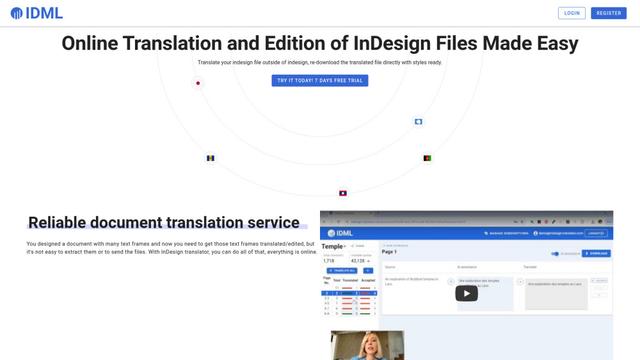
InDesign Translator is an online translation service that enables users to translate InDesign files while maintaining formatting and styles, offering AI-assisted translation and easy collaboration features without requiring translators to have InDesign installed.

Blanc AI
Blanc AI is a revolutionary AI solution that enables video content translation and dubbing into 47+ languages while preserving the original voice, emotions, and lip synchronization.
MenuGuide
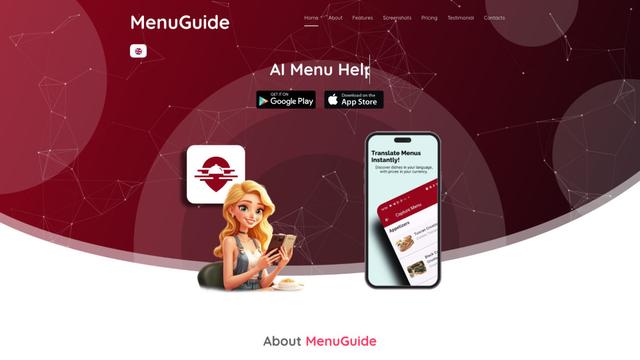
MenuGuide is a cutting-edge AI-powered app that instantly translates restaurant menus from any language to your preferred language, providing dish details, allergen information, and nutritional facts for seamless global dining experiences.
Vocabulary AI
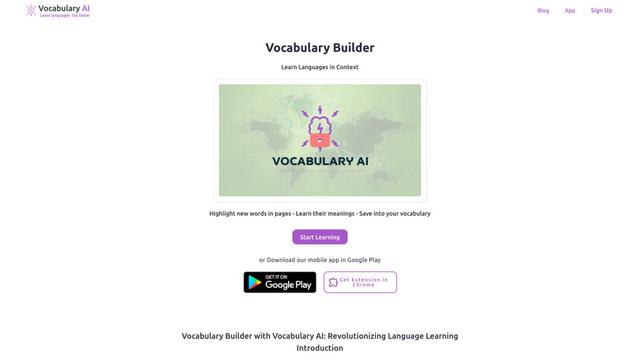
Vocabulary AI is an advanced AI-powered language learning platform that combines translation, vocabulary building, and personalized practice through website, mobile app, and browser extension to help users effectively learn and retain new words.
Popular AI Tools Like MenuForma – QR Menu & Online Ordering
ChatGPT Translate
FreeTranslate
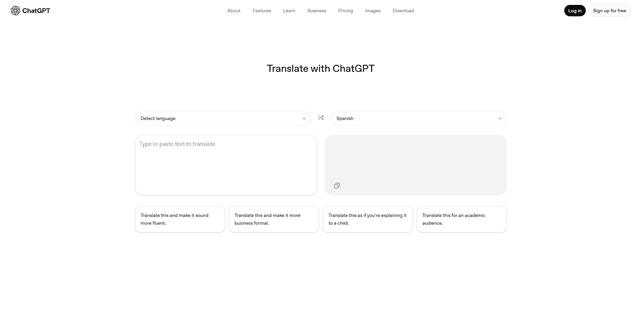
ChatGPT Translate is OpenAI's dedicated translation service that supports 50+ languages with AI-powered customization features for producing natural, context-aware translations across different tones and styles.
RSTGameTranslation
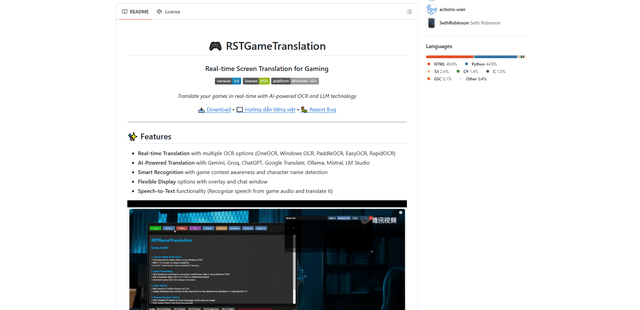
RSTGameTranslation is an open-source real-time game translation tool that combines OCR and AI translation technologies to automatically translate game text across multiple languages while supporting both offline and online modes.
Duory
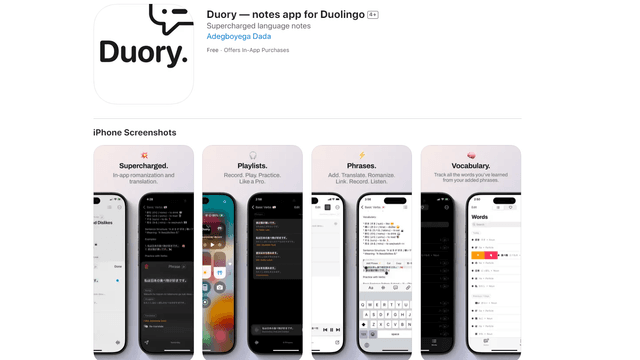
Duory is a dynamic language learning companion app that helps Duolingo users reinforce their lessons through interactive note-taking, translation features, and voice recording capabilities.