
knooth
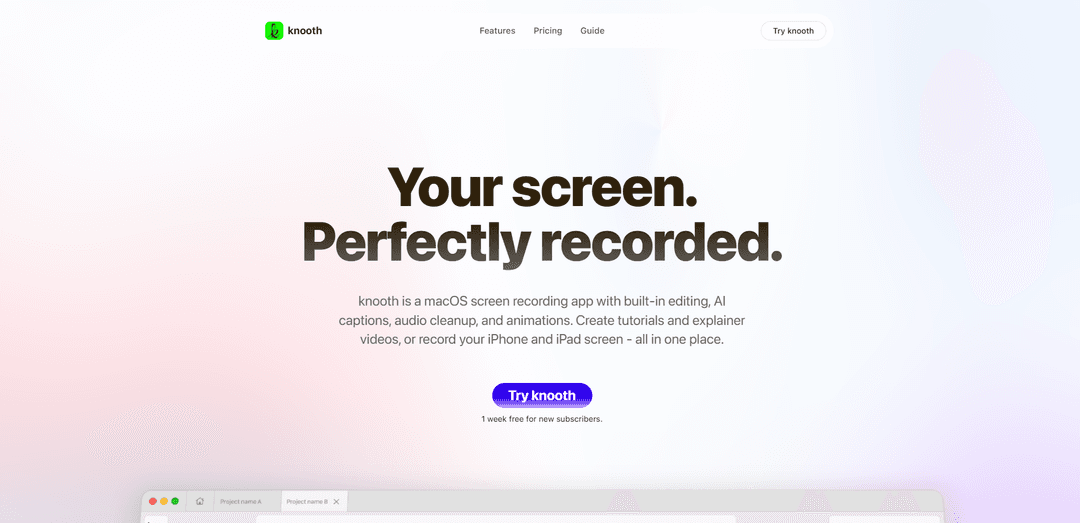
knooth is a privacy-first macOS app that records your screen and lets you edit, animate, layer media, enhance audio, add captions, and export in multiple aspect ratios—all while keeping files stored locally on your device.
https://www.knooth.com/?ref=producthunt
Product Information
Updated:May 15, 2026
What is knooth
knooth is a screen-recording and video-editing application for Mac designed to help you turn recordings into clear, professional videos without switching tools. It combines capture and post-production in one focused workspace, offering a timeline editor, animations, media layering (text, images, audio, shapes), cursor customization, and flexible export options for different formats. A core promise of knooth is “privacy by design”: recordings stay on your device unless you choose to move them, giving you ownership and control over your content.
Key Features of knooth
knooth is a Mac screen-recording app that combines capture and a full in-app editing canvas to quickly turn recordings into polished videos. It supports timeline-based editing, animations, media layering, cursor customization (including auto-zoom), aspect-ratio exports, and built-in “intelligence” features like local filler-word removal and caption generation. The product emphasizes privacy-by-design: recordings and processing stay on-device, with no feature gating and no data collection, and licensing works across Macs under the same Apple ID.
Screen recording with flexible capture: Record full screens or specific details, with options to capture audio and even just yourself, aiming for clean input from the start.
Timeline editing + media layering: Refine recordings using a timeline with trimming/splitting, plus overlays like text, images, audio, and vector shapes for annotations and emphasis.
Cursor attention tools (Auto Zoom Cursor): Automatically zoom into cursor actions and then fine-tune generated keyframes; also customize cursor appearance and add click sounds to guide viewers.
Animations with precision controls: Animate elements and adjust timing and motion with a graph editor and a focused control panel for layout, typography, color, audio, and export settings.
Local “AI” enhancements (privacy-first): Remove filler words/phrases and generate captions using on-device processing without relying on external services.
Export for multiple formats + cleanup tools: Export in multiple aspect ratios (widescreen, vertical, square) and improve production quality with background masking (remove/blur) and audio noise reduction/EQ.
Use Cases of knooth
Product demos and customer support: Create clear walkthroughs that highlight key UI moments with cursor zoom, annotations, and quick edits, then export in the right format for help centers or tickets.
Internal team updates and async communication: Replace meetings with concise screen recordings, polished via trimming, captions, and filler-word removal for faster cross-team alignment.
Education and training content: Produce tutorials and onboarding lessons with layered callouts, animations, and captions, suitable for LMS platforms or shared knowledge bases.
Marketing and social content repurposing: Export the same recording to vertical/square/widescreen, add motion graphics and overlays, and deliver platform-ready clips without switching tools.
Privacy-sensitive workflows (legal, healthcare, finance): Record and edit sensitive material while keeping files and processing on-device, supporting stricter data-handling expectations.
Pros
All-in-one workflow: recording plus timeline editing, animations, and layering in a single app
Privacy-by-design: local storage/processing, no data collection, and user ownership of files
Attention-guidance features like Auto Zoom Cursor and cursor customization for clearer tutorials
Flexible exports (multiple aspect ratios) and production polish tools (captions, audio cleanup, background masking)
Cons
Mac-only distribution (App Store) limits use for Windows/Linux teams
Some features depend on on-device performance, so results may vary by hardware
Subscription pricing may not suit users who prefer a one-time purchase
How to Use knooth
1) Install knooth and start the free trial (optional): Open the Mac App Store link from knooth’s site (“Try knooth”), install the app, and (if you want) activate the 1-week free trial for new subscribers.
2) Create a new recording: In knooth, start a screen recording. Choose what you want to capture—from a full screen to a smaller region, or even just yourself—so you record exactly what you need from the start.
3) Record with audio and visual precision: Begin recording and narrate as needed. knooth captures your screen and audio so you can later refine both picture and sound.
4) Move from recording to the editing canvas: After recording, open the built-in editor. knooth is “more than recording”—it provides a full canvas with timelines, animations, and media layering so you can finish the video without switching tools.
5) Trim and structure your story on the timeline: Use the timeline to trim clips, split layers, and shape the flow of the video over time to highlight key moments and keep attention where you want it.
6) Add layers to explain and guide attention: Overlay text, images, audio, and vector shapes. Use these layers to annotate key moments and add meaning directly on top of your recording.
7) Customize the cursor after recording: Adjust cursor appearance to better guide viewers—change cursor size, add click sounds, and refine how cursor actions are presented.
8) Use Auto Zoom Cursor (then fine-tune keyframes): Enable Auto Zoom Cursor to automatically zoom into cursor actions. Review the generated keyframes and fine-tune them anytime—you remain in control.
9) Fine-tune layout and styling with precision controls: Use the focused control panel to adjust layout, position, typography, color, audio, and export settings as needed for a polished result.
10) Refine your voice (local intelligence): Remove filler words or selected phrases using intelligence built into knooth to keep narration natural and polished while staying private.
11) Create captions (processed locally): Generate captions using knooth’s built-in intelligence. Captions are processed locally without relying on external services.
12) Improve audio quality: Reduce background noise for clearer sound and fine-tune frequencies using the built-in equaliser for more “studio-ready” audio.
13) Mask or blur your background (if you recorded yourself): Use Background masking to remove or blur the background after recording to reduce distractions in a single click.
14) Adjust animations with the graph editor: If you animate elements, open the graph editor to adjust easing curves and get precise control over timing, speed, and motion.
15) Export in the right aspect ratio: Export your finished video in the aspect ratio you need—widescreen, vertical, or square—so it’s ready for different platforms and screens.
16) Keep files local unless you choose otherwise: By design, knooth stores recordings locally. Your recordings don’t leave your device unless you choose to move them, giving you ownership and control.
knooth FAQs
knooth is a Mac app for screen recording and post-recording editing, letting you capture your screen and then refine it with timelines, animations, and media layering before exporting a clean video.
knooth Video
Popular Articles

Atoms: A Multi-Agent AI Platform That Transforms Ideas into Launch-Ready Products
May 22, 2026

Nano Banana SBTI: What It Is, How It Works, and How to Use It in 2026
Apr 15, 2026

Atoms Review — The AI Product Builder Redefining Digital Creation in 2026
Apr 10, 2026

Kilo Claw: How to Deploy and Use a True "Do‑It‑For‑You" AI Agent(2026 Update)
Apr 3, 2026
Latest AI Tools Similar to knooth
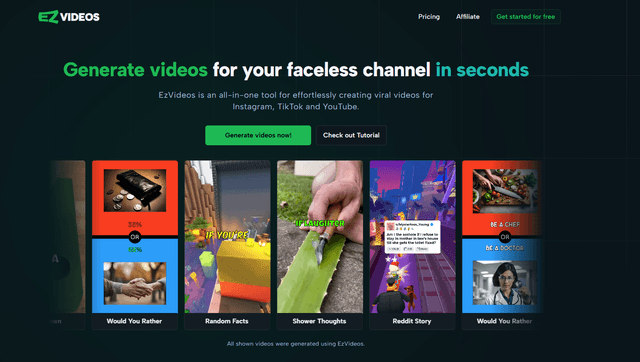
EzVideos
EzVideos is an all-in-one video creation tool that helps users generate viral videos for social media platforms like Instagram, TikTok, and YouTube with automated editing features and built-in resources.

Blanc AI
Blanc AI is a revolutionary AI solution that enables video content translation and dubbing into 47+ languages while preserving the original voice, emotions, and lip synchronization.
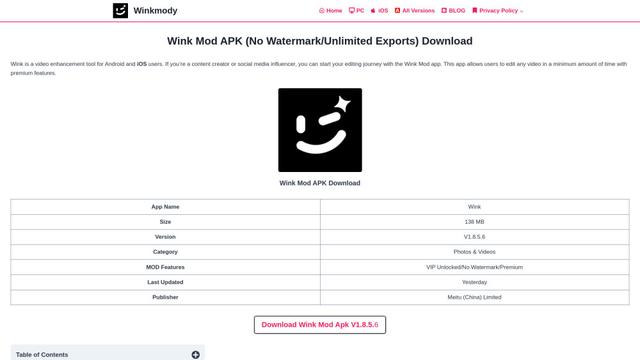
Wink Mody
Wink Mody is a modified version of the Wink video editing app that offers premium features like AI-powered retouching, 4K exports, and watermark-free editing completely free of charge.
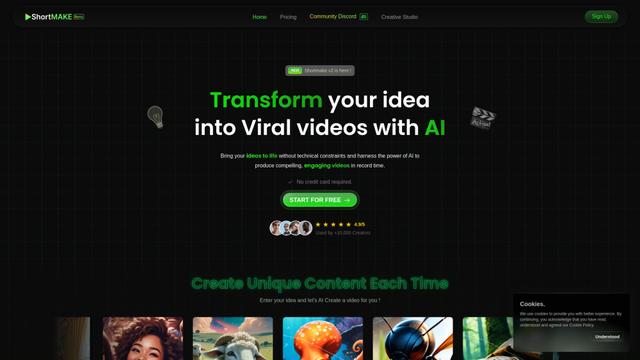
Shortmake AI
ShortMake is an AI-powered video creation platform that transforms ideas into viral-ready videos by automatically generating scripts, voiceovers, visuals, and subtitles specifically optimized for platforms like TikTok and YouTube Shorts.
Popular AI Tools Like knooth
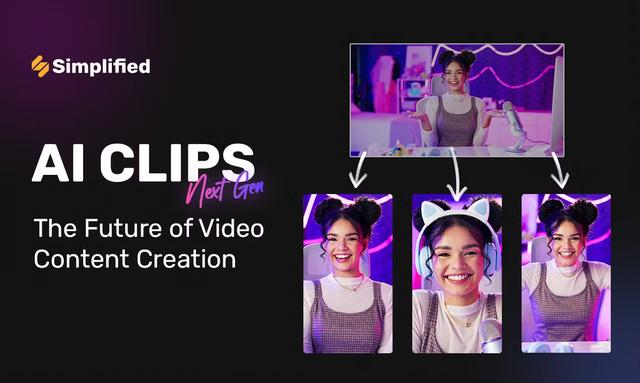
AI Clips - New Gen
AI Clips - New Gen is an AI-powered video clipping tool that automatically generates engaging short-form content from long videos for multiple social media platforms like YouTube Shorts, TikTok, Instagram Reels and more.
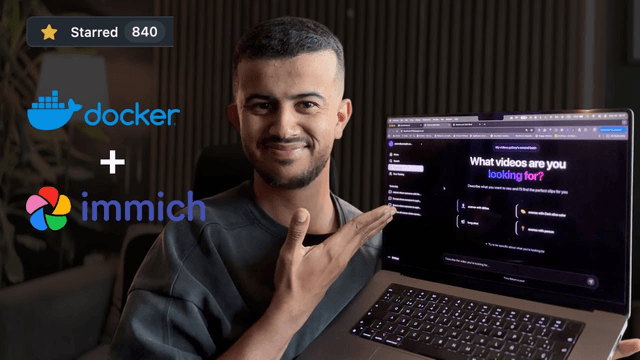
Edit Mind
Edit Mind is an open-source, AI-powered video indexing and semantic search platform that enables users to analyze and search through video content using natural language queries, with features including transcription, frame analysis, face recognition, and object detection.
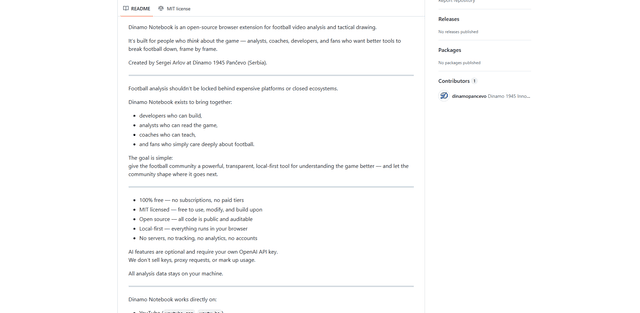
Dinamo Notebook
FreeAI Video Editing
Dinamo Notebook is a free, MIT-licensed, local-first browser extension for football video analysis that lets you draw tactical annotations on YouTube/Dailymotion/Twitch footage and optionally use AI (with your own OpenAI API key) for tactical insights.
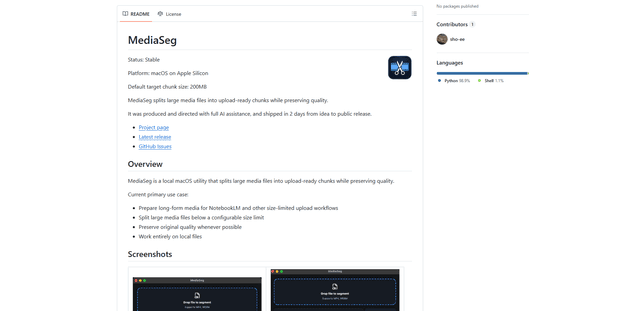
MediaSeg
MediaSeg is a stable, local-first macOS utility that splits large MP4/WEBM media files into upload-ready chunks under a configurable size limit while preserving quality using ffmpeg/ffprobe and an AI-assisted, target-based sizing strategy.