Flow AI
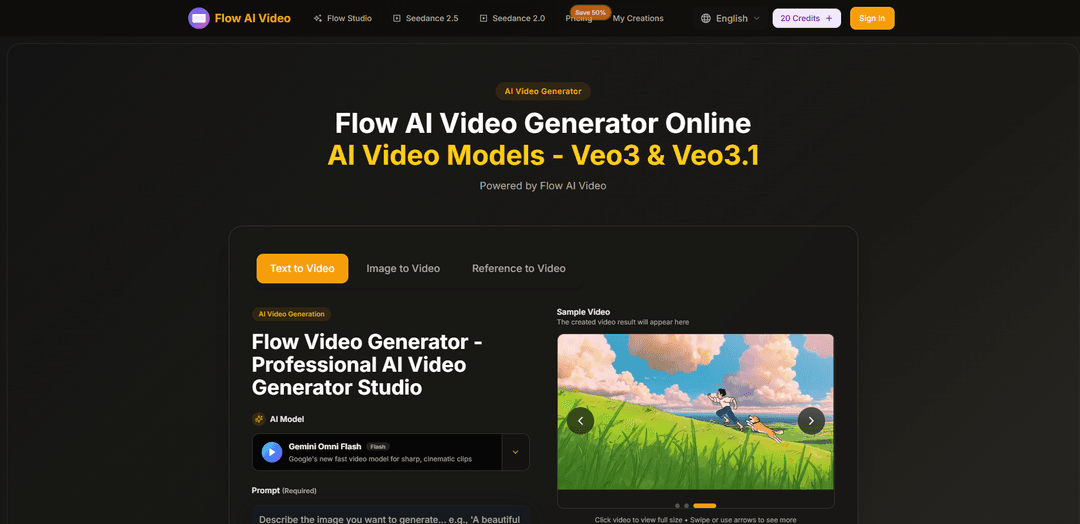
Flow AI is a browser-based AI video studio that generates cinematic, high-definition (up to 4K) videos from text or images, emphasizing smooth motion, multi-shot storytelling, and consistent characters/style across scenes with fast generation and editing controls.
https://www.flowaivideo.org/?utm_source=aipure
Product Information
Updated:Sep 8, 2026
What is Flow AI
Flow AI is an online creative platform for generating and refining AI-made video content from either a text prompt (text-to-video) or an uploaded image (image-to-video). It positions itself as a professional “studio” workflow: you describe what you want, choose settings like aspect ratio, quality, and duration, then generate and download results—typically as MP4. Flow AI highlights cinematic aesthetics, rich detail, and seamless transitions, with a focus on producing cohesive narrative videos that remain visually consistent across multiple shots.
Key Features of Flow AI
Flow AI is a browser-based AI video creation studio that generates cinematic videos from text prompts and/or reference inputs (such as images) using a consistent workflow: choose a model, provide a prompt or upload an image, generate, then refine with editing controls. It emphasizes strong prompt understanding for complex actions and camera movements, supports multiple styles (from photoreal to anime), offers multi-shot storytelling with consistency across scenes, and provides flexible export and library management for reuse—positioning it for creators, marketers, and teams producing everything from quick social clips to higher-end 4K outputs depending on the selected model and plan.
Text-to-video & image-to-video generation: Create videos directly from written prompts or animate a static image into a moving clip with “intelligent motion,” enabling rapid ideation and production without traditional filming.
Advanced prompt parsing for scene control: Designed to follow detailed instructions such as multi-agent interactions, complex action sequences, and varied camera movements for more precise cinematic direction.
Multi-shot storytelling consistency: Supports generating cohesive narratives with multiple shots while maintaining consistency in characters, visual style, and atmosphere across transitions.
Multiple models in one workflow: Offers a unified interface to generate with several video models (e.g., Veo 3/3.1, Gemini Omni, Seedance, MiniMax H3), with model-specific controls for resolution, duration, aspect ratio, and reference modes.
Quality, formats, and flexible settings: Supports common aspect ratios (e.g., 16:9 and 9:16), adjustable clip length (commonly 4–10 seconds), and outputs downloadable MP4 files; some plans/models advertise HD/4K options.
Cloud library, task tracking, and refinement tools: Successful generations are saved to a Library for reuse; the platform highlights task/result reuse and provides editing/refinement steps to fine-tune outputs.
Use Cases of Flow AI
Social media content production: Generate short vertical or horizontal clips quickly for TikTok/Reels/Shorts, including stylized visuals and rapid iterations driven by prompts and references.
Marketing and product promos: Create campaign-ready product videos, launch teasers, and brand visuals with consistent style and fast turnaround, suitable for small teams and businesses.
Creative storytelling and short films: Build multi-shot sequences with consistent characters and cinematic camera language, enabling experimental narratives and scene-based storytelling.
Educational explainers and concept visualization: Produce animated metaphors, illustrative scenes, and quick visual demonstrations from text prompts to support lessons, training, or presentations.
Design, art, and style exploration: Explore diverse aesthetics (photorealism, anime, cyberpunk, watercolor) to prototype looks, mood boards, and dynamic posters/visual concepts.
Pros
All-in-one, browser-based workflow (no local install) with generation, library saving, and refinement steps
Strong creative control via detailed prompts (actions, multi-agent interactions, camera movement) and multi-shot consistency focus
Multi-model access in a single interface with settings that adapt to the selected model (duration, resolution, reference modes)
Cons
Credit-based usage can limit iteration and higher-quality/longer outputs may cost more credits
Feature availability varies by model (e.g., reference modes, resolutions, audio controls), so capabilities are not uniform
Some advanced outputs (e.g., 4K, watermark removal, priority queue, commercial use) may depend on subscription tier
How to Use Flow AI
1. Open Flow AI in your browser: Go to the Flow AI Video Generator website on any major browser (desktop or mobile). No installation is required because generation runs in the cloud.
2. Start a new creation: On the main generator page, prepare to create a video by providing the required prompt and choosing whether you want text-to-video or image-to-video.
3. Enter a text prompt (required): Write a clear description of what you want to see (subject, action, setting, lighting, camera movement, mood). Every workflow starts with a prompt, even if you also upload reference media.
4. (Optional) Upload a reference image: Upload an image if the first frame, subject identity, product look, or style needs stronger guidance than text alone. Use a clear, well-lit image where the main subject is easy to identify; avoid heavy occlusion or conflicting angles unless intentional.
5. Choose an AI video model: Select from available models (e.g., Veo 3 / Veo 3.1 and other listed options). Different models support different inputs, durations, resolutions, aspect ratios, audio options, and controls—pick the one that matches your brief.
6. Set video parameters: Choose your aspect ratio, video quality/resolution (including higher-quality outputs like 2K/4K where available), and video duration. If the selected model supports audio, choose whether to generate sound (when optional).
7. Review credit cost before generating: Check the displayed credit cost for your chosen model and settings (cost varies by duration, resolution, and sometimes additional reference images). Ensure you have enough credits (free credits or subscription/pack credits).
8. Generate the video: Click Generate to start creation. Flow processes your prompt (and any uploaded references) with motion synthesis to produce the video.
9. Monitor progress and open results: Follow the generation progress (often via a queue/progress indicator). When complete, view the result in the sample/result area or your Library/history (where available).
10. Refine with iterative edits: If the result isn’t right, revise the prompt and settings and regenerate. A practical workflow is to change one constraint at a time (e.g., motion, camera, lighting, or timing) rather than rewriting everything at once.
11. Use advanced editing controls (if available): Fine-tune details using the platform’s editing features (e.g., adjust settings, refine motion/style, and polish the final output) to reach a more professional-grade result.
12. Download your final video: Download the finished video (commonly provided as MP4) once you’re satisfied. Keep it saved in your Library/history for reuse where supported.
Flow AI FAQs
Flow AI Video is an AI video generation platform that can create videos from text prompts (text-to-video) or by animating an uploaded image (image-to-video). It emphasizes cinematic results, motion synthesis, and features like multi-shot storytelling and seamless transitions, with outputs available as MP4.
Popular Articles

Vosko AI: Localize and Dub Videos for Global Audiences
Oct 15, 2026

Atoms: A Multi-Agent AI Platform That Transforms Ideas into Launch-Ready Products
Oct 13, 2026

Nano Banana SBTI: What It Is, How It Works, and How to Use It in 2026
Apr 15, 2026

Atoms Review — The AI Product Builder Redefining Digital Creation in 2026
Apr 10, 2026
Latest AI Tools Similar to Flow AI
DeepVideo
DeepVideo is an AI-powered video generation platform that enables users to create personalized, professional videos from simple text inputs with AI avatars and voiceovers in multiple languages.
PPTalker
PPTalker is an online PowerPoint to video converter that transforms presentations into engaging videos with AI-powered multilingual voiceovers and subtitles.
Pollo AI
Pollo AI is an advanced AI-powered video generator that transforms text prompts, images, and concepts into high-quality, customizable videos.

LUMA AI Dream Machine
LUMA AI Dream Machine is an AI-powered video generation tool that creates high-quality, realistic videos from text prompts and images in minutes.
Popular AI Tools Like Flow AI
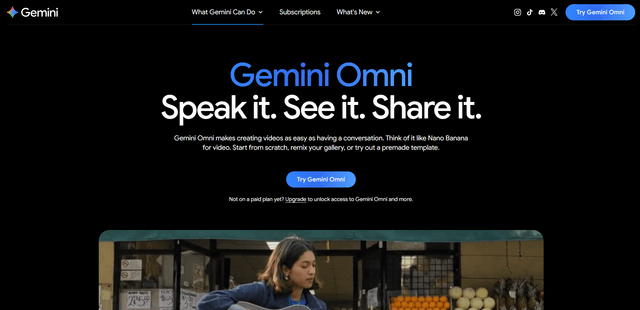
Gemini Omni Flash
Gemini Omni Flash is a high-speed, multimodal video generation and conversational editing model that turns text, images, and video references into short (up to ~10s) clips with native audio generation, multi-turn edits, and optional AI avatars, with SynthID watermarking for verification.
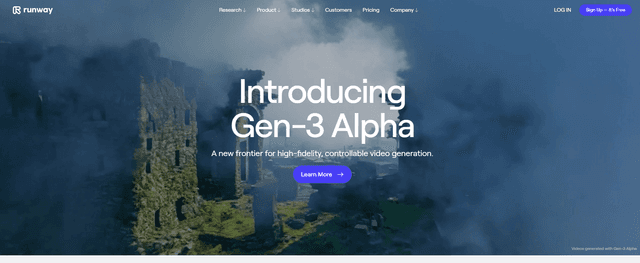
Gen-3 Alpha
Gen-3 Alpha is Runway's latest and most advanced AI model for high-fidelity, fast, and controllable video generation from text, images, or video inputs.
PixVerse V6
PixVerse V6 is an advanced AI video generation platform that can create multi-shot short films with native audio from a single prompt, featuring precise camera control, expressive character performance, and seamless multilingual text integration.
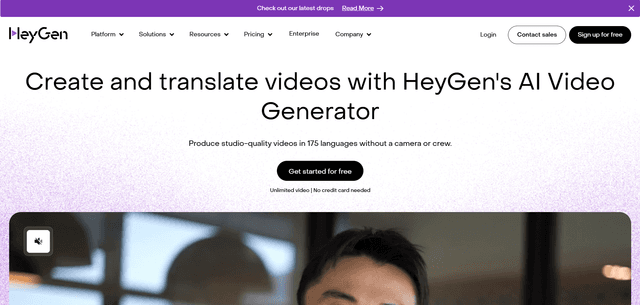
HeyGen
HeyGen is an AI-powered video creation platform that allows users to generate professional-quality videos with customizable AI avatars and templates in minutes, without needing cameras or crews.