
Gemini Omni Flash
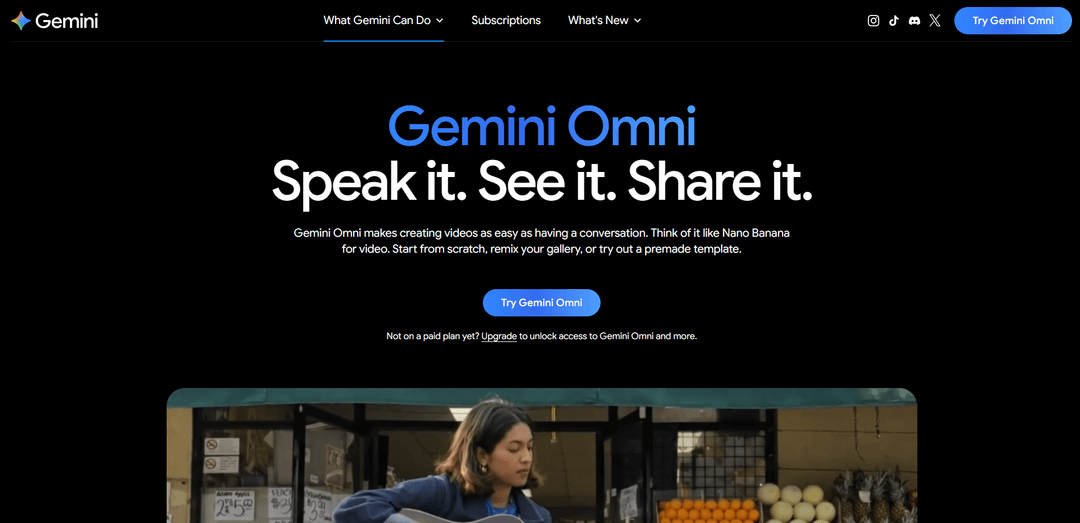
Gemini Omni Flash is a high-speed, multimodal video generation and conversational editing model that turns text, images, and video references into short (up to ~10s) clips with native audio generation, multi-turn edits, and optional AI avatars, with SynthID watermarking for verification.
https://gemini.google/overview/video-generation?ref=producthunt
Product Information
Updated:Jul 8, 2026
Gemini Omni Flash Monthly Traffic Trends
Gemini Omni Flash received 35.4m visits last month, demonstrating a Slight Decline of -12.2%. Based on our analysis, this trend aligns with typical market dynamics in the AI tools sector.
View history trafficWhat is Gemini Omni Flash
Gemini Omni Flash is the first model in Google’s new “Omni” family, built to make video creation and editing feel like a conversation. Positioned as “Nano Banana for video,” it combines Gemini’s real-world understanding and native multimodality with generative media capabilities so you can generate videos from mixed inputs (for example, text plus photo references or an existing clip) and iteratively refine the result through chat-based instructions. It is rolling out through the Gemini app and creative surfaces like Google Flow and YouTube Shorts, and it is designed to replace Veo inside the Gemini app for supported users and regions.
Key Features of Gemini Omni Flash
Gemini Omni Flash is Google’s multimodal AI video generation and conversational video-editing model that replaces Veo in the Gemini app. It can create short videos (up to ~10 seconds) with native audio from mixed inputs—text prompts, photos (up to 5), and existing video—and then refine results through multi-turn, plain-language edits (e.g., swap backgrounds, change wardrobe, adjust lighting, stabilize shots, or replace objects) while preserving the “soul of the shot.” It also supports optional AI avatars (a digital likeness) and applies SynthID watermarking for content provenance, with availability tied to Google AI subscription tiers and some features varying by geography.
Any-input video creation: Generates video from text and can blend multiple reference inputs (text + images + video) to guide style, motion, and scene composition.
10-second clips with native audio: Produces short MP4-style clips up to about 10 seconds long and generates synchronized audio natively alongside the video.
Photo-to-video (up to 5 images): Animates a small set of photos into a coherent motion clip, useful for turning stills into dynamic sequences.
Conversational, multi-turn video editing: Edit through chat instructions—iterate on the same clip across multiple turns (e.g., “change the background,” then “make lighting warmer,” then “stabilize the shot”) without restarting from scratch.
Video-to-video transformations: Remix existing footage by changing style, scenery, or specific details while keeping key elements consistent.
AI avatar insertion: Optionally create and reuse a digital likeness (look and voice) to appear in generated videos without re-uploading reference material each time (availability may vary by country).
Use Cases of Gemini Omni Flash
Social and short-form content production: Creators can rapidly generate and iteratively refine short clips for platforms like YouTube Shorts—testing multiple concepts, styles, and edits through conversation.
Marketing and product promos: Teams can generate quick ad concepts, swap backgrounds/props/wardrobe, and adjust lighting or tone to match brand guidelines without a full reshoot.
Education and explainers: Educators can turn scripts and reference images into short, grounded explainer clips and refine visuals step-by-step (e.g., clearer camera angle, calmer lighting, simplified scene).
Creative pre-visualization for film and design: Directors and designers can prototype shots, camera movement, and mood, then iterate via multi-turn edits to converge on a desired look before production.
Personalized avatar-led updates: Businesses or creators can produce consistent “talking head” style updates using an AI avatar for announcements, onboarding snippets, or internal comms (where supported).
Remixing and enhancing existing footage: Users can transform a clip’s style or environment (e.g., change scenery, stabilize, object swaps) while preserving the core performance and composition.
Pros
Multimodal inputs (text, photos, video) enable more controlled, reference-guided generation than text-only workflows.
Conversational, multi-turn editing makes iteration faster and helps preserve continuity across edits.
Native audio generation and built-in provenance (SynthID) support end-to-end clip creation and transparency.
Cons
Access requires a Google AI subscription (Plus/Pro/Ultra) and is limited to users 18+; some features vary by tier and geography.
Known limitations can include imperfect consistency across complex edits/motion and challenges rendering perfectly accurate text.
Short clip length (around 10 seconds per generation) may require stitching multiple clips for longer sequences.
How to Use Gemini Omni Flash
1) Confirm you have access: Gemini Omni (powered by Gemini Omni Flash) is available to users 18+ on Google AI Plus, Pro, or Ultra plans. Some features (e.g., avatars, video-to-video editing) may vary by tier and geography. If you don’t see Omni features, upgrade your plan or check availability in your region.
2) Open Gemini Omni: Go to the Gemini video generation page and launch Omni from the Gemini app experience (e.g., the “Try Gemini Omni” entry point). This is where you can generate and edit short videos through chat.
3) Start a new text-to-video generation: In the prompt box, describe what you want to see and hear. For best results, include: scene description (subject, setting, action), camera movement (pan/tilt/dolly/handheld), lighting (golden hour, neon, softbox), and mood (calm, tense, whimsical). Omni Flash generates a video clip with native audio.
4) Use a cinematic prompt structure (recommended): Write prompts that specify: (a) subject + action, (b) environment + time of day, (c) camera framing + movement, (d) lighting + color palette, (e) audio cues. Example pattern: “A [subject] [action] in [location] at [time]. Camera: [shot type], [movement]. Lighting: [style]. Mood: [tone]. Audio: [sounds/music].”
5) Generate and review the first clip: Run the prompt and review the output. Omni Flash typically produces short clips (up to ~10 seconds). Note what you like (composition, motion, style) and what you want changed (background, wardrobe, lighting, stability, etc.).
6) Refine via multi-turn conversational edits: Ask for targeted changes in plain language while keeping everything else the same. Examples: “Keep the same shot, but change the background to a rainy city street.” “Stabilize the camera and reduce motion blur.” “Make the lighting warmer and more cinematic.” Omni is designed to preserve the ‘soul of the shot’ while applying edits.
7) Try image-to-video (photo references): Upload up to 5 photos as references, then prompt how they should animate (e.g., subtle parallax, character movement, environmental motion). Add camera and lighting directions as you would for text-to-video.
8) Try video-to-video editing (where available): Upload an existing clip and describe the edits you want: swap background, change wardrobe, transfer style, adjust angle, fix lighting, stabilize, or modify specific details. Iterate conversationally until the edit matches your intent.
9) Use templates for quick exploration: If you’re not sure what style you want, start from curated templates/styles in Omni to quickly explore looks. Then switch back to chat edits to customize details.
10) Add an AI avatar (optional): If your plan/region supports it, create an avatar (a digital version of you) so you can generate videos that look and sound like you without re-uploading your image each time. Use it only if you want to appear in the content.
11) Iterate with specific, minimal change requests: For best control, change one variable at a time (e.g., only lighting, only background, only camera motion). This helps Omni maintain continuity and makes it easier to converge on the desired result.
12) Verify AI provenance when needed: Omni-generated videos in the Gemini app are embedded with SynthID. If you need to check whether a file was generated using Google AI, upload it to Gemini and ask if it contains SynthID; Gemini can check for the watermark and use reasoning to respond.
13) (Developer) Generate video via the Gemini API (Interactions): Use the Gemini API with the Interactions flow and set the model to “gemini-omni-flash-preview” (preview naming may vary by release). Provide a detailed text prompt as input, then iterate by sending follow-up edit instructions in subsequent turns to refine the same clip conversationally.
14) (Developer) Prompting tips for API usage: Include camera direction, lighting, and mood in the input string. Example: “A marble rolling fast on a chain reaction style track, continuous smooth shot.” Then refine with follow-ups like “Make the lighting softer and add subtle mechanical whirs and clicks in the audio.”
Gemini Omni Flash FAQs
Gemini Omni Flash is Google’s multimodal AI video generation and editing model in the Gemini family. It’s designed to blend and reason across multiple media types (text, images, video, and audio) and supports conversational, multi-turn video creation and editing.
Gemini Omni Flash Video
Popular Articles

Atoms: A Multi-Agent AI Platform That Transforms Ideas into Launch-Ready Products
May 22, 2026

Nano Banana SBTI: What It Is, How It Works, and How to Use It in 2026
Apr 15, 2026

Atoms Review — The AI Product Builder Redefining Digital Creation in 2026
Apr 10, 2026

Kilo Claw: How to Deploy and Use a True "Do‑It‑For‑You" AI Agent(2026 Update)
Apr 3, 2026
Analytics of Gemini Omni Flash Website
Gemini Omni Flash Traffic & Rankings
35.4M
Monthly Visits
#1806
Global Rank
#41
Category Rank
Traffic Trends: Feb 2025-Oct 2025
Gemini Omni Flash User Insights
00:01:39
Avg. Visit Duration
2.02
Pages Per Visit
59.13%
User Bounce Rate
Top Regions of Gemini Omni Flash
US: 10.48%
IN: 9.03%
BR: 5.15%
ES: 4.51%
VN: 4.42%
Others: 66.41%
Latest AI Tools Similar to Gemini Omni Flash
Loud Fame
Loud Fame is an AI-powered video transformation tool that allows users to convert regular videos into anime-style animations and create AI-generated celebrity talking videos.
BizBoom.ai
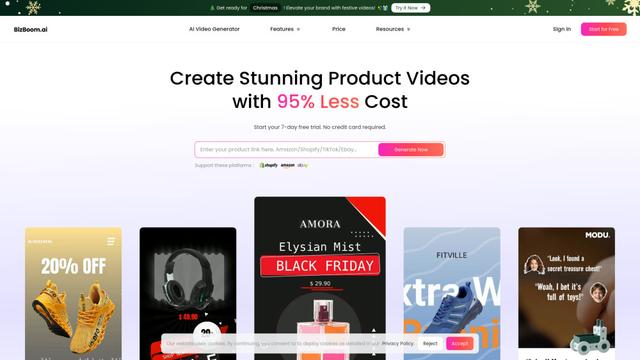
BizBoom.ai is an AI-powered platform that automatically generates professional product videos from product links and images with 95% less cost.
EzVideos
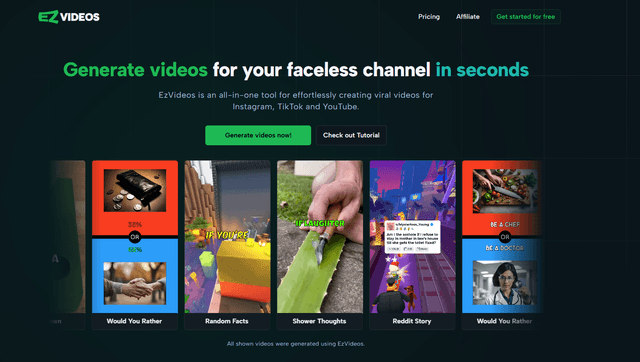
EzVideos is an all-in-one video creation tool that helps users generate viral videos for social media platforms like Instagram, TikTok, and YouTube with automated editing features and built-in resources.
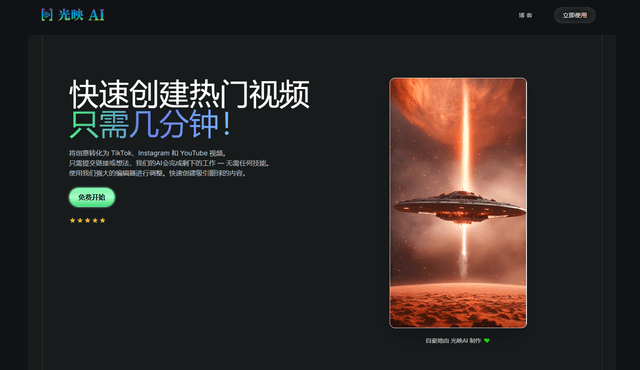
Illuminix
Illuminix is an AI-powered platform that empowers businesses with autonomous hyper-experts and specialized tools for automated business processes, data management, and video content creation.
Popular AI Tools Like Gemini Omni Flash
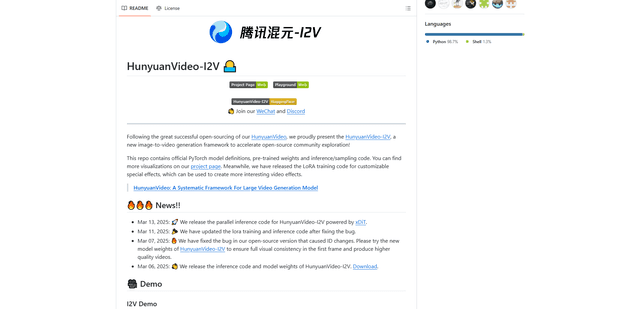
HunyuanVideo-I2V
HunyuanVideo-I2V is an open-source AI framework developed by Tencent that transforms static images into high-quality, dynamic videos with customizable motion effects and exceptional visual consistency.
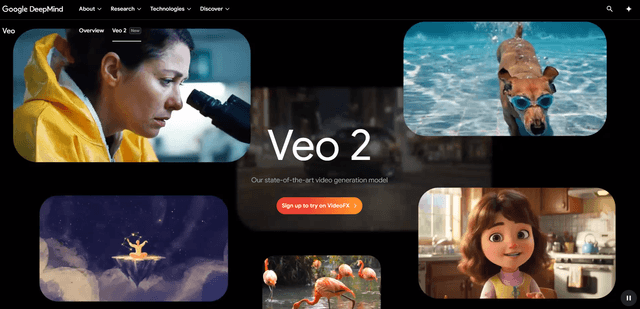
Google Veo 2
Veo 2 is Google DeepMind's state-of-the-art AI video generation model that can create high-quality videos up to 4K resolution with realistic motion, extensive camera controls, and improved physics simulation from text prompts.
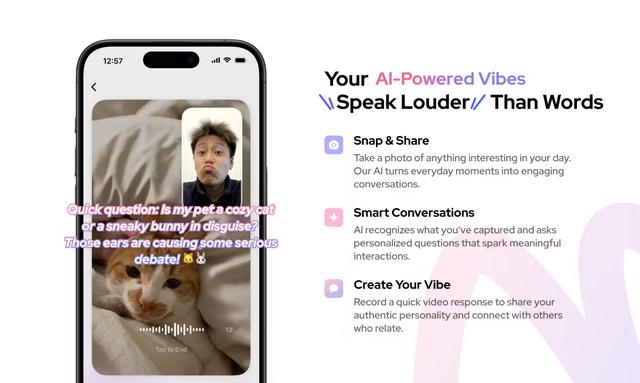
Vibing
Vibing is an AI-powered dating app that helps users share authentic moments through video stories and make genuine connections based on personality matching and interactive features.
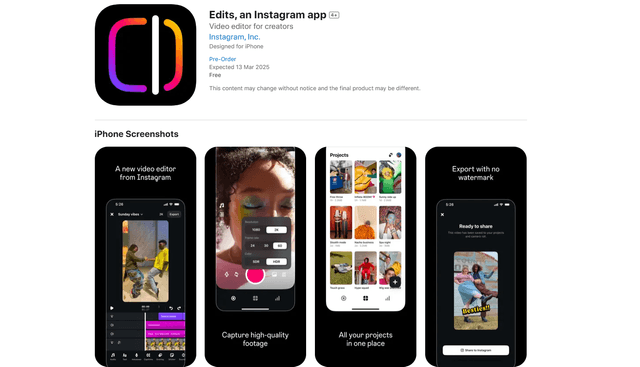
Edits, an Instagram app
Edits is Instagram's free video creation app that provides creators with professional editing tools, AI features, and analytics capabilities to create high-quality videos directly from their phones.