
Eddie AI
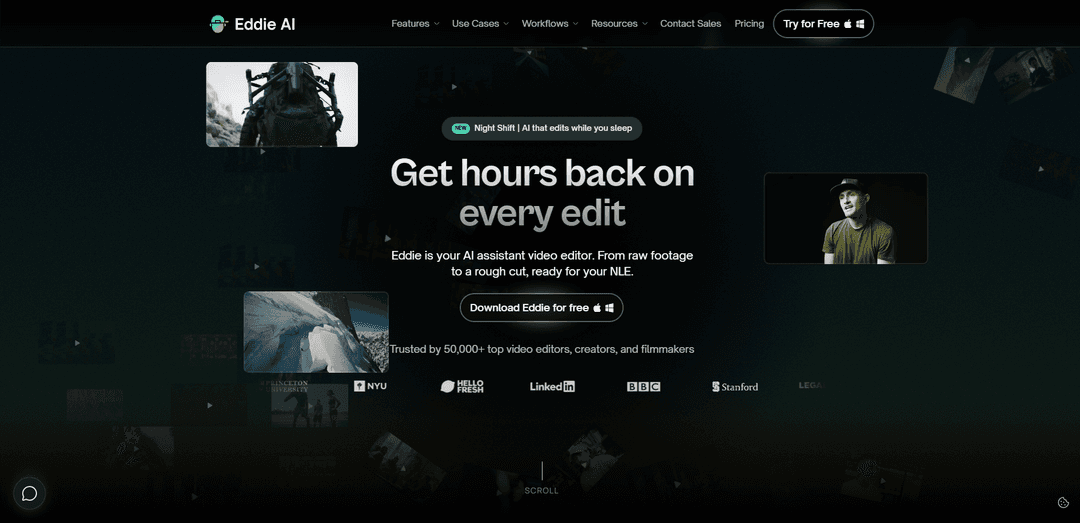
Eddie AI is a desktop AI assistant video editor that turns raw footage—especially dialogue-heavy interviews and multicam recordings—into searchable logs, transcripts, and rough cuts via chat prompts, with export back to Premiere Pro, DaVinci Resolve, Final Cut Pro, or MP4.
https://heyeddie.ai/?ref=producthunt
Product Information
Updated:Jul 16, 2026
Eddie AI Monthly Traffic Trends
Eddie AI received 33.2k visits last month, demonstrating a Moderate Growth of 43.9%. Based on our analysis, this trend aligns with typical market dynamics in the AI tools sector.
View history trafficWhat is Eddie AI
Eddie AI (Hey Eddie) is an AI-powered assistant built for professional video editing workflows, designed to eliminate time-consuming “grunt work” like reviewing hours of footage, logging clips, finding soundbites, and assembling first-pass edits. Instead of manually scrubbing through interviews or podcasts, editors import footage from their computer, supported NLEs (Premiere Pro and DaVinci Resolve via extensions; Final Cut Pro via drag-and-drop), or cloud sources (e.g., Frame.io, Google Drive). Eddie then analyzes the media—especially content with clear dialogue—to help editors quickly move from raw material to a structured rough cut that remains fully editable in their preferred NLE.
Key Features of Eddie AI
Eddie AI is a GPU-enabled desktop AI assistant for professional video editors that automates the most time-consuming parts of post-production—logging, organizing, syncing, and building first-pass edits—especially for dialogue-heavy projects like interviews and podcasts. Using a chat-style interface, it can generate story-driven rough cuts, identify speakers, sync and cut multicam angles, separate and richly tag A-roll and B-roll, and create social-ready highlight clips. Instead of exporting only finished videos, Eddie is designed to hand off fully editable timelines to major NLEs (Adobe Premiere Pro, DaVinci Resolve, and Final Cut Pro) so editors can quickly polish, color, mix, and finalize.
AI Rough Cuts (story-driven assembly): Turns raw interview/talking-head footage into a coherent rough cut by selecting strong soundbites and assembling a narrative based on your prompts or a story framework, reducing manual scrubbing.
A&B Roll Logging and organization: Automatically parses interviews (A-roll) from visuals (B-roll), creates smart summaries and best-moment markers, and tags B-roll with detailed descriptions for fast search and export to your NLE.
Multicam podcast editing (up to 6 cameras): Syncs and aligns multicam footage and cuts to the best angle based on who is speaking using speaker identification, streamlining podcast and multi-speaker edits.
Scripted Edits (cut to script/outline): Ingests footage with multiple takes, matches them to a provided script or outline, chooses the best takes, and assembles an edit that follows the intended structure.
Social clips and highlights: Finds the strongest moments from long-form content and formats them as vertical clips with captions for TikTok/IG Reels/YouTube Shorts, with optional title/description suggestions.
Pro NLE integration and editable exports: Exports organized, fully editable timelines to Premiere Pro, DaVinci Resolve, and Final Cut Pro (and MP4 export), fitting into professional finishing workflows rather than replacing them.
Use Cases of Eddie AI
Documentary & interview-driven storytelling: Log and summarize hours of interviews, pull the best soundbites, and generate a first-pass narrative rough cut that an editor can refine in Premiere/Resolve/FCP.
Podcast and studio multicam production: Automatically sync and cut multi-camera conversations using speaker detection, giving creators a clean multicam timeline ready for pacing tweaks and polish.
Marketing & brand content at scale: Convert long interviews, webinars, or customer stories into multiple short social clips with captions and suggested titles/descriptions to increase output and reduce turnaround time.
YouTube long-form editing and repurposing: Create high-retention long-form edits from dialogue-heavy footage and quickly generate Shorts-ready highlights to maintain consistent publishing cadence.
Corporate training and internal comms: Rapidly organize and search large libraries of recorded talks/interviews, assemble rough cuts for announcements or training modules, and hand off editable projects to internal editors.
Agency post-production with overnight processing: Use Night Shift to drop footage after a shoot and wake up to parsed A/B roll, synced multicams, and rough cuts—accelerating client delivery while keeping editorial control in the NLE.
Pros
Built for professional workflows with editable exports to Premiere Pro, DaVinci Resolve, and Final Cut Pro (not just final rendered videos).
Major time savings on tedious tasks like logging, culling, syncing multicam, and building first rough cuts—especially for dialogue-heavy footage.
GPU-enabled desktop app and specialized modes (Rough Cuts, A&B logging, Multicam, Scripted, Night Shift) help accelerate common post pipelines.
Speaker identification and transcript-style interaction make it easier to find moments and structure edits across multiple files.
Cons
Works best with clear dialogue/audio; projects with poor sound or highly visual/VFX-heavy needs benefit less.
Not a full creative finishing tool: it doesn’t add music/SFX or advanced visual enhancements (e.g., stabilization/VFX) and still expects NLE polishing.
Some capabilities are mode/language dependent (e.g., English-only in Rough Cut mode per available sources).
Higher-end workflows (larger projects, advanced codecs, multicam/RAW support) require higher-tier plans/credits.
How to Use Eddie AI
1) Download and install Eddie AI (Desktop app): Go to https://heyeddie.ai/ and download the Eddie AI desktop app for Mac (Apple Silicon or Intel) or Windows. Install and launch the app.
2) Sign in: In the Eddie app, sign in (commonly via “Sign in with Google”). If the login flow opens a URL, copy/paste it into your browser, sign in there, and you’ll be redirected back into the Eddie app.
3) (Recommended) Install your NLE extension for importing/exporting: If you use Adobe Premiere Pro or DaVinci Resolve, install the Eddie extension for those editors so you can import clips/multicams/timelines from your NLE and export edits back cleanly. For Final Cut Pro (FCP), you can drag clips/projects/timelines directly from FCP into Eddie, and later drag the “edit” icon back into your FCP event to export.
4) Create a new project: Click “New Project” in Eddie. Choose a mode that matches your goal. If you want to both analyze footage and also prompt Eddie to build edits, use “Docs/Stringouts” (this mode combines multiple previous modes so you can import once and generate multiple edits without re-uploading).
5) Choose the right mode for your workflow: Pick a mode based on what you need: (a) Docs/Stringouts for prompt-based editing and multiple outputs from one import, (b) Logging modes for analyzing footage and exporting results/metadata (some logging modes may not include prompting), (c) Multicam for syncing and cutting between up to 6 cameras based on who is speaking, (d) Scripted/Clean Up & Scripted for cutting to a script/outline and selecting best takes, (e) Social/Vertical with Captions for short-form exports with captions.
6) Import your media (files, multicams, or timelines): Select your files and import them into Eddie. Eddie will import, process, and analyze the footage so it’s ready for prompt-based editing (where supported by the chosen mode). If importing from Premiere/Resolve, use the extension workflow. If importing from FCP, drag clips/projects/timelines from FCP into Eddie.
7) (Optional) Import multicam properly: If you have multicam footage, toggle to multicam import and bring in your multicam clips (from local drive or from your NLE). Eddie can sync/align cameras and cut to the right angle based on speaker identification.
8) (Optional) Add a script or outline for scripted edits: If you’re doing a scripted edit, import your footage and provide the script/outline. Eddie can collate takes, choose the best take, and cut to the script/outline.
9) Let Eddie analyze (logging, separation, organization): Wait for processing to complete. Eddie will analyze interviews (A-roll) vs B-roll, can remove filler, generate summaries/best soundbites, and tag B-roll visuals with rich descriptions/metadata for easier searching and export.
10) Prompt Eddie to find moments and build edits (when supported): In modes that allow prompting (e.g., Docs/Stringouts), use natural-language prompts to locate and cut soundbites or assemble sections. Example prompts include: “Find the part where they talk about [topic].” or “Cut together the discussion about the company’s future.”
11) Build a rough cut using a story structure (optional but helpful): Guide Eddie like you would an assistant editor: provide context and a clear story anchor/goal. Eddie can generate rough cuts from interviews and place relevant sequences, then you iterate with additional prompts to refine.
12) Review and refine inside Eddie: Review the generated selects/stringouts/rough cut. Iterate by prompting for tighter selections, different emphasis, or additional topics. (If you’re creating social clips, review suggested clip text such as descriptions/hashtags and edit as needed.)
13) Export your edit to your preferred destination: Export to your NLE (Premiere Pro, DaVinci Resolve, or Final Cut Pro) or export to MP4 depending on your workflow. For social outputs, choose “Vertical with Captions” to generate vertical clips with captions, then download or share.
14) Use Eddie for B-roll logging and metadata handoff (optional): For B-roll organization, import B-roll into a logging project so Eddie can tag shots (e.g., shot type, description, categorization). Export the results/metadata to your NLE so your footage arrives organized and searchable.
15) (Optional) Run ‘Night Shift’ for overnight processing: If you want Eddie to work while you’re away, use the Night Shift workflow: drop footage after the shoot, and Eddie can parse interviews vs B-roll, sync multicams, log footage, and build rough cuts ready to open in Premiere/Resolve/FCP.
Eddie AI FAQs
Eddie AI is an AI assistant video editor that helps video professionals turn raw footage into rough cuts quickly, using prompt-based editing and story assistance.
Eddie AI Video
Popular Articles

Vosko AI: Localize and Dub Videos for Global Audiences
Oct 15, 2026

Atoms: A Multi-Agent AI Platform That Transforms Ideas into Launch-Ready Products
Oct 13, 2026

Nano Banana SBTI: What It Is, How It Works, and How to Use It in 2026
Apr 15, 2026

Atoms Review — The AI Product Builder Redefining Digital Creation in 2026
Apr 10, 2026
Analytics of Eddie AI Website
Eddie AI Traffic & Rankings
33.2K
Monthly Visits
#738590
Global Rank
#2354
Category Rank
Traffic Trends: Sep 2024-Jun 2025
Eddie AI User Insights
00:00:52
Avg. Visit Duration
2.5
Pages Per Visit
41.43%
User Bounce Rate
Top Regions of Eddie AI
US: 49.76%
CA: 7.69%
IN: 6.42%
DE: 3.98%
TR: 3.45%
Others: 28.69%
Latest AI Tools Similar to Eddie AI
EzVideos
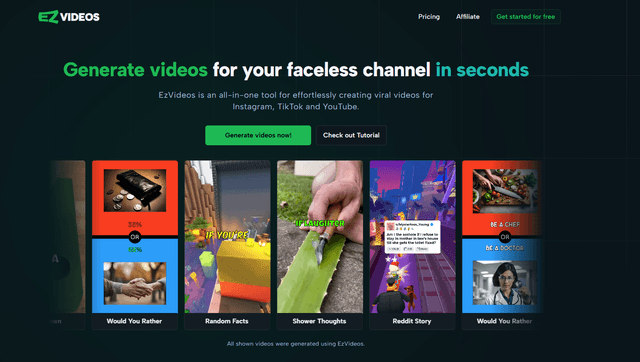
EzVideos is an all-in-one video creation tool that helps users generate viral videos for social media platforms like Instagram, TikTok, and YouTube with automated editing features and built-in resources.

Blanc AI
Blanc AI is a revolutionary AI solution that enables video content translation and dubbing into 47+ languages while preserving the original voice, emotions, and lip synchronization.
Wink Mody
Wink Mody is a modified version of the Wink video editing app that offers premium features like AI-powered retouching, 4K exports, and watermark-free editing completely free of charge.
Shortmake AI
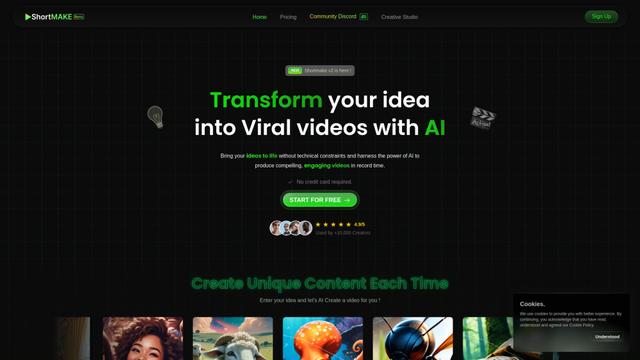
ShortMake is an AI-powered video creation platform that transforms ideas into viral-ready videos by automatically generating scripts, voiceovers, visuals, and subtitles specifically optimized for platforms like TikTok and YouTube Shorts.
Popular AI Tools Like Eddie AI
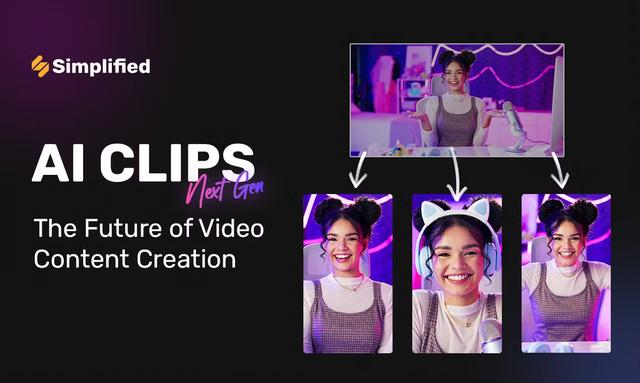
AI Clips - New Gen
AI Clips - New Gen is an AI-powered video clipping tool that automatically generates engaging short-form content from long videos for multiple social media platforms like YouTube Shorts, TikTok, Instagram Reels and more.
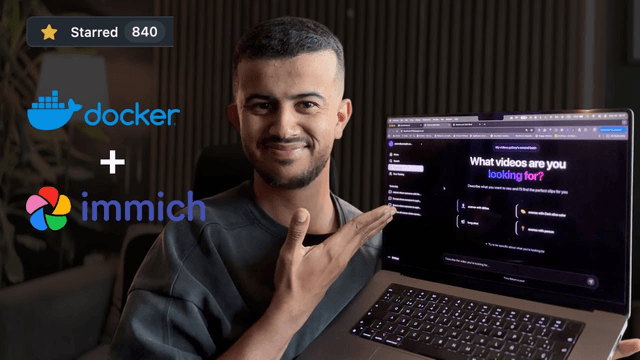
Edit Mind
Edit Mind is an open-source, AI-powered video indexing and semantic search platform that enables users to analyze and search through video content using natural language queries, with features including transcription, frame analysis, face recognition, and object detection.
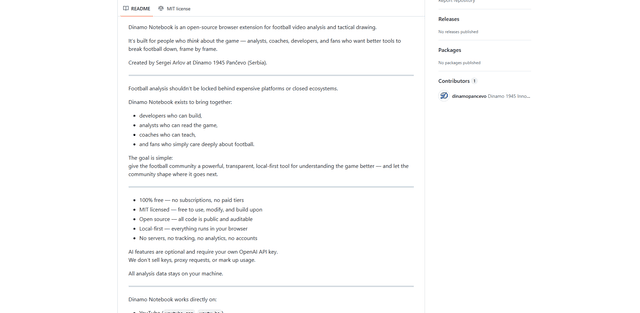
Dinamo Notebook
FreeAI Video Editing
Dinamo Notebook is a free, MIT-licensed, local-first browser extension for football video analysis that lets you draw tactical annotations on YouTube/Dailymotion/Twitch footage and optionally use AI (with your own OpenAI API key) for tactical insights.
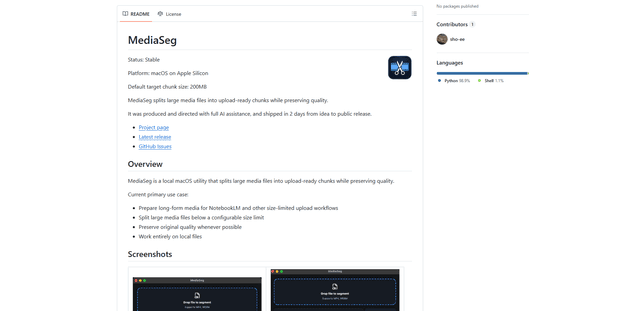
MediaSeg
MediaSeg is a stable, local-first macOS utility that splits large MP4/WEBM media files into upload-ready chunks under a configurable size limit while preserving quality using ffmpeg/ffprobe and an AI-assisted, target-based sizing strategy.