Dayflow
Dayflow is an open-source, privacy-first macOS app that records lightweight screen snapshots and uses AI to turn your day into a searchable, context-aware work timeline with automatic summaries.
https://dayflow.so/?ref=producthunt
Product Information
Updated:Jul 8, 2026
What is Dayflow
Dayflow is an “automatic work journal for Mac” that helps knowledge workers understand what they actually did throughout the day—without manual timers, tagging, or note-taking. Built as a native macOS (Ventura+) SwiftUI app and released under the MIT open-source license, it focuses on transparency and local-first data ownership. Instead of merely listing which apps were open, Dayflow aims to capture the context of your activity and present it as a clear chronological timeline you can review, summarize, and reflect on.
Key Features of Dayflow
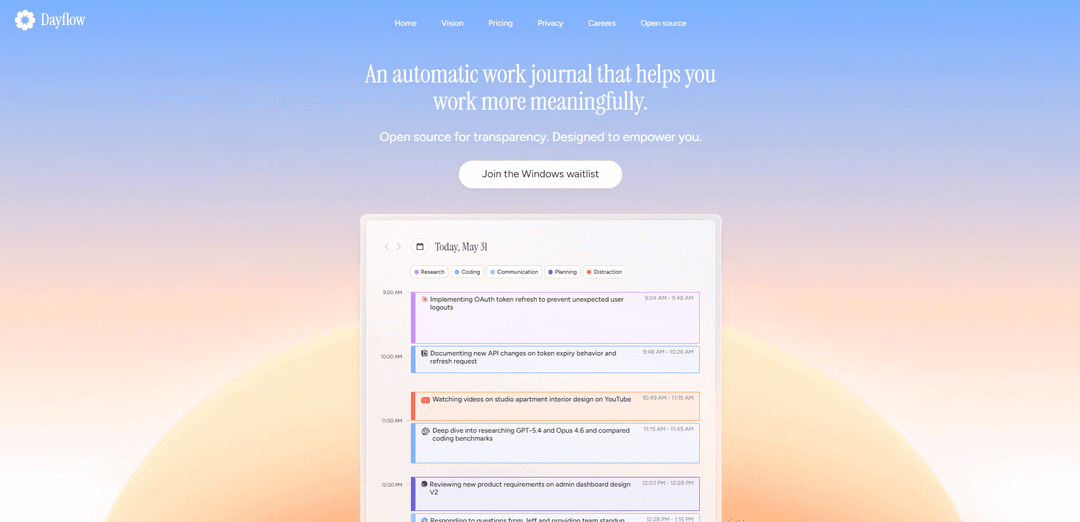
Dayflow is an open-source, local-first macOS “automatic work journal” that continuously captures lightweight screen snapshots (about 1 frame per second) and uses AI to analyze and summarize your activity in time blocks (about every 15 minutes). Instead of only tracking app names, it infers context (e.g., YouTube for research vs. distraction) and turns your day into a visual, searchable timeline with highlights and summaries. It stores recordings and databases locally, can run entirely with local AI (via tools like Ollama/LM Studio), or optionally use cloud models (Gemini/ChatGPT/Claude) when you choose, and it includes controls to pause/stop recording and delete data anytime.
Context-aware activity timeline: Transforms screen activity into a chronological timeline that explains what you were doing (not just which app was open), with sections like research, coding, communication, planning, and distraction.
Lightweight continuous capture: Records your screen at ~1 frame per second with low resource usage (roughly ~100MB RAM and under 1% CPU for recording), enabling always-on journaling.
AI summaries every interval: Analyzes activity in periodic chunks (about every 15 minutes) to generate natural-language summaries and highlights, reducing the need for manual tagging.
Privacy-first, local storage by default: Stores screenshots and databases locally on your Mac; in Local Mode, analysis can run fully on-device so nothing leaves your computer.
Flexible AI providers (local or cloud): Supports local models for maximum privacy, or cloud providers like Gemini/ChatGPT/Claude for higher narrative quality—configurable based on your privacy and accuracy needs.
Open-source and auditable (MIT): The code is publicly available under the MIT license, allowing users and teams to verify data handling, modify behavior, and build from source.
Use Cases of Dayflow
Engineering & product standups: Use the timeline and summaries to quickly reconstruct what shipped, what was investigated, and what blockers occurred—helpful for daily updates and retrospectives.
Freelancers & consultants work journaling: Maintain a truthful record of work performed across tools and tabs to support client updates, personal accountability, and end-of-week reporting (even if not designed as a billing tracker).
Knowledge work & research tracking: Differentiate deep research from distraction and preserve a searchable history of what you read, watched, or wrote, enabling easier recall and synthesis later.
Personal productivity & distraction analysis: Identify when and where attention drifted (e.g., entertainment vs. task-related browsing) and use the visual timeline to adjust habits and improve focus.
Privacy-sensitive teams and enterprises: Run local-first logging and local AI to keep sensitive information on-device while still generating useful summaries for self-reflection and workflow improvement.
Open-source customization for power users: Developers can fork or extend Dayflow to add integrations, tune prompts/models, or adapt the journaling workflow to specific organizational needs.
Pros
Local-first privacy with local storage and optional fully on-device AI modes.
Contextual understanding of activity (beyond app-level time tracking) with automatic summaries and a visual timeline.
Open-source (MIT) and auditable, enabling trust and customization.
Cons
If you choose cloud AI providers (Gemini/ChatGPT/Claude), some data is sent to those services for analysis (though storage remains local).
Local AI inference can be more demanding on GPU/battery compared to cloud analysis.
macOS-only (requires macOS 13 Ventura or later).
How to Use Dayflow
1) Download and install Dayflow on macOS: Go to https://dayflow.so/ and click “Download for MacOS”. Install the app on a Mac running macOS 13.0 (Ventura) or later.
2) Grant required macOS privacy permissions (Screen Recording): If capture is blank or fails, open System Settings → Privacy & Security → Screen & System Audio Recording, and enable Dayflow. Re-open Dayflow after changing permissions if prompted.
3) Choose how Dayflow will run AI analysis (Local vs Cloud): Decide whether you want Local Mode (nothing leaves your computer) or Cloud AI (Gemini / ChatGPT / Claude). Dayflow stores recordings and its database locally either way, but Cloud AI sends data to the selected provider for analysis.
4) Configure Local Mode (offline/private) with a local model: Set Dayflow to use local AI via Ollama or LM Studio. In Local Mode, your data stays on-device. Note: local inference can be more demanding on GPU/battery than cloud analysis.
5) Configure Gemini (bring your own API key) if you want cloud analysis: In Dayflow settings, enter your GEMINI_API_KEY and ensure you have network connectivity. Gemini can be used with its free tier according to the Dayflow FAQ.
6) Configure ChatGPT or Claude (requires paid subscription via local CLI tools): If you choose ChatGPT/Claude, set Dayflow to use your existing ChatGPT/Claude subscription through their local CLI tools (as described in the sources). This option generally provides high-quality summaries, but sends data to the provider for analysis.
7) Start screen capture: Start recording from the main UI (or the menu bar). Dayflow captures your screen at about 1 frame per second.
8) Pause/stop capture whenever you want: Use the menu bar controls to instantly start/stop recording. This is useful for sensitive moments or breaks.
9) Let Dayflow analyze your activity in batches: Dayflow analyzes your activity periodically (every ~15 minutes per the FAQ) to generate contextual summaries of what you were doing—not just which app was open.
10) Review your timeline and summaries: Open Dayflow to view a visual timeline of your day with AI-generated summaries (e.g., coding, planning, communication, research, distraction). Use it to reconstruct what you did without manual timers or tagging.
11) Use Dayflow to prepare standup-style updates: Use the timeline to pull “yesterday’s highlights,” “today’s priorities,” and “blockers” so you can walk into standup with an update grounded in your actual activity.
12) Ask questions about your day/week grounded in your timeline: Use Dayflow’s natural-language Q&A to query what you worked on and where time went, using the timeline as the source of truth instead of memory or manual notes.
13) Automate start/stop with deeplinks (Shortcuts, scripts, hotkeys): Use Dayflow’s dayflow:// URL scheme to trigger common actions (e.g., auto-start when you open a work browser profile, auto-stop at 6pm). Deeplink-triggered actions are logged with reason: “deeplink”.
14) Troubleshoot common issues: If screen capture is blank: re-check System Settings → Privacy & Security → Screen & System Audio Recording for Dayflow. If you see API errors: verify your GEMINI_API_KEY (or chosen provider setup) and confirm network connectivity.
15) Manage privacy and local data: Recordings and databases are stored locally on your Mac. You can delete recordings/data from the local folder at any time. If you want maximum privacy, use Local Mode with Ollama/LM Studio so nothing leaves your computer.
16) Export/share your work log (optional): Use Dayflow’s export options mentioned in the sources (e.g., Markdown export / machine-readable timelines) if you want to archive, search, or feed your timeline into other tools.
Dayflow FAQs
Dayflow is an automatic work journal for macOS that records your screen activity and turns it into a clear, chronological timeline of what you did during the day, helping you reflect on progress and understand where your time went.
Dayflow Video
Popular Articles

Atoms: A Multi-Agent AI Platform That Transforms Ideas into Launch-Ready Products
May 22, 2026

Nano Banana SBTI: What It Is, How It Works, and How to Use It in 2026
Apr 15, 2026

Atoms Review — The AI Product Builder Redefining Digital Creation in 2026
Apr 10, 2026

Kilo Claw: How to Deploy and Use a True "Do‑It‑For‑You" AI Agent(2026 Update)
Apr 3, 2026
Latest AI Tools Similar to Dayflow
Ticknotes
Ticknotes is an AI-powered meeting assistant that automatically records, transcribes, and generates personalized meeting summaries, action items, and key insights from audio, video, and text content.
Feta
Feta is an AI-powered meeting tool that helps product and engineering teams run efficient meetings by capturing discussions, automating tasks, and providing actionable insights through smart summaries and integrations.
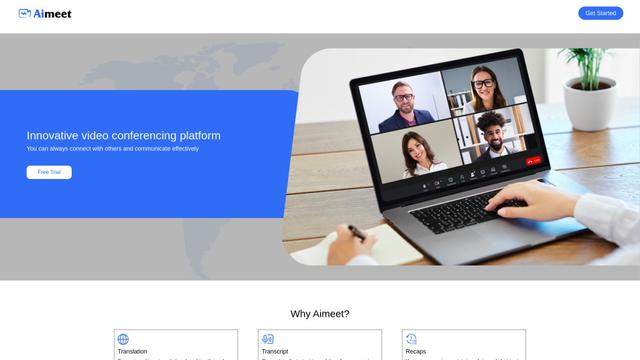
Aimeet
Aimeet is a comprehensive AI-powered communication platform that combines real-time translation, transcription, screen sharing, and unlimited meeting capabilities for effective virtual collaboration.
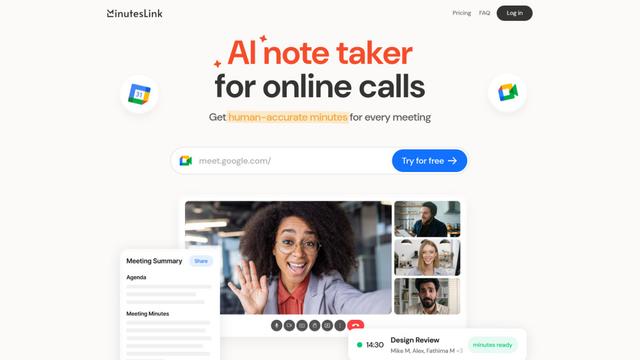
MinutesLink
MinutesLink is an advanced AI-powered note-taking assistant that automatically records, transcribes, summarizes and organizes virtual meetings while building personalized digital avatars from meeting data.
Popular AI Tools Like Dayflow
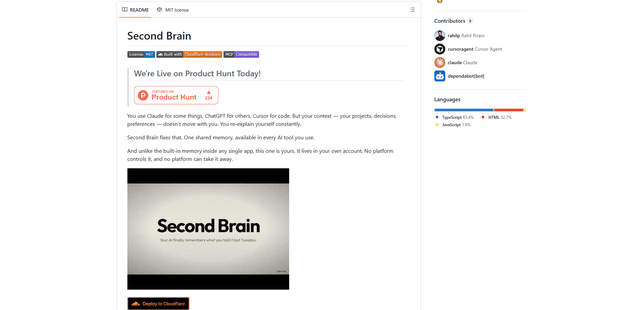
Second Brain for AI
Second Brain for AI is a self-hosted, MCP-compatible persistent memory layer on Cloudflare that lets Claude, ChatGPT, Cursor, and other AI clients store and semantically recall shared context across sessions.
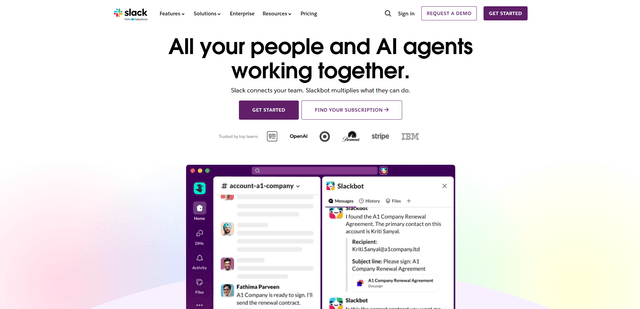
Slack
Slack is an AI-powered work platform that brings team communication, channels, files, automation, and app integrations into one conversational workspace.
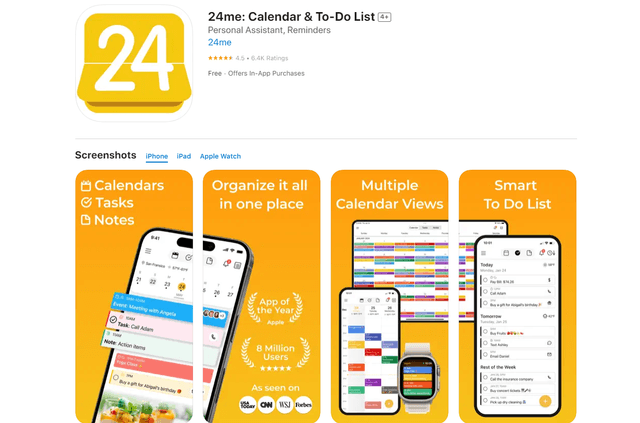
24me Smart Personal Assistant
24me is an award-winning smart personal assistant app that combines calendar, to-do lists, notes, and personal accounts in one unified platform to help boost productivity and time management.
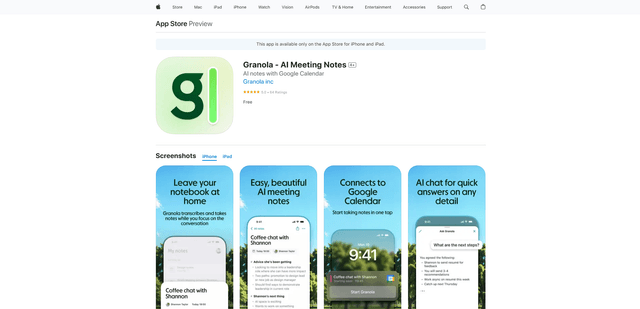
Granola for iOS
Granola for iOS is an AI-powered notepad app that helps users effortlessly capture, transcribe and summarize meeting conversations through intelligent note-taking and one-tap recording capabilities.