
ChatCut
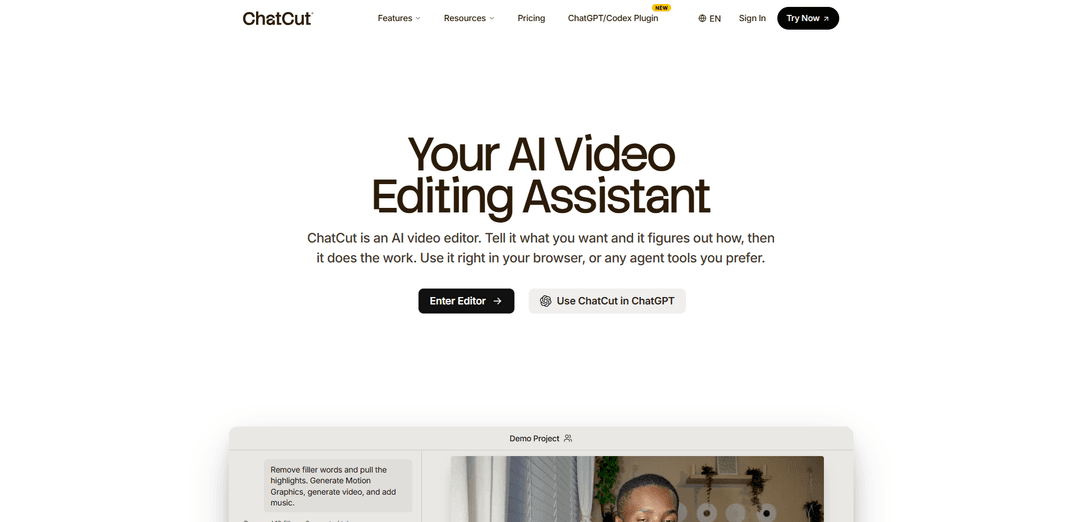
ChatCut is a browser-based AI video editor that turns plain-English prompts into real multi-track timeline edits—handling cutdowns, transcript-based cleanup, captions, motion graphics, and even music generation to match your brand.
https://www.chatcut.io/?ref=producthunt
Product Information
Updated:Jul 15, 2026
What is ChatCut
ChatCut is a web-based AI video editing assistant designed to make editing feel conversational: you upload footage and tell the agent what you want (e.g., trim pauses, remove repeated takes, add captions, create a highlight, or build a social cut). Unlike tools that only add isolated “AI features,” ChatCut centers the workflow around an autonomous editing agent that operates on a full timeline you can review and adjust. It’s built for creators and teams working on talking-head content, interviews, documentaries, and short-form deliverables, with options to generate motion graphics, images, and music directly inside the editor.
Key Features of ChatCut
ChatCut is a browser-based AI video editing agent that lets you edit with natural-language prompts while producing results on a real multi-track timeline you can review and tweak. It combines transcript-based editing (cutting words/sentences like a doc), automated captions, AI-generated motion graphics, music generation, and short AI video/B-roll generation (Seedance 2.0) directly inside the same project. The agent can also pull in brand assets (e.g., logos and marketing copy) to help match a consistent style, and supports exports for professional workflows (including movie exports and XML for tools like Premiere/DaVinci).
Prompt-driven editing agent: Describe edits in plain English (e.g., cut silences, remove repeated takes, make a 30-second highlight) and ChatCut executes them on a controllable multi-track timeline in the browser.
Transcript (text-based) video editing: Edit talking-head footage by modifying the transcript—remove filler words, cut sentences, and rearrange soundbites—while the timeline updates automatically.
Auto captions in 100+ languages: Generates captions from the transcript for higher first-pass accuracy, with 20+ styles, multilingual support, and reusable caption style templates.
AI motion graphics from a sentence: Generate editable lower thirds, chapter cards, charts, and logo animations directly on the timeline (not baked-in templates), with options like ProRes 4444 export with alpha for transparent graphics.
Integrated AI media generation (video/image/music): Create missing assets without leaving the editor: generate up to 15-second video clips via Seedance 2.0, generate images for thumbnails/B-roll, and generate royalty-free music matched to the exact length and vibe needed.
Collaboration + pro exports: Supports team collaboration in-browser and exporting movies or XML for continued finishing in professional NLEs such as Premiere Pro or DaVinci Resolve.
Use Cases of ChatCut
Creator talking-head polish: Quickly tighten pacing by cutting dead air and filler words, add stylized captions, and insert chapter cards/emphasis graphics for YouTube and short-form repurposes.
Podcast/interview highlight reels: Upload long-form interviews, extract key moments, restructure into highlights, and generate platform-specific cutdowns for TikTok/Reels/Shorts with minimal manual scrubbing.
Marketing and brand videos: Produce on-brand promos by pulling logos/brand elements, adding animated lower thirds and title sequences, and generating music beds and missing B-roll shots from prompts.
Documentary / TV “paper edit” workflows: Use transcript-driven editing to assemble story beats faster, collaborate with a team, then export XML to finish in traditional post-production pipelines.
Education and internal training: Turn lectures or screen-recorded trainings into structured modules with chapters, captions in multiple languages, and concise versions for different audiences.
Pros
Natural-language workflow reduces manual timeline work for common tasks (silence removal, cutdowns, captions, highlights).
All-in-one browser editor: timeline control plus captions, motion graphics, music, and AI generation in a single session.
Editable motion graphics components (including transparent export) can reduce reliance on After Effects for common overlays.
Professional compatibility via exports (e.g., XML) and collaboration support for teams.
Cons
AI video generation is limited to short clips (up to ~15 seconds) and is credit-based, which may constrain heavy generation needs.
Quality and reliability may vary; at least one user review reports limited capabilities and weak customer support/bugs.
Web-based performance depends on browser/device/network, which can be a constraint for heavier projects.
How to Use ChatCut
1) Open ChatCut and start a project: Go to https://app.chatcut.io (or click “Get started” on chatcut.io). Sign up or log in. From the dashboard, either choose a prepared Skill to get started quickly or click “Create a blank project” to open the editor.
2) Learn the editor layout (where you’ll work): In the editor, you’ll mainly use: (a) Agent panel (chat box) to describe edits in plain English, (b) Player to preview, (c) Media library to manage uploaded/generated assets, (d) Timeline (multi-track) for fine control, and (e) Menu/controls for export and settings. Panels can be resized to your preference.
3) Upload footage (or start from scratch): Drag-and-drop video/audio files from your computer into the Media library (or directly onto the timeline). ChatCut supports common formats and is designed for long-form recordings like interviews and talking-head videos.
4) Transcribe spoken content: If your upload contains speech, click “Transcript” (top-left). ChatCut generates a transcript with timestamps (and can separate speakers). Every word is time-aligned, so the transcript effectively becomes an editable timeline.
5) Edit by editing text (paper-edit style): In the Transcript view, delete or modify words/sentences to remove them from the cut—ChatCut removes the corresponding video and audio automatically. This is the fastest way to tighten talking-head content without scrubbing.
6) Use natural-language prompts to make timeline edits: In the Agent panel, describe what you want (e.g., “remove repeated takes,” “cut dead air,” “tighten pauses,” “extract highlights,” “make this bit smooth and tight”). ChatCut routes your request to the right tools and applies changes on a real multi-track timeline.
7) Reference specific media in prompts with @: When prompting the agent, use “@” to reference clips or assets (e.g., “Add captions to @Interview_01” or “Add a lower third on @Clip_3 at the intro”). This helps the agent target the correct media.
8) Do manual trimming and arrangement when needed: For fine-grained control, drag clips on the timeline, reorder sections, and use the scissor tool (top-left) to cut/trim. You can combine agent-driven edits with manual timeline adjustments.
9) Generate and edit captions/subtitles: Generate auto captions from the transcript (supports 100+ languages). Choose from multiple caption styles or create your own template. You can also edit subtitle text directly via the transcript.
10) Reframe for social formats: Use the Player controls (bottom-right icons) to change aspect ratio (e.g., 9:16, 1:1, 16:9) and preview how the edit will look for Reels/Shorts/TikTok. Add platform-style captions and label speakers as needed.
11) Add AI motion graphics from a sentence: Prompt the agent to create motion graphics like chapter cards, charts, timelines, emphasis effects, and lower thirds (e.g., “Create a chapter card for ‘Lighting’ with a quick slide-in animation,” or “Add a simple bar chart overlay for these numbers”). ChatCut generates an original, editable motion-graphic component directly on your timeline (no After Effects/keyframing required).
12) Generate missing visuals (images) inside the project: If you need a thumbnail, reference image, or B-roll stills you couldn’t capture, use ChatCut’s AI image generation within the project (up to 4K). You can also grab a frame from your footage to use as a thumbnail or as a reference for consistent generation.
13) Generate missing B-roll video clips from prompts: Describe the shot you need (optionally with camera direction like “slow dolly forward” or “aerial push-in”). ChatCut can generate up to ~15-second clips (via Seedance 2.0) and place them directly onto your timeline. Use a reference image to keep generated shots consistent with your real footage.
14) Generate royalty-free music to match your edit length: Describe the vibe (genre/mood/energy) and ChatCut generates a royalty-free track at the exact duration your video needs, placing it into the project so you don’t have to hunt stock libraries or manually trim songs.
15) Manage media assets (download, delete, retry transcription): In the Media library, use the three-dot menu on any item to download or delete assets, or retry transcription if needed. Drag assets from Media onto the timeline to use them in the edit.
16) Preview and iterate: Play back in the Player to review pacing, captions, graphics timing, and audio. If something feels off, either prompt the agent with a specific change request or adjust directly on the timeline.
17) Export your final deliverables: Export the finished video when ready. ChatCut also supports exporting assets for professional workflows (e.g., motion graphics can be exported with a true alpha channel as ProRes 4444 on Pro plans; some workflows mention exporting XML for further finishing in tools like Premiere/DaVinci Resolve).
ChatCut FAQs
ChatCut is a web-based AI video editor that lets you edit videos by describing what you want in plain English, and it applies the changes on a real multi-track timeline in your browser.
ChatCut Video
Popular Articles

Vosko AI: Localize and Dub Videos for Global Audiences
Oct 15, 2026

Atoms: A Multi-Agent AI Platform That Transforms Ideas into Launch-Ready Products
Oct 13, 2026

Nano Banana SBTI: What It Is, How It Works, and How to Use It in 2026
Apr 15, 2026

Atoms Review — The AI Product Builder Redefining Digital Creation in 2026
Apr 10, 2026
Latest AI Tools Similar to ChatCut
EzVideos
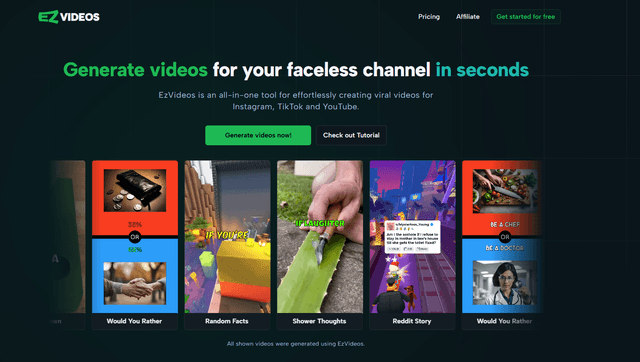
EzVideos is an all-in-one video creation tool that helps users generate viral videos for social media platforms like Instagram, TikTok, and YouTube with automated editing features and built-in resources.

Blanc AI
Blanc AI is a revolutionary AI solution that enables video content translation and dubbing into 47+ languages while preserving the original voice, emotions, and lip synchronization.
Wink Mody
Wink Mody is a modified version of the Wink video editing app that offers premium features like AI-powered retouching, 4K exports, and watermark-free editing completely free of charge.
Shortmake AI
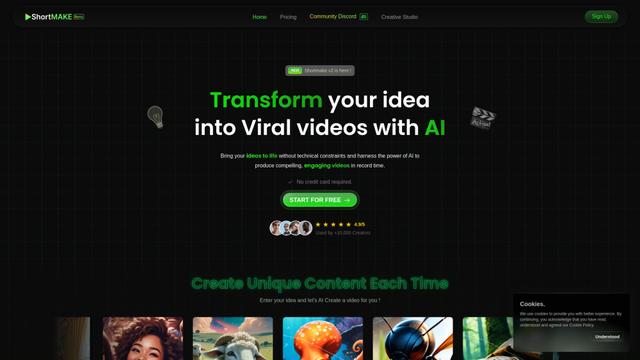
ShortMake is an AI-powered video creation platform that transforms ideas into viral-ready videos by automatically generating scripts, voiceovers, visuals, and subtitles specifically optimized for platforms like TikTok and YouTube Shorts.
Popular AI Tools Like ChatCut
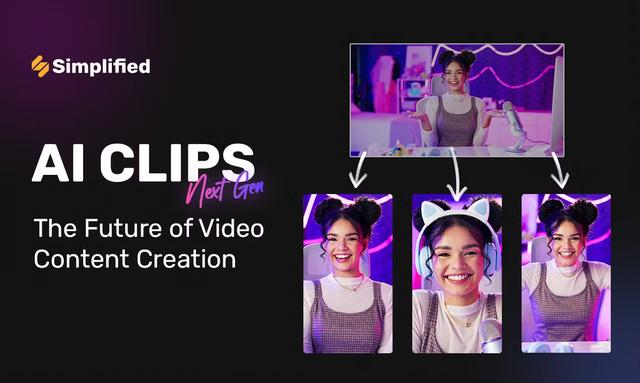
AI Clips - New Gen
AI Clips - New Gen is an AI-powered video clipping tool that automatically generates engaging short-form content from long videos for multiple social media platforms like YouTube Shorts, TikTok, Instagram Reels and more.
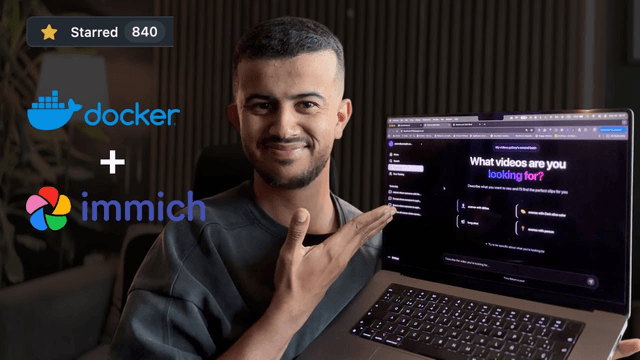
Edit Mind
Edit Mind is an open-source, AI-powered video indexing and semantic search platform that enables users to analyze and search through video content using natural language queries, with features including transcription, frame analysis, face recognition, and object detection.
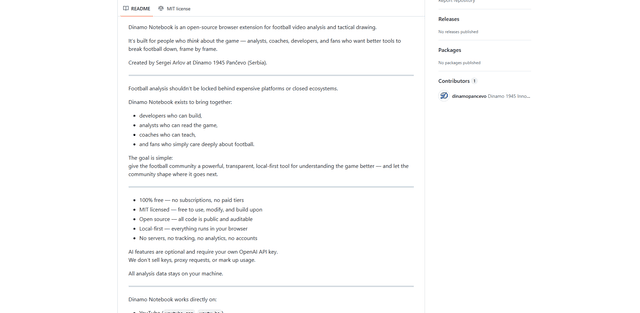
Dinamo Notebook
FreeAI Video Editing
Dinamo Notebook is a free, MIT-licensed, local-first browser extension for football video analysis that lets you draw tactical annotations on YouTube/Dailymotion/Twitch footage and optionally use AI (with your own OpenAI API key) for tactical insights.
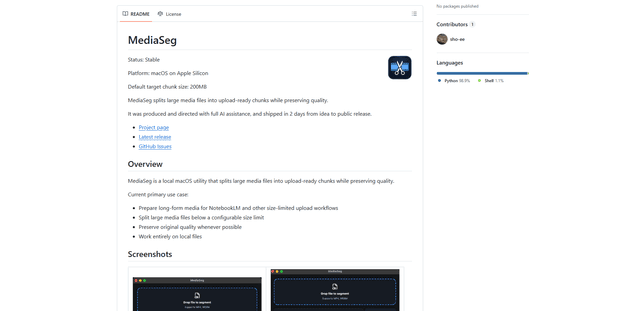
MediaSeg
MediaSeg is a stable, local-first macOS utility that splits large MP4/WEBM media files into upload-ready chunks under a configurable size limit while preserving quality using ffmpeg/ffprobe and an AI-assisted, target-based sizing strategy.