
Carve
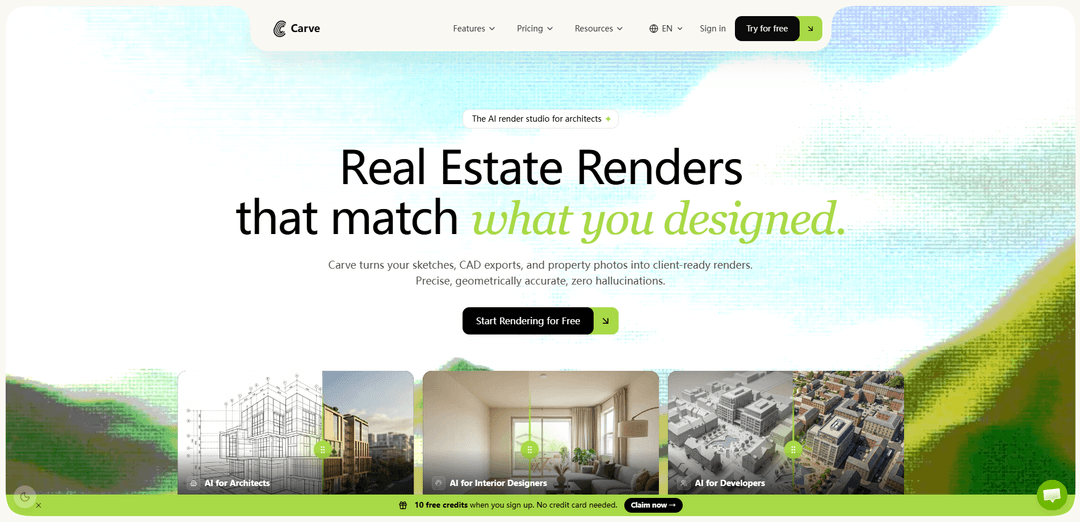
Carve is an AI render studio that turns sketches, CAD exports, and property photos into client-ready architectural, interior, and real-estate renders in about 60 seconds, with tools for rendering, editing, style transfer, virtual staging, and animation.
https://carve.so/?ref=producthunt
Product Information
Updated:Jun 16, 2026
What is Carve
Carve (carve.so) is a browser-based, AI-powered visualization platform built for architects, interior designers, developers, and real-estate teams who need fast, professional imagery without traditional render-studio timelines. It helps users transform early design inputs—such as hand sketches, screenshots/exports from tools like SketchUp, Revit, Rhino, AutoCAD, or Blender, and photos of existing spaces—into photorealistic (or stylistically guided) renders suitable for client presentations, listings, and stakeholder approvals. The product is positioned as an end-to-end “studio” where you can generate renders, iterate on variations, and export high-resolution outputs.
Key Features of Carve
Carve is an AI render studio for architecture and real estate that turns sketches, CAD exports, and property photos into client-ready architectural visualizations in about 60 seconds. It combines multiple workflows (interior/exterior rendering, sketch-to-image, virtual staging, style transfer, editing, and animation) in a single browser-based “Studio,” with versioned iteration via a render tree and collaboration features for sharing, commenting, and approvals. It is positioned as a fast alternative to traditional rendering pipelines, with privacy and IP protections (GDPR-compliant EU hosting, workspace isolation, and a stated no-training policy on user data).
60-second AI rendering studio: Generates client-ready architectural renders quickly from sketches, CAD exports/screenshots, and property photos, reducing reliance on external render studios and long turnaround times.
Depth- & edge-aware rendering pipeline: Uses a diffusion engine with depth/edge-aware ControlNet routing to help preserve geometry and structure when converting design inputs into photorealistic outputs.
Multi-tool workflow in one place: Includes Interior AI, Exterior AI, Sketch-to-Image, Virtual Staging, Style Transfer, plus render editing/enhancement and upscaling (4K output and up to 8K on higher tiers).
Animate from still renders: Creates short cinematic motion clips from static renders using motion presets (priced per clip in credits), useful for marketing and presentations.
Render tree + version history: Supports branching variations and tracking render history so teams can explore multiple directions, keep what works, and discard the rest without losing progress.
Collaboration & shareable reviews: Provides a collaborative canvas with real-time presence, watermarked client links, and version-controlled history for review/approval workflows.
Use Cases of Carve
Architect client presentations & tenders: Turn early concepts, CAD exports, and 3D model screenshots into polished visuals fast to present alternatives, win bids, and accelerate stakeholder sign-off.
Interior design concept exploration: Rapidly test materials, lighting, and styles with Interior AI and style transfer to iterate multiple directions in minutes instead of re-rendering manually.
Real estate virtual staging & listings: Reimagine empty rooms with AI-furnished interiors and produce listing-ready imagery and promotional visuals for properties and off-plan developments.
Property developer investor marketing: Convert site models/massing studies into compelling, photorealistic visuals (and short animations) to communicate project value to investors and the public.
Trades & fit-out previews (kitchens, carpentry, painting): Preview facade paint options, bespoke woodwork, or kitchen layouts from sketches/photos to help customers visualize outcomes before build or installation.
Student portfolios & thesis work: Produce studio-quality renders quickly for presentations and portfolios, supported by a student discount offering.
Pros
Fast turnaround (renders in ~60 seconds) that can replace or reduce external visualization workflows.
All-in-one Studio (render, edit, enhance, animate, versioning) simplifies tool switching and iteration.
Collaboration and sharing features (watermarked links, version history) support client review cycles.
Privacy posture highlighted: IP ownership, GDPR-compliant EU hosting, workspace isolation, and stated no-training on user uploads.
Cons
Credit-based usage and higher-cost features (e.g., animation) may become expensive for heavy production workloads.
Output quality/control may still require iterations when a render “isn’t right,” especially for precision-critical architectural details.
Requires exporting designs to images (JPG/PNG) for upload, which may add steps compared to fully integrated render plugins.
How to Use Carve
1) Open Carve and start a project: Go to https://carve.so/ and click “Start Rendering for Free” (or open the “Studio”). Sign in/sign up if needed, then create/open a project in your workspace.
2) Choose the right tool for your task: Pick the workflow that matches your input and goal: Interior AI (interiors), Exterior AI (facades/site exteriors), Sketch to Image (line drawings), Style Transfer (apply a reference style), Virtual Staging AI (furnish empty rooms), or Animate (turn a render into a short motion clip).
3) Prepare your input image: Export or capture a clear image from your design stack (e.g., SketchUp/Revit/Rhino/AutoCAD/Blender) or use a photo/hand sketch. Carve supports common image inputs like JPG/PNG (e.g., screenshots of CAD exports, floor plans, sketches, or property photos).
4) Upload your file into the selected tool: Upload the JPG/PNG into the chosen tool. Carve will automatically extract depth and edge maps to help keep geometry intact during generation.
5) Set the scene type and style: Select whether you’re rendering an interior or exterior (as applicable) and choose a photorealistic style or a custom look (e.g., via Style Transfer). Adjust the style direction to match the client presentation you want.
6) Generate the first render: Run the render. Carve generates client-ready architectural/real-estate visuals quickly (the site positions this as “in ~60 seconds,” depending on queue/plan).
7) Explore variations using the render tree: Use the project’s render tree to branch into multiple directions. Keep the variations you like and discard the rest—Carve tracks the history so you can revisit earlier nodes.
8) Refine with edits (text and area edits): Use the Render Editor features to iterate: apply text-prompt edits for global changes and area edits for localized adjustments (e.g., change materials, lighting mood, furniture, facade finishes). Re-generate as needed.
9) Enhance resolution (optional): If you need higher output quality, use the upscaling/enhancement options (plans mention 4K output and upscaling up to 8K on higher tiers).
10) Create an animation (optional): Open the Animate tool to turn a static render into a short cinematic clip using motion presets (the site mentions multiple presets and credit-based usage per clip).
11) Collaborate and share with clients (optional): Invite teammates/clients into the collaborative canvas to comment and approve. Share watermarked client links or gallery links (availability may depend on plan).
12) Download and deliver: Download the final images/clips for your presentation, listing, or pitch deck. Use the version history to keep a record of what was delivered.
Carve FAQs
Carve is an AI render studio for architects and real estate professionals that turns sketches, CAD exports, 3D model exports, and property photos into client-ready architectural/interior/exterior renders in about 60 seconds.
Carve Video
Popular Articles

Vosko AI: Localize and Dub Videos for Global Audiences
Oct 14, 2026

Atoms: A Multi-Agent AI Platform That Transforms Ideas into Launch-Ready Products
Oct 13, 2026

Nano Banana SBTI: What It Is, How It Works, and How to Use It in 2026
Apr 15, 2026

Atoms Review — The AI Product Builder Redefining Digital Creation in 2026
Apr 10, 2026
Latest AI Tools Similar to Carve
Rendair
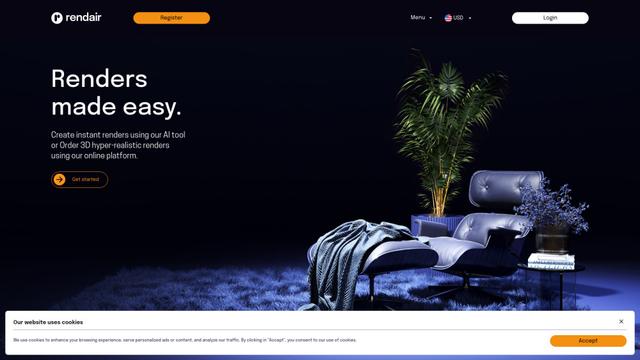
Rendair is an all-in-one AI-powered architectural rendering platform that offers quick, high-quality visualizations through both AI tools and professional 3D artists for architects, designers, and real estate professionals.

Triorama AI
Triorama AI is an AI-powered 3D product configurator platform that enables eCommerce businesses to offer real-time product personalization and visualization capabilities to their customers.

AiHouse
AiHouse is an AI-powered 3D interior design and manufacturing software that streamlines the entire process from design to production.
Kanai
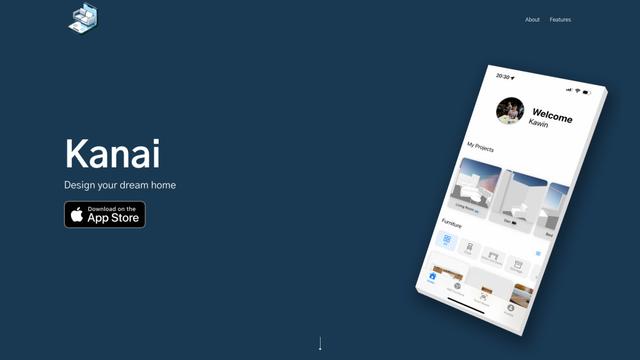
Kanai is an AI-powered 3D interior design platform that allows users to generate furniture models, visualize spaces, and collaborate on design ideas using natural language.
Popular AI Tools Like Carve
Planner 5D
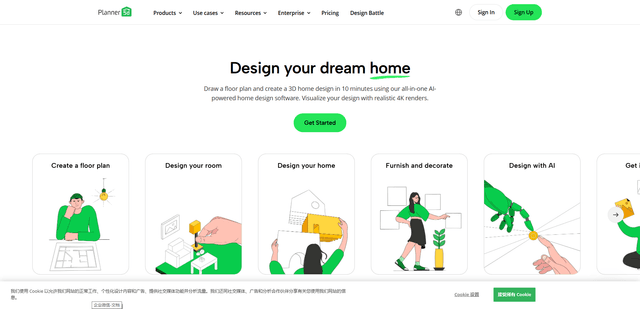
Planner 5D is an AI-powered home design software that allows users to create detailed 2D and 3D floor plans, furnish spaces, and visualize designs through realistic 4K renders with an extensive catalog of over 8,000 items.
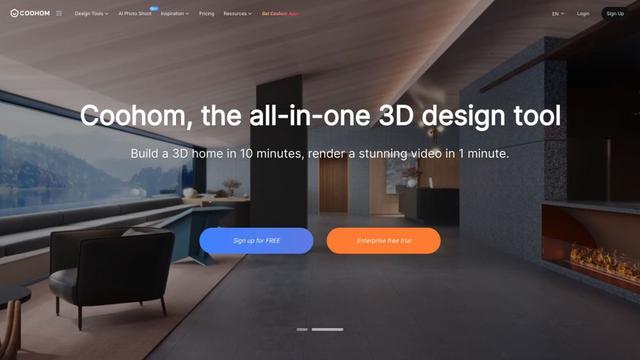
Coohom
Coohom is an all-in-one 3D design and visualization platform that allows users to create floor plans, render photorealistic images, and design interiors in minutes.

RoomGPT
RoomGPT is an AI-powered interior design tool that allows users to instantly transform and visualize their spaces by uploading a photo and selecting design themes.
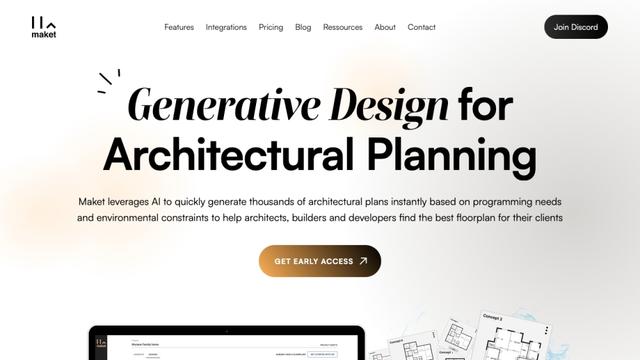
Maket
Maket is an AI-powered generative design software that enables architects, builders, and developers to instantly create thousands of customized architectural plans and 3D visualizations based on project constraints.